---
title: "How to Import Classifications"
url: "https://dm0bkdes5q7a2ls.productfruits.help/en/article/how-to-import-classifications"
language: "en"
last_updated: "2026-02-13T21:43:03.232Z"
---
# How to Import Classifications
Use this topic to import classifications into Spirion Sensitive Data Platform.
**Note**: The Classification .csv file you upload must contain the following columns
| Column Name | Validation of content |
| --- | --- |
| **Classification Name** | 1. Max- 50 Characters
2. Required field |
| **GUID** | 1. 32 hexadecimal characters and 4 hyphens
2. Optional field |
| **Icon** | 1. Base 64 format
2. Required Field |
| **Color** | 1. Hexcode which is being saved in the database
2. Required field |
| **Weight** | 1. Valid weight Range: 0 to 100
2. Required Field |
**Note**: If a GUID being uploaded as part of your CSV file matches an existing Classification GUID, the upload is rejected. If a classification name to be imported already exists, the Classification Name is renamed to include a timestamp: \[name\_n\] \[name\_timestamp\]
- For example, TopSecret\_timestamp
To import a Classification use the following steps:
1. From the left side navigation menu select Settings > Global Classifications.
2. The **Classifications** page opens.
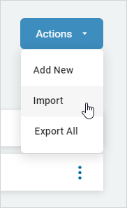
3. Click the blue **Actions** button from the top right corner.
4. Click **Import** from the sub-menu that appears.
5. Locate the new Classification file (.csv) on your local computer.
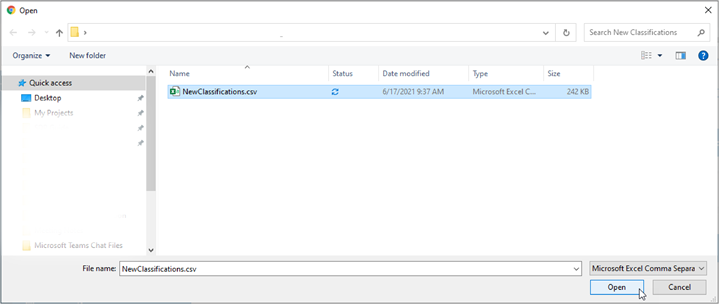
6. Click **Open** to upload.