
How to Add a New Scan Playbook
Overview
Recall that once you have identified the sources you wish to scan for sensitive data, added and configured them to Spirion Sensitive Data Platform, you next create decision trees ("Playbooks" or "Scan Playbooks") that instructs Spirion Sensitive Data Platform what actions to take, if any, when sensitive data is discovered, such as quarantine, redact, shred, notify users, etc.
- Playbooks define the plan and actions that you can take on the results of your sensitive data scans
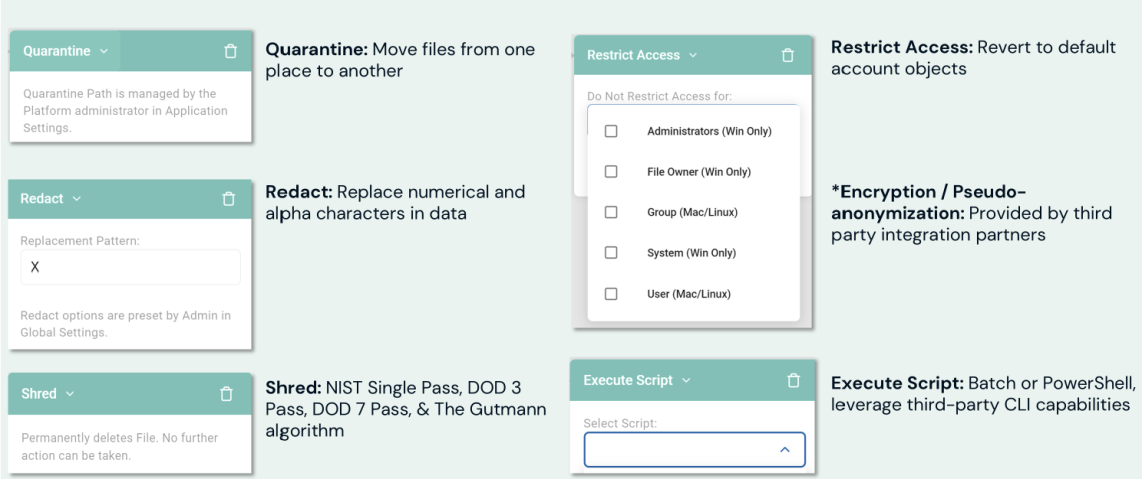
See the available playbook remediation actions in the "Playbook Actions" graphic below:
- Quarantine - Move files from one location to another location
- Redact - Replace numerical and alpha characters in data with generic characters such as 'X' or '#'
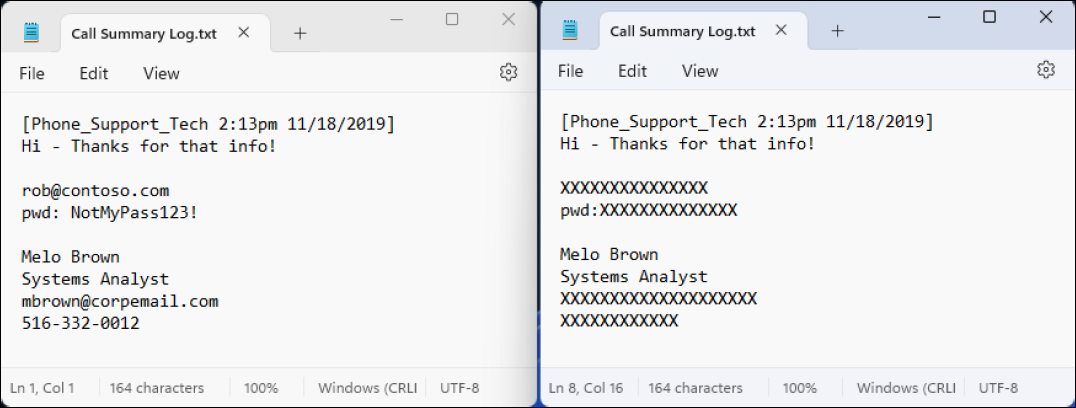
Unredacted vs. Redacted Text Example - Shred - Permanently deletes file. Data sanitation techniques include: NIST Single Pass, DOD 3 Pass, and The Gutmann algorithm
- Restrict Access - Restrict access to all but select groups (Administrators, file owner, etc.)
- Encryption/Pseudo-anonymization - Provided by third-party integration partners
- Execute Script - Batch or PowerShell script. This enables you to leverage third-party CLI capabilities
Playbook Actions
How to Add a New Scan Playbook
To add a new Scan Playbook use the following steps:
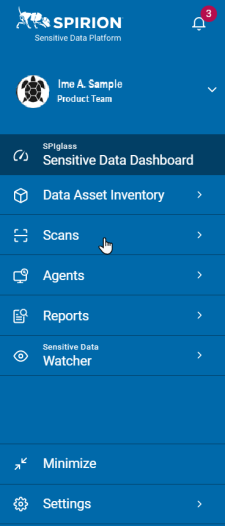
- From the left side navigation menu, click Scans.
- Select Scan Playbooks.
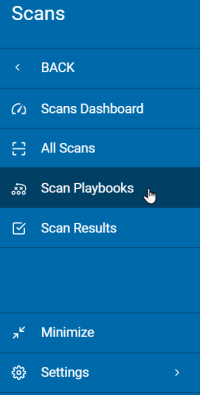
- The "Scan Playbooks" page opens.
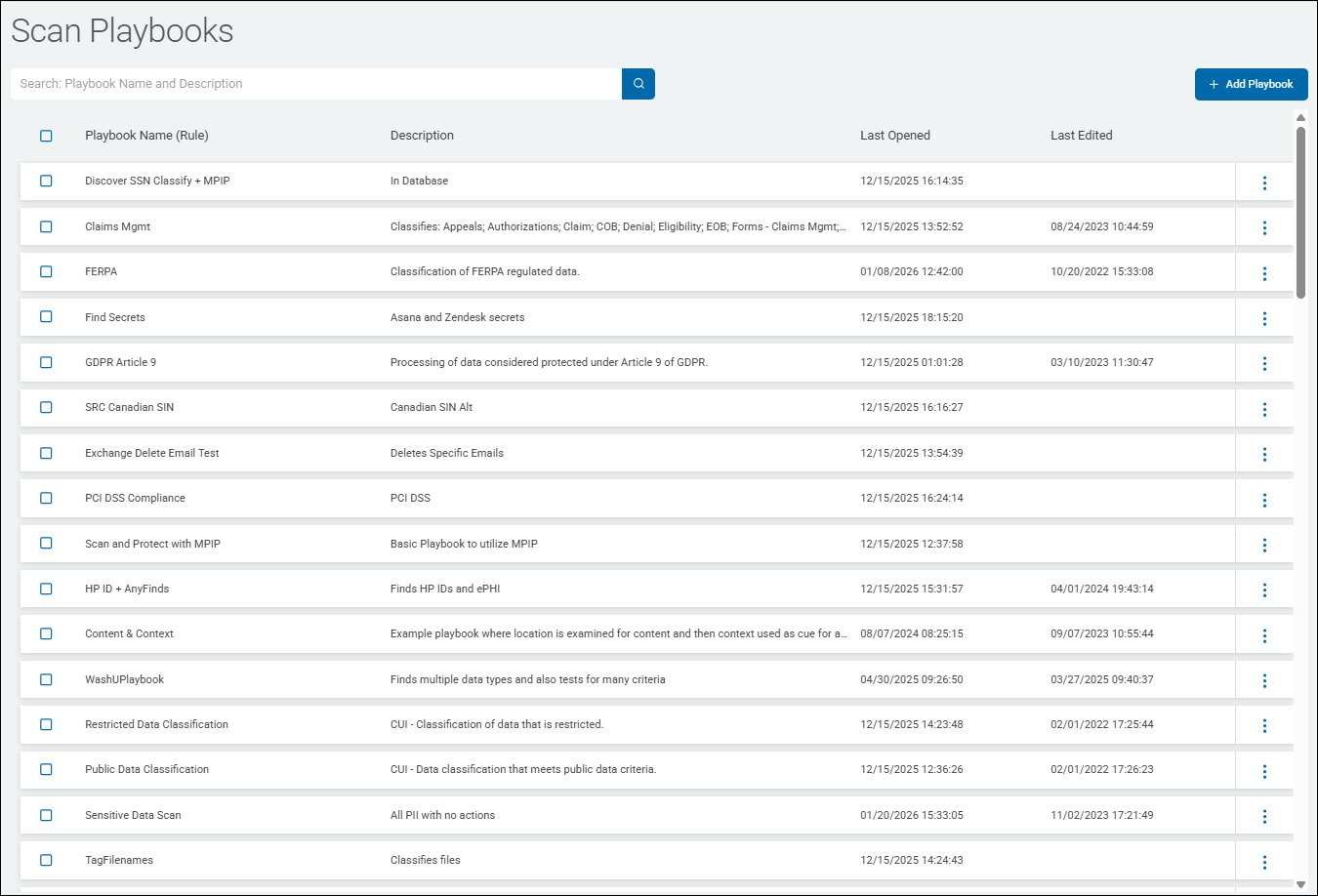
Use the following instructions to create a new Scan Playbook:
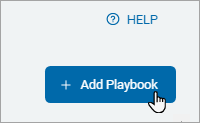
- In the top right of the screen, click the + Add Playbook button.
- The New Playbook pop-up window opens.
- Enter the name and description of the playbook.
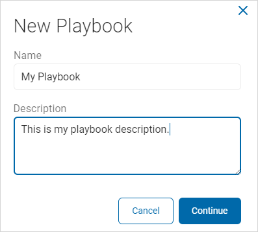
- Click the Continue button to create the playbook or the Cancel button to discard your changes.
- Enter the name and description of the playbook.
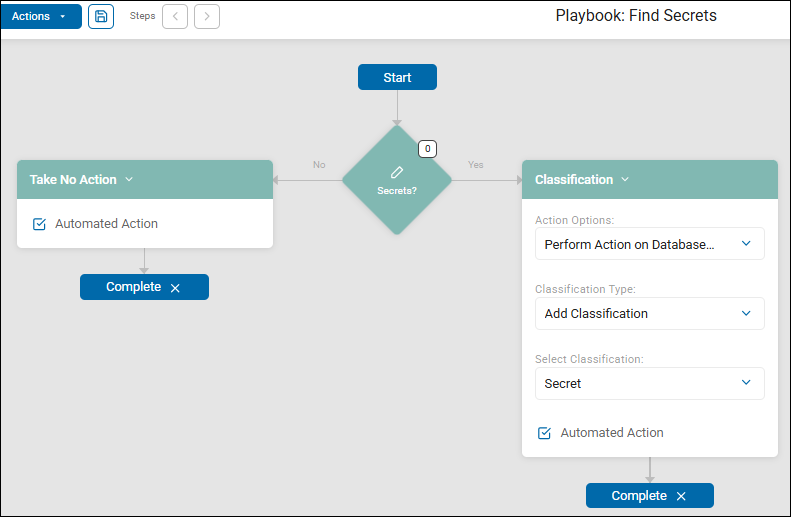
- Playbooks are similar to Busines Process Modeling (BPMN) diagrams - they are a process flow with a start point and end points.
- When the process starts, a question, in the form of a "decision point" is asked.
- As a result of the answer to the question (yes or no), additional actions are taken (quarantine/redact/shred sensitive data, notify a user of the sensitive data discovered, etc.)
- Actions can be automated
- A single sensitive data scan often contains multiple playbooks
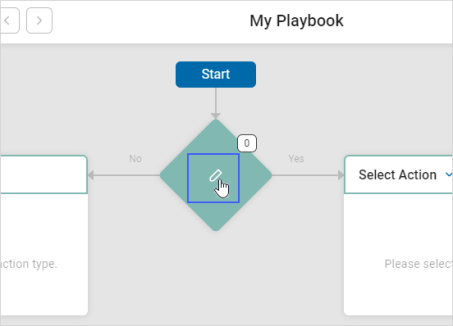
- Playbooks can be very simple, containing only one decision point and two paths ('No' and 'Yes'). See the screenshot below.
- For examples of playbooks, see Scan Playbook Examples.
- Architect your playbook using the sections below.
How to Create a Decision Point
Decision points are used in playbooks to set the logic for what actions to take (classify, quarantine, shred, redact, etc.) when sensitive data is or is not discovered during a sensitive data scan.
Use the following steps to configure a Decision Point:
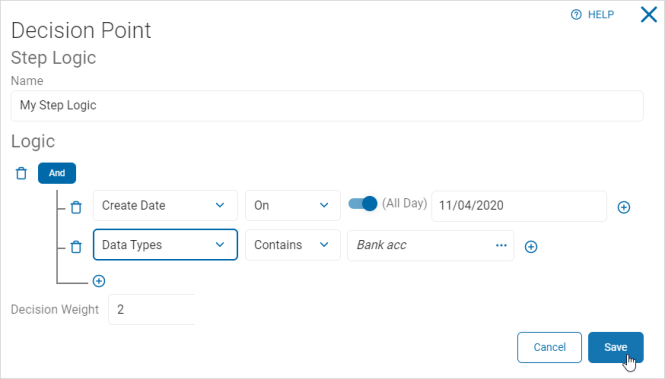
- Decision Point: Click the Decision Point icon to open the Decision Point pop-up window.
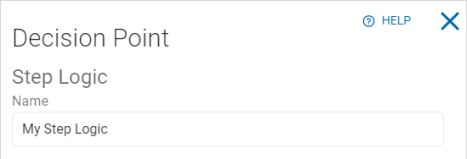
- Step Logic: In the Name box, type the name of the step logic.
- For example: MyStepLogic.
- For example: MyStepLogic.
- Logic: Set your logic.
- Left criteria drop-down list: Select an option. For example: Access Data.

- Center criteria drop-down list: Select an option. (The options available are determined by the initial criteria choice.) For example: On.

- All Day toggle: Set toggle to On for all day. Set toggle to Off to set a specific Date/Time.
Note: All Day toggle is only available for options that include date and time. - Right criteria drop-down list: Fill in as applicable. For example: 03/01/2021.

- To add a new group containing a filter value plus one additional value, click the plus icon.

- Left criteria drop-down list: Select an option. For example: Access Data.
- Select options from the left and center criteria drop-down lists as above.
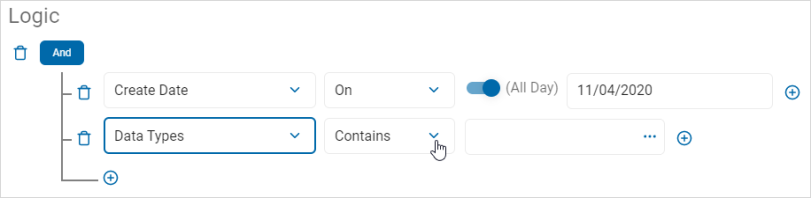
- In the right criteria box, the available options are dependent on your previous choices.
- For example: Click the more options menu (...).
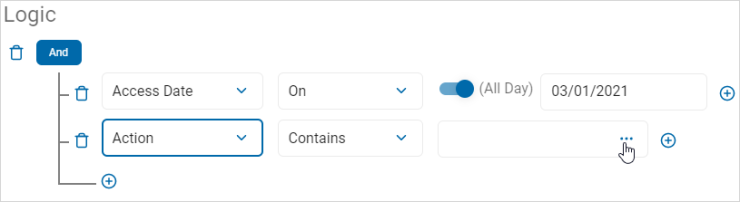
- For example: Click the more options menu (...).
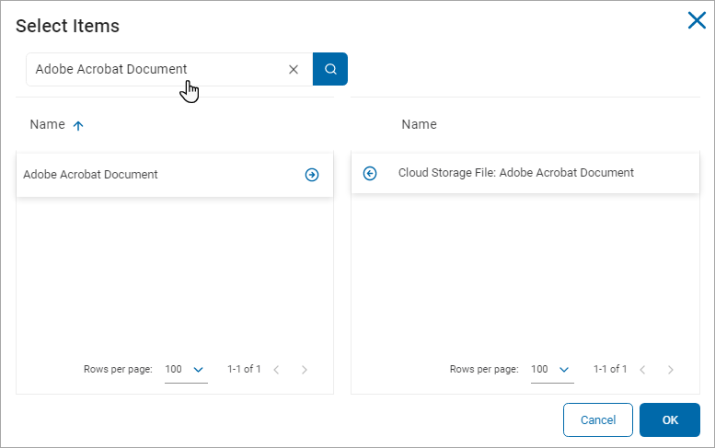
- In the Select Items pop-up window, do the following:
- Type an item to search in the Search box.
- Click the right arrow to select an item to add.
- Click the left arrow to remove an item from the list.
- Click the OK button to add the criteria or the Cancel button to discard.
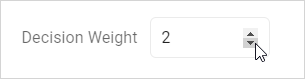
- In the Decision Weight section, use the numeric up-down control to select a weight for the logic statement.
- Click the Save button to save the logic statement or Cancel button to discard.
 Note: Adding multiple filter criteria can affect the scan performance.
Note: Not all repositories allow all logic scenarios to be performed so some logic statements will not function. - For example, many cloud repositories do not track Access Dates.
How to Set an Action from a Decision Point - Select Action
Use the following steps to set the Action to take as a result of a Yes or No answer to your step logic criteria:
- Select options from the Select Action drop-down lists:
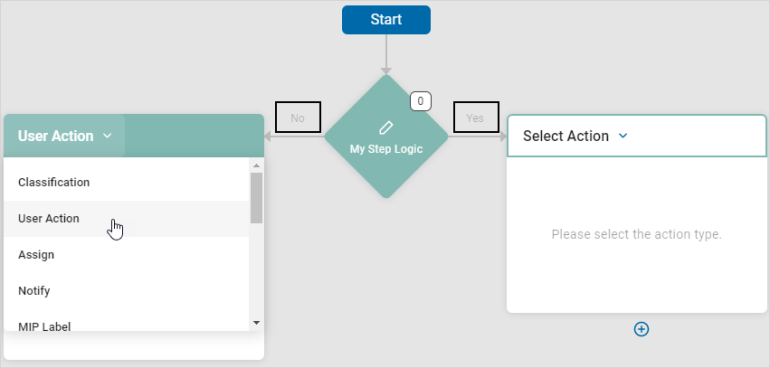
- Step Logic No: Applies the action when a data match is not found.
- Step Logic Yes: Applies the action when a data match is found.
- Select Action: Select one option from the drop-down list:
- Classification
- User Action
- Assign
- Notify
- MIP Label
- Remediation
- Restrict Access: Restrict access to specific users.
- Quarantine: Quarantine paths are managed by the administrators in the Remediation section of the Scans Settings page.
- Shred: Permanently deletes a file. No further action can be taken.
- Redact: Redacts the results when the Spirion application is closed.
- Execute Script: Execute a script if there are results matching this rule.
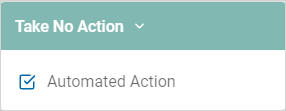
- Take No Action: Take no action on the results.
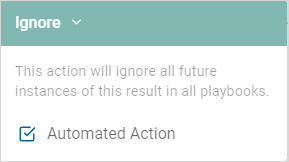
- Ignore: Ignore all future instances of a result. Note that if you Ignore a via a Playbook, the Spirion agent reports the data, and then services adds an internal global ignore list so the data is not found again. With appropriate searching or filtering, ignored data is still visible in scan results and reporting. Sensitive data matches added to custom Global Ignore Lists that users create, results in Spirion agents ignoring that data and the data not being sent to the SDP console. The data is therefore not visible in scan results, reporting, or dashboards. See Manage Data Retention Settings
How to Classifiy Sensitive Data Discovered by a Scan Playbook
Use the following steps to classify sensitive data discovered by a Scan Playbook:
- Open your Scan Playbook.
- From the 'Yes' path from your Decision Point, set the following:
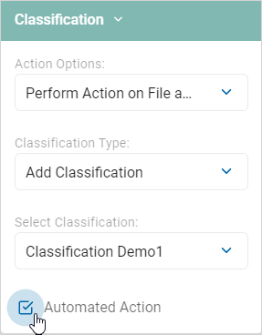
- Select Classification from the Select Action drop-down list.
- Action Options: Select one of the following from the drop-down list:
- Perform Action on File and Databases
- Perform Action on Databases Only
- Classification Type: Select one from the drop-down list:
- New Classification: Adds a new classification to the search results.
- Remove Classification: Removes a classification from the search results.
- Replace Classification: Replaces a classification in the search results.
- Select Classification: Select an option from the drop-down list.
- See Manage Classification to manage classifications.
- Automate Action: Select to apply the action automatically.
How to Select a User Action
Use the following instructions to select a User Action:
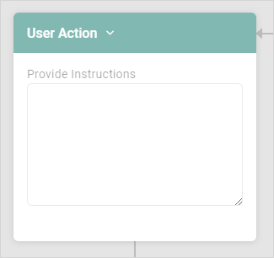
- Select User Action from the Select Action drop-down list.
- In the Provide Instructions box, type the specific user action needed.
How to Assign a User or Role
Use the following step to assign a user or role:
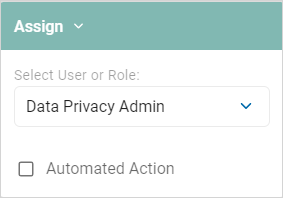
- Select Assign from the Select Action drop-down list.
- Select User or Role: Select an option from the drop-down list.
- Automated Action: Select to apply the action automatically.
How to Notify Assignees of Scan Playbook Results
Use the following steps to notify assignees of Scan Playbook results:
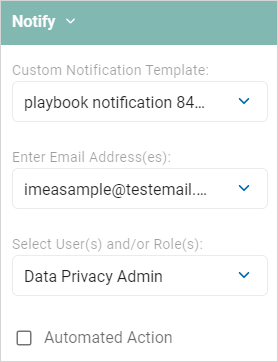
- Select Notify from the Select Action drop-down list.
- Custom Notification Template: Select an option from the drop-down list.
- Enter Email Address(es): Type the email address to notify. Click Enter on your keyboard to add multiple email addresses.
- Automated Action: Select to apply the action automatically.
How to Use MIP Labels
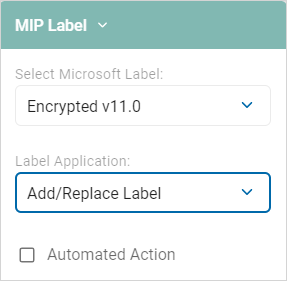
To use Microsoft Information Protection (MIP) labels to apply to the results:
- Select MIP Label from the Select Action drop-down list.
- Select Microsoft Label: Select an option from the drop-down list.
- Label Application: Select an option from the drop-down list.
- Automated Action: Select to apply the action automatically.
Note: This option is requires purchase of a MIP license.
How to Use Remediation Actions
Procedure:
- Select an option from the Remediation section of the Select Action drop-down list:
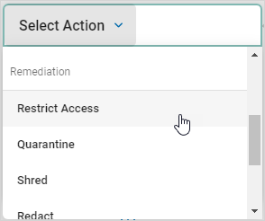
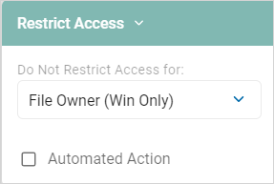
- Restrict Access: Restrict access to specific users.
- Do Not Restrict Access: Select an option from the drop-down list.
- Automated Action: Select to apply the action automatically.
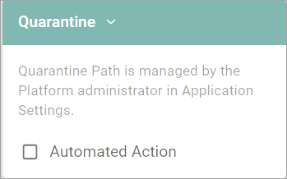
- Quarantine: Quarantine paths are managed by the administrators in the Remediation section of the Scans Settings page.
- Automated Action: Select to apply the action automatically.
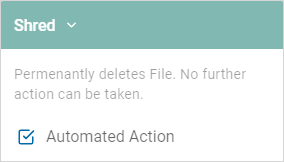
- Shred: Permanently deletes a file. No further action can be taken.
- Automated Action: Select to apply the action automatically.
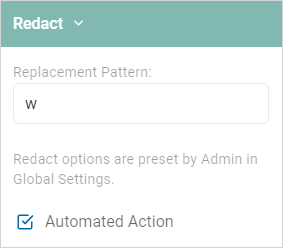
- Redact: Redacts the results when the Spirion application is closed.
- An example of a file with sensitive information redacted (using the 'X' character) is shown below.
- Redaction settings are managed by the Admin in Platform Settings.
Redaction File Example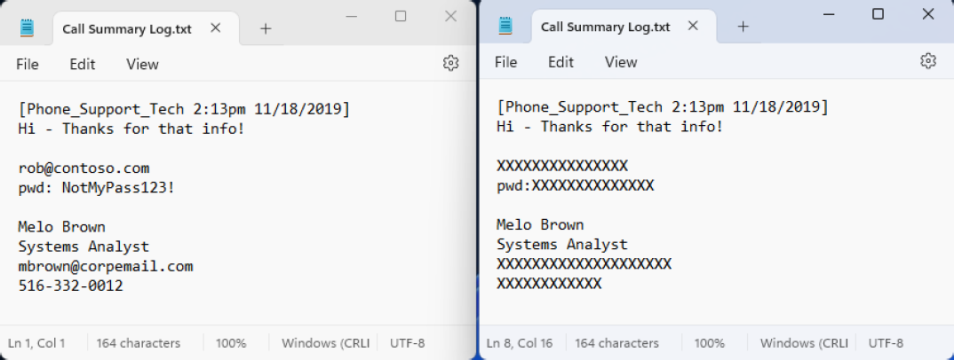
- Automated Action: Select to apply the action automatically.
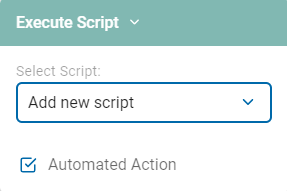
- Execute Script: Execute a script if there are results matching this rule.
- Select an option from the Select Script drop-down list.
- Automated Action: Select to apply the action automatically.
- Take No Action: Take no action on the results.
- Automated Action: Select to apply the action automatically.
- Ignore: Ignore all future instances of a result. Note that if you Ignore a via a Playbook, the Spirion agent reports the data, and then services adds an internal global ignore list so the data is not found again. With appropriate searching or filtering, ignored data is still visible in scan results and reporting. Sensitive data matches added to custom Global Ignore Lists that users create, results in Spirion agents ignoring that data and the data not being sent to the SDP console. The data is therefore not visible in scan results, reporting, or dashboards. See Manage Data Retention Settings
- Automated Action: Select to apply the action automatically.
How to Complete a Select Action
To complete a select action section:
- In an existing action, click the plus icon below the action box.
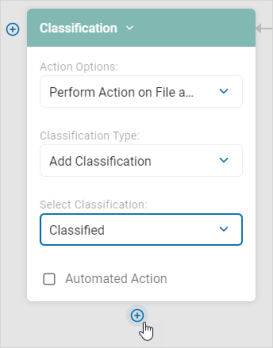
- Select Completed.
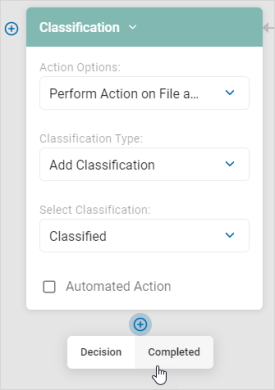
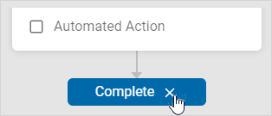
- The action is marked Complete.
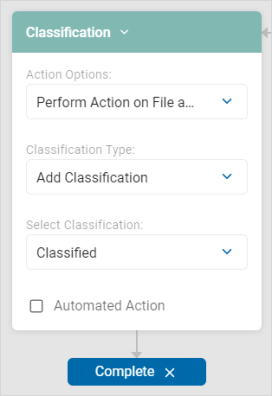
- To reopen the action, click the X to the right of Complete.
How to Add Additional Select Actions
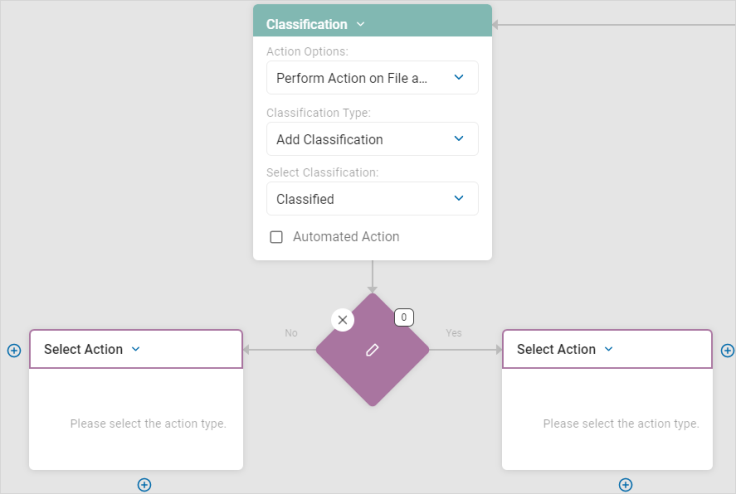
In an existing action, you can add further decision flow below or action to the side:
How to Add a New Decision
Use the following steps to add a new decision:
- Click the plus icon at the bottom of the current action.
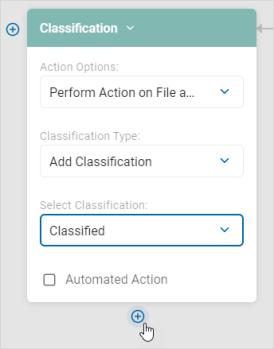
- Click Decision.
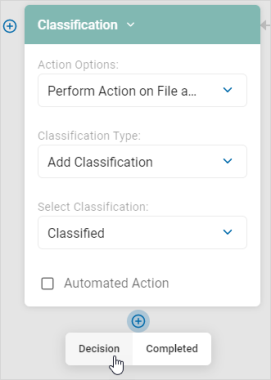
- Write the new step logic as defined in the Decision Point section.
- Select an action from the Select Action drop-down list. See Select Action for more details.
How to Add a New Adjacent Action
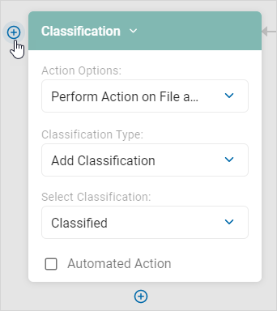
Use the following steps to add a new adjacent action:
- Click the plus icon to the side of the current action.
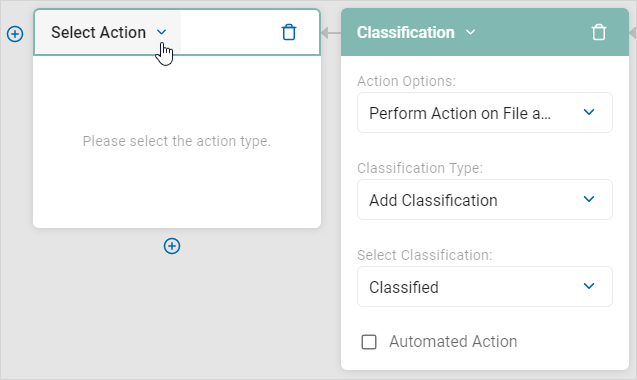
- Select an action from the "Select Action" drop-down list.
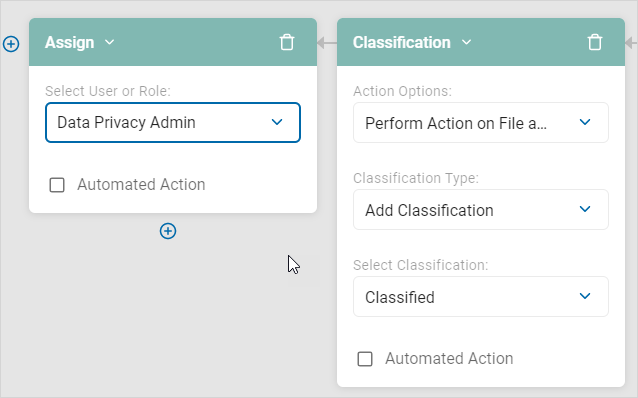
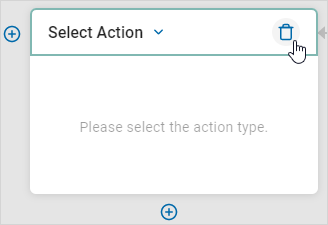
- To delete the new adjacent action, click the trash icon next to the drop-down menu.
Note: To use a Playbook, you must mark all actions complete.
How to Manage Scripts
The Script Repository screen displays a searchable list of existing scripts.
- You can view, export, delete, and add new scripts.
- See Working with Script Repository for more information.