
Advanced Log and Log Location Information for Power Users
Windows
How to Enable Logging on a Windows Endpoint (Agent)
Use the following steps to enable logging on an Windows Endpoint:
- Open the Windows Run menu (Windows key+R).
- Enter "RegEdit" and click the OK button.
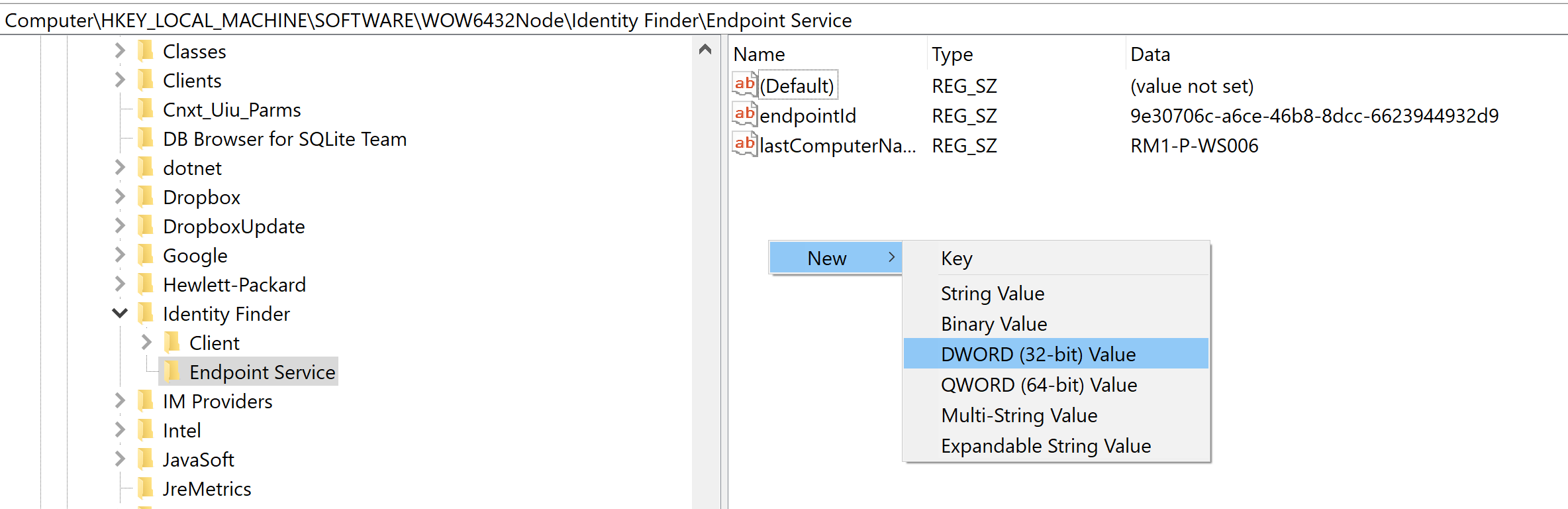
- Navigate to the following path:
HKEY_LOCAL_MACHINE\SOFTWARE\Wow6432Node\Identity Finder\Endpoint Services - In the right side pane right-click in space and from the sub-menu that appears perform the following steps:
- Select New > DWORD (32 bit) Value
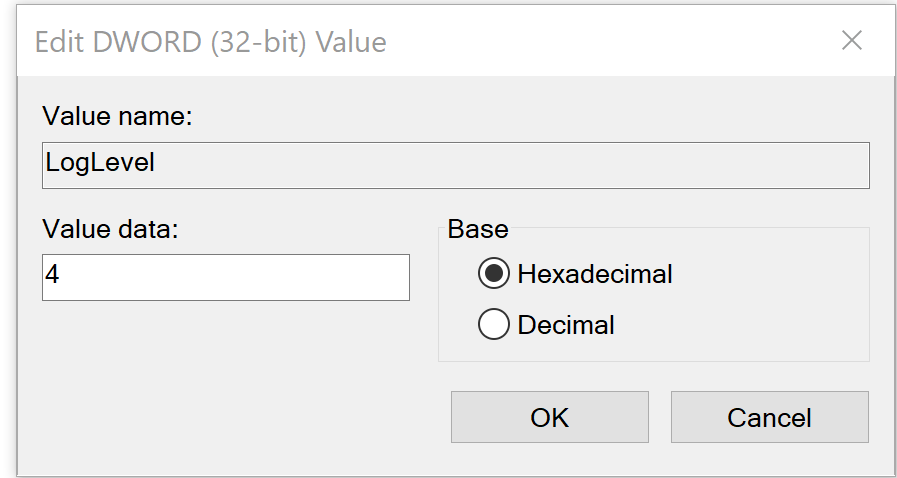
- In the field Value name enter "LogLevel."
- Click the OK button.
- Next, right-click on the LogLevel entry you just created and select Modify.
- Enter "4" in the field Value data and click the OK button. Values for all levels of logging are as follows:
- Informational messages, set the value to 1.
- Debugging messages, set the value to 2.
- Detailed trace messages, set the value to 3.
- All messages, set the value to 4.
- Select New > DWORD (32 bit) Value
Windows Endpoint (Agent) Log Locations
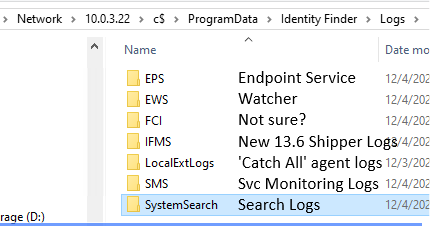
The following is a list of important log and license file locations on Microsoft Windows machines:
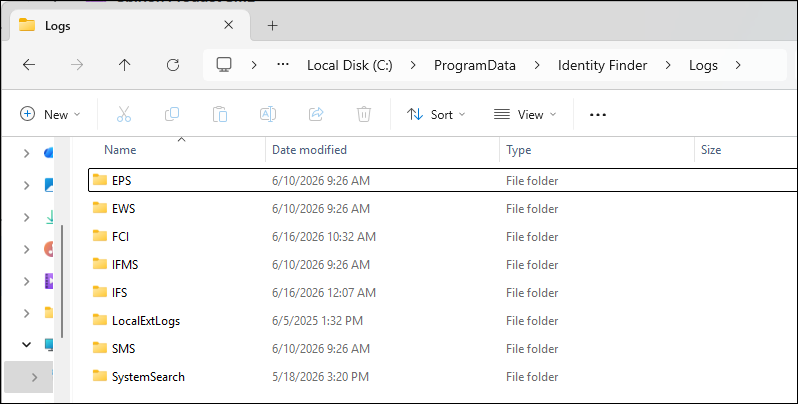
- Endpoint Service Log (EPS log):
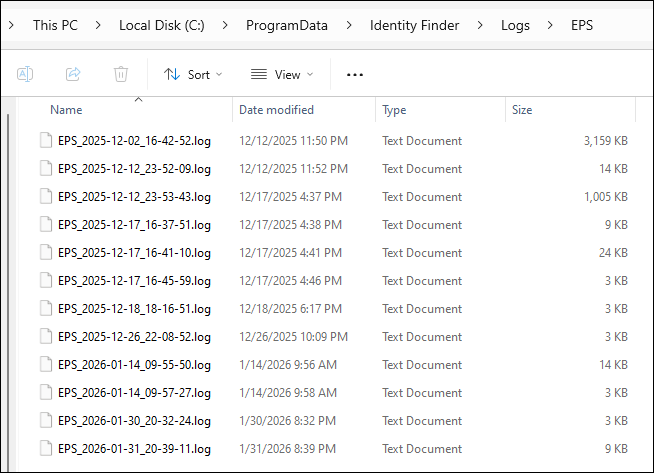
- C:\ProgramData\Identity Finder\Logs\EPS
- Example Windows EPS log directory shown below
- Watcher Log (EWS log)
- C:\ProgramData\Identity Finder\Logs\EWS
- File Classification Infrastructure Log (FCI* log) - Log for Spirion Shell extension/classification plugin/db
- C:\ProgramData\Identity Finder\Logs\FCI
- Spirion Sensitive Data Platform v13.6+ only - Shipper Logs (IFMS log)
- C:\ProgramData\Identity Finder\Logs\IFMS
- Catch All Agent Logs (LocalExtLogs)
- C:\ProgramData\Identity Finder\Logs\LocalExtLogs
- Svc Monitoring Logs (SMS logs)
- C:\ProgramData\Identity Finder\Logs\SMS
- Client Log (Locally Logged-in User (Interactive)):
- C:\ProgramData\Identity Finder\Logs\SystemSearch
- Client Logs (Local System Account):
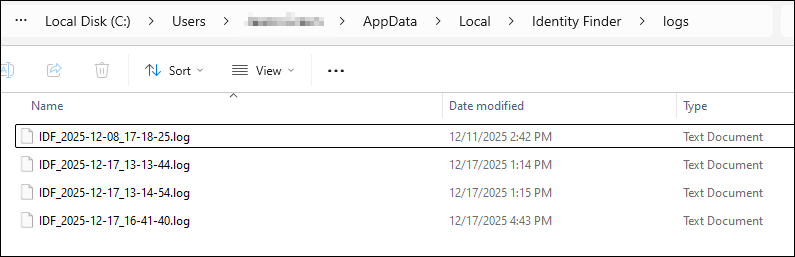
- C:\Users\<JohnSmith>\AppData\Local\Identity Finder\logs
- C:\Users\<JohnSmith>\AppData\Local\Identity Finder\logs
- License File Location:
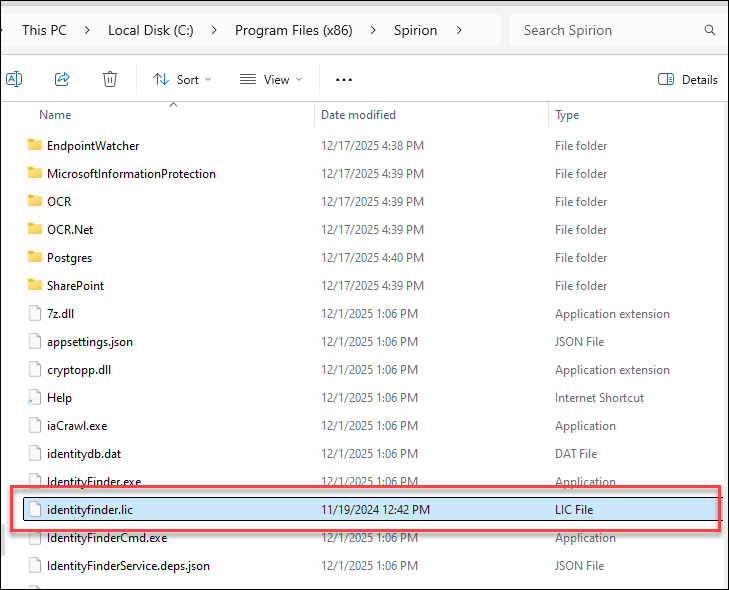
- C:\Program Files (x86)\Spirion
- C:\Program Files (x86)\Spirion
- PostgreSQL Logs:
- C:\ProgramData\Identity Finder\Postgres\Data\pg_log
* File Classification Infrastructure (FCI): This is a feature in Microsoft Windows Server that enables administrators to classify and manage data based on its content. It is often used in conjunction with data management policies to automate tasks like data archiving, retention, and access control
How to Monitor Logs using Windows PowerShell
Use the following steps to monitor logs using Windows PowerShell commands:
- Click the Windows Start menu.
- Open the Windows PowerShell
- Navigate to the log directory using the following command:
cd C:\ProgramData\Identity Finder\Logs\EPS
- Next, run the following command:
Get-Content <log file> -Tail 1000 -Wait1000equals the number of lines in the log to display
MacOS
MacOS Log File Locations
The following is a list of important log and license file locations on MacOS machines:
- Endpoint Services Log (EPS):
- /Users/Shared/.identityfinder/Application/{04964656e-7469-7479-2046-696e6465720}/Logs/EPS
- Client Log (Locally Logged-in User (Interactive)):
- /Users/spirionuser/Library/Application Support/Identity Finder/Identity Finder Mac Edition/logs
- Client Log (Local System Account):
- /Users/Shared/.identityfinder/Application/{04964656e-7469-7479-2046-696e6465720}/Logs/SystemSearch
- MAC Configuration file* (com.identityfinder.macedition.xml):
- /Library/Preferences
- License file - identityfinder.lic:
- User/Library/ApplicationSupport/Prefrences/IdentityFinder
*This file is located on MAC Agents and instructs the Agent how to communicate with the Spirion Console
How to Check the Endpoint (Agent) Version
Procedure:
- Open a terminal from your endpoint (Agent).
- As the terminal session does not have the locale set, enter the command
LANG=Cin the terminal - Change the directory to "MacOS" with the following command:
cd /Applications/Spirion.app/Contents/MacOS/
- Run the following command to retrieve the version:
IdentityFinderCmd --version
- Change the directory to "Finder" with the following command:
cd /Library/Application\ Support/Identity\ Finder
- Change the EndpointID with the following command:
cd /var/lib/.identityfinder/Application/{04964656e-7469-7479-2046-696e6465720}
- Delete the EPS settings XML file: epssettings.xml
- Check the endpoint (Agent) versions using the following commands:
./EndpointService --version./EndpointWatcher --version./UserAgent --version
How to Restart Mac EPS Logging
Use the following command to restart EPS logging in macOS.
- On the macOS endpoint to restart EPS logging, run the following commands from a Terminal:
sudo launchctl unload /Library/LaunchDaemons/com.identityfinder.launchdaemon.plist && sudo launchctl load /Library/LaunchDaemons/com.identityfinder.launchdaemon.plistLinux
Linux Log File Locations
The following is a list of important log and license file locations on Linux machines:
- EPS log - /var/lib/.identityfinder/Application/{04964656e-7469-7479-2046-696e6465720}/Logs/EPS
- EPS svcscript - /etc/init.d
- EWS svcscriptews - /etc/init.d
- Client Logs - /var/lib/.identityfinder/Application/{04964656e-7469-7479-2046-696e6465720}/Logs
- Logs - /var/lib/.identityfinder/Application/{04964656e-7469-7479-2046-696e6465720}/Logs/SystemSearch
- identityfindersettings.xml - /var/lib/identityfinder/
- License File - /usr/local/bin/spirion/
- identitydb.dat - /usr/local/bin/spirion
- iaCrawl - /usr/local/bin/spirion
- utils - /usr/local/bin/spirion
How to Check the Endpoint Version
Use the following steps to check the endpoint version of an Agent:
- Run the following commands:
cd /usr/local/bin/spirion/bin7/./IdentityFinderCmd --version
How to Execute a Search via Command Line Interface (CLI)
- identityfindercmd location: /usr/local/bin/spirion
- Execute search
./IdentityFinderCmd --searchfile="/home/scottcalo/Documents/testFiles/AccessedDate"
The following parameters are available for command line or script usage.
Parameter (command line or script) | Description |
|---|---|
--help | Show this help message. |
--jobmode | Automatically start a search using the Jobmode configuration. |
--fcwmode | Automatically start a search using the Jobmode configuration. |
--jobmode | Automatically start a search using the Jobmode configuration. |
--fcwmode | Automatically start a search using the Jobmode configuration. |
--dwmode | Automatically start a search using the Jobmode configuration. |
--dwprompt arg --configurationfile="/folder/configfile.xml" | Use the settings specified in the configuration file. Requires the full path to the configuration (.xml) file. |
--configurationfile arg --configurationfile="/folder/configfile.xml" | Use the settings specified in the configuration file. Requires the full path to the configuration (.xml) file. |
--profilepassword arg --profilepassword="myProfilepass" | Supply the password to your profile. |
--filelist arg --filelist="/folder/filelist.txt" | Automatically start a search of each file listed in filelist.txt. Requires the full path to a plain text file that contains one filename or folder per line with no additional header or footer information. |
--searchfile arg --searchfile="/folder/file.ext" | Automatically start a search of the specified file or folder. Requires the full path to an individual file or folder to search. |
--addtovault arg | Causes Spirion to create a new encrypted file vault file named originalfilename.ext.idfvault with the specified file inside, and then shred the original file. The encryption used for the file vault is High Spirion encryption (AES-256 bit). |
--extractfromvault arg | Causes Spirion to extract the original file from inside the specified Spirion file vault and then deletes the vault file. |
--passwordvault arg | password vault temp |
--shredlocation arg --shredlocation="folder/file.ext" | Shred the specified file or folder. |
How to Run Gather Data on Linux
Use the following steps to perform the Gather Data function on Linux machines:
- Open a shell prompt on the machine running the client software
- Execute the following command to create the Gather Data output zip in the directory specified by the
gatherdatapathargument, - For example:
/tmp:/usr/local/bin/spirion/IdentityFinderCmd --gatherdata --gatherdatapath="/tmp/Gatherdata/"
- Navigate to the directory specified in the
gatherdatapathargument. - For example:
/tmp
- For example:
- In that directory is a file named "IDFLinuxClientData_<date>_<time>.zip"
- Example: IDFLinuxClientData_2013-06-04_14-37-50.zip