
How to Use Scans Settings - Agents Section
This topic describes the various options under the Agents section of the Scans Settings page in Spirion Sensitive Data Platform.
To use Agents' settings use the following steps:
- From the left side navigation menu, click Settings > Application Settings > Scans Settings.
- Click the down arrow to expand the Agents section.
- Complete the settings detailed below.
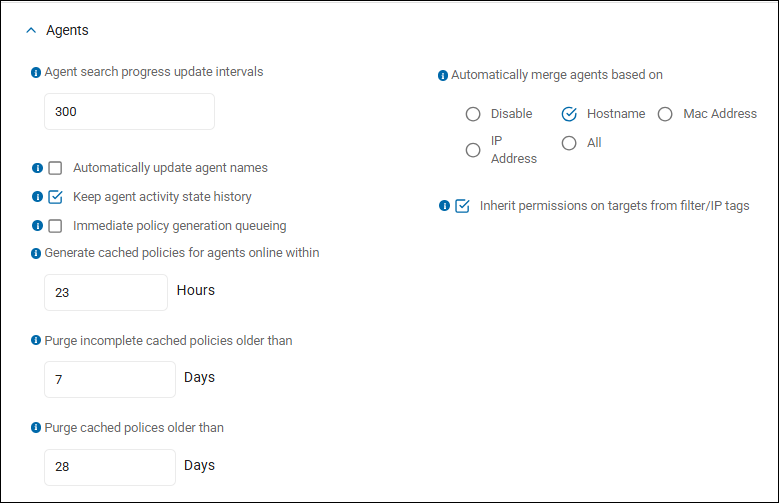
Agents
Agent search progress update intervals
- This is a performance-tuning configuration that controls how frequently an active Agent sends status updates back to the console during a scan.
- Enter an interval (in seconds) for Agents to send search progress updates to the console.
- Minimum value: 60 (seconds)
- If a value less than 60 is entered, the value is automatically changed to 60 the moment you click elsewhere on the page or select another page
- Default value: 300 (seconds)
- Enabled by default
- What it does
- This setting defines the time gap (in seconds) between "progress snapshots" sent by the Agent.
- While a scan is running, the Agent doesn't just send results; it also sends metadata about its current state—such as how many files it has scanned, how many matches it has found so far, and its current percentage of completion.
- Why it exists
- Console Visibility: It ensures that an administrator looking at the "All Scans" or "Job Details" screen sees a moving progress bar and updated timestamps, providing confidence that the scan hasn't hung or crashed.
- Network Efficiency: In a large environment with 50,000 agents, if every Agent sent a progress update every 1 second, the console’s Ingress service would be overwhelmed with "I'm still working" messages. This setting allows you to throttle that traffic.
- Resource Management: Reducing the frequency of these updates saves minor CPU and bandwidth cycles on the endpoint, which can be beneficial during massive enterprise-wide discovery tasks.
- How it works in the workflow
- Scan Starts: The Agent receives the policy and begins discovery/search.
- Interval Trigger: The Agent checks the "Agent search progress update intervals" value (for example, 300 seconds).
- Snapshot: Every 5 minutes (300s), the agent bundles its current counters (for example, "Scanned: 5,400 files | Matches: 12") and ships this small "status packet" to the console.
- UI Refresh: The console updates the Progress column in the Scan Dashboard so the Admin sees the latest numbers.
- Recommendations
- For Large Environments: Keep this at 300 seconds or higher. Frequent updates from thousands of Agents can cause unnecessary load on the console database.
- For Troubleshooting/Testing: If you are testing a new scan on a single machine and want to see "real-time" progress, you can temporarily lower this to 30 or 60 seconds.
- Known Behavior: Even if you set this to a very low number, the Agent's actual "heartbeat" (which happens every 32 seconds) may influence when the console actually processes the update.
- Summary
- The "Agent search progress update intervals" setting is a telemetry throttle. it determines the "heartbeat" of the scan's progress bar in the console, balancing the need for admin visibility with the requirement for platform scalability.
Automatically update agent names
- This is a synchronization setting that controls how the console identifies and labels endpoints when their underlying hostname or machine name changes.
- When enabled, the console automatically updates the agent display name and host name when an Agent's computer name changes.
- Disabled by default
- Computer name is communicated to the Console during initial Agent registration and when search results are sent to the Console.
- When the Console processes the results for an agent, if the name provided with the Agent GUID is different than the name stored in the database, the Agent name is updated to the new name, (if this setting is enabled).
- What it does
- When this setting is enabled (checked), the Spirion Sensitive Data Platform console automatically renames an existing Agent record if the endpoint reports a new machine name during its heartbeat (check-in).
- If an Agent with a specific unique ID (generated at installation) checks in and says, "My name is now Laptop-B" instead of its previous name "Laptop-A," the console will update the "Agent Name" field in the Management console to match.
- Why it exists (The Problem)
- In modern IT environments, computers are frequently renamed due to:
- Re-imaging: A computer is wiped and given a new standardized name.
- User Changes: A laptop is reassigned from "User-John" to "User-Jane."
- Domain Migration: A machine moves from one subdomain to another, changing its Fully Qualified Domain Name (FQDN).
- With this setting disabled: The console would keep the old name, making it difficult for an administrator to find the machine or know which physical device is being scanned.
- With this setting enabled: The console stays in sync with the actual OS-level hostname, ensuring your reports and Agent lists are accurate.
- How it works in the workflow:
- Unique Identifier: Spirion agents are tracked by a unique GUID (Globally Unique Identifier) stored in the endpoint's registry or configuration file.
- The Heartbeat: Every 32 seconds (by default), the agent sends a "Heartbeat" to the console containing its GUID and its current Hostname.
- The Comparison: If "Automatically update agent names" is ON, the console compares the incoming Hostname to the one stored in the database.
- The Update: If they differ, the console overwrites the old name with the new one in the
Agentstable.
- Recommendations
- Best Practice: This should almost always be Enabled. It prevents "Ghost Agents" where you think you have an old machine that no longer exists, when in reality it was just renamed.
- Caveat - Duplicate Names: If two different machines accidentally end up with the same hostname (which can happen in some cloning scenarios), the console will still treat them as separate entities because their GUIDs are different, but they will appear with the same name in the list.
- VDI Environments: This is particularly useful in Non-Persistent VDI (Virtual Desktop Infrastructure) where machines might be spun up with slightly different names each day but retain the same underlying Spirion identity.
- Summary
- "Automatically update agent names" is a data integrity tool. It ensures that the names you see in the Spirion Console match the actual hostnames of the machines on your network, reducing confusion during remediation and reporting.
Automatically merge agents based on
- This setting is a critical identity-management configuration used to prevent duplicate Agent records in the console when an endpoint is re-imaged, renamed, or moved.
- When enabled (an option other than Disable is selected), the Console automatically merges Agents that have any or all of the specified criteria in common
- By default, all radio buttons are cleared and automatic Agent merging is disabled
- Select one of the following options:
- Disable - Disables automatic Agent merging
- Hostname - Matches based on the hostname name (e.g., DESKTOP-123). The hostname is generally the computer name assigned by the OS to an Agent.
- Mac Address - The Console tracks all MAC addresses for Agents. As with IP addresses this also includes MAC addresses from all physical and virtual network adapters. Most reliable for physical hardware. Even if the name changes, the network card ID remains the same.
- IP Address - The Console tracks all IPv4 addresses for Agents. This includes all physical and virtual network adapters
- All - Includes Hostname, Mac Address, and IP Address
- What it does
- This setting defines the specific hardware or network criteria the console uses to "match" an incoming agent heartbeat to an existing record in the database.
- When an agent checks in, if the console detects that it doesn't perfectly match an existing GUID (Unique ID), it looks at the criteria selected in this setting (for example, MAC Address, Hostname, or FQDN). If a match is found based on these criteria, the console "merges" the new check-in into the old record rather than creating a second "ghost" agent.
- Why it exists (The Problem)
- In enterprise environments, "Agent Duplication" is a common issue caused by:
- Re-imaging: A machine is wiped and the Spirion Agent is reinstalled. The new installation generates a new Agent GUID, but the physical hardware (MAC Address) and name stay the same.
- VDI Sprawl: In non-persistent VDI, a user might get a "new" virtual machine every morning that looks identical to yesterday's machine but has a fresh registry/GUID.
- Result Fragmentation: Without merging, you would have two different entries in the console for the "same" laptop. Your reports would show "Laptop-A" twice—one with old results and one with new results—making remediation impossible.
- How it works in the workflow
- Heartbeat: An Agent checks in with its GUID, MAC, and Hostname.
- Lookup: The console looks for the GUID. If not found (new install), it proceeds to the Merge Logic.
- Matching: The console checks: "Do I have another agent with MAC Address 00:1A:2B...?"
- The Merge: If "Yes," the console adopts the new GUID for that existing record and updates the "Last Seen" time. All historical scan results from the "old" identity are now associated with the "new" check-in.
- Recommendations
- Best Practice: MAC Address + Hostname is the most common and stable combination.
- The "Duplicate MAC" Risk: Be careful in environments using VPNs or Shared Docking Stations. Sometimes multiple laptops appearing through the same VPN concentrator might report the same MAC address, causing the console to accidentally merge two different people's computers into one record.
- VDI Awareness: If using non-persistent VDI, ensure your "Master Image" does not have a pre-generated GUID, and rely heavily on this Merge setting to keep your agent count accurate.
- Summary
- “Automatically merge agents based on” is a de-duplication engine. It ensures that your Spirion Console represents your actual physical fleet of computers, regardless of how many times the software is reinstalled or the machine is renamed.
Policies
Immediate policy generation queueing
This setting is a performance-focused administrative toggle designed to speed up how quickly Agents receive updated instructions from the console.
- What it does:
- When this setting is enabled (checked), the console begins pre-calculating and generating the necessary policy XML files as soon as a change is saved (or a scan is started), rather than waiting for an individual Agent to check in and ask for it.
- Why it exists (The Problem):
- In older or very large environments, generating a policy can be "expensive" for the database. When a policy changes (for example, you add a new Social Security number pattern), hundreds or thousands of Agents might check in at the same time asking for the update.
- Setting disabled (unchecked): The console has to generate the policy on-the-fly for each requesting Agent, which can lead to database timeouts, deadlocks, and significant delays (sometimes an hour or more) before all Agents are updated.
- Setting enabled (checked): The console "gets a head start." It queues the generation task immediately so that the policy file is already sitting in the cache, ready to be handed off the moment the agent heartbeats.
- How it works in the workflow:
- Admin Action: You make a change to a Scan Policy, Global Policy, or Agent Policy in the Console.
- Trigger: The console detects the change.
- Queueing: If "Immediate policy generation queueing" is enabled (checked), a background task is immediately created to build the new policy XML.
- Agent Check-in: When the agent performs its next check-in (default is every 32 seconds), the policy is already ready and is delivered instantly.
- Recommendations for Use:
- For Large Deployments: If you are using 10 or more Agents enable this setting. It significantly reduces the "Policy Delivery Lag" and prevents the console from being overwhelmed by concurrent agent requests.
- For Troubleshooting: If you notice that Agents are not picking up new scan targets or identity changes quickly, verify that this setting is active to ensure the console isn't struggling to generate policies on-demand.
Generate cached policies for agents online within
This is a performance-optimization and maintenance configuration related to the console's policy queuing mechanism.
- The value for this setting simply determines if svc-agentcontroller will generate policies for an endpoint.
- After 24 hours (per the default), starting a scan or assigning an agent policy to the offline endpoint does not generate EndpointsPolicies data.
- For example, it would not change from state 0 until the Agent is back online.
- Default Value: The default is typically 24 hours.
- Keep in mind that EndpointsPolicies will have PolicyIds of the last generated policies. You should be able to confirm policies are not regenerating by ensuring EndpointsPolicies.LastUpdate is not modified until the agent is back online.
The setting Purge incomplete cached policies older than affects this setting.
- If set to 1 day, for example, you may not be able to confirm the generate cached policies.
- Set Purge incomplete cached policies older than to values that will not overlap while testing.
- What it does
- This setting determines whether the console preemptively generates (caches) policy updates for an Agent based on how recently that Agent has been "Online" (active).
- Logic: If an Agent has checked in (heartbeated) within the time interval specified (for example, 24 hours), the console considers it "active enough" to warrant immediate policy generation whenever a configuration change occurs.
- Behavior for Offline Agents: If an Agent has been offline for longer than this interval, the console does not spend resources generating its policy in the background. Instead, it waits until that Agent heartbeats back into the system before adding it to the generation queue.
- Why it exists
- In large-scale deployments (for example, 50,000+ Agents), generating a unique policy XML for every single endpoint every time a global setting or scan changes can overwhelm the
svc-agentcontrollerand the database. - Efficiency: By ignoring "stale" or long-offline agents, the console focuses its processing power only on the active fleet.
- Scalability: It prevents the policy generation queue from becoming backlogged with thousands of requests for machines that may be powered off or decommissioned.
- In large-scale deployments (for example, 50,000+ Agents), generating a unique policy XML for every single endpoint every time a global setting or scan changes can overwhelm the
- Technical Details
- Database Reference: This value is passed as a parameter to the stored procedure
[dbo].[Management_GetNextEndpointsPoliciesInQueue]. - State Tracking: The system checks the
LastPolltimestamp in theEndpointDetailstable. If the difference between the current time andLastPollis greater than this setting, the Agent is skipped for background caching. - Interaction with "Immediate Policy Generation Queueing": This setting works hand-in-hand with the "Immediate policy generation queueing" toggle. While that toggle enables the queue, this setting acts as a filter for which Agents are allowed into that queue.
- Database Reference: This value is passed as a parameter to the stored procedure
- Summary
- The “Generate cached policies for agents online within” setting is a resource management filter. It ensures the Spirion Console stays fast and responsive by "pre-calculating" work only for those Agents that are currently active on the network.
Purge incomplete cached policies older than
The setting “Purge incomplete cached policies older than” is a database maintenance configuration that cleans up the "holding area" where the console stores policy files that were never successfully finalized or delivered.
- Default Value: Usually set to 7 days or 168 hours.
- What it does
- When the SDP Console prepares a policy for an Agent, it builds a "cached" version of that policy XML in the database. If the generation process is interrupted (for example, a server restart, a timeout, or a database deadlock), or if a policy is partially built but never fully committed as "ready," it leaves behind a "stale" or "incomplete" record.
- This setting tells the console's background maintenance service to identify these incomplete policy records and permanently delete them once they reach a certain age (for example, 7 days).
- Why it exists
- Database Hygiene: Over time, thousands of failed or abandoned policy generation attempts can bloat the
EndpointPoliciesor related internal queuing tables in the Postgres database. - Queue Performance: When the
svc-agentcontrollerlooks for policies to deliver to agents, it has to sift through these records. Removing "junk" data ensures that the console stays fast when Agents check in. - Conflict Prevention: It prevents a scenario where a very old, partially-formed policy might accidentally be "revived" or interfere with a newer, valid policy being generated for the same Agent.
- Database Hygiene: Over time, thousands of failed or abandoned policy generation attempts can bloat the
- How it works in the workflow
- Trigger: A background task (part of the daily or hourly maintenance cycle) scans the internal policy tables.
- The Check: It looks for policies where the status is not "Complete" or "Delivered."
- The Purge: If the timestamp on that incomplete record is older than the value set (for example, 168 hours / 7 days), the record is deleted.
- Recommendations
- When to Lower It: If you are performing a massive deployment or frequent global policy changes and notice your database size growing rapidly, you can lower this to 2 or 3 days.
- When to Raise It: Generally, there is no operational benefit to raising this value, as an "incomplete" policy from two weeks ago is no longer relevant to an agent's current state.
- Troubleshooting: If you see agents stuck in a "Pending Policy" state indefinitely, it may indicate a failure in the generation process. This purge setting won't fix the failure, but it will keep the "failure history" from clogging up your system indefinitely.
- Summary
- The “Purge incomplete cached policies older than” setting is a garbage collection mechanism. It ensures that failed or abandoned policy generation tasks don't accumulate and degrade the performance of the Spirion Sensitive Data Platform console.
Purge cached policies older than
This setting is a maintenance control that manages the lifecycle of scan-specific policy artifacts stored on the agents.
- What it does
- When a scan is initiated from the Console, the specific policy instructions (what to find, where to look, and what actions to take) are packaged and sent to the assigned agents. These agents cache these policy files locally so they can execute the scan even if there are transient network interruptions.
- The “Purge cached policies older than” setting defines the "expiration date" for these local policy files. Once a policy file has resided on an agent for longer than the specified number of days, the Agent automatically deletes (purge) it.
- Why this setting exists
- Storage Management: Over time, as you run many different scans with unique configurations, these cached policy files can accumulate on the Agent's host machine. Purging them prevents unnecessary disk space consumption.
- Security and Governance: Policy files contain the "logic" of your security program (for example, custom regex patterns or keyword lists). Purging old policies ensures that outdated or retired search criteria do not persist indefinitely on endpoints.
- Policy Freshness: It ensures that agents aren't accidentally using an "orphaned" or stale policy for a recurring task. By purging old caches, Agents are forced to retrieve the most current version of a policy from the Console when a new scan job is issued.
- Operational Impact
- Normal Behavior: If you set this to 30 days, any policy file that hasn't been updated or used in a month is removed from the Agent's local cache.
- If set too low (for example, 1 day): Agents may have to re-download policy files more frequently, which can cause a slight increase in network traffic and "starting" time for scans, especially in large environments.
- If set too high (or never): You may see a slow growth in disk usage on your Agent hosts, and you'll have a larger "footprint" of your search logic residing on those machines.
- Recommendations
- The "Standard" Setting: For most environments, 7 to 14 days is the recommended range. This is long enough to cover typical scan cycles and network hiccups but short enough to keep the Agent's local storage clean.
- Check During Troubleshooting: If an agent is failing to start a scan with a "Policy Error," it can sometimes be helpful to manually trigger a purge or wait for the auto-purge to clear out a potentially corrupted local cache.
- Summary
- This setting is a housekeeping tool. It ensures that your Agents stay "lean" by automatically deleting old scan instructions that are no longer needed for active or recent jobs.
Targets
Inherit permissions on targets from filter/IP tags
- The setting “Inherit permissions on targets from filter/IP tags” (sometimes referred to as "Inherit permissions on endpoints from Filter/IP tags") is an administrative security configuration that controls how user access to specific Targets (endpoints, databases, etc.) is determined based on their membership in Tags.
- Enabled by default.
- When this setting is disabled and you create a role that only has permissions to a filtered/IP tag, the role does not have permissions to the Targets within that filtered/IP tag.
- To enable the role to have permissions to the Targets within the filtered/IP tag when the setting is disabled, you must also grant permissions for the role to a simple tag that contains the same endpoint within the filtered/IP tag or grant permission to the endpoint explicitly.
- What it does
- This setting automates the granting of "View" and "Result" permissions. When enabled, if a user has permission to see a Tag (specifically a Filter Tag or IP Tag), they automatically inherit those same permissions for every Target that falls inside that tag.
- Enabled (Default): A user who can see the "Finance Department" Tag will automatically be able to see and manage all 50 laptops that are currently filtered into that tag.
- Disabled: Permissions must be granted to Targets explicitly or through other means. A user might see the "Finance Department" Tag in their tree, but the list of targets inside it would appear empty unless they were also given explicit permission to those specific machines.
- Why it exists
- Administrative Efficiency: In an environment with thousands of agents, it is impossible to manually assign user permissions to every single new laptop or server. By using Filter Tags (which group agents by hostname, OS, or IP range), you can manage security at the group level.
- Dynamic Access Control: As new machines are added to the network and automatically sorted into tags, users with tag-level permissions gain access to those new machines instantly without admin intervention.
- Security Partitioning: It allows you to create "silos" for different teams. For example, the "HR Admin" role can be given permissions to the "HR Workstations" tag, ensuring they can only see results and manage scans for HR-owned devices.
- How it works in the workflow
- Tag Creation: An admin creates a Filter Tag (e.g., "All Servers in New York") using a criteria like
IP Address matches 10.10.5.*. - User Assignment: The admin gives a specific User Role "View" and "Result" permissions for that Tag.
- Inheritance: Because this setting is ON, the console checks which Targets currently match that IP range and dynamically "virtually" assigns the same permissions to the user for those Targets.
- Check-in: If a new server is turned on in New York, it heartbeats to the console, matches the filter, and is immediately "visible" to the authorized user.
- Tag Creation: An admin creates a Filter Tag (e.g., "All Servers in New York") using a criteria like
- Recommendations
- Best Practice: Keep this Enabled. It is the standard way to manage Role-Based Access Control (RBAC) in Spirion. Disabling it usually leads to "missing data" complaints from sub-admins who can see tags but no targets.
- Conflict Resolution: If a target belongs to two different tags, and the user has different permissions on those tags, the platform typically resolves this by granting the most permissive access (or based on the specific hierarchy of the tags).
- Troubleshooting: If a restricted user (like a departmental auditor) reports they cannot see any results on the dashboard, check if this setting is enabled and verify their permissions on the relevant Filter Tags.
- Summary
- “Inherit permissions on targets from filter/IP tags” is an access orchestration tool. It ensures that the permissions you set on a "group" (Tag) automatically flow down to the "members" (Targets), keeping your security model synchronized with your dynamic network environment.