How to Use Custom Reports
Custom Reports helps you understand the current state of your organization's data security, privacy, and compliance.
Overview
Custom Reports provide insight into the current state of your organization's data security, privacy, and compliance.
Custom reports can provide a view of your data security that is not possible to achieve through dashboards or tables in other part of Spirion Sensitive Data Platform.
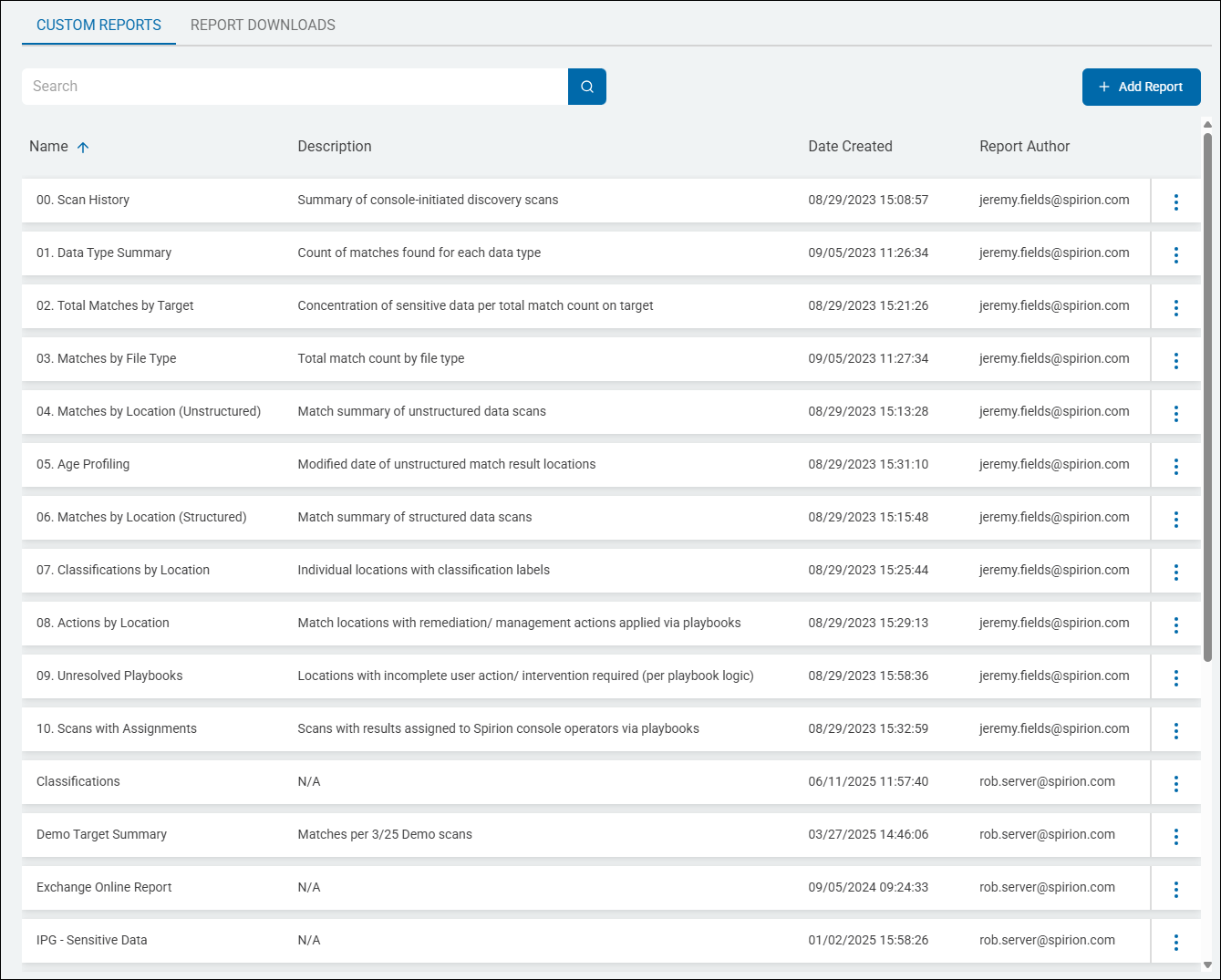
Custom Reports table with sample custom reports
How to Access Custom Reports
To access Custom Reports in Spirion Sensitive Data Platform use the following steps:
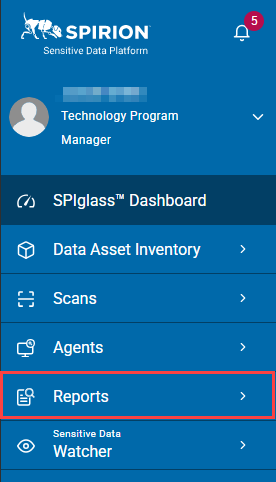
- From the left side navigation menu in Spirion Sensitive Data Platform, click Reports.
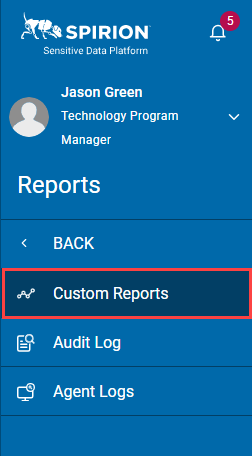
- Custom Reports is selected by default. The Custom Reports page opens.
- The CUSTOM REPORTS tab is shown, by default, and shows the custom reports that have been created, in a table with the following columns:
- Name - Name of the report
- Description - Report description. This is taken from the Description field, to the right of the Name field in the report creation wizard. To update this field, click Manage from the More Options menu for a report.
- Date Created - Date the report was created
- Report Author - User account that created the report
- More Options (3 vertical dots)
- View report - Opens the report in a new tab
- Manage - Opens the report "Basic Information" wizard so you can change/update report details
- Generate report - Initiates the report export process. This can take several minutes. When the report is complete:
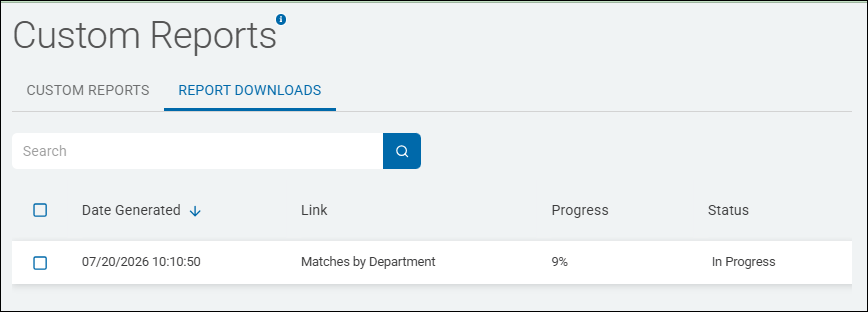
- The report appears under the REPORT DOWNLOADS tab:
- Click the report link to download the report ZIP file.
- An email is sent to the email account of the report author. See the example image below:
- The report appears under the REPORT DOWNLOADS tab:
- Delete - Deletes the report.
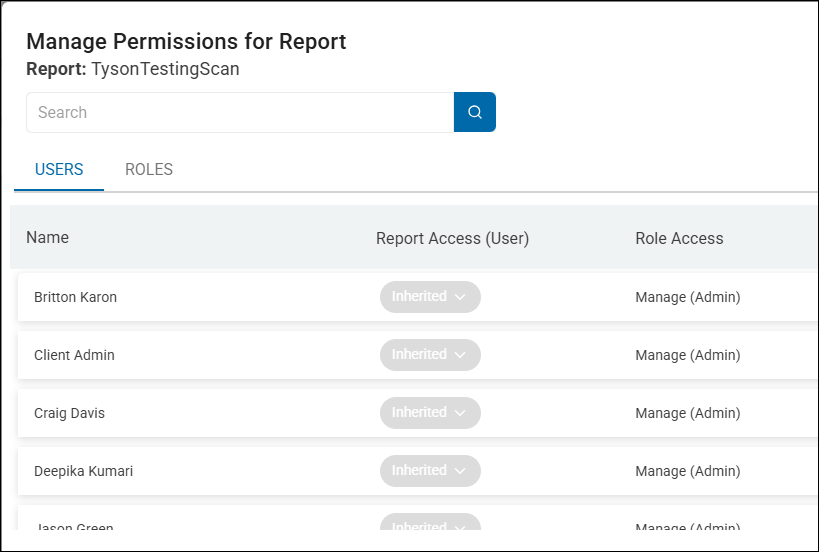
- Manage Permissions - Set access to the report by user or user role as follows:
- USERS - This tab enables you to set acess to the report on an individual user basis. Available permissions include the following:
- Inherited - User permissions are inhertibed from the role the user is a member of, such as "Data Privacy User," or "Admin." This is the most common setting used for individual users.
- None - No access
- Read - Read-only access
- Manage - Complete access including read, write, and delete
- ROLES - This tab enables you to set acess to the report on an user role basis. Available permissions include the following:
- None - No access
- Read - Read-only access
- Manage - Complete access including read, write, and delete
How to View a Report
To view a report use the following steps:
- From the left side navigation menu select Reports > Custom Reports.
- The Custom Reports page opens.
- Locate the report you want to view from the table on the page.
- On the far right of the report line, hover over the more options menu.
- Click View Report.
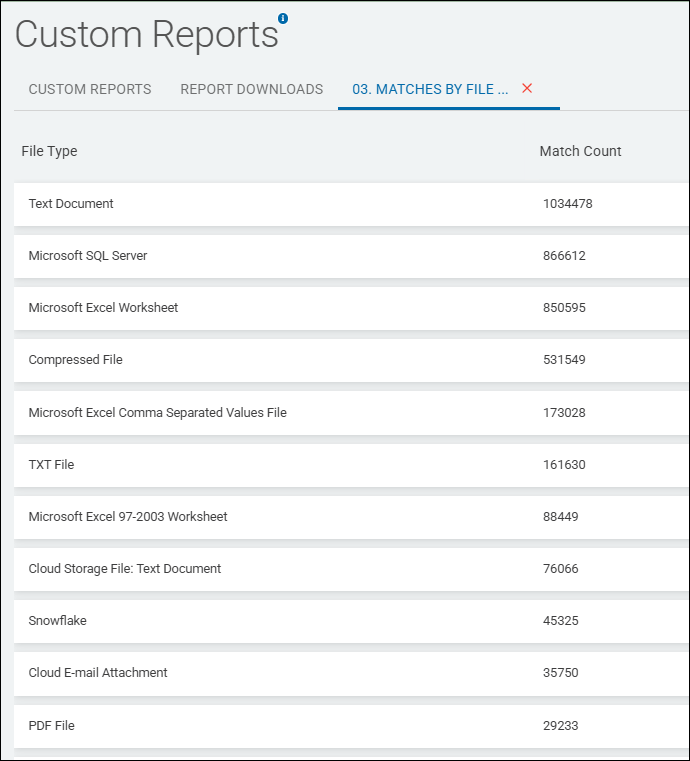
- The Report is displayed in a new tab for viewing:
- Click the red X to close the Report.
Note: Some reports take a significant amount of time to generate, and if you navigate away from the Reports screen, it stops the process.
For large reports, best practice is to export the report and view it when you are notified via email that the download is complete.
See Export a Report for more information.
How to Set the Number of Items Per Page
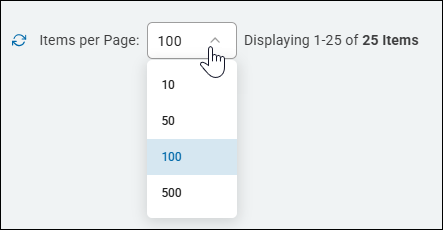
Use Items per Page to set the number of Reports displayed per page:
- Select an option from the Items per Page down-down list:
- 10
- 100
- 500
- Click the refresh icon to refresh the page contents.
- Use the left and right arrows to page through the reports, if applicable.
- Use the left double arrow to return to the start of the list.

How to Sort Displayed Reports
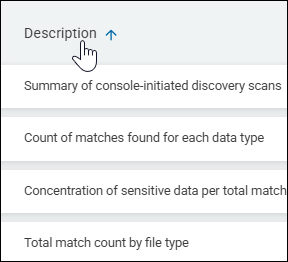
You can sort each column by ascending or descending:
Hover over the column's name.
- Click the up arrow for Ascending.
- Click the down arrow for Descending.