
How to Create Purview Sensitivity Labels for Testing MIP Labels and Protection
The instructions in this article describe how to create MIP labels (sensitivity labels) in MS Purview which are then synchronized with the Spirion console. The labels are then available for selection in a scan playbook which applies the labels to files in your environment when the playbook is activated by a scan.
Procedure:
- Open a web browser.
- Navigate to the following address: https://purview.microsoft.com/
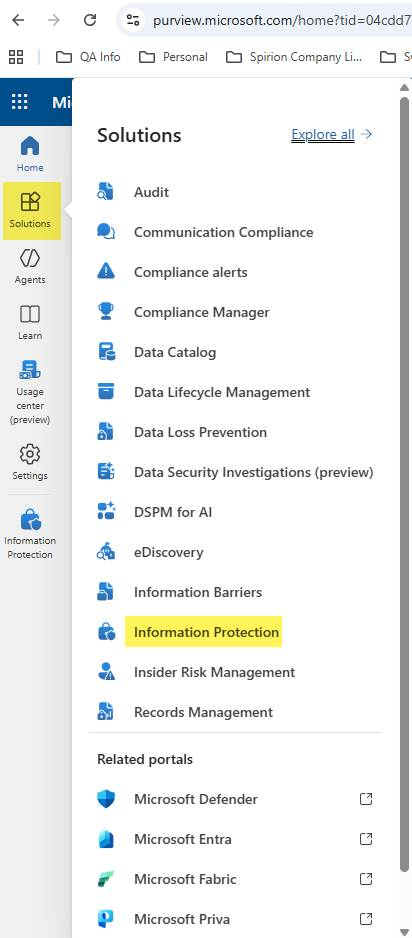
- From the left side navigation panel, go to Solutions -> Information Protection – Sensitivity labels:
- Click +Create Label at the top of the page:
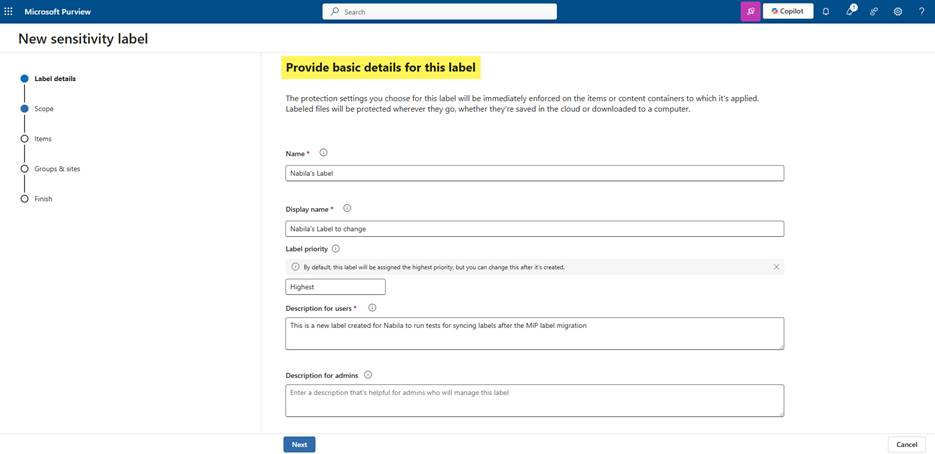
- The page "Provide basic details for this label" opens. Fill-in all required fields. This provides the basic details of the label:
- Click the Next button.
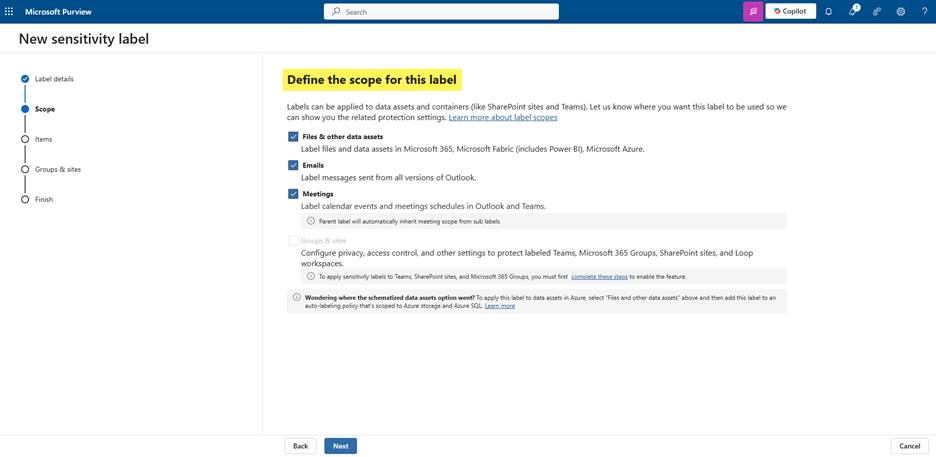
- The page "Define the scope for this label" opens. Leave the default checkboxes selected (checked):
- Click the Next button.
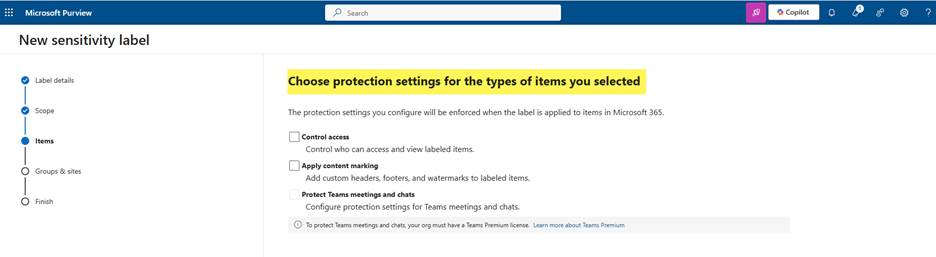
- The page "Choose protection settings for the type of items you selected" opens. Leave the checkboxes on the page unchecked:
- Click the Next button.
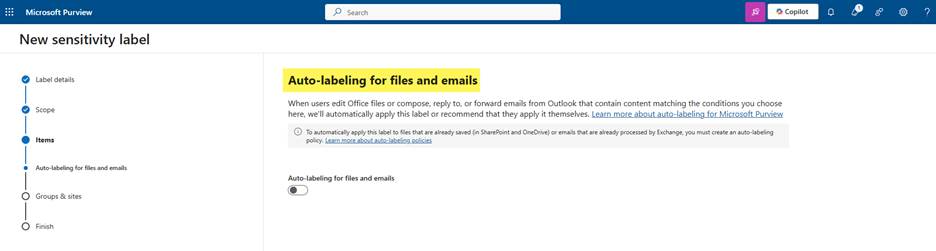
- The page "Auto-labeling for files and emails" opens. Leave the toggle "Auto-labeling for files and emails" off:
- Click the Next button.
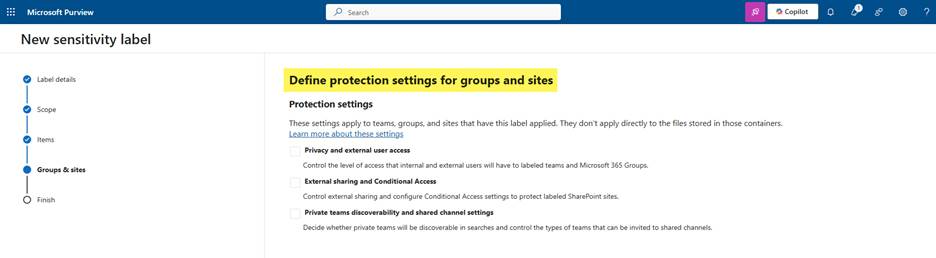
- The page "Define protection settings for groups and sites" opens. Leave the checkboxes on this page unchecked:
- Click the Next button.
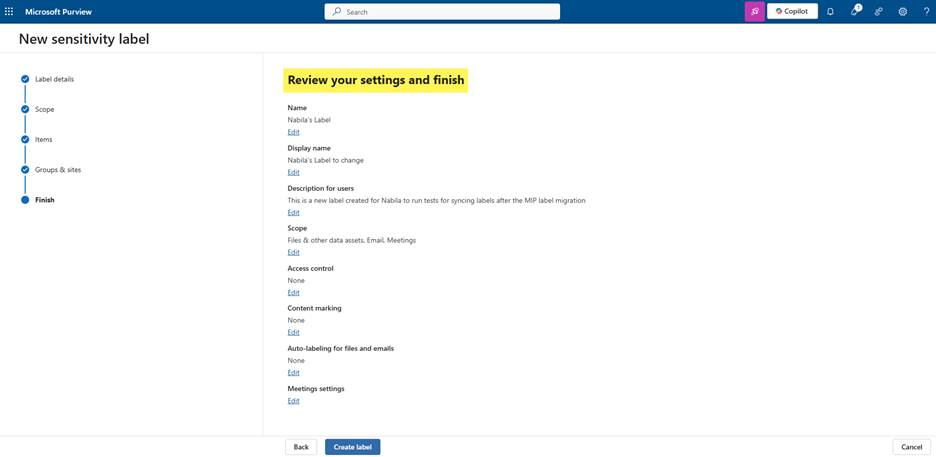
- The "Review your settings and finish" page opens. Carefully review all of your settings.
- Click the Create label button at the bottom of the page.
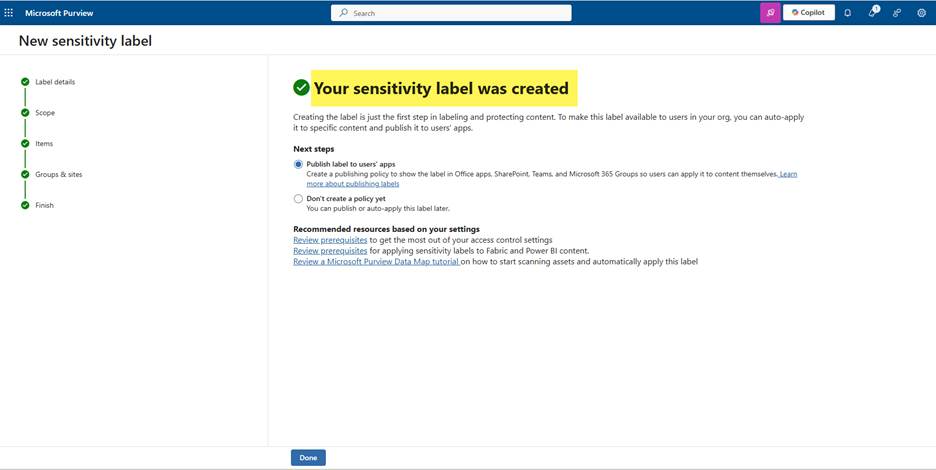
- The "Your sensitivity label was created" confirmation page opens:
- Click the Done button at the bottom of the page.
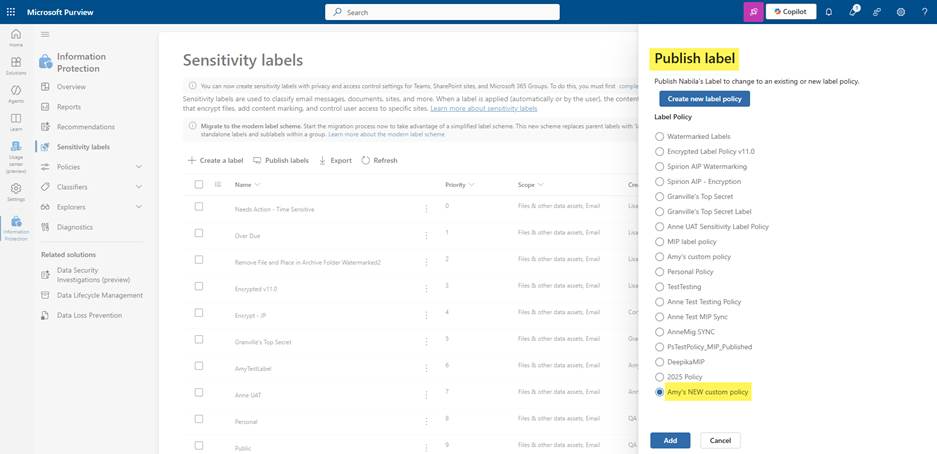
- Publish the label to an existing label policy.
- Adding the label to an existing label policy is quickest and easiest, and a label policy isn’t seen or utilized anywhere in Spirion for testing purposes, but feel free to create a new label policy since we’re nowhere close to our 500 label limit:
- Adding the label to an existing label policy is quickest and easiest, and a label policy isn’t seen or utilized anywhere in Spirion for testing purposes, but feel free to create a new label policy since we’re nowhere close to our 500 label limit:
- Click the Add button at the bottom of the page.


MIP Label Synchronization with Spirion
When the “Synchronize MIP Labels” Service Task is executed during maintenance (or performed manually), the MIP label becomes available in the Spirion Sensitive Data Platform console.
The MIP labels can then be selected in a Scan Playbook.
How to Navigate to the MIP label in a Scan Playbook
Use the following steps to navigate to the MIP label option from the drop-down menu in a Spirion Sensitive Data Platform Scan Playbook:
- Log in to Spirion Sensitive Data Platform.
- From the left side navigation menu select Scans → Scan Playbooks → [Edit/Create a playbook] → Add Action → select "MIP Label".
- The "Select Microsoft Label" drop-down shows synced Purview labels.
- If the label list is empty, you must manually trigger the "Synchronize MIP Labels" service task first (Service Tasks).
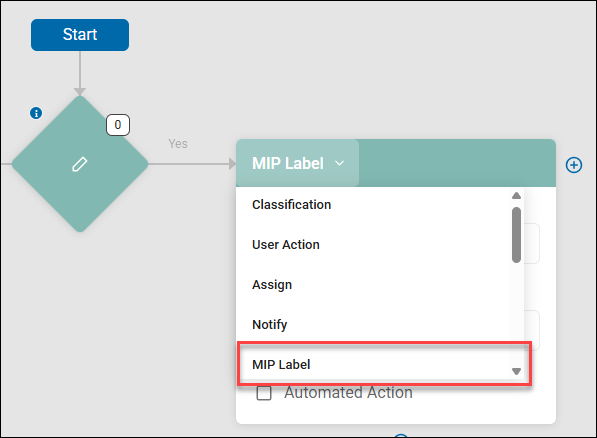
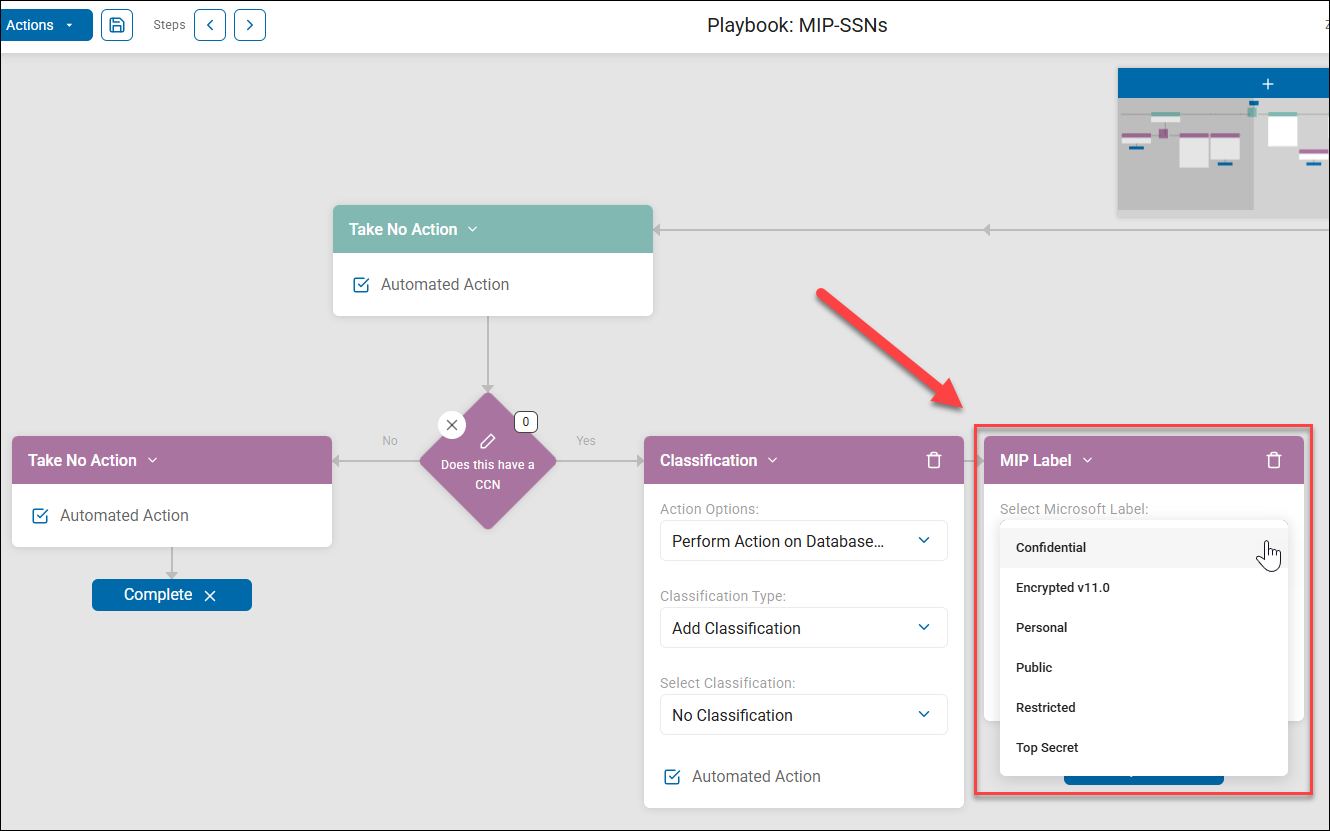
MIP Label in a Scan Playbook — UI Flow
When editing a playbook and selecting an action, the MIP Label option appears in the Select Action drop-down alongside other actions such as: Classify, Quarantine, Redact, etc. See the example screenshots provided below.
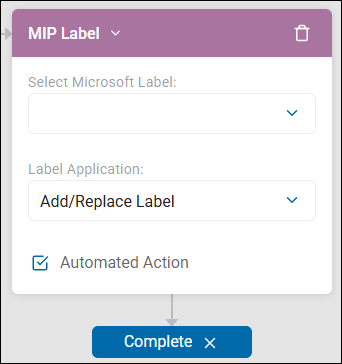
Once you select MIP Label, three fields appear:
- Select Microsoft Label — A drop-down list populated with the sensitivity labels synced from Microsoft Purview (for example, "Confidential", "Highly Confidential", "Public", "Internal", or any custom labels you've created). These are the label names as defined in Purview.
- Label Application — A drop-down that controls how/when the label is applied (for example, whether to apply or remove).
- Automated Action — A checkbox to apply the action automatically (vs. requiring manual execution from the Playbook Executor).
Note: The "Select Microsoft Label" drop-down shows only labels that have been:
- Created and published to a label policy in Purview
- Synced to the console via the "Synchronize MIP Labels" service task
More Information
Video Demonstrations of Spirion Sensitive Data Platform and Microsoft Purview
- Spirion Sensitive Data Platform Integration with Microsoft Purview: Video Demonstration with Jeremy Fields, archTIS Director of DevOps
- Expanding Microsoft Purview Data Discovery and Classification with Spirion: Video Demonstration with Rob Server and Jonathan Turner
Feature and Complement Information
- Enhancing Microsoft Purview with Spirion for Complete Data Protection
- How to Configure and Use the Microsoft Purview and Spirion Integration