
Types of Custom Data Types and Examples
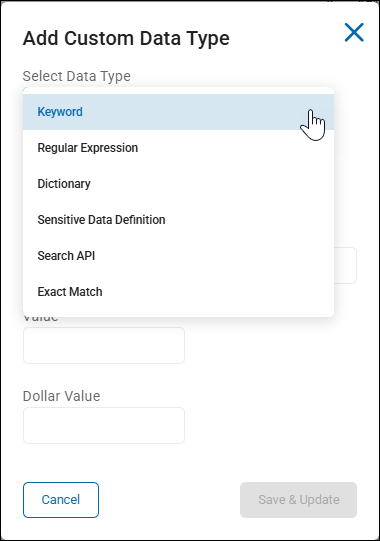
Custom Data Types
What is the data type “Keyword” and What is it used for?
In Spirion Sensitive Data Platform (SDP), a Keyword is a custom Data Type used for phrase-based detection. It allows you to search for specific words or strings of text that represent sensitive information but do not follow a predictable pattern like a Social Security Number or Credit Card.
What it is Used For
Keywords are primarily used when the "signal" for sensitive data is a specific term or phrase. Common use cases include:
- Internal Classifications: Searching for terms like "Confidential," "Internal Use Only," or "Attorney-Client Privilege."
- Project Names: Identifying documents related to sensitive internal projects (e.g., "Project Manhattan").
- Regulated Terms: Finding specific industry terms that indicate risk but aren't easily captured by a Regular Expression (Regex).
- OCR Validation: Keywords are often used in image searching (OCR) to verify the presence of specific text on a document, such as a "Driver License" label on an ID card.
Key Characteristics
- Case Sensitivity: By default, Spirion searches are often case-insensitive, but Keywords can be used to match specific casing (e.g., matching "to" but not "TO" or "To") if configured.
- Simplicity: Unlike Regex, which requires pattern-matching logic (e.g.,
\d{3}-\d{2}-\d{4}), Keywords are literal strings. - Customization: They are part of the "Custom Data Types" suite, allowing organizations to extend discovery beyond the built-in "AnyFind" detectors.
How it Fits into the Workflow
- Definition: You define the keyword in the Admin settings under Data Types.
- Policy: You enable that keyword in a scan policy.
- Playbooks: Once detected, you can use the Keyword as a decision point in a Playbook (e.g., "IF Data Type = 'Project Manhattan' THEN Classify as Highly Confidential").
For more complex lists of terms (like a list of 1,000 client names), it is generally recommended to use a Dictionary data type instead of individual Keywords.
Keyword Data Type Examples
Keyword data types are the simplest form of custom detection in Spirion.
This instructs SDP to look for a literal string of text (a specific word or phrase). Unlike RegEx, it doesn't follow a pattern; it looks for exactly what you typed.
In Spirion, Keywords are typically case-sensitive and are best used when the "signal" of sensitivity is a specific, unique term.
1. Data Classification Labels
Many organizations use Keywords to find files that have already been manually labeled but are stored in the wrong place.
- "Confidential" or "Highly Confidential"
- "Internal Use Only"
- "Proprietary"
- "Attorney-Client Privileged"
- "Restricted"
2. Project & Intellectual Property Names
If your company uses unique names for internal initiatives, Keywords are the easiest way to track them.
- "Project Manhattan" (A specific internal project)
- "Falcon 9" (A specific product name)
- "Q3 Strategy Roadmap"
- "Merger & Acquisition" or "M&A"
3. Security & Administrative Terms
Keywords can help identify files that might contain sensitive system information or credentials.
- "Private Key" (Often found in
.pemor.keyfiles) - "Service Account"
- "Master Password"
- "Connection String" (Often precedes database credentials)
- "Shadow File"
4. Legal & Compliance Phrases
Specific phrases required by law or contract can be tracked to ensure they are present (or absent) where they should be.
- "Do Not Distribute"
- "Subject to GDPR"
- "Export Controlled" or "ITAR"
- "Business Associate Agreement" or "BAA"
5. Human Resources & Sensitive Personnel Terms
Keywords can identify documents related to sensitive employee life events or disciplinary actions.
- "Severance Agreement"
- "Performance Improvement Plan" or "PIP"
- "Offer Letter"
- "Background Check"
- "Whistleblower"
Operational Tips for Keywords
- Case Sensitivity: Remember that
Confidentialis different fromCONFIDENTIALin a Keyword search. If you want to find both, add both as separate Keywords or use a Regex pattern such as(?i)confidential. - Avoid Common Words: Don't use a Keyword like "The" or "Date," as this results in thousands of false positives. Keywords should be as unique as possible.
- Use in SDDs: Keywords are most powerful when used in a Sensitive Data Definition (SDD). For example, searching for the Keyword "Password" NEAR a Regex for a complex string is much more effective than searching for the word "Password" alone.
- Keyword vs. Dictionary: If you have 1 or 2 words, use a Keyword. If you have a list of 50 client names, use a Dictionary.
What is the data type “Dictionary” and What is it used for?
In the Spirion Sensitive Data Platform (SDP), a Dictionary is a custom Data Type used for bulk phrase-based detection. It allows you to upload or reference a large list (a "vocabulary") of specific terms, names, or identifiers that you want to search for across your environment.
What it is Used For
Dictionaries are used when you have a large, controlled list of sensitive values that are too numerous to manage as individual Keywords. Common use cases include:
- Client or Customer Names: Searching for a specific list of high-value or sensitive client names to ensure their data isn't stored in unauthorized locations.
- Product Codenames: Monitoring for a large list of internal project or product names that represent intellectual property.
- Employee Rosters: Searching for specific employee names or internal IDs when they appear in conjunction with other sensitive data.
- Industry-Specific Vocabularies: Using lists of medical terms, legal jargon, or technical parts lists that indicate a file's sensitivity.
Key Characteristics
- Scalability: While a Keyword is best for a single phrase (like "Confidential"), a Dictionary is designed to handle hundreds or thousands of terms efficiently.
- Management: Dictionaries are typically managed as a file or a list within the Spirion console, making it easier to update the entire list at once rather than editing individual data types.
- Intentional Discovery: Like other custom data types, Dictionaries help make discovery repeatable and measurable by categorizing findings under a single, stable label (e.g., "Sensitive Client List").
How it Differs from Other Data Types
Data Type | Best Used For... |
|---|---|
Keyword | Single, specific phrases or words (e.g., "Project X"). |
Dictionary | Large lists of known terms (e.g., a list of 5,000 customer names). |
Regex | Data with a predictable structure but unknown values (e.g., |
AnyFind | Built-in, pre-configured detectors for common data (e.g., SSNs, Credit Cards). |
The Role of Dictionary Data Types in Playbooks
Dictionaries serve as a critical decision point for automation.
For example, a Playbook can be configured with logic such as the following:
- “IF Data Type = [Client Name Dictionary] AND Location = [Public Share] THEN [Quarantine File].”
This enables organizations to drive consistent remediation and governance based on a large, evolving list of sensitive terms.
Dictionary Data Type Examples
Dictionaries are best used when you have a large, controlled list of specific terms that you want to find across your environment. Unlike a Keyword (which is a single term) or Regex (which is a pattern), a Dictionary allows you to upload a file containing hundreds or thousands of literal values.
Here are multiple examples of how organizations use Dictionary data types in Spirion:
1. Intellectual Property & Product Development
- Product Codenames: A list of all internal project names (for example, Project Apollo, Project Zeus, Project Bluebird) to ensure sensitive R&D documents aren't stored on public shares.
- Proprietary Part Numbers: A list of specific manufacturing part numbers that, if found together, represent a sensitive bill of materials.
- Chemical or Biological Compounds: In pharmaceutical or research environments, a dictionary of specific sensitive compound names or formulas.
2. Customer & Client Protection
- High-Value Client List: A list of your top 500 corporate clients. Finding these names in unstructured files might trigger a higher classification or stricter access controls.
- Competitor Names: A dictionary of competitor names used to identify "Competitive Intelligence" documents that should be restricted to specific strategy teams.
- Banned/Sanctioned Entities: A list of entities from a global sanctions list to ensure your organization isn't inadvertently storing data related to restricted parties.
3. Human Resources & Internal Governance
- Executive Roster: A list of the names of C-suite executives. Documents containing these names often require higher security than standard employee files.
- Terminated Employee List: A list of employees who have left the company. This can be used to find and clean up "orphaned" data that is no longer needed for business purposes.
- Internal Department Codes: A list of all internal cost centers or department IDs (e.g., FIN-990, HR-221, RND-440) to help categorize data by business unit.
4. Technical & Security Operations
- Sensitive Server Names: A list of hostnames for critical production servers (e.g., PROD-DB-01, PAYROLL-SRV). Finding these in plain-text configuration files or emails can indicate a security risk.
- Commonly Used Passwords: While Spirion has a "Password" AnyFind, some organizations use a dictionary of "known bad" or common corporate passwords to identify weak security practices.
- Software License Keys: A list of specific enterprise license keys for expensive software to ensure they aren't being shared inappropriately.
5. Industry-Specific Vocabularies
- Healthcare (ICD-10 Codes): A dictionary of specific medical diagnosis codes. While "Health Information" is an AnyFind, a dictionary allows for more granular tracking of specific sensitive conditions.
- Legal (Case Numbers): A list of active litigation case numbers to ensure that "Legal Hold" data is identified and protected correctly.
Operational Tip:
When creating these dictionaries, ensure the file is saved in a supported encoding (typically UTF-8).
If you find that your dictionary matches are "bleeding" into other words or spanning multiple lines, check that your terms are clearly separated (usually one per line) and that the file doesn't have unusual formatting.
What is the data type “Exact Match” and What is it used for?
In the Spirion Sensitive Data Platform (SDP), Exact Match is a specialized detection capability (often referred to as Exact Data Match or EDM) used to find specific, known values from a structured data source, such as a database or a CSV file.
What it is Used For
Exact Match is used when you need to find specific instances of sensitive data rather than just any data that fits a pattern.
While a standard "AnyFind" detector will find any 9-digit number that looks like a Social Security Number, Exact Match will only trigger if that number matches a specific SSN in your authorized database (for example, your actual employee or customer list).
Common use cases include the following:
- Customer Records: Finding specific customer IDs, account numbers, or names that exist in your CRM.
- Employee Data: Identifying files containing the actual SSNs or bank details of your current employees.
- Patient Records: Searching for specific medical record numbers (MRNs) from a healthcare database.
- Reducing False Positives: Ensuring that a 16-digit number is only flagged if it is a known, active credit card number from your transaction logs, rather than a random string of digits.
How it Works
- Data Ingestion: You provide a "fingerprint" or a hashed version of your sensitive data (for example, a CSV export from your database).
- Indexing: Spirion creates a secure index of these specific values.
- Scanning: During a scan, the agent looks for matches against this specific index.
- Multi-Field Matching: Often, Exact Match is used to find combinations of data (e.g., "Match only if this Name AND this Account Number appear together").
Key Benefits
- Highest Accuracy: It virtually eliminates false positives because it only alerts on data you have explicitly defined as sensitive.
- Contextual Awareness: It allows you to distinguish between "generic" sensitive data and "your" sensitive data.
- Governance: It provides a bridge between your structured databases (where the data is supposed to be) and your unstructured data (files, emails, etc., where the data might have leaked).
Comparison to Other Types
- Keyword: Finds a single specific word (e.g., "Confidential").
- Dictionary: Finds any word from a large list (for example, any name from a list of 5,000).
- Exact Match: Finds a specific record based on a unique identifier or a combination of fields from a source database.
Exact Match Data Type Examples
Exact Match (also known as Exact Data Match or EDM) is the most precise detection method in Spirion. It doesn't just look for "any" data that fits a pattern; it looks for your specific data by comparing findings against a hashed version of your actual records.
Here are multiple examples of how organizations use Exact Match data types:
1. Customer & Consumer Privacy (B2C)
- Active Customer List: Instead of flagging every 16-digit number as a credit card, Exact Match can be configured to only alert if the number matches a known, active customer account number from your CRM (for example, Salesforce or Microsoft Dynamics).
- Loyalty Program Members: Matching a Member ID combined with a Last Name. This ensures that a random ID number isn't flagged unless it is paired with a specific name from your loyalty database.
- Marketing Leads: Identifying files that contain the Email Addresses of individuals who have opted out of marketing (to ensure their data is being handled according to "Right to be Forgotten" requests).
2. Human Resources & Employee Data
- Payroll Records: Matching an Employee Name with their Bank Account Number. This is highly effective for finding "ghost" payroll files or unauthorized exports of sensitive financial data.
- Employee SSNs: Using Exact Match to find the actual Social Security Numbers of your current workforce. This prevents the system from flagging "test data" or random 9-digit numbers that aren't actually sensitive to your organization.
- Corporate Credit Cards: A list of all Corporate Card Numbers issued to employees. This helps distinguish between an employee's personal card (which might be a lower priority) and a company-owned card (which is a high-priority security risk).
3. Healthcare & Patient Data (HIPAA)
- Patient Index: Matching a Patient Name with a Medical Record Number (MRN). This ensures that a document is only flagged as a HIPAA violation if it contains a valid patient identifier from your Electronic Health Record (EHR) system.
- Prescription Data: Matching a Doctor's DEA Number with a Patient ID. This helps track the movement of highly sensitive prescription records.
- Insurance Policy Numbers: Identifying files that contain specific Policy IDs belonging to your current insured members.
4. Financial Services & Banking
- Account Holder Verification: Matching a Routing Number + Account Number + Full Name. This "triple-match" ensures that only complete, actionable financial records are flagged for remediation.
- High-Net-Worth Clients: A specific Exact Match index for your most sensitive clients. If any data belonging to these specific individuals is found on an endpoint, it can trigger an immediate "Critical" alert.
- Loan Application IDs: Matching Application IDs with Applicant SSNs to find unencrypted loan documents stored on local drives.
5. Education & Student Records (FERPA)
- Student Roster: Matching a Student ID with a Date of Birth. This helps universities find and secure transcripts or financial aid documents that have been saved outside of the official Student Information System (SIS).
- Alumni Donors: Identifying files containing the Home Addresses and Donation History of specific high-value alumni.
Why use Exact Match instead of a Dictionary?
Feature | Dictionary | Exact Match |
|---|---|---|
Data Source | A simple list of terms (e.g., names). | A structured database (e.g., Name + ID + SSN). |
Precision | High (finds the exact word). | Highest (finds the exact record). |
Multi-Field | Usually matches one term at a time. | Can require multiple fields to match (e.g., Name AND ID). |
False Positives | Low. | Near Zero (only alerts on data you actually own). |
Operational Note: To use Exact Match, you typically export your sensitive data to a CSV, which is then "fingerprinted" (hashed) by the Spirion platform. This means the actual sensitive values are never stored in plain text within the Spirion console, maintaining the security of the source data.
What is the data type “Regular Expression” and What is it used for?
In the Spirion Sensitive Data Platform (SDP), a Regular Expression (Regex) is a custom Data Type used for pattern-based detection.
It enables you to define a specific sequence of characters that describes a search pattern, enabling the platform to find data that follows a consistent structure even if the exact values are unknown.
What it is Used For
Regex is the "go-to" tool for finding structured data that isn't covered by Spirion's built-in AnyFind detectors.
Common use cases include:
- Internal Identifiers: Finding Employee IDs, Student IDs, or Patient IDs that follow a specific format (for example, 2 letters followed by 5 digits:
[A-Z]{2}\d{5}). - Proprietary Account Numbers: Searching for internal account or routing numbers that have known prefixes or lengths.
- Structured Secrets: Detecting API keys, tokens, or license keys that match a repeatable pattern.
- Custom Formats: Identifying industry-specific identifiers, such as specialized insurance claim numbers or manufacturing part codes.
Key Characteristics
- Pattern vs. Literal: Unlike a Keyword (which looks for the exact word "Apple"), a Regex looks for anything that fits the "shape" of the data (for example,
\d{3}-\d{4}finds "123-4567" and "999-0000"). - Flexibility: Spirion uses the Perl regular expression syntax (via boost libraries), which is highly powerful and allows for complex logic, such as requiring leading/trailing whitespace or excluding certain characters.
- Case Insensitivity: By default, Regex searches in Spirion are case-insensitive. If you need to match a specific case (for example, "to" but not "TO"), a Keyword is often recommended instead.
Examples of RegEx in Spirion
- Simple Pattern:
\d{2}-\d{4}matches both "43-5343" and "56-2313".
- Refined Pattern:
\s\d{2}-\d{4}\smatches the same digits but only if they are surrounded by whitespace, helping to reduce false positives from longer strings of numbers.
Why Use Regex Over Other Types?
Data Type | Use Case |
|---|---|
Regex | Use when the data has a recognizable structure (e.g., |
Keyword | Use when the "signal" is a specific word or phrase (e.g., "Confidential"). |
Dictionary | Use when you have a large list of known values (e.g., 1,000 specific project names). |
Role in Playbooks
Regex findings are often used to trigger specific governance actions. For example:
- “IF Data Type = [Regex: Employee ID] THEN [Apply 'Internal Use Only' Classification].”
Note: Because Regex can be broad, it is often combined with Validation Logic or included in a Sensitive Data Definition (SDD) to ensure that matches are meaningful and to minimize "noise" (false positives) in scan results.
Regular Expression Data Type Examples
Regular Expression (Regex) data types are used in Spirion to find data that follows a predictable "shape" or pattern, even if you don't know the specific values. Spirion uses the Perl regular expression syntax (via boost libraries).
Here are multiple examples of how organizations use Regular Expression data types:
1. Internal Employee & Student Identifiers
Most organizations have unique IDs that follow a strict format. Regular Expressions are the best way to find these across the network.
- Employee IDs: If an ID always starts with "EMP" followed by 5 digits.
- Regex:
EMP\d{5} - Matches:
EMP12345,EMP00987
- Regex:
- Student IDs: If a university uses a 2-letter department code, a dash, and 6 digits.
- Regex:
[A-Z]{2}-\d{6} - Matches:
CS-123456,EN-998877
- Regex:
2. Technical Secrets & Security Tokens
Security teams use Regex to find hardcoded credentials in scripts, configuration files, or logs.
- GUIDs/UUIDs: Finding unique system identifiers (8-4-4-4-12 hex characters).
- Regex:
\b[a-fA-F0-9]{8}-[a-fA-F0-9]{4}-[a-fA-F0-9]{4}-[a-fA-F0-9]{4}-[a-fA-F0-9]{12}\b
- Regex:
- AWS Access Keys: Finding specific cloud provider tokens.
- Regex:
AKIA[0-9A-Z]{16}
- Regex:
- Generic API Keys: Finding strings that look like 32-character hexadecimal tokens.
- Regex:
\b[a-f0-9]{32}\b
- Regex:
3. Financial & Account Identifiers
While Spirion has built-in AnyFinds for major banks, many organizations have proprietary account formats.
- Internal Account Numbers: A 10-digit number that always starts with a "9".
- Regex:
\b9\d{9}\b
- Regex:
- IBAN (International Bank Account Number): Finding specific country-coded bank strings (for example, UK IBANs).
- Regex:
GB\d{2}[A-Z]{4}\d{14}
- Regex:
- Routing Numbers: A 9-digit number often found in specific financial documents.
- Regex:
\b\d{9}\b(Note: This is often combined with a Keyword like "Routing" in an SDD to reduce false positives).
- Regex:
4. Healthcare & Insurance Identifiers
Used to supplement built-in Health Information (PHI) detectors.
- NPI (National Provider Identifier): A standard 10-digit identifier for healthcare providers.
- Regex:
\b\d{10}\b
- Regex:
- Insurance Policy Numbers: If a provider uses a format like 3 letters followed by 9 digits.
- Regex:
[A-Z]{3}\d{9}
- Regex:
- ICD-10 Codes: Finding specific medical diagnosis codes (for example, A00.0).
- Regex:
[A-Z][0-9][0-9A-Z]\.?[0-9A-Z]{0,4}
- Regex:
5. Government & Regional Identifiers
Used for regional data that may not have a dedicated AnyFind.
- Vehicle Identification Numbers (VIN): A standard 17-character alphanumeric string.
- Regex:
\b[A-HJ-NPR-Z0-9]{17}\b
- Regex:
- Passport Numbers (Custom): If searching for a specific country's format (for example, 2 letters followed by 7 digits).
- Regex:
[A-Z]{2}\d{7}
- Regex:
Tip: Reducing "Noise" (False Positives)
Regex can be "greedy" and match things you don't want (for example, a 9-digit Regex matching a random part number instead of an SSN). To prevent this:
- Use Word Boundaries (
\b): This ensures the pattern isn't matched in the middle of a longer string of text. - Example:
\b\d{9}\bmatches "123456789" but not "0012345678900".
- Example:
- Use Proximity (SDDs): Instead of just searching for the Regex, create a Sensitive Data Definition (SDD) that requires the Regex to be NEAR a specific Keyword like "Account" or "ID".
- Validation: For custom IDs, consider using SearchAPI if you need to perform a mathematical check (like a Luhn checksum) to verify the number is valid.
What is the data type “Sensitive Data Definition” and What is it used for?
- In the Spirion Sensitive Data Platform (SDP), a Sensitive Data Definition (SDD) is a logical container that enables you to combine multiple Data Types (AnyFinds, Keywords, Regex, etc.) into a single, context-aware detection rule.
- While other Data Types are "detectors" (ways to recognize a pattern), an SDD is "decision logic over detectors."
What it is Used For
- SDDs are used to identify sensitive data based on context and relationships rather than just a single pattern.
- They help reduce "noise" and false positives by ensuring that data is only flagged when specific conditions are met.
Common use cases include:
- Proximity Matching: Flagging a file only if a Social Security Number is found within a certain distance (for example, 50 characters) of a Name or the word "Employee."
- Logical Combinations: Creating a rule that triggers only if a file contains both a Credit Card Number AND a Bank Account Number.
- Risk Tiering: Treating a document as "High Risk" only if it contains a proprietary Dictionary term (like a project codename) near an Email Address.
- Validation: Requiring multiple pieces of evidence before a file is considered sensitive (for example, "Must have a Date of Birth AND a Driver's License number").
How it Works
- Orchestration: You select existing Data Types (like AnyFinds or custom Regex) and define the relationship between them.
- Operators: You can use logical operators such as AND, OR, NOT, and proximity operators like NEAR or FAR (with specific character distances).
- Single Label: Once defined, the SDD acts as a single Data Type. You can select it in your scan policies and use it as a condition in Playbooks (e.g., "IF Data Type = [My SDD] THEN [Quarantine]").
Why Use an Sensitive Data Definition (SDD)?
Feature | Benefit |
|---|---|
Contextual Accuracy | Reduces false positives by requiring multiple "signals" to be present. |
Simplified Playbooks | Instead of building complex "IF/AND" logic in a Playbook, you can simply check for one SDD. |
Higher Signal | Helps security teams focus on "true" sensitive data situations (e.g., a list of identities) rather than isolated, potentially benign matches. |
Example
Instead of just searching for any 9-digit number (which could be a part number), you create an SDD:
- [SDD: Employee Record] = (AnyFind: SSN) NEAR (Keyword: "Salary" OR "Tax") within 100 characters.
This ensures that the platform only alerts you when the 9-digit number is likely being used in a sensitive, employee-related context.
Sensitive Data Definition (SDD) Data Type Examples
Sensitive Data Definitions (SDDs) are the "logic layer" of Spirion. They enable you to combine multiple detectors (AnyFinds, Keywords, Regex) into a single rule based on context and proximity.
Here are multiple examples of how organizations use SDDs to find high-value, low-noise sensitive data:
1. The "Identity Bundle" (PII Context)
A single Social Security Number (SSN) might be a false positive (like a part number), but an SSN found near a name or a date of birth is almost certainly a person's record.
- The Rule: (AnyFind: SSN) NEAR (AnyFind: Date of Birth OR AnyFind: Personal Address)
- Distance: Within 100 characters.
- Use Case: Finding "Full Identity" records that are high-priority for privacy teams.
2. Financial Risk (PCI + Context)
Finding a Credit Card Number (CCN) is important, but finding a CCN near a security code (CVV) or an expiration date represents a much higher risk of fraud.
- The Rule: (AnyFind: Credit Card) NEAR (Regex: CVV Pattern
\b\d{3,4}\b) - Distance: Within 50 characters.
- Use Case: Identifying "PCI-DSS prohibited data" (storing CVVs is generally forbidden, even if the card number is encrypted).
3. Intellectual Property Protection
Searching for a project name alone might return too many results. An SDD can ensure you only find documents where that project name is associated with sensitive technical data.
- The Rule: (Keyword: "Project Bluebird") AND (Regex: Source Code Pattern OR Keyword: "Schematic")
- Distance: Anywhere in the same file.
- Use Case: Protecting R&D secrets without flagging every email that simply mentions the project name.
4. HR & Payroll Security
This SDD looks for the combination of an employee's identity and their financial destination.
- The Rule: (AnyFind: Bank Account Number) NEAR (Keyword: "Direct Deposit" OR "Payroll")
- Distance: Within 150 characters.
- Use Case: Finding unauthorized exports from HR systems that contain employee banking details.
5. Healthcare (HIPAA) Compliance
Under HIPAA, data is often only "PHI" if a medical identifier is linked to a person's identity.
- The Rule: (AnyFind: Health Information) NEAR (AnyFind: E-Mail Address OR AnyFind: Telephone Number)
- Distance: Within 200 characters.
- Use Case: Finding patient records in emails or spreadsheets where medical conditions are tied to contact information.
6. Administrative "Secrets" Discovery
Finding a password is bad, but finding a password near a specific administrative username or server name is a critical security hole.
- The Rule: (AnyFind: Password) NEAR (Keyword: "admin" OR "root" OR "superuser")
- Distance: Within 30 characters.
- Use Case: Finding hardcoded administrative credentials in configuration files or scripts.
7. Negative Logic (Exclusion)
SDDs can also be used to exclude data to reduce noise.
- The Rule: (AnyFind: Social Security Number) NOT NEAR (Keyword: "Sample" OR "Example" OR "Test")
- Distance: Within 50 characters.
- Use Case: Ignoring "Test Data" or documentation templates that contain fake SSNs used for training purposes.
Why use an SDD instead of just searching for both?
Feature | Individual Data Types | Sensitive Data Definition (SDD) |
|---|---|---|
Result Count | You get two separate results (one for each). | You get one result representing the "Situation." |
Playbook Logic | Hard to automate (requires complex "If X and Y" logic). | Easy to automate ("If SDD found, then Action"). |
Accuracy | High false-positive rate for single items. | Very High Accuracy due to required context. |
Reporting | Reports on "Total SSNs found." | Reports on "Total Identity Records at Risk." |
What is the Data Type “Search API” and What is it used for?
The SearchAPI is a specialized custom Data Type in the Spirion platform designed for advanced and sophisticated detection logic that exceeds the capabilities of standard Regex, Keywords, or Dictionaries.
What is it?
It is considered the "power tool" for data detection. While standard detectors look for simple patterns or specific words, SearchAPI allows for richer matching behavior and complex validation logic.
What is it used for?
SearchAPI is used when basic patterns are not enough to accurately identify sensitive data.
Common use cases include the following:
- Multi-step Validation: For example, matching a specific pattern and then confirming it with a checksum or specific context.
- Conditional Logic: Applying detection rules based on the surrounding text or specific environmental conditions.
- Complex Detection Instructions: Handling sophisticated detection scenarios that cannot be expressed cleanly through regular expressions or keyword lists.
- Advanced Accuracy: It is often used within Sensitive Data Definitions (SDDs) to combine sophisticated detection with other data types to create highly accurate business rules.
Operational Context
In the Spirion Sensitive Data Platform interface, SearchAPI is managed alongside other custom data types (RegEx, Keyword, Dictionary, etc.) under Settings > Global Data Types > CUSTOM DATA TYPES settings.
Because it involves more complex logic, it is typically used by advanced administrators to refine detection and reduce false positives for highly specific organizational data.
When should I use SearchAPI?
You should use SearchAPI when your data detection requirements involve validation logic that goes beyond simple pattern matching.
- If a standard Regular Expression (Regex) or Keyword list is resulting in too many false positives, SearchAPI is usually the correct solution.
Here are the specific scenarios where you should choose SearchAPI:
1. When the Data has a Mathematical Checksum
Many sensitive identifiers are designed with "check digits" to prevent errors.
Regex can find the shape of the number, but SearchAPI can verify the math.
- Use it for:
- Custom Credit Card numbers
- National ID numbers (like the Italian Codice Fiscale)
- Proprietary internal IDs that use the Luhn algorithm or a Modulo check
2. When You Need "Surrounding Context" Validation
If a piece of data is sensitive only when specific words appear near it, but those words are too complex for a standard proximity search.
- Use it for: Finding "Account Numbers" only if they are preceded by a specific branch code found earlier in the same document, or if they appear within a specific table structure.
3. When Dealing with "Ambiguous" Data Formats
If your sensitive data looks exactly like non-sensitive data (for example, an 8-digit Employee ID that looks exactly like a Part Number).
- Use it for:
- Differentiating between the two by writing logic that checks for any of the following:
- Specific prefixes
- Ranges (for example, "Employee IDs never start with 9")
- Date-encoded segments within the string
4. When You Need Multi-Step Verification
If you need to perform a "lookup" or a secondary check before confirming a match.
- Use it for:
- Checking a detected ID against a specific range or a complex set of "If/Then" rules
- For example, "If the first two characters are 'US', the next four must be digits; if they are 'UK', the next four must be letters"
When NOT to use Search API
SearchAPI requires more processing power and configuration than other methods.
Avoid using Search API if any of the following is true:
- A Regular Expression (RegEx) works: If a pattern is unique enough that it doesn't cause false positives, stick with Regex for better performance.
- A Dictionary is sufficient: If you are just looking for a static list of 500 project names, a Dictionary is faster and easier to maintain.
- An SDD can handle it: If you just need to find "Word A" near "Pattern B," use a Sensitive Data Definition (SDD) instead of writing custom API logic.
Summary Rule of Thumb
- Regex: "Does it look like the data?"
- SearchAPI: "Can I prove it is the data?"
Search API Data Type Example
A common and practical example of a SearchAPI custom data type is a Validated Employee ID with Checksum.
- In many large organizations, Employee IDs aren't just random numbers; they follow a specific structure that includes a "check digit" to prevent data entry errors.
- A standard Regex can find the pattern, but only SearchAPI can verify if the ID is mathematically valid.
The Scenario: "GlobalCorp" Employee IDs
- The Pattern: 2 letters followed by 6 digits (for example,
AB123456). - The Validation Rule: The last digit must be the sum of the first five digits, modulo 10.
- The Problem: A standard Regex (
[A-Z]{2}\d{6}) flags thousands of false positives, such as part numbers, invoice codes, or random strings in log files that happen to match that format.
How SearchAPI Handles This
Instead of just looking for the pattern, the SearchAPI detector executes a small piece of logic during the scan:
- Pattern Match: It identifies a string like
XY512110. - Extraction: It pulls the first five digits (
5, 1, 2, 1, 1) and the last digit (0). - Calculation: It adds them up: $5+1+2+1+1 = 10$.
- Verification: It performs the modulo: $10 \pmod{10} = 0$.
- Result: Since the calculated result ($0$) matches the last digit ($0$), the SearchAPI confirms this is a True Positive and reports it to the console.
Why this is better than RegEx
If the scanner encountered XY512119 (a common part number):
- RegEx would flag it as a match because it fits the "2 letters, 6 digits" shape.
- SearchAPI would run the math ($10 \pmod{10} \neq 9$), realize it's a false positive, and silently ignore it.
Other Common Examples:
- Custom Credit Cards: Validating private-label retail cards using the Luhn Algorithm.
- Vehicle Identification Numbers (VIN): Validating the 9th character (the check digit) to ensure it's a real VIN and not just a serial number.
- International Bank Account Numbers (IBAN): Performing the MOD-97 check to validate the country-specific bank code and account number.
Can Search API reduce false positives?
Yes, the SearchAPI is specifically designed to reduce false positives by allowing for much more rigorous validation than a standard pattern match.
- While a regular expression (RegEx) might flag any 9-digit number as a Social Security Number, SearchAPI can perform "intelligent" checks to ensure the match is legitimate before reporting it.
How SearchAPI Reduces False Positives
SearchAPI reduces noise through 3 primary methods:
1. Algorithmic Validation (Checksums)
Many sensitive data types (like Credit Card numbers, National IDs, or proprietary internal codes) follow specific mathematical algorithms (for example, the Luhn algorithm). SearchAPI can be programmed to:
- Identify the pattern.
- Run the mathematical check.
- Discard the match if the checksum fails, preventing random strings of numbers from being flagged.
2. Contextual Awareness
SearchAPI can look at the "neighborhood" of a match to determine its validity.
- Example: If searching for a "Customer ID," a Regex might find the number
12345everywhere. SearchAPI can be configured to only count it as a match if the word "Account," "ID," or "Customer" appears within a certain number of characters, or if it is preceded by a specific corporate prefix.
3. Multi-Step Conditional Logic
SearchAPI allows for "If/Then" logic during the discovery phase.
- Example: "If you find a 10-digit number, check if the first three digits match a known list of branch codes. If they don't, ignore the match."
- This prevents the system from flagging similar-looking but non-sensitive data (like part numbers or internal tracking codes).
Summary
By moving beyond simple "looks like" detection to "is validated as" detection, SearchAPI ensures that the results appearing on your dashboards are high-fidelity risks that actually require remediation, rather than "noise" that wastes the security team's time.
Can SearchAPI Work with SDDs?
Yes, SearchAPI works directly with Sensitive Data Definitions (SDDs). In fact, combining the two is considered a "best practice" for creating the most accurate and sophisticated detection rules in the Spirion platform.
Here is how they interact:
1. SearchAPI as a "Building Block"
In Spirion, an SDD is a container that orchestrates multiple data types. You can select a SearchAPI detector as one of the components within an SDD, just as you would a standard Social Security Number or a RegEx.
2. Adding Proximity and Logic
While the SearchAPI handles the complex internal validation of a single string (like a checksum), the SDD adds contextual logic around it.
- Example: You can create an SDD that triggers only if a SearchAPI detector (validating a proprietary Account ID) is found within 50 characters of a standard Email Address AnyFind.
3. Enhancing Accuracy (The "Double-Check")
Using them together enables a two-tier validation process:
- Tier 1 (SearchAPI): Validates that the specific string is mathematically correct or follows complex internal logic.
- Tier 2 (SDD): Validates that the string is sitting in a sensitive context (for example, near a "Confidential" keyword).
4. Simplified Playbook Execution
Once you have combined a SearchAPI detector into an SDD, you only need to reference the SDD name in your Playbooks. This keeps your remediation logic clean while still utilizing the high-fidelity detection of the SearchAPI under the hood.
Summary of Roles
Feature | Primary Responsibility |
|---|---|
SearchAPI | The Detector: Validates the content of the string (Checksums, complex patterns). |
SDD | The Orchestrator: Validates the relationship between different data types (Proximity, Boolean logic). |
In short: SearchAPI finds the "needle" with high precision, and the SDD ensures it's the right needle in the right haystack.