
How to Use Single Sign On (SSO)
The Single Sign On page is where you configure the single sign on feature for users in your organization.
- Navigate to Settings > User Management > Single Sign On to access the Single Sign On settings.
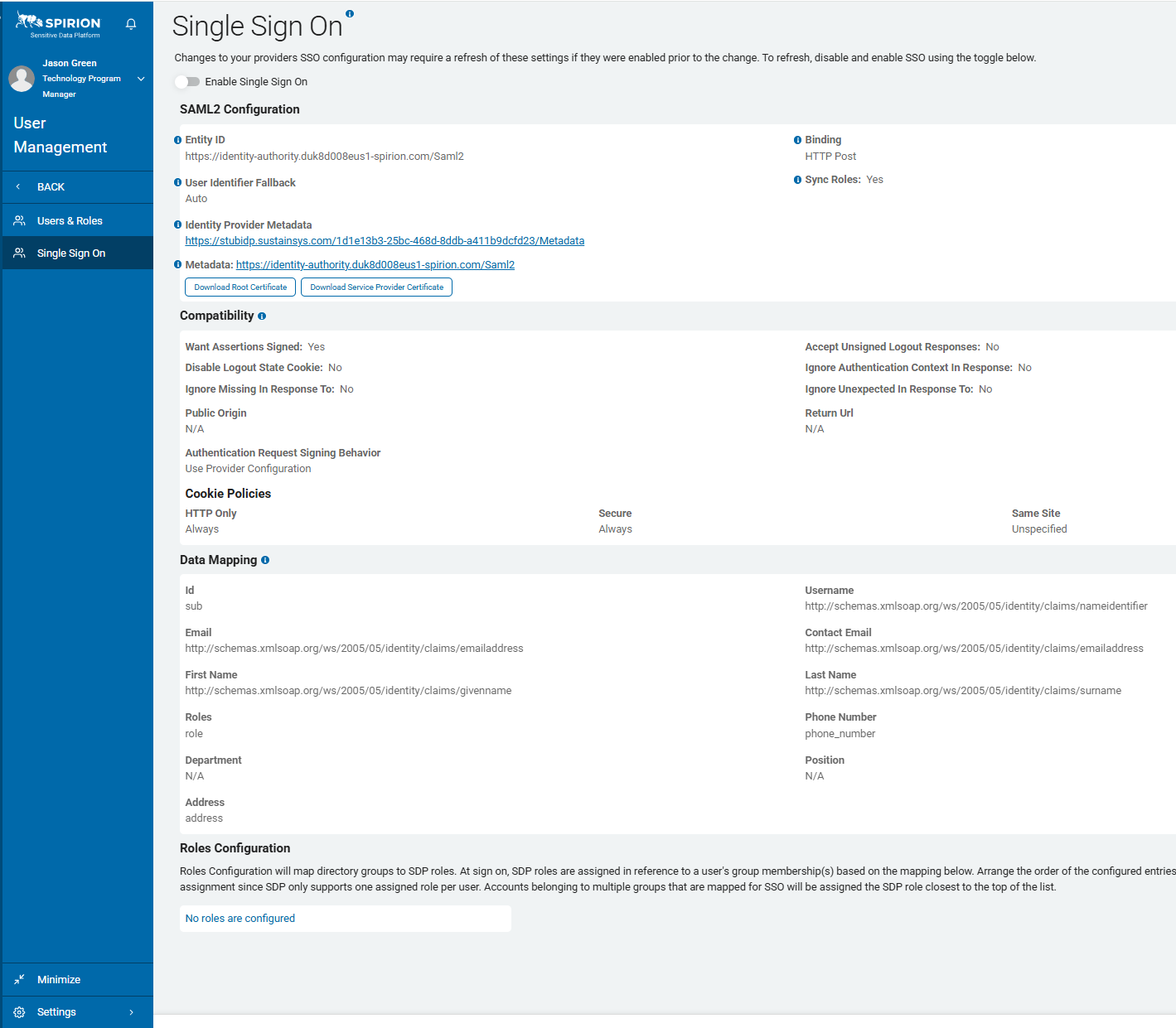
Complete the fields in the following sections to enable Single Sign On:
SAML2 Configuration
Important Requirement: For the integration to work, the claim names (URIs) in the Data Mapping section must match the claims configured in your IdP exactly.
Enable Single Sign On
- This enables and disables SAML integration functionality.
- ArchTIS recommends leaving this disabled until all settings are configured.
Entity ID
Use the default Entity ID for Spirion Sensitive Data Platform or modify if needed.
The Entity ID field in the SAML2 Configuration section is the unique identifier for your Spirion Sensitive Data Platform (SDP) instance, acting as its "digital fingerprint" in the SAML exchange.
What it contains
- This field contains a unique URL generated by your Spirion SDP console
- Example:
https://identity-authority.your-org.spirion.com/Saml2
What it does
Its primary role is to identify Spirion as the Service Provider (SP) to your Identity Provider (IdP) and to facilitate the initial setup:
- Identifier for the IdP: When you configure your Identity Provider (like Okta or Entra ID), you must provide this URL so the IdP knows exactly which application is requesting authentication.
- In Microsoft Entra ID, this value is pasted into the Identifier (Entity ID) field.
- In Okta, this value is pasted into the Audience URI (SP Entity ID) field.
- Metadata Download Link: The URL in this field is "live." If you copy and paste it into a web browser, it automatically downloads the Spirion Metadata XML file.
- Automated IdP Configuration: Most modern Identity Providers allow you to "Upload Metadata."
- By uploading the XML file downloaded from this Entity ID URL, the IdP automatically fills in all the complex technical settings for Spirion (such as the ACS URL and security certificates)
- This eliminates the need for manual entry and reducing the risk of configuration errors.
- Security Validation: During a login attempt, the IdP includes this Entity ID in the SAML assertion. Spirion checks this value to ensure the assertion was intended for this specific console and not a different application.
Summary
In short, the Entity ID is the primary "name" of your Spirion console that you give to your Identity Provider to establish a secure, recognized connection.
Binding
The Binding field in the SAML2 Configuration section specifies the technical method used to transport SAML messages (such as authentication requests and security assertions) between your Identity Provider (IdP) and the Spirion Sensitive Data Platform (SDP).
What it contains
This field is a dropdown menu that typically offers two standard SAML options:
- HTTP-POST: (Default/Recommended) SAML messages are transmitted within the body of an HTTP POST request.
- HTTP-Redirect: SAML messages are compressed, base64-encoded, and appended as query parameters to a URL in an HTTP GET request.
What it does
It tells Spirion how to "package" and send requests to your IdP, and how it expects to receive responses back.
- HTTP-POST (Most Common): This is the standard for sending SAML assertions (the tokens that prove a user is logged in). Because POST requests send data in the message body rather than the URL, they can handle much larger amounts of data (like long lists of user roles/groups) and are generally considered more secure because the sensitive SAML data does not appear in browser history or server logs.
- HTTP-Redirect: This is frequently used for the initial "Authentication Request" when a user first clicks "Login with SSO." Since these requests are usually small, they can be easily sent as a simple URL redirect.
- Protocol Alignment: For SSO to work, this setting must match what is configured in your Identity Provider. If Spirion is set to HTTP-POST but your IdP is expecting HTTP-Redirect, the login attempt will fail with a protocol error.
In the screenshot you provided, the value is likely set to HTTP-POST, which is the standard configuration for most modern providers like Okta and Microsoft Entra ID.
User Identifier Fallback
The User Identifier Fallback field (referred to in technical documentation as the User Fallback Identification Data Type) is a configuration setting used to link existing Spirion user accounts to incoming SSO identities.
What it contains
This field is typically a dropdown menu with the following options:
- Auto (Default): The system automatically attempts to identify the user by checking the incoming SAML claims against existing user records, usually starting with the Username and then falling back to the Email.
- User Name: The system will only attempt to match the incoming SSO user to an existing Spirion account if the Username claim matches exactly.
- Email: The system will only attempt to match the incoming SSO user to an existing Spirion account if the Email claim matches exactly.
What it does
Its primary purpose is to prevent duplicate accounts and ensure a seamless transition for users who were created manually in Spirion before SSO was implemented.
- Account Linking: When a user logs in via SAML for the first time, Spirion looks for a
RemoteId(a unique identifier from your IdP). If that ID isn't found (which is the case for "local" users), the Fallback setting tells Spirion which attribute to use to find the correct existing account. - Automatic Update: Once a match is found (e.g., the email in the SAML assertion matches an existing user's email), Spirion automatically updates that user's record with the
RemoteId. - Future Logins: On all subsequent logins, Spirion will use the
RemoteIddirectly, and the fallback logic is no longer needed for that specific user.
In short, it acts as a "bridge" that allows your existing users to start using SSO without losing their roles, permissions, or history within the platform.
Identity Provider Metadata
The Identity Provider Metadata field is where you provide Spirion Sensitive Data Platform with the technical configuration details of your Identity Provider (IdP), such as Microsoft Entra ID (formerly Azure AD), Okta, or ADFS.
What it contains
This field typically accepts a Metadata URL (for example, an App Federation Metadata URL from Entra ID) or the raw XML Metadata content provided by your IdP. This metadata includes:
- Single Sign-On (SSO) URL: The endpoint where Spirion sends authentication requests.
- Entity ID: The unique identifier for your IdP.
- Public X.509 Certificate: The public key Spirion uses to verify that the SAML assertions (login tokens) sent by the IdP are authentic and have not been tampered with.
What it does
Its primary function is to establish trust and automate configuration from the IdP to Spirion:
- Automated Setup: By providing this metadata, you avoid having to manually enter the IdP's SSO URLs and upload security certificates.
- Identity Claims Mapping: Once the metadata is provided, you can click the "Identity Claims" button in the Spirion UI. This tool parses the metadata to automatically populate the Data Mapping fields (like Username, Email, and Roles) with the correct claim URIs used by your provider.
- Security Verification: It ensures that Spirion only accepts login attempts from your specific, authorized Identity Provider.
Summary
While the "Metadata" link at the bottom tells your IdP about Spirion, the Identity Provider Metadata field tells Spirion about your IdP.
Metadata
The Metadata field (specifically the link labeled "Metadata" at the bottom of the SAML2 Configuration section) is a Service Provider (SP) Metadata URL.
Here is a detailed breakdown of what it contains and its function:
What it contains
This field provides a URL that points to an XML document containing the technical configuration of your Spirion SDP instance. This XML file includes:
- Entity ID: The unique identifier for your Spirion SDP console (for example,
https://identity-authority.../Saml2). - Assertion Consumer Service (ACS) URL: The specific endpoint where your Identity Provider (IdP) must send the SAML authentication tokens.
- Public X.509 Certificates: The public keys used by the IdP to encrypt assertions or verify signatures from Spirion.
- Supported Bindings: Information stating that Spirion supports the HTTP Post binding (as seen in the "Binding" field in your screenshot).
What it does
Its primary purpose is to automate the trust relationship between Spirion and your Identity Provider (such as Okta, Microsoft Entra ID, or ADFS):
- Simplifies Setup: Instead of manually typing in URLs and uploading certificate files into your IdP, you can often simply paste this Metadata URL into your IdP's configuration wizard. The IdP "reads" the URL and automatically fills in all the necessary Spirion settings.
- Establishes Trust: It provides the IdP with the security certificates it needs to communicate securely with Spirion.
- Manual Download: If your IdP does not support URL-based metadata exchange, clicking this link allows you to download the XML file directly to your computer so you can upload it manually to the IdP.
In short, while the Identity Provider Metadata field above it is where you tell Spirion about your IdP, this Metadata link is how you tell your IdP about Spirion.
Download Root Certificate
Downloads the Root Certificate .crt file
Download Service Provider Certificate
Downloads the Service Provider Certificate .crt file
Sync Roles
The Sync Roles (or Synchronize Roles) field in the SAML2 Configuration section is a toggle or checkbox that controls how user permissions are managed during the Single Sign-On process.
What it contains
This field is a simple Enable/Disable setting (typically a checkbox).
What it does
It determines whether Spirion SDP should automatically update a user's assigned roles based on the information sent by your Identity Provider (IdP) each time they log in.
- When Enabled: Every time a user logs in via SSO, Spirion looks at the "Roles" or "Groups" claim in the SAML assertion. It then refers to the Role Mapping table (located further down the page) to see which IdP groups correspond to which Spirion roles (e.g., Admin, Auditor). The user's roles in Spirion are then updated to match their current group memberships in your IdP.
- When Disabled: Spirion will authenticate the user, but it will not change their existing roles. Any role assignments must be managed manually within the Spirion SDP console.
Why it matters
Enabling this setting allows for "Just-in-Time" (JIT) provisioning of permissions. If a user is promoted or moves to a different team in your organization (for example, in Okta or Entra ID), their access level in Spirion will automatically update the next time they log in, ensuring that security permissions stay in sync with your central directory.
Compatibility
Check with your Identity Provider or Security Team.
Settings in this section are specific to the requirements of your Identity Provider and setup.
Want Assertions Signed
The Want Assertions Signed field in the Compatibility section is a security setting that controls how Spirion Sensitive Data Platform validates the authentication data sent by your Identity Provider (IdP).
What it contains
This field is a boolean (checkbox). By default, it is typically checked (enabled).
What it does
It determines whether Spirion SDP (the Service Provider) requires the SAML assertions—the specific packages of data containing the user's identity and attributes—to be digitally signed by the Identity Provider.
Enabled (Checked)
- Spirion accepts SAML responses ONLY IF the individual assertions within them are digitally signed.
- It uses the public certificate provided in the Identity Provider Metadata to verify this signature.
- This ensures that the user data has not been tampered with during transit and that it truly originated from your trusted IdP.
Disabled (Unchecked)
- Spirion processes the assertions even if they are not signed.
- This is generally not recommended for production environments as it significantly lowers the security of the SSO exchange, potentially allowing for "assertion spoofing" if an attacker can intercept the traffic.
Why it matters
- While most SAML responses are signed at the "Response" level, some Identity Providers (or specific security policies) sign the "Assertion" level instead, or both.
- This setting ensures that Spirion's security requirements align with the signature behavior of your specific IdP (like Okta, Entra ID, or ADFS).
- If your IdP is configured to sign assertions but this box is unchecked, or vice versa, the login attempt may fail due to a signature validation error.
Ignore Missing in Response To
The Ignore Missing in Response To field is a technical security setting that controls how Spirion Sensitive Data Platform validates the correlation between a login request and the response from your Identity Provider.
What it contains
- This field is a boolean (checkbox).
- By default, it is set to False (unchecked).
What it does
It determines whether Spirion Sensitive Data Platform should strictly require the InResponseTo attribute to be present in the SAML response sent by your Identity Provider (IdP).
Disabled (Unchecked - Default)
- Spirion follows the standard SAML security protocol, which requires the IdP to include an InResponseTo attribute that matches the ID of the original request sent by Spirion.
- This ensures that the login response is a direct result of a request Spirion actually made, preventing certain types of "unsolicited" response attacks.
Enabled (Checked)
- Spirion processes the SAML response even if the InResponseTo attribute is missing.
Why you would use it
This is a compatibility fix for specific Identity Provider behaviors:
- IdP-Initiated SSO: Some Identity Providers, when configured for "IdP-initiated" login (where the user clicks an icon in a portal like Okta or Entra ID rather than starting at the Spirion login page), do not include an InResponseTo attribute because there was no initial request from Spirion to respond to.
- Non-Standard IdP Behavior: Certain older or highly customized Identity Providers may fail to include this attribute in their responses even during standard login flows.
- Error Resolution: If users are seeing errors such as "Missing InResponseTo attribute" or "Correlation failed" during login, enabling this setting can often resolve the issue.
Recommendations
Keep this box unchecked to maintain maximum security unless you specifically need to support IdP-initiated SSO or are troubleshooting correlation errors with your Identity Provider.
Public Origin
The Public Origin field is a technical configuration used to ensure that your Identity Provider (IdP) and Spirion Sensitive Data Platform can communicate correctly when the network architecture is complex.
What it contains
- This field contains the public-facing URL of your Spirion Sensitive Data Platform console
- Example: https://spirion.yourcompany.com
- By default, this field is empty
What it does
It overrides the "Service Provider" URL that Spirion sends to your Identity Provider during the login process.
- Reverse Proxy & Load Balancer Support:
- In many enterprise environments, the Spirion console sits behind a reverse proxy, a load balancer, or a web application firewall (WAF).
- In these cases, the "internal" URL of the server might be different from the "public" URL that users type into their browsers.
- Ensuring Correct Redirects:
- When a user tries to log in, Spirion sends a request to the IdP.
- Without this field set, Spirion might tell the IdP to send the user back to its internal address (which the user's browser cannot reach).
- By setting the Public Origin, you force Spirion to tell the IdP: "Even though this request is coming from my internal IP, please send the authentication response back to this public URL."
- Fixing "Audience Mismatch" Errors:
- If the URL the IdP sends the response to doesn't match what Spirion expects, the login fails.
- This field ensures that both sides are "speaking the same language" regarding the console's identity.
Recommendations
Fill in this field in ONLY IF your Spirion console is behind a proxy or load balancer and users are experiencing "Page Not Found" or "Connection Refused" errors immediately after authenticating with your Identity Provider.
Authentication Request Signing Behavior
The Authentication Request Signing Behavior field in the SAML2 Compatibility section is a security setting that determines whether Spirion Sensitive Data Platform digitally signs the initial authentication request it sends to your Identity Provider (IdP).
What it contains
This field is a dropdown menu with 3 options:
- Use Provider Configuration (Default): Spirion checks the Identity Provider's metadata. If the IdP indicates that it requires signed authentication requests, Spirion signs them; otherwise, it does not.
- Always: Spirion digitally signs every authentication request sent to the IdP, regardless of what the IdP's metadata specifies.
- Never: Spirion never signs the authentication request.
What it does
It ensures that the "handshake" between Spirion and your IdP meets the specific security requirements of your environment.
- Security Validation: Signing the request allows the IdP to verify that the login attempt truly originated from your Spirion console and hasn't been tampered with by a third party.
- Compatibility Fix: Some Identity Providers are configured to only accept signed requests for higher security. Conversely, some older or simpler IdPs may fail to process a request if it contains a digital signature they aren't expecting.
- Error Resolution: If you see errors like "Signature validation failed" or "AuthnRequest must be signed" during the initial redirect to your login page, adjusting this setting to match your IdP's specific requirement (usually Always for strict environments) will resolve the issue.
Recommendations
Leave this set to Use Provider Configuration unless your Identity Provider explicitly requires signed requests or you are troubleshooting a failure that occurs immediately after clicking the "Login with SSO" button.
Cookie Policies
The Cookie Policies field in the SAML2 Compatibility section enables you to configure the security and privacy attributes for the browser cookies used during the Single Sign-On process.
What it contains
This section consists of three specific dropdown settings:
- HttpOnly: Options typically include Always (Default) and None.
- Secure: Options typically include Always (Default), SameAsRequest, and None.
- SameSite: Options typically include Unspecified (Default), Lax, and Strict.
What it does
It defines how the user's browser should handle the cookies that Spirion Sensitive Data Platform creates to manage the authentication session. These settings are critical for aligning with your organization's security policies and ensuring compatibility with different browsers:
- HttpOnly:
- When set to Always, the cookie is hidden from client-side scripts (like JavaScript).
- This is a vital defense against Cross-Site Scripting (XSS) attacks, as it prevents malicious scripts from stealing the session cookie.
- Secure:
- When set to Always, the browser sends the cookie only over encrypted (HTTPS) connections.
- If set to None, the cookie could be sent over unencrypted HTTP, which is a significant security risk and is generally not recommended.
- SameSite:
- This attribute helps prevent Cross-Site Request Forgery (CSRF) attacks by controlling whether the cookie is sent with requests originating from other websites.
- Strict: The cookie is only sent for requests originating from the same site.
- Lax: A balance that enables the cookie to be sent when a user clicks a link from an external site to your Spirion console.
- Unspecified: Leaves the behavior to the browser's default (most modern browsers now default to "Lax").
Recommendations
In most production environments, you should leave these at their Default values to ensure maximum security and standard browser compatibility:
- Always for HttpOnly/Secure
- Unspecified for SameSite
Accept Unsigned Logout Responses
The Accept Unsigned Logout Responses field is a security setting that determines how Spirion Sensitive Data Platform handles the final step of the Single Logout (SLO) process.
What it contains
This field is a boolean (checkbox). By default, it is set to False (unchecked).
What it does
This setting determines whether Spirion Sensitive Data Platform should process a logout confirmation from your Identity Provider (IdP) if that confirmation lacks a digital signature.
- Disabled (Unchecked - Default): Spirion follows strict SAML security standards, which require the IdP to digitally sign the logout response. This signature proves that the logout confirmation is authentic and hasn't been forged. If the IdP sends an unsigned response, Spirion rejects it, and the user's session may not be closed correctly.
- Enabled (Checked): Spirion will accept and process the logout response even if it is not signed.
Why you would use it
This is a compatibility fix for specific Identity Provider behaviors:
- Non-Standard IdP Behavior: While the SAML standard recommends signing logout responses, some Identity Providers (including certain configurations of older or custom IdPs) do not sign them by default.
- Logout Failures: If users are successfully logging out of your IdP but the Spirion console still shows them as logged in, or if they see "Signature missing" errors during the logout flow, enabling this setting can resolve the issue.
- Simplified Testing: It can be used during initial setup to troubleshoot logout flows before finalizing certificate and signature configurations.
Recommendations
- Keep this box unchecked to maintain maximum security.
- Enable it ONLY IF you have confirmed that your Identity Provider does not sign logout responses and your users are experiencing errors when trying to log out.
Ignore Authentication Context In Response
The Ignore Authentication Context In Response field is a technical setting used to handle specific formatting errors during the authentication process.
What it contains
- This field is a boolean (checkbox).
- By default, it is set to False (unchecked).
What it does
It determines whether Spirion SDP should ignore the "Authentication Context" information (which describes how the user was authenticated, such as via password or multi-factor authentication) sent by your Identity Provider (IdP).
- When Disabled (Unchecked - Default): Spirion attempts to parse the authentication context values and include them as claims in the user's generated identity within the platform.
- When Enabled (Checked): Spirion bypasses the parsing of these values.
Why you would use it
This is a compatibility fix for specific Identity Provider behaviors:
- XML Format Errors: Some Identity Providers send authentication context values in a format that Spirion's underlying security libraries cannot parse (specifically triggering Error IDX13102). This often happens if the value is not a valid absolute URI.
- Troubleshooting Login Failures: If users are successfully authenticating at the IdP but then seeing a "technical error" or "XML parsing error" when being redirected back to Spirion, enabling this setting often resolves the issue.
- Claim Necessity: If your organization does not require the specific "method of authentication" to be recorded as a claim within Spirion, ignoring this context is a safe way to ensure broader compatibility with different IdPs.
Recommendations
- Keep this box unchecked unless you are encountering XML formatting or URI parsing errors during the SSO login flow.
Ignoe Unexpected In Reponse To
The Ignore Unexpected In Response To field in the SAML2 Compatibility section is a technical security setting that controls how Spirion Sensitive Data Platform handles correlation IDs that do not match its internal records.
What it does
It determines whether Spirion SDP should accept a SAML response even if the InResponseTo attribute contains a value that the platform does not recognize.
Disabled (No) (Default)
- Spirion follows standard SAML security protocols by verifying that the InResponseTo ID in the response exactly matches the ID of the request it originally sent to the Identity Provider (IdP).
- If the ID is "unexpected" (meaning it doesn't match any active, pending request in Spirion's memory), the login attempt is rejected to prevent security risks like session fixation or unsolicited response attacks.
Enabled (Yes)
- Spirion bypasses this validation and process the SAML response even if the correlation ID is unknown or does not match the original request.
Why you would use it
This is a compatibility fix for specific environment or IdP issues:
- Session Mismatch: In environments with multiple load balancers or complex proxy configurations, the "state" of the original request might be lost or modified before the response returns, leading to a mismatch.
- Stale Requests: If a user initiates multiple login attempts in different tabs or if the IdP sends a response for a request that has already timed out in Spirion's memory, the ID will be considered "unexpected."
- IdP Configuration Issues: Certain Identity Providers may incorrectly format or recycle request IDs in a way that causes standard validation to fail.
Recommendations
- Keep this disabled (No) to maintain the highest level of security.
- Enable it ONLY IF users are encountering "Unexpected Response" or "Correlation ID Mismatch" errors during the SSO login process and you have confirmed that the network path is not correctly preserving the request state.
Return Url
The Return Url field is a configuration setting used to control where a user is redirected after a successful authentication.
What it contains
- This field contains a URL string (e.g.,
https://spirion.yourcompany.com/dashboard). - By default, it is left empty.
What it does
It enables you to override the return URL that is sent by the Identity Server (or Identity Provider) during the SSO handshake.
- Standard Behavior (Empty): When a user logs in via SSO, the Identity Provider (IdP) typically redirects the user back to the "Assertion Consumer Service" (ACS) URL or a default landing page defined in the SAML metadata.
- Overridden Behavior (Filled): If you enter a specific URL in this field, Spirion Sensitive Data Platform instructs the IdP to send the user to that exact address once the login process is finished.
Why you would use it
This is primarily used as a compatibility or workflow fix:
- Custom Landing Pages: If you want all SSO users to land on a specific dashboard or a custom "Welcome" page instead of the default console home.
- Proxy/Load Balancer Issues: If your network architecture (like a reverse proxy) causes the default return URL to be incorrect or unreachable, manually specifying the public-facing return URL ensures the user's browser can successfully complete the final redirect.
- Deep Linking: In some advanced configurations, it can be used to ensure users return to the specific resource they were trying to access before being prompted to log in.
Recommendations
Leave this field empty unless your users are being redirected to the wrong page (or an error page) after successfully authenticating with your Identity Provider.
Data Mapping
When a user is synced via SSO, their account and profile will be updated.
This section maps allows you to map Spirion Sensitive Data Platform fields to values from your Identity Provider.
Mappings are required for Id, Email, Role, and Username.
Id
The Id field in the Data Mapping section is the primary identifier used to link an external identity from your Identity Provider (IdP) to a user account within Spirion SDP.
What it contains
This field contains the Claim URI for the unique identifier sent by your IdP.
- Common Example:
http://schemas.xmlsoap.org/ws/2005/05/identity/claims/nameidentifier(often referred to as the NameID). - Microsoft Entra ID (Azure AD): Typically uses the
user.principalnameor a uniqueObject ID. - Okta: Typically uses the
EmailorOkta User ID.
What it does
Its function is to establish a permanent, unique link between the IdP user and the Spirion user:
- RemoteId Assignment: When a user logs in via SSO for the first time, Spirion extracts the value from this claim and stores it in its database as the user's RemoteId.
- Primary Identification: On all subsequent logins, Spirion uses this specific ID to instantly recognize the user. Because this ID is unique and (ideally) never changes, it ensures the user is always logged into the correct account, even if they change their display name or primary email address.
- Security Correlation: It acts as the "anchor" for the SAML assertion, ensuring that the authentication token provided by the IdP is correctly mapped to the permissions, roles, and history associated with that specific user in the Spirion console.
Note: If you are unsure of the correct URI, you can click the Identity Claims button (located at the top of the Data Mapping section) after providing your Identity Provider Metadata to have Spirion attempt to fill this field automatically.
The Email field in the Data Mapping section is used to map the email address attribute from your Identity Provider (IdP) to the user's profile in Spirion SDP.
What it contains
This field contains the Claim URI (a unique identifier string) that your Identity Provider uses to send the user's email address in the SAML assertion.
- Common Example:
http://schemas.xmlsoap.org/ws/2005/05/identity/claims/emailaddress - Microsoft Entra ID (Azure AD): Often uses
http://schemas.xmlsoap.org/ws/2005/05/identity/claims/emailaddressoruser.mail. - Okta: Often uses
email.
What it does
It serves 3 primary functions within the platform:
- Profile Enrichment: It populates the "Email" field in the user's Spirion Sensitive Data Platform profile. This ensures that the console displays the correct contact information for administrators and in audit logs.
- User Identification: In many configurations, the email address is used as the primary login name (Username) for the user within the Spirion console.
- Account Matching (Fallback): If the User Identifier Fallback setting is set to "Email" or "Auto," Spirion uses the value in this claim to find and link an existing "local" user account to the new SSO identity during the user's first login. This prevents the creation of duplicate accounts for users who were already in the system before SSO was enabled.
Tip: You can automatically populate this URI by clicking the Identity Claims button at the top of the Data Mapping section after you have entered your Identity Provider Metadata.
First Name
The First Name field in the Data Mapping section is used to map the first name attribute from your Identity Provider (IdP) to the user's profile in Spirion SDP.
What it contains
This field contains the Claim URI (a unique identifier string) that your Identity Provider uses to send the user's first name in the SAML assertion.
- Common Example:
http://schemas.xmlsoap.org/ws/2005/05/identity/claims/givenname - Microsoft Entra ID (Azure AD): Often uses
http://schemas.xmlsoap.org/ws/2005/05/identity/claims/givennameor simplygivenName. - Okta: Often uses
firstName.
What it does
Its primary function is to populate the user's profile and display name within the platform:
- Profile Enrichment: It automatically fills in the "First Name" field in the user's Spirion SDP profile. This ensures that the user is correctly identified in the console, audit logs, and reports.
- Personalization: It allows the platform to display the user's actual name (e.g., in the top-right corner of the UI) rather than just their email address or a generic username.
- Audit and Compliance: Having the user's full name associated with their actions in the platform is essential for maintaining clear and accountable audit trails.
Tip: You can automatically populate this URI by clicking the Identity Claims button at the top of the Data Mapping section after you have entered your Identity Provider Metadata.
Roles
The Roles field in the Data Mapping section is used to synchronize and manage user permissions in Spirion SDP based on their group memberships in your Identity Provider (IdP).
What it contains
This field contains the Claim URI that your Identity Provider uses to send the user's roles or group memberships in the SAML assertion.
- Common Example:
http://schemas.microsoft.com/ws/2008/06/identity/claims/role - Default Value: In Spirion SDP, this field often defaults to the hardcoded value
role. - Microsoft Entra ID (Azure AD): Typically uses the
user.groupsor a specific role claim. - Okta: Typically uses a custom "Groups" or "Roles" attribute.
What it does
Its primary function is to automate the assignment of permissions within the Spirion console:
- Role Mapping: Spirion uses the value in this claim to look up the Role Mapping table (located further down the configuration page). This table allows you to map one or more "Remote Roles" (the group names from your IdP) to a single "Local Role" (the specific permission level in Spirion, such as Administrator or Auditor).
- Just-in-Time Provisioning: When a user logs in, Spirion automatically assigns them the correct local roles based on their current IdP groups. If the Sync Roles toggle is enabled, it will also remove any previously assigned "Auto" roles that are no longer present in the latest SAML assertion.
- Security Enforcement: By mapping roles directly from your central directory, you ensure that a user's access to sensitive data discovery results and console settings is always in sync with their current job function, reducing the risk of "permission creep."
- Read-Only Protection: When roles are managed via SSO, Spirion typically marks these assignments as "Auto" in the database, which can prevent manual overrides in the console to ensure the Identity Provider remains the single source of truth for security permissions.
Tip: You can automatically populate the correct URI for your provider by clicking the Identity Claims button at the top of the Data Mapping section after you have entered your Identity Provider Metadata.
Department
The Department field in the Data Mapping section is used to map the department attribute from your Identity Provider (IdP) to the user's profile in Spirion SDP.
What it contains
This field contains the Claim URI (a unique identifier string) that your Identity Provider uses to send the user's department information in the SAML assertion.
- Common Example:
http://schemas.xmlsoap.org/ws/2005/05/identity/claims/department - Microsoft Entra ID (Azure AD): Often uses
http://schemas.xmlsoap.org/ws/2005/05/identity/claims/departmentor a custom claim if the standard one isn't used. - Okta: Often uses
department.
What it does
Its primary function is to populate and synchronize organizational data within the platform:
- Profile Enrichment: It automatically fills in the "Department" field in the user's Spirion SDP profile. This provides administrators with better context regarding which business unit a user belongs to.
- Reporting and Filtering: By capturing the department, administrators can run reports or filter user lists based on organizational structure. This is particularly useful for large organizations when auditing access or reviewing discovery findings by department.
- Administrative Visibility: It helps in identifying the "owner" of specific data or actions within the console, making it easier to route remediation tasks or policy questions to the correct business unit.
Tip: You can automatically populate this URI by clicking the Identity Claims button at the top of the Data Mapping section after you have entered your Identity Provider Metadata.
Address
The Address field in the Data Mapping section is used to map the physical address attribute from your Identity Provider (IdP) to the user's profile in Spirion Sensitive Data Platform.
What it contains
This field contains the Claim URI (a unique identifier string) that your Identity Provider uses to send the user's address in the SAML assertion.
- Default Value: It often defaults to the hardcoded value
address(or the standard URIhttp://schemas.xmlsoap.org/ws/2005/05/identity/claims/streetaddress). - Intelligent Fallback: If a single "Address" claim is not provided by your IdP, Spirion Sensitive Data Platform is designed to automatically attempt to construct the address by combining multiple individual claims if they are present in the SAML response, such as:
StreetAddressStateOrProvincePostalCodeCountry
What it does
Its primary function is to populate and synchronize location data within the platform:
- Profile Enrichment: It automatically fills in the "Address" field in the user's Spirion Sensitive Data Platform profile. This provides administrators with a more complete record of the user's identity.
- Organizational Context: For global organizations, capturing the user's location can be helpful for administrative oversight, ensuring that data access and discovery results are reviewed by personnel in the appropriate geographic region.
- Audit and Compliance: Including the user's address in their profile adds another layer of detail to audit logs and reports, which can be useful for maintaining comprehensive and accountable records for compliance purposes.
Tip: You can automatically populate the correct URI for your provider by clicking the Identity Claims button at the top of the Data Mapping section after you have entered your Identity Provider Metadata.
Username
The Username field in the Data Mapping section is used to map the username attribute from your Identity Provider (IdP) to the user's profile in Spirion SDP.
What it contains
This field contains the Claim URI (a unique identifier string) that your Identity Provider uses to send the user's username in the SAML assertion.
- Common Example:
http://schemas.xmlsoap.org/ws/2005/05/identity/claims/name - Microsoft Entra ID (Azure AD): Often uses
http://schemas.xmlsoap.org/ws/2005/05/identity/claims/nameoruser.userprincipalname. - Okta: Often uses
preferred_usernameoremail.
What it does
Its primary function is to define the user's login identity and display name within the platform:
- Profile Identification: It populates the "Username" field in the user's Spirion SDP profile. This is the primary name used to identify the user within the console's user management section.
- Account Matching (Fallback): If the User Identifier Fallback setting is enabled, Spirion can use the value in this claim to find and link an existing local account to the SSO identity during the first login, preventing duplicate accounts.
- Audit Logging: The username is recorded in audit logs for every action the user takes, providing a clear and human-readable trail of activity for compliance and security reviews.
- Personalization: It allows the platform to display the user's specific username (e.g., in the top-right corner of the UI) rather than just a technical ID or email address.
Tip: You can automatically populate this URI by clicking the Identity Claims button at the top of the Data Mapping section after you have entered your Identity Provider Metadata.
Contact Email
The Contact Email field in the SAML2 Data Mapping section is used to map a secondary or specific contact email attribute from your Identity Provider (IdP) to the user's profile in Spirion SDP.
What it contains
This field contains the Claim URI (a unique identifier string) that your Identity Provider uses to send the user's contact email address in the SAML assertion.
- Default Behavior: In many configurations, this field is set to use the same Claim URI as the primary "Email" field (e.g.,
http://schemas.xmlsoap.org/ws/2005/05/identity/claims/emailaddress). - Custom Mapping: If your organization distinguishes between a "login email" and a "preferred contact email" in your directory (like Entra ID or Okta), you can enter the specific URI for that contact attribute here.
What it does
Its primary function is to populate the contact information within the user's Spirion profile:
- Profile Enrichment: It automatically fills the "Contact Email" field in the user's Spirion SDP profile. This provides administrators with a secondary way to reach the user if the primary login email is different.
- Notification Routing: While the primary "Email" field is often used for authentication and account matching, the "Contact Email" can be used by the platform for sending system notifications, alerts, or remediation requests, depending on your global notification settings.
- Administrative Clarity: It helps maintain a complete record of the user's identity, which is useful for audit logs and when reviewing discovery findings that may require follow-up with the data owner.
Tip: If your Identity Provider does not have a separate contact email attribute, you should leave this field to default to the same value as the primary Email mapping to ensure the user's profile is fully populated.
Last Name
The Last Name field in the Data Mapping section is used to map the last name (surname) attribute from your Identity Provider (IdP) to the user's profile in Spirion SDP.
What it contains
This field contains the Claim URI (a unique identifier string) that your Identity Provider uses to send the user's last name in the SAML assertion.
- Common Example:
http://schemas.xmlsoap.org/ws/2005/05/identity/claims/surname - Microsoft Entra ID (Azure AD): Often uses
http://schemas.xmlsoap.org/ws/2005/05/identity/claims/surnameorsn. - Okta: Often uses
lastName.
What it does
Its primary function is to populate the user's profile and display name within the platform:
- Profile Enrichment: It automatically fills in the "Last Name" field in the user's Spirion SDP profile. This ensures that the user is correctly identified in the console, audit logs, and reports.
- Personalization: It allows the platform to display the user's full name (e.g., in the top-right corner of the UI) rather than just their email address or a generic username.
- Audit and Compliance: Having the user's full name associated with their actions in the platform is essential for maintaining clear and accountable audit trails.
Tip: You can automatically populate this URI by clicking the Identity Claims button at the top of the Data Mapping section after you have entered your Identity Provider Metadata.
Phone Number
The Phone Number field in the Data Mapping section is used to map the telephone or mobile number attribute from your Identity Provider (IdP) to the user's profile in Spirion SDP.
What it contains
This field contains the Claim URI (a unique identifier string) that your Identity Provider uses to send the user's phone number in the SAML assertion.
- Common Example:
http://schemas.xmlsoap.org/ws/2005/05/identity/claims/telephoneNumber - Microsoft Entra ID (Azure AD): Often uses
http://schemas.xmlsoap.org/ws/2005/05/identity/claims/telephoneNumberoruser.telephonenumber. - Okta: Often uses
mobilePhoneorprimaryPhone.
What it does
Its primary function is to populate and synchronize contact data within the platform:
- Profile Enrichment: It automatically fills in the "Phone Number" field in the user's Spirion SDP profile. This provides administrators with a direct way to contact the user if a security incident or data discovery finding requires immediate attention.
- Administrative Context: Having a phone number on file helps in verifying the identity of a user during administrative tasks or when troubleshooting access issues.
- Audit and Compliance: Like other identity attributes, the phone number adds a layer of detail to the user's record, which is useful for maintaining comprehensive audit trails and meeting organizational compliance requirements.
Tip: You can automatically populate this URI by clicking the Identity Claims button at the top of the Data Mapping section after you have entered your Identity Provider Metadata.
Position
The Position field in the Data Mapping section is used to map the job title or professional role attribute from your Identity Provider (IdP) to the user's profile in Spirion SDP.
What it contains
This field contains the Claim URI (a unique identifier string) that your Identity Provider uses to send the user's job title or position in the SAML assertion.
- Common Example:
http://schemas.xmlsoap.org/ws/2005/05/identity/claims/jobtitle - Microsoft Entra ID (Azure AD): Often uses
http://schemas.xmlsoap.org/ws/2005/05/identity/claims/jobtitleoruser.jobTitle. - Okta: Often uses
title.
What it does
Its primary function is to populate and synchronize professional identity data within the platform:
- Profile Enrichment: It automatically fills in the "Position" field in the user's Spirion SDP profile. This provides administrators with immediate context regarding the user's role and authority level within the organization.
- Administrative Context: Knowing a user's position is helpful when reviewing audit logs or discovery findings, as it helps determine if the user's access to specific sensitive data is appropriate for their job function.
- Reporting and Accountability: Including the user's position in reports and audit trails adds a layer of professional accountability, which is essential for meeting internal security policies and external compliance requirements.
Tip: You can automatically populate this URI by clicking the Identity Claims button at the top of the Data Mapping section after you have entered your Identity Provider Metadata.
Roles Configuration
The Roles Configuration section (often referred to as the Role Mapping table) on the "Single Sign-On" page is used to link your organization's external security groups to specific permission levels within Spirion Sensitive Data Platform.
What it contains
This section contains a mapping interface or table with the following components:
- SDP Role (Local Role): A dropdown menu containing the predefined permission levels within Spirion (e.g., Administrator, Auditor, User, or custom roles).
- Provider Group Name or Identifier (Remote Role): A text field where you enter the specific name or unique ID of the group from your Identity Provider (IdP).
- For Entra ID (Azure AD): You typically paste the Object ID of the group.
- For Okta/ADFS: You typically enter the Group Name.
- Add/Remove Buttons: Controls to manage the list of active mappings.
What it does
It automates the assignment of permissions through a process called Just-in-Time (JIT) Provisioning:
- Permission Mapping: It tells Spirion: "If a user arrives with a claim saying they belong to 'Group A' in the IdP, automatically grant them the 'Administrator' role in this console."
- Dynamic Access Control: When a user logs in via SSO, Spirion checks their group memberships against this table. It then assigns the corresponding local roles for that session.
- Automated Lifecycle Management: If the Sync Roles toggle is enabled, Spirion will also remove roles from a user if they are removed from the corresponding group in your Identity Provider. This ensures that a user's access is always revoked or updated as soon as their job function changes in your central directory.
- Eliminates Manual Invites: Because roles are mapped at the group level, you do not need to manually create or invite individual users to the Spirion console. Any user in a mapped group can simply navigate to the URL and log in.
Recommendations
- Ensure that the group names or Object IDs entered here match your Identity Provider exactly.
- If there is a typo or a mismatch, users will be able to log in but they will have no permissions (a "blank" console) because no local role can be assigned.