
How to View Target Details and Search for a Target
This topic gives details about the Targets tab on the page Data Assets and Targets in Spirion Sensitive Data Platform. This topic describes how to view Target details, how to Search for a Target, and the available Target types.
How to View Target Details
To view details about a specific Target, use the following steps:
- From the left side navigation menu, select Data Asset Inventory > Data Assets and Targets.
- The "Data Assets and Targets" page appears.
- Select the TARGETS tab on the top left of the page.
- Select the desired Tag from the left side Tag list to locate the desired Target or search for the desired Target. Otherwise, select "All Targets" to view all Targets in the table on the right.
- Locate the Target you want to view from the table.
- On the far right of the Target row, click the more options menu.
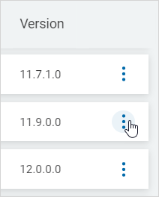
- Click View Target Details from the sub-menu that appears.
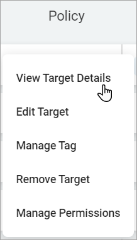
- On the far right of the Target row, click the more options menu.
- The Target Details page appears and displays detailed information about the Target.
- The selected Target name appears in the drop-down list at the top of the page.
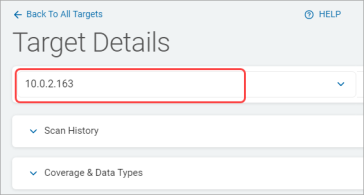
- The selected Target name appears in the drop-down list at the top of the page.
- If you select any other Target name, the details shown below displays for the selected Target only.
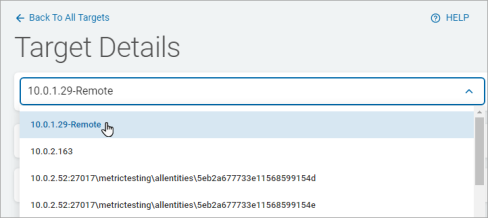
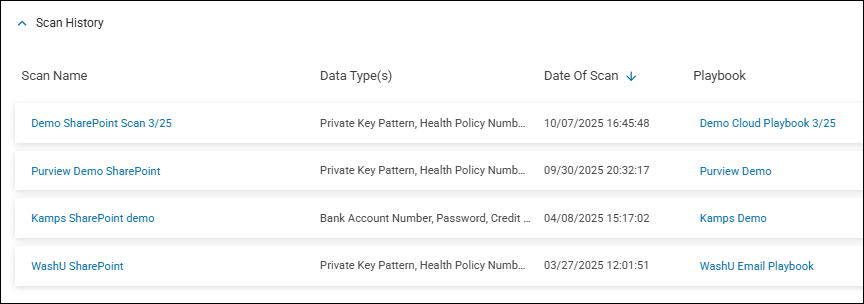
- Here you can see the scan history of the Target, under the "Scan History" section.
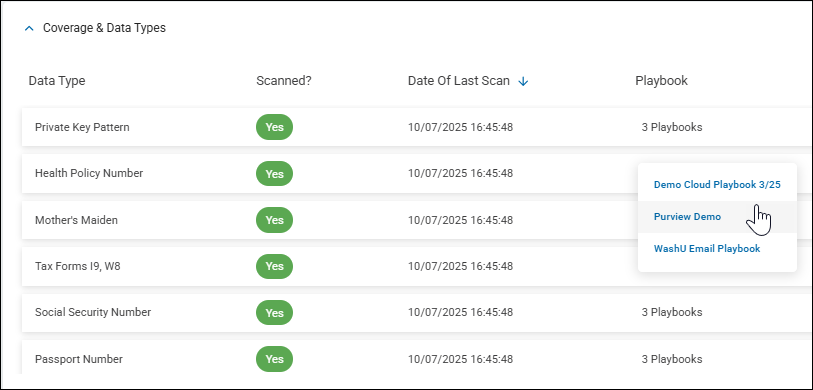
- You can see the Data Types the Target contains and their scan history under the "Coverage & Data Types" section.
- Click the down arrow next to the Scan History section. The table that appears is sorted by Scan Name. The section lists the scans run on the Target and displays the following information in table columns:
- Scan Name: The name of scan.
- Data Type(s): The data type searched for in the scan.
- Date of Scan: The date when the last scan for this data type was performed.
- Playbook: The playbook associated with the scan. The playbook performs its configured action (quarantine, redact, etc.) on the data type(s) displayed in the "Data Type(s)" column.
- Click the down arrow next to the Coverage & Data Types section. The table that appears is sorted by Data Type. The section displays which data types are scanned and not scanned for the selected Target. The section displays the following information:
- Data Type: The name of data type.
- Scanned: Indicates whether a data type is scanned or not.
- Date of Last Scan: The date of last scan for a data type.
- Playbook: The playbook(s) associated with the Data Type. The playbook performs its configured action (quarantine, redact, etc.) on the data type(s) displayed in the "Data Type(s)" column. Mouse over any playbook entry which shows multiple playbooks to see links to each playbook (see the image below). Click a playbook link to jump to the Scan Playbooks page with the scan playbook shown. Select "Manage Playbook" from the more options menu to open the Scan Playbook.
- Click the Back to All Targets link on the top of the page to go back to the Targets tab.
How to Search for a Target
Use the following procedure to search for a specific Target:
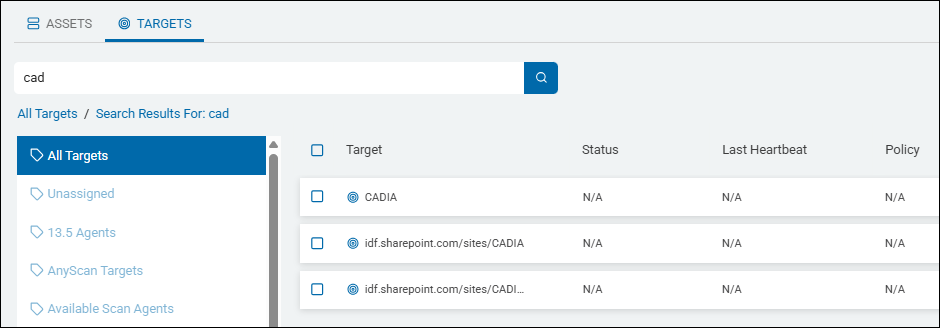
- Enter the desired Target name in the search box. Search is NOT case sensitive.
Note: Entering a partial Target name also returns results. - Click the search magnifying glass icon or press Enter on your keyboard.
- The search results are displayed in the table.
- Mouse over the search field and click the 'x' that appears to clear the search term.
List of Available Target Types
There are 6 Target types to select from in Spirion Sensitive Data Platform:
- Remote Machine
- Database
- Website
- Cloud Source
- Collaboration Tools
To add a Target, see the topic for each specific Target type.