How to Repair an Offline Agent
Use the steps in this article to bring an offline Agent back online.
Why an Agent shows a Status of "Offline"
The console marks an Agent "Offline" when its Last Heartbeat is older than about 5 minutes.
Being registered doesn't mean the Agent is online. A registered Agent can still be Offline if it has stopped sending heartbeats to the console (Spirion Sensitive Data Platform).
A running VM does not guarantee the Agent is online either.
Steps
- Check that it's registered to the right environment. Look for the Agent in the console's registered list for the environment you're working in.
- Not in the list: It's registered to a different environment, or not registered at all. Waiting or restarting the VM won't fix this. Go to step 5.
- In the list, but the heartbeat is old: Go to step 2.
- Duplicate entries for the same machine: This can happen, for example with older entries that have GUIDs added to the name. Use the one with the most recent heartbeat and ignore the others.
- Make sure the Agent machine is running. For Windows VMs, check the power state is "VM running". Then wait a short time, about 2–3 minutes. In testing, Agents came online about 2 minutes after the VM started.
- Restart the endpoint service if the heartbeat is still old. Wait about 90 seconds, then check the console again.
- Windows: Use
Restart-AgentService.ps1. It stops theid*processes, deletes the localjobQueueLocal.dbandDistributedSearchInfo.dbfiles, and restartsIdentityFinderEndpointService,IdentityFinderServiceandIdentityFinderMessagingService. It must run as SYSTEM using PsExec-s. If you use-hinstead, you'll get "System error 5". - Mac: Clear MCData, then run
sudo pkill EndpointService. - Linux: Clear MCData, then run
sudo -s /etc/init.d/eps restart.
- Windows: Use
- Check the IP address. The Agent needs a
10.xIP. If it shows a169.254.x.xaddress instead, correct it withGET /Endpoint/GetEndpointData/{endpointId}followed byPOST /Endpoint/UpdateEndpointData. Windows pool Agents are known to start with169.254.217.44. - Move or re-register the Agent if it's still offline or wasn't in the list:
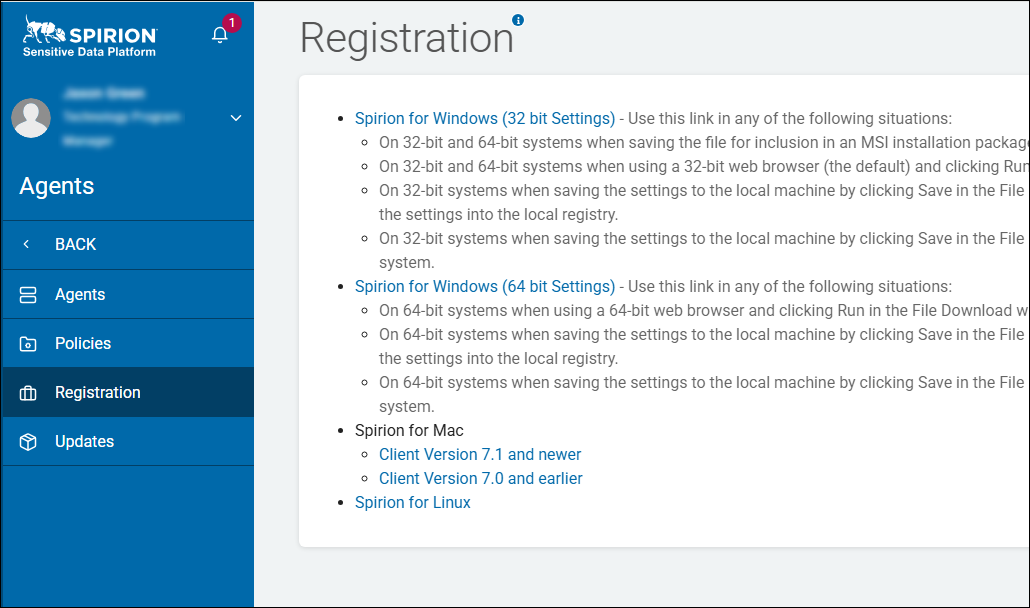
- Download fresh registration files for your environment. They're under Agents → Registration in the console.
- Delete the old endpoint (server, workstation, laptop, etc.) only if it is Offline. Never delete an Online endpoint.
- Restart the service up to 3 times, checking the console after each restart.
- If it still won't show up, move the Agent to another environment and then back again.
- This clears a registration that got stuck partway.
- Download fresh registration files for your environment. They're under Agents → Registration in the console.
- If none of the above steps work, stop using the Agent and choose a different one that is online. Do not wait for the offline Agent to come back on its own.
- If the offline Agent was in the middle of a scan: The architecture design for automatically removing Agents from scans adds an "Auto-Remove Agent from Scan" toggle (default 72 hours) and a manual "remove agent from this iteration of the scan" option, so the scan can still finish.
Note: The Status and Last Heartbeat columns on the "Agent Management" page can't be sorted, so finding offline Spirion Agents may take some manual scanning.
More About Registration
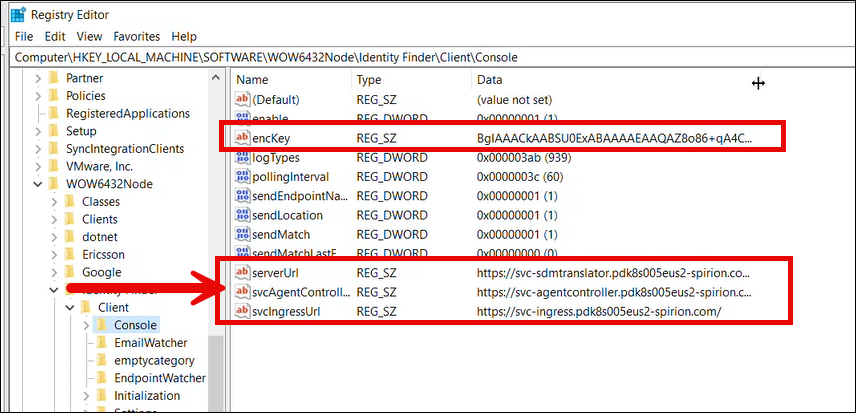
The image below shows the Registry values which must be present on an Agent machine.
- The values of the bottom 3 registry data types cannot be blank.
- If the bottom 3 registry keys do not contain your organization Spirion Sensitive Data Platform ID, present in your console URL, for example:
pdk8s005eus2, this can cause Agents to be mis- or mal-identified. - The
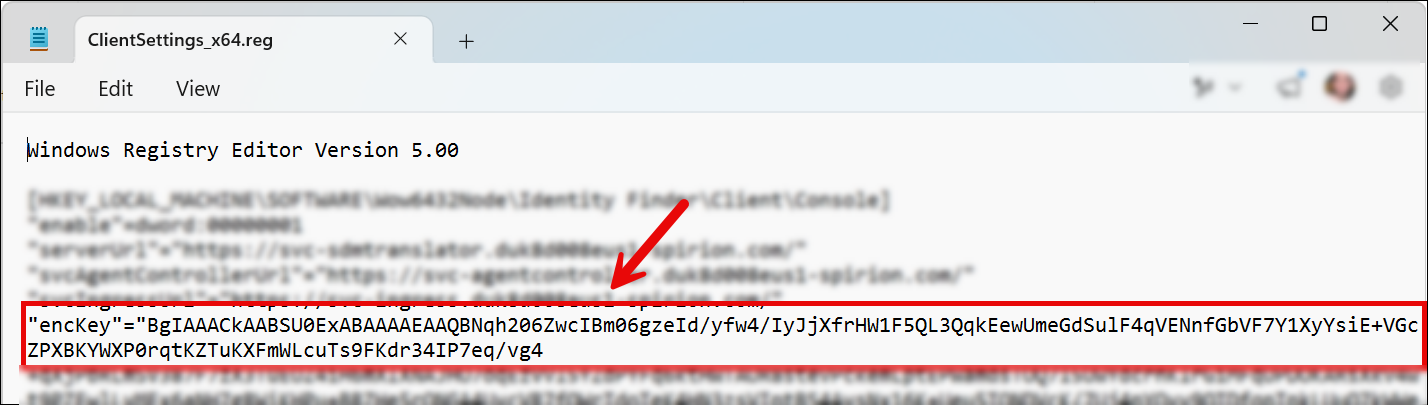
encKeyvalue has to match theencKeyvalue from the ClientSettings reg file downloaded from the Agents > Registration page in Spirion Sensitive Data Platform.