
How to Search a File Server (Remote Search)
Overview
The Spirion Enterprise Client on Windows enables you to search any file system accessible through your Windows machine—even if the files reside on a different platform like a Unix or Linux server running Samba (as long as they're visible in Windows Explorer).
In This Article
- Overview
- Before You Begin
- Searching with an Agent
- Searching with the Console
- Authenticating a Remote Machine
- Setting up a Search
Before You Begin
1. Start Small: Test First
- Always begin by testing any new location with the Agent before full deployment.
- For large remote locations or file servers, it’s best to use a Discovery Team to ensure efficient coverage.
2. Use Custom Folders
- Whenever possible, search via Custom Folders.
- This method is more precise and efficient, especially for file servers.
3. Break Up Large Searches
- If you're dealing with an extremely large file server, divide your search into multiple policies to avoid overloading and inefficiencies.
4. Managing Permissions
- Use the Principle of Least Privilege: Grant only what's necessary for the task. See Microsoft Learn
- Here’s what to consider depending on your actions:
Task | Recommended Permissions |
|---|---|
Search only | AD service account with READ privileges |
Perform remediation | READ-WRITE access |
Classify files | FULL control on search locations |
Preserve timestamps | All permissions except FULL control on parent folder |
Mounted/shared folders | Service account must have explicit RDP permissions |
General administrative tasks | Optionally, the account may need local ADMIN rights |
- Always have permissions set on the immediate parent folder above your target location.
- Avoid running under elevated user accounts—reserve those only for administration tasks.
6. Avoid Invalid Search Paths
- Don’t target symbolic links without a valid reparse point in Custom Folders—it can cause invalid search errors.
- Make sure when using custom folders that the custom folder path matches the format of the authenticated target
- If you authenticate a target using FQDN then the custom folder needs to use the server name in the FQDN format
Searching With an Agent
We always recommend testing new Targets in the local Spirion Agent GUI for quick troubleshooting and to verify that the credentials and locations are correct.
To set up a search in the Agent GUI do the following:
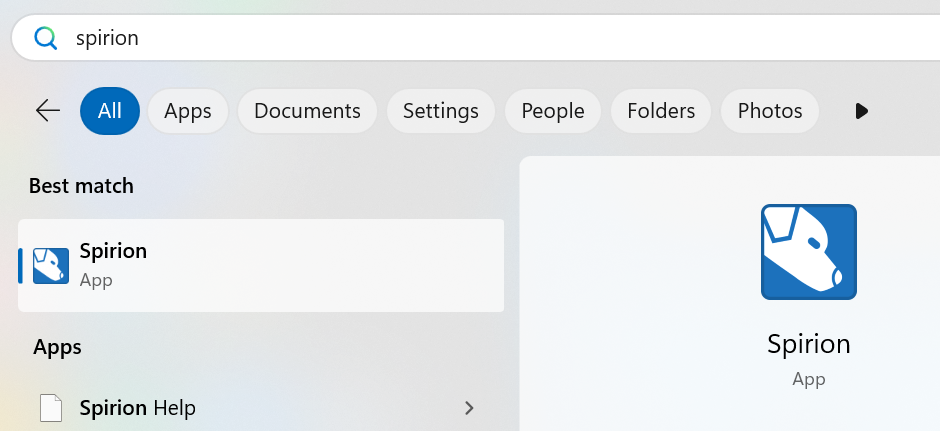
- Launch the Spirion Agent application:
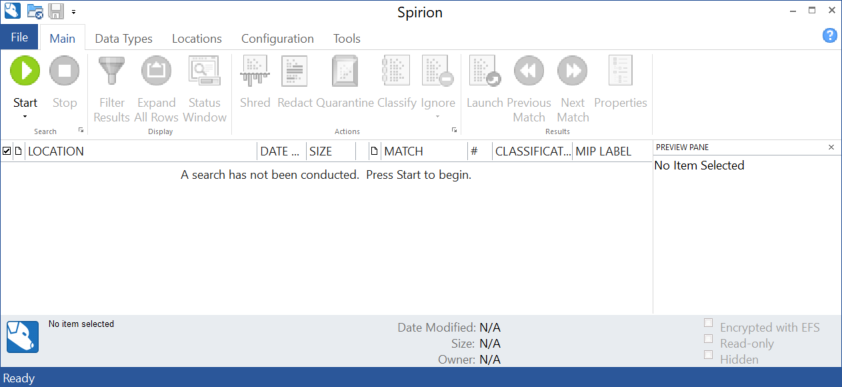
- Log in to the Agent.
- The Agent GUI opens.
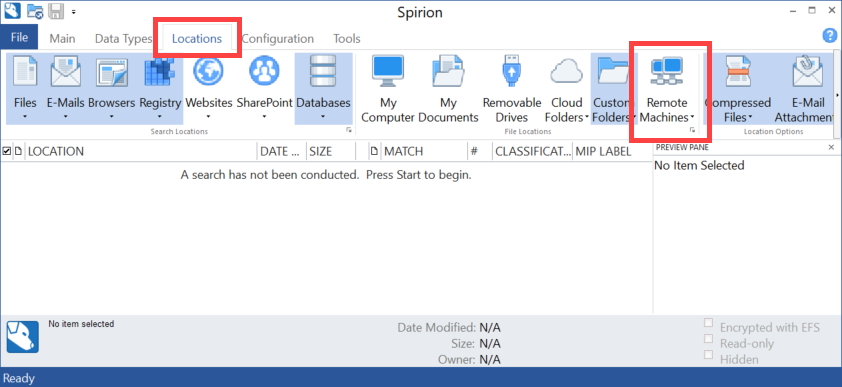
- Select the Locations tab.
- Click Remote Machines.
- Click Customize Remote Machine Search from the drop-down menu that appears under the carrot in the above picture.
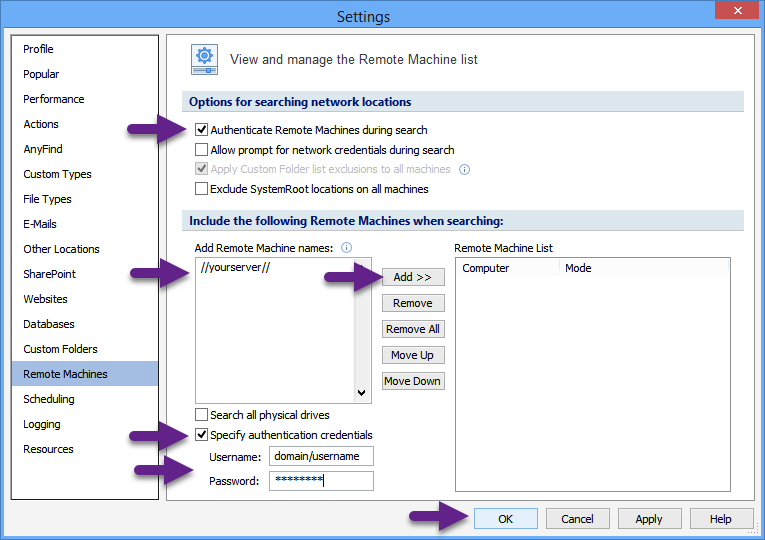
- Fill out the pop-out with the following information:
- Check the box to Authenticate Remote Machines during search.
- Add the name of your server to the Add Remote Machines names section.
- Check the box to Specify authentication credentials.
- Add the Username and Password
- Click the Add >> button
- Click OK
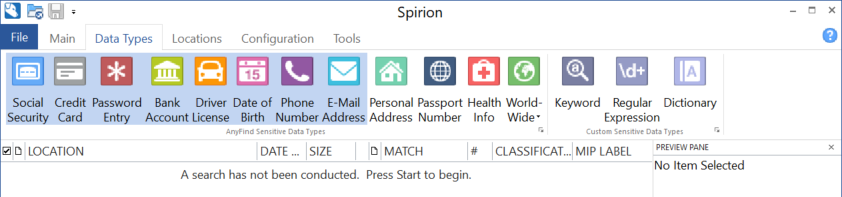
- Back in your local Spirion app select the Data Types tab and select the data types (single-click each to select/deselect) you wish to search for. Selected data types are highlighted in blue.
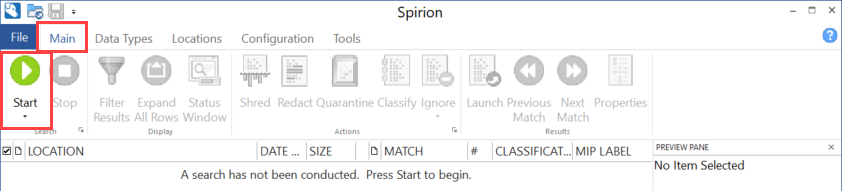
- Select the Main tab. Click the Start button to start the scan.
Searching With a Console
To search a Remote Machine you first must authenticate the Target.
Authenticating a Remote Machine
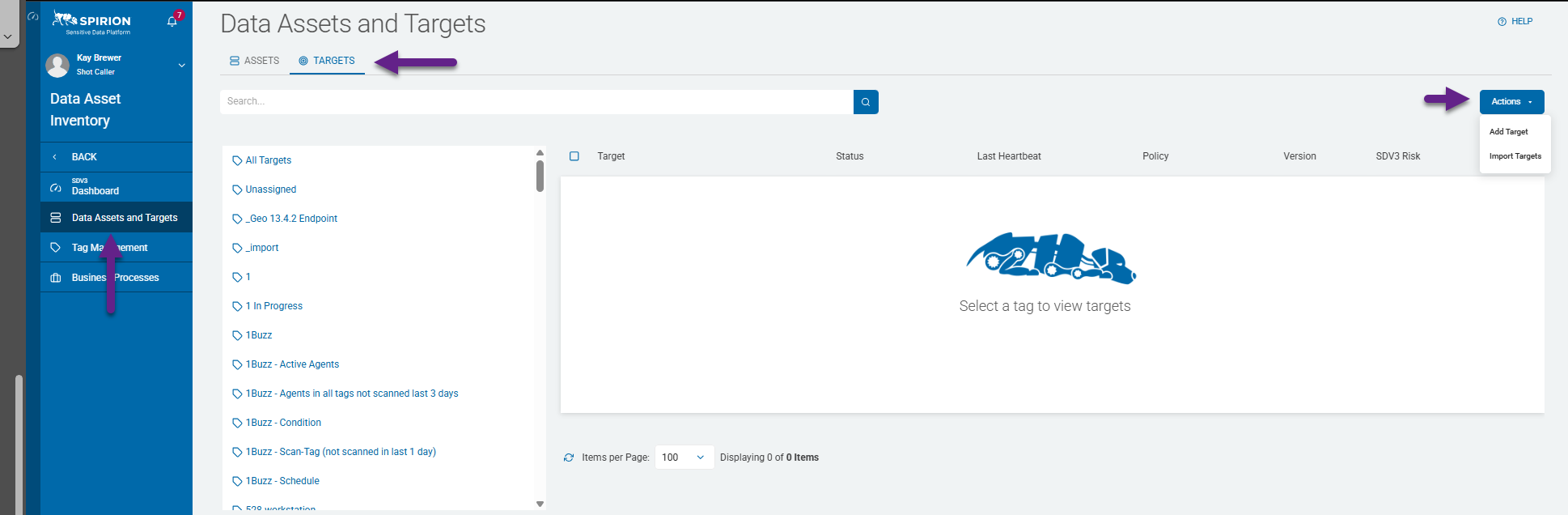
- Navigate to Data Asset Inventory > Data Assets and Targets.
- Select Targets.
- Select Actions in the top right corner.
- Select Add Target from the drop-down menu.
- Enter a Target Name in the Add New Target pop-up box.
- Select Remote Machine.
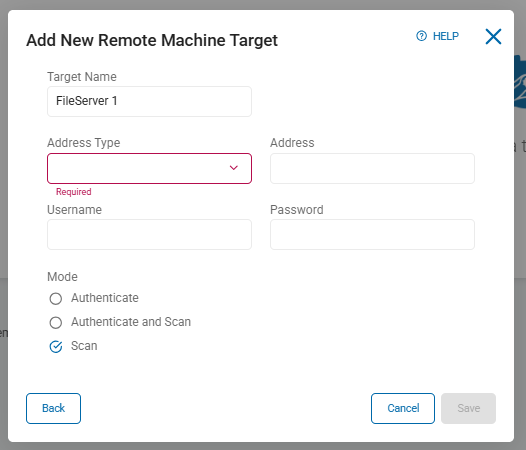
- In the transformed Add New Remote Machine Target enter in the following:
- Address Type (see table)
Address Type | Format |
|---|---|
Net BIOS | Fileserver1 |
IP Address | 10.0.2.81 |
IP Wildcard | 192.168.1.0 0.0.0.255 |
IP Range | Ranges are acceptable for IP Addresses so you may enter a valid IP range such as 10.0.0.1-10.0.255.255. Only the last two octets may be included in the range so it is not possible to search an entire class A or class B network. |
FQDN | hostname.domain.tld |
- Address – the address of the File Server
- Username – typically in the domain/username format
- Note: We recommend using a Service Account to authenticate remote machines
- Password – password of the service account
- Mode – this is the desired action of the target
- Authenticate – The target Authenticates and then uses custom folders to search locations
- Authenticate and Search – Authenticates then searches the entire server from the root
- Scan - The Agent enumerates and searches all of the physical drives (or shares) on the systems.
- No authentication attempt is made and therefore the currently logged on user must have existing credentials on the Target system(s).
- No authentication attempt is made and therefore the currently logged on user must have existing credentials on the Target system(s).
8. Select Save.
Setting up a Search
To set up a search you can follow the guide here.