How to Change a User's Tag/Target Permissions
Use the instructions in this topic to change a user's access to one or more Tags and Targets in Spirion Sensitive Data Platform.
Use the following steps to edit a user's permissions to one or more Tags/Targets:
- From the left side navigation menu navigate to the User Management page (Settings > User Management).
- Ensure you are on the USERS tab (located at the top left of the page).
- In the table shown locate the user whose Tag/Target permissions you wish to change.
- Click the more options menu (3 veritcal dots) at the end of the row.
- Click Manage Permissions from the sub-menu.
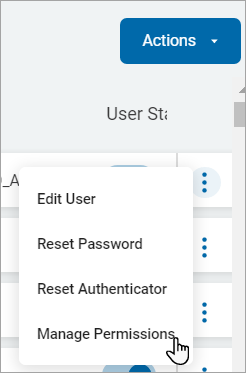
- The Manage User Permissions: <User First Name Last Name> page opens.
- Ensure the TAGS / TARGETS tab is selected.
- Tags, which contain Targets, are listed on the left side of the page.
- From the list on the left side of the page, select a Tag whose permissions to (for this user) you want to change.
- If the Target you are want to edit permissions for is not contained in any Tag, select the "Unassigned" Tag
- To set the user's permissions to all Targets, select the "All Targets" Tag.
- The fastest method to locate a specific Target is to search for it. Enter the Target name in the search field. Partial name search is supported. Asterisks (*) are not required.
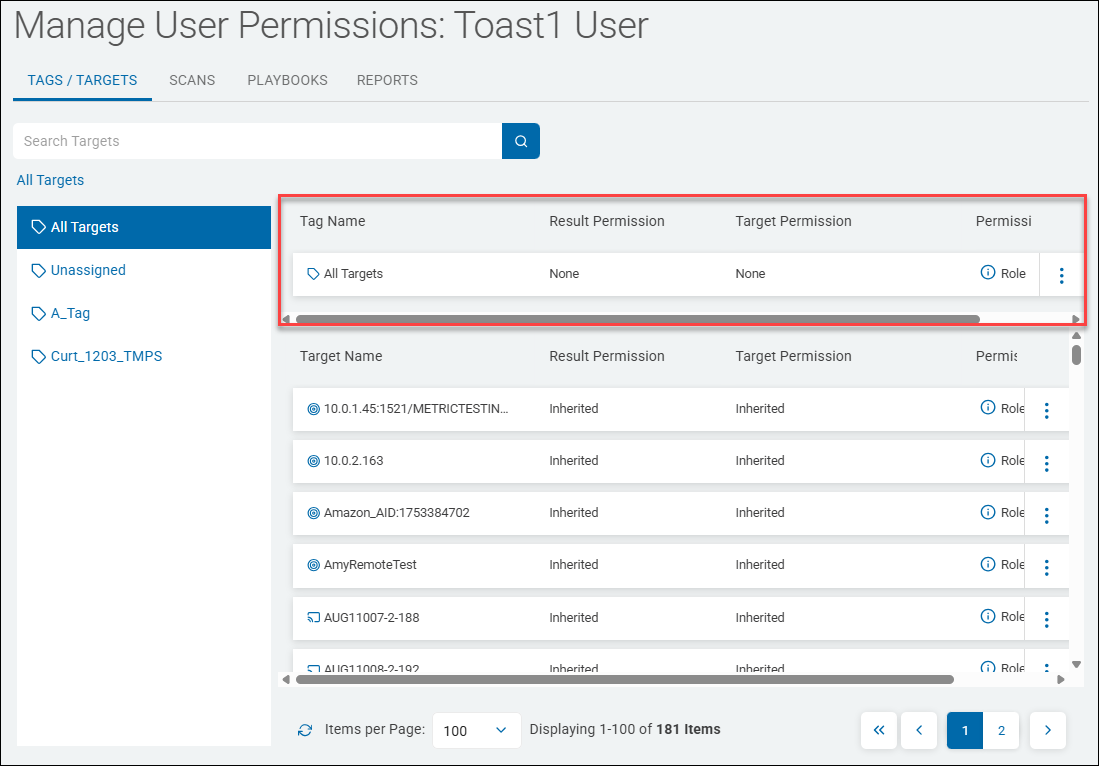
- The Tag selected displays at the top of the page in its own table. Below, in a separate table, are all the Targets contained by the selected Tag.
- Click the more options menu (3 veritcal dots) at the end of the row.
- Click Edit Permissions from the sub-menu that appears.
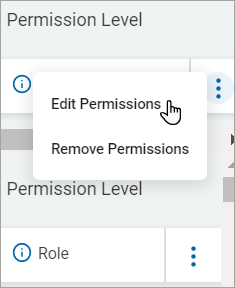
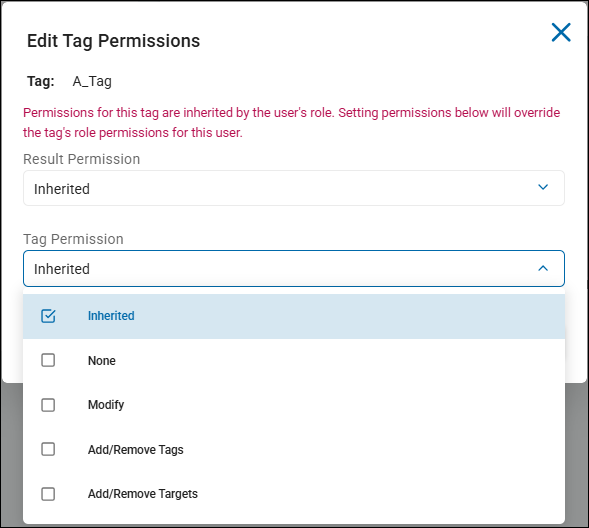
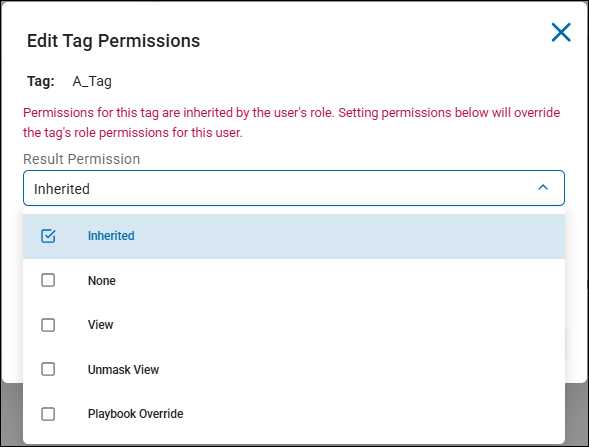
- The Edit Tag Permissions pop-up window opens, shown further below.
- Two categories of settings must be set:
- "Result Permission"
- "Tag Permission"
- See the topics below for instructions on each.
Permission Level - Role or Individual
- Permission Level, shown in the far-right column displays how user access to Tags or Targets is controlled.
- Role - If the columns displays "Role," the user inherits their permissions to a Tag or Target from the role they are a member of ("Role")
- Individual - If the column displays "Individual," the user enjoys permissions to a Tag or Target specific to their user account, separate from their role
- Individual permissions override role-level permissions
- A user can inherit some permissions from the role-level but enjoy different permissions to specific Tags/Targets (Individual overrides)
Tag Permission Example
- In the example below, the Tag "All Targets" has a Permission Level of "Role" which indicates the user inherits all of their permissions for the Tag "All Targets" from the role they are a member of (such as Admin, General User, Compliance User, etc.)
- After changing the Result Permission of the "All Targets" tag to "View," the Permission Level column changes to "Individual" which indicates the user has a permission which overrides the permissions of their role.
Tag with User Access set to Role-level

How to Override Role-level Permissions to Tags/Targets
From the Result Permission drop-down menu, only one option can be selected.
- The "Result Permissions" for the Tag being edited controls the user's access (None, View, Inhertied, etc.) to the Tag.
- As Tags contain Targets (note that Agents can act as Targets), access to the Targets the Tag contains is controlled by the "Result Permission" if, and only if, the Targets are set to "Inhertied". See the image below.
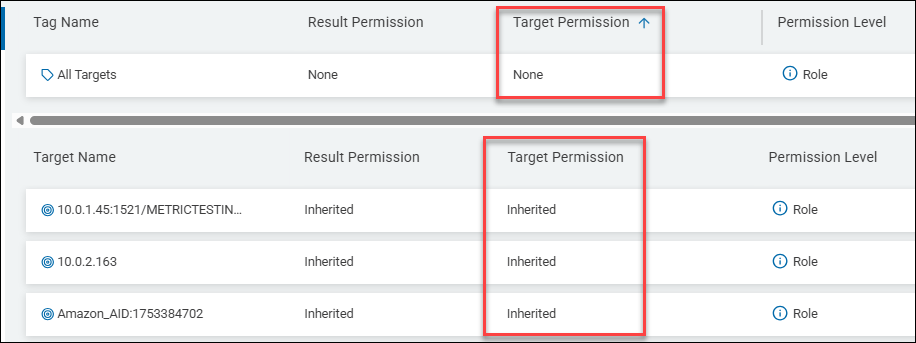
- In the image below the "All Targets" tag is shown
- The permissions to the Targets the Tag contains are set to "Inherited"
- This means the Target Permission shown for the Tag itself on the top row controls the user's access to the Targets in this tag (All Targets)
- The user's permisison to Targets, set at the Tag level, is None
- This user has no access to any of the Targets contained by the "All Targets" tag
- All of these permissions are inherited from the user's Role, no Individual overrides are set
User permission to Target inherited from Tag
- Select any of the following permisison levels from the "Result Permission" drop-down list.
- Inherited - Access rights are inhertied from the Role the user is a member of
- None - No access to the Tag, including view access (user will not see the scan results at all)
- View - View-only access. Sensitive data matches shown in Scan results are hidden (masked).
- Unmask View - Permission to unmask (view) sensitive data matches in Scan results. Note: If you select this option, "View" is automatically selected as well.
- Playbook Override - Permission to override quarantine paths, data types, classifications, and scripts for Playbooks contained by this tag. This options are available on each Playbook's page under the "Actions" menu.
- Before making any changes note the warning on the pop-up window: "Permissions for this tag are inherited by the user's role. Setting permissions below will override the tag's role permissions for this user."
Tag Permission
From the Tag Permission drop-down menu, only one option can be selected.
- Select any of the following options from the "Tag Permission" drop-down list.
- Inherited - Access rights are inhertied from the Role the user is a member of
- None - No access to the Targets/Agents contained by the Tag, including view access (user will not see the Targets/Agents at all)
- Modify - Permission to change the Tag
- Add/Remove Tags - Permission to add and remove Tags
- Add/Remove Targets - Permission to add and remove Targets from the Tag
- Changes take effect immediately.
- A Tag permission can be inherited by the role assigned to the user.
- You can change the permission level to "Individual" by overriding role-level Result and Target permissions.
- Also, you can change the permission level to "Individual/Role" by overriding either role-level Result or Target permissions.