How to Search for a Data Asset
This topic describes how to search for a data asset.
Data Asset Table
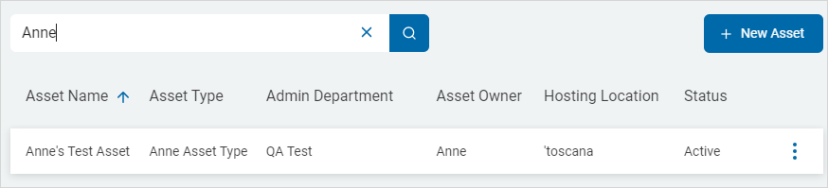
Searching for a Data Asset is performed across all of the available categories in the Assets table:
- Asset Name: Name of the asset. Be sure to name your assets with a descriptive
- Asset Type:
- Cloud Sources - Cloud sources such as: Google Drive, OneDrive, etc.
- Collaboration - Collaboration tools such as: SharePoint and Bitbucket
- Database - Databases such as: Oracle, Snowflake, SQL, etc.
- Email - Email sources such as Exchange, Gmail, etc.
- Files & Folders - For asset types such as a File servers or the files and folders on a workstation, laptop, desktop, etc.
- Tag Group - Defines the asset as a Tag group
- Websites - Defines the asset as a website
- Admin Department: Department that primarily manages the asset
- Asset Owner: Name of the person that primarily manages the asset
- Hosting Location: Name of the location where the asset is hosted. Example: Tampa data center
- Status: Status of the asset - Active or Inactive
How to Search for a Data Asset
To search for a Data Asset use the following steps:
- From the left side navigation menu select Data Asset Inventory > Data Assets and Targets.
- The "Data Assets and Targets" page opens.
- Select the ASSETS tab at the top of the page.
- Enter the query in the search box.
- Spirion Sensitive Data Platform searches for the search term across all values in the table and filters the table values using your search term. You do not need to click the magnifying glass icon.
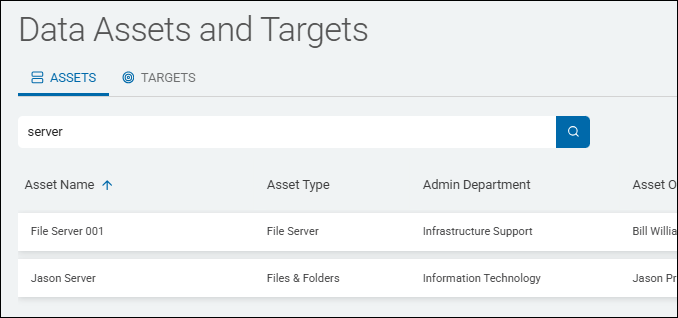
- For example, entering the term "server" displays all assets that contain the term "server."
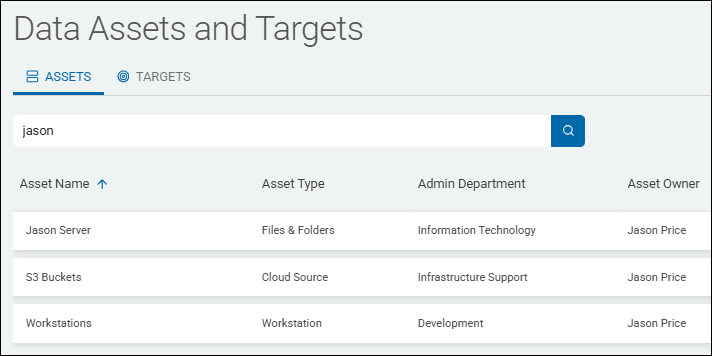
- Example 2: Entering the name "Jason" reveals all assets that contain the term "Jason," which appears in both the Asset Name and Asset Owner columns.
- For example, entering the term "server" displays all assets that contain the term "server."
- Place your mouse cursor in the search field to vew and click the x to clear the search term.