How to Add a Script to a Playbook
Use the steps here to add a script to your playbook logic.
Overview
Playbooks can run a script (when certain conditions are met).
This article describes how run a script from a playbook.
Before Getting Started
Supported UTF-8 Scripts
- If you are using a UTF-8 script, ensure you load a UTF-8 script
- Do NOT attempt to load a UTF8-BOM script. UTF8-BOM scripts are not supported.
How to Add a Script to the Spirion Console
Use the following steps to add a script to the Spirion Console.
In Spirion Sensitive Data Platform:
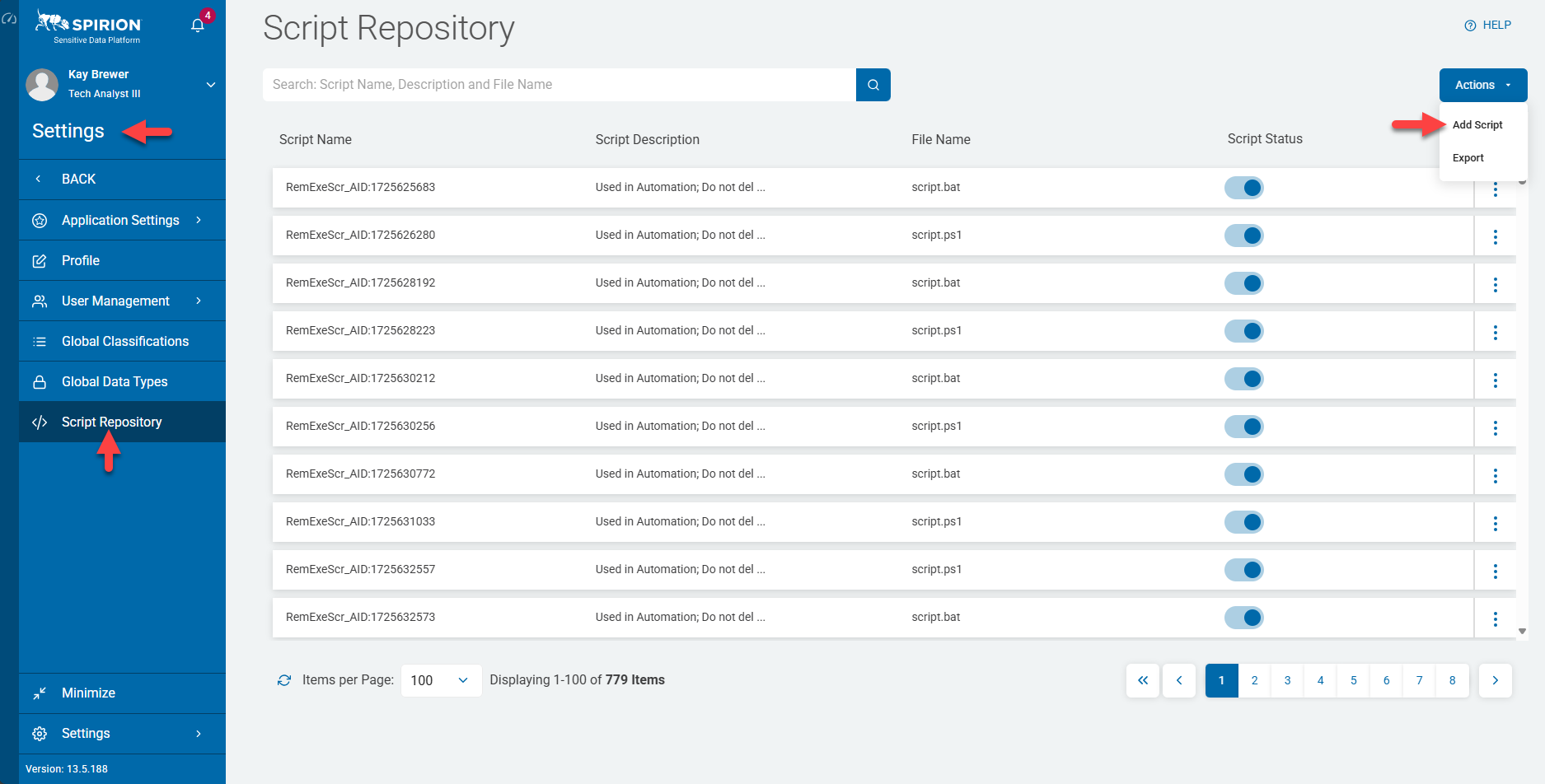
- From the left side navigation menu, click Settings at the bottom of the menu.
- Select Script Repository from the navigation menu.
- Click the blue Actions button at the far right.
- Select Add Script from the drop-down menu that appears.
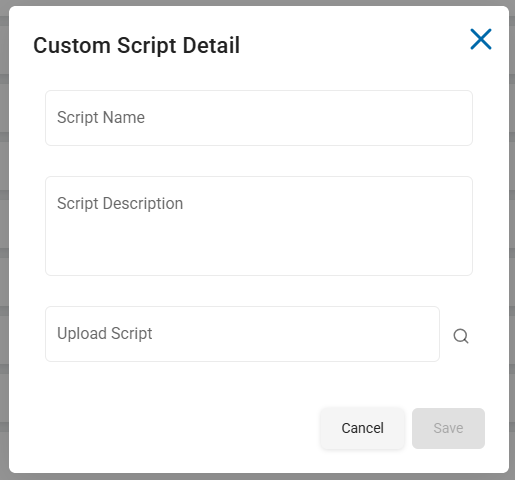
- Fill in the Custom Script Details:
- Enter a Script Name
- Enter a Script Description
- What does the script do and when?
- Next to Upload Script, click the magnifying glass to select the script you want to upload
- Select Save.
- Toggle the switch under Script Status from grey to blue to activate it.
How to Add a Script to the Playbook
Use the following steps to add a script to the Spirion Console.
From Spirion Sensitive Data Platform:
- Navigate to Scans.
- Select Scan Playbooks.
- Select the playbook you wish to add the script to, or select Add Playbook.
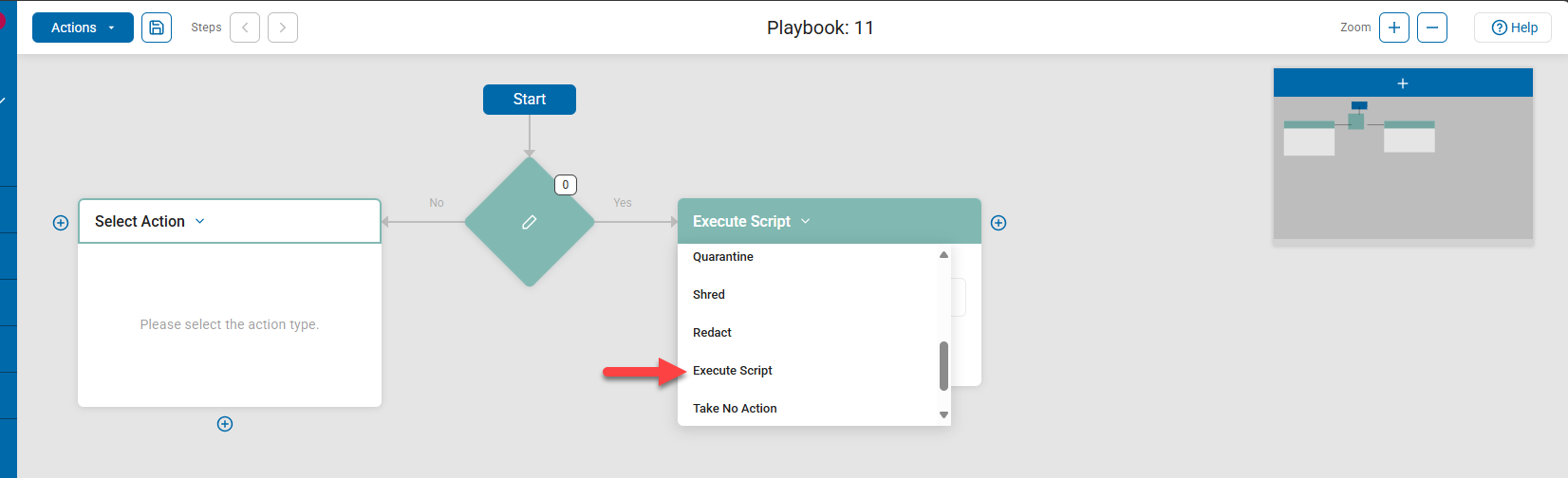
- In the Action box, click the drop-down menu and select Execute Script. See the screenshot below:
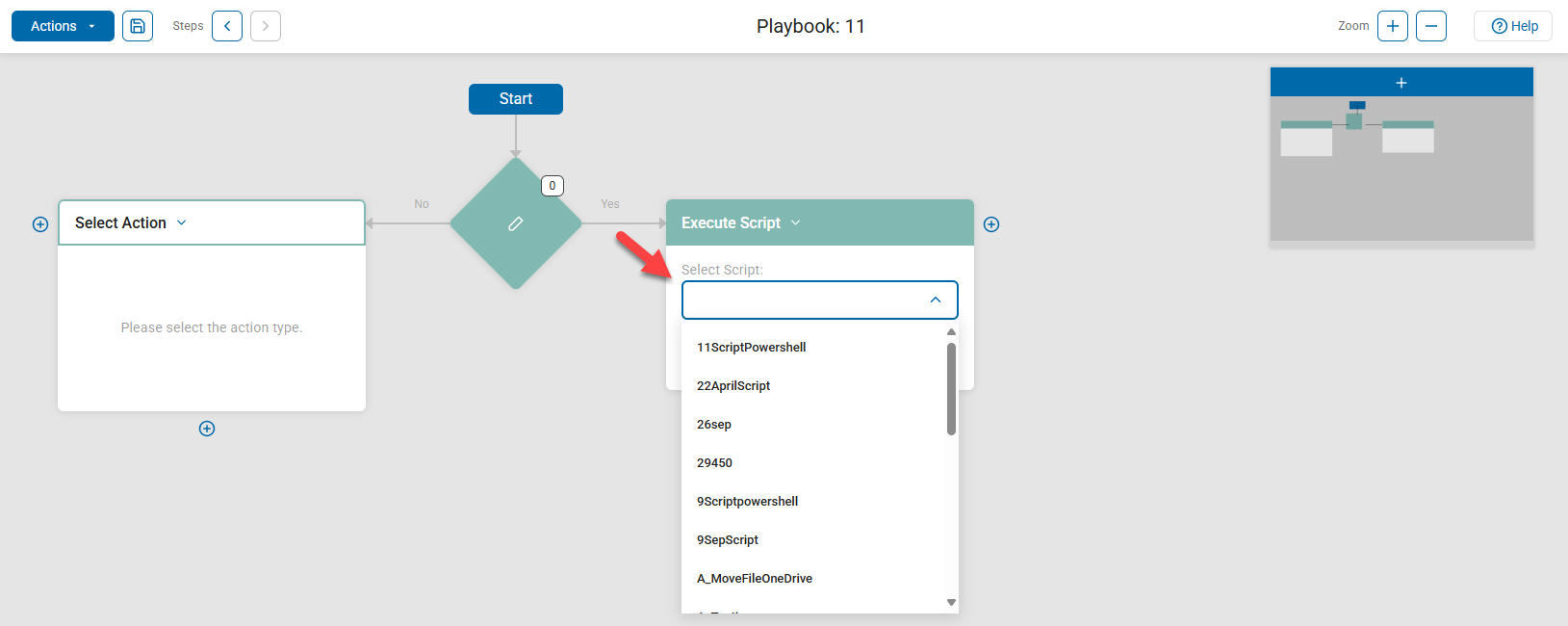
- Select the script (saved from the above section) from the drop-down menu. See the screenshot below: