Why is My Scan Node Running Out of Disk Space?
How to Diagnose the Problem
To confirm that your scan nodes’ temp folder is filling up the hard drive (c:\), you can use one of these methods:
- Navigate to the temp directory on the target machine.
- Path to the temp folder: "C:\Windows\Temp\IDFTmpDir\IdentityFinderCmd"
- Right-click on the folder and and compare the size of the folder to the total drive capacity.
- Use a tool such as TreeSize to assess your c:\ drive’s utilization.
- This indicates which folders are taking up the most space.
- TreeSize: https://www.jam-software.com
Temp File Shred Intensity
The Temp File Shred Intensity setting can be manipulated by updating or creating an Agent policy in the Spirion Console. The Shred Intensity setting changes how many passes are made when deleting temp files after they’ve been scanned.
Use the steps below to change this setting:
- In the Spirion Console, navigate to Agents and then Policies.
You can update an existing Agent policy, or create a new policy to change the Shred Intensity.
- To create a new policy, use the Add Policy button at the top right.
- To update an existing policy, select one from the drop-down at the top of the page and then click the blue Edit This Policy button which appears.
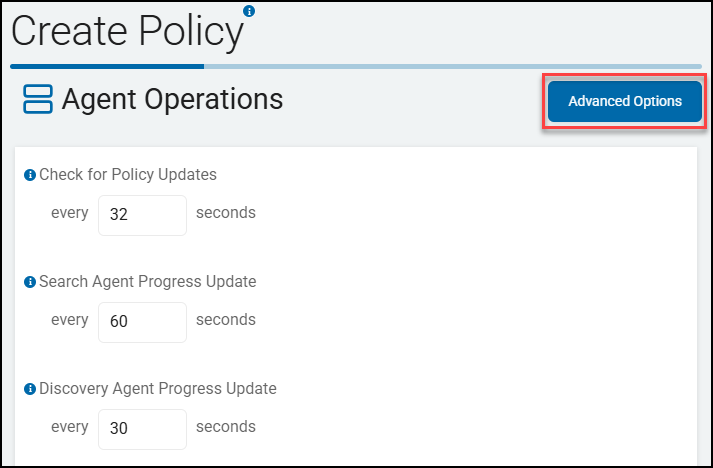
- In the "Agent Operations" section, select Advanced Options at the top right of the page.
- On the Advanced Options page, you can change the "Temp File Shred Intensity" in the left column.
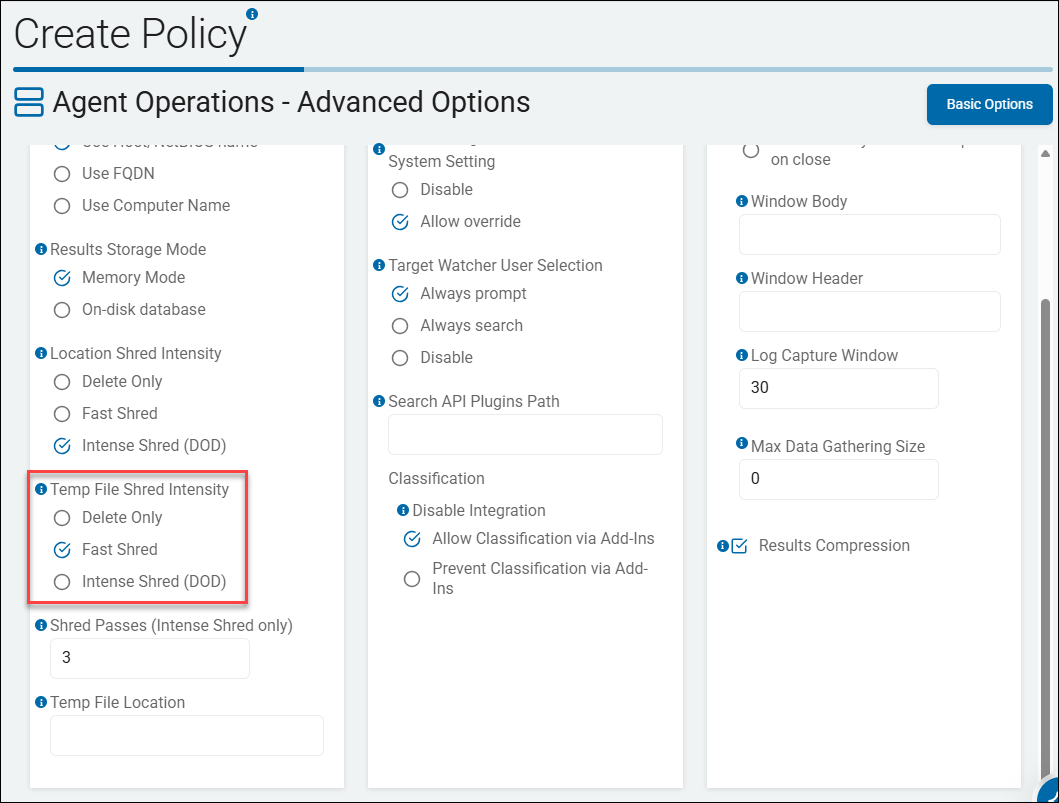
Temp File Shred Intensity options:
- Delete Only: Deletes the file only, no overwrite of the file is performed.
- Fast Shred (Default): Overwrites the file once and then deletes the file.
- Intense Shred (DoD): Overwrites the file 3 times, which can be increased using the setting "Shred Passes" just below, and then deletes the file.
If your scan nodes’ c:\ drives are filling up, consider setting Temp File Shred Intensity to Delete Only. This accelerates the shredding process and ensures disk utilization remains as low as possible.
Purge via a PowerShell Script
Use the following steps to purge via a PowerShell script:
- Download this entire folder (TempFolderCleanup) and place it in C:\ProgramData\Identity Finder.
- Execute the first script, CreateScheduledTaskToRunTempFolderCleanup.ps1
- This script creates a folder in Task Scheduler named Spirion, and places a task that executes the cleanup script every hour.
- Confirm the script ran successfully by checking Windows Task Scheduler. The Task Scheduler resembles the following image:
Additional Parameters
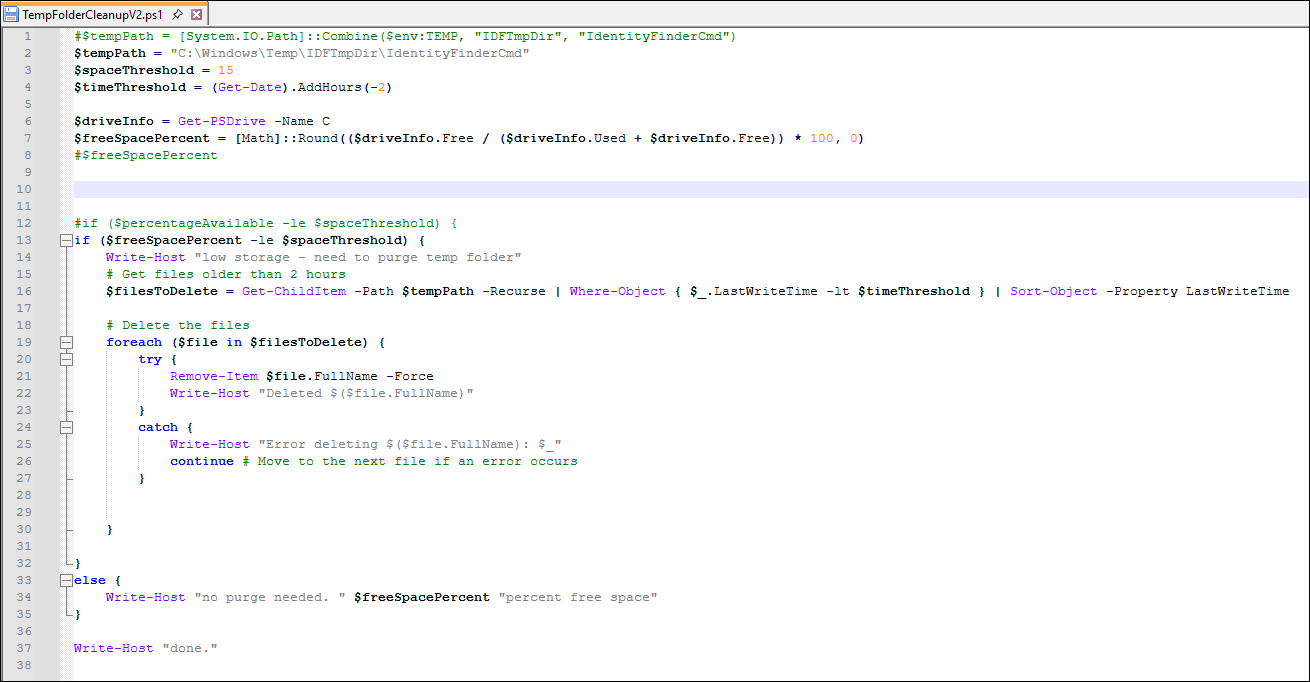
By default, the clean-up script deletes documents in the temp directory that are older than 2 hours when free space on the c:\ drive is 15% or lower.
This behavior can be adjusted in the file TempFolderCleanupV2.ps1 using the following changes:
- Space Threshold, or the threshold at which the script will start deleting files.
- To set the space threshold, open the text file "TempFolderCleanupV2.ps1."
- Update the variable
spaceThresholdon line 2 to the desired value.
- Time Threshold, or the age of the documents to be deleted.
- To set the time threshold, open the text file "TempFolderCleanupV2.ps1."
- Update the variable
timeThresholdon line 4 to the desired value.