
How to Add a Database Target
Use the information in this topic to add a database Target such as SQL, Oracle, mongoDB, Snowflake, etc. in Spirion Sensitive Data Platform.
Prerequisites
Before you add a database Target in Spirion Sensitive Data Platform, you must test to verify the database connection string is valid using the Spirion Agent GUI (also called the "Spirion Client").
See the article How to Test and Configure Database Connection Strings.
How to Add a Database Target
Use the following steps to add a new database Target in Spirion Sensitive Data Platform:
- From the left side navigation menu select Data Asset Inventory > Data Assets and Targets.
- The "Data Assets and Targets" page opens.
- Select the TARGETS tab at the top of the page.
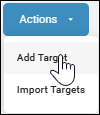
- In the upper right corner of the page, click the blue Actions button and select "Add Target" from the sub-menu that appears.
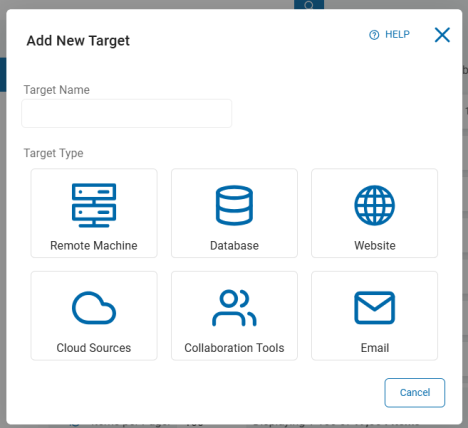
- The "Add New Target" pop-up window opens.
- Target Name: Enter the name of the database Target. Make the name descriptive by including identifiers such as the database name, database type, location, department, status, and/or date.
- Under "Target Type" click the Database tile to proceed or the Cancel button to discard.
- The Select a Database to Configure pop-up window appears
- Select the tile of the database you wish to add as a Target:
- Oracle
- SQLServer
- SYBASE
- IBM DB2
- Informix
- InterBase
- SQLBase
- SAP SQL Anywhere
- MySQL
- SQLite
- PostgreSQL
- ODBC
- OLEDB
- mongoDB
- Snowflake
- Click the Back button to return to the previous screen or the Cancel button to discard.
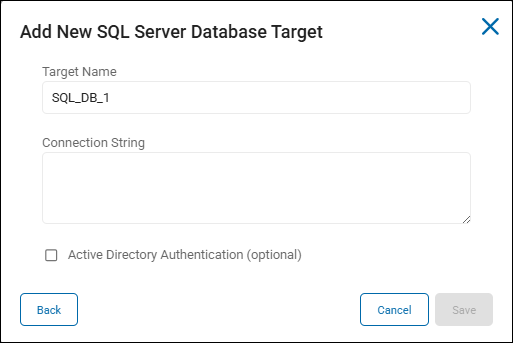
- When you select a SQL database, the Add New SQL Database Target window enables you to select the option Active Directory Authentication (optional).
- This option enables you to connect an agent to a remote SQL database server.
- Otherwise, continue with these steps.
- In the Connection String field enter the connection string to your type of database.
- Examples are provided below.
- Click the Save button to save, Cancel button to discard, or Back button to return to the previous screen.
- Your database Target is now successfully added to Spirion Sensitive Data Platform.
Sample Connection Strings
Oracle Connection String
Provider=OracleSQLAPI;DB Name=instance_name;Host=host_name;Port=port;Service=service_name;Username=user_name;Password=password;DB Type=2;APPNAME=SDP;MS SQL Connection String
SQL Server Authentication
Provider=MSSqlSQLAPI;DB Name=database_name;Server=server_name;Username=user_name;Password=password;DB Type=3;Windows/AD Authentication
Provider=MSSqlSQLAPI;DB Name=database_name;Server=server_name;Trusted_Connection=yesSybase Connection String
Provider=SybaseSQLAPI;DB Name=database_name;Server=server_name;Username=user_name;Password=password;DB Type=8;APPNAME=SDP;DB2 Connection String
Provider=DB2SQLAPI;DB Name=database_name;Username=user_name;Password=password;DB Type=6;Informix Connection String
Provider=InformixSQLAPI;DB Name=database_name;Username=user_name;Password=password;DB Type=7;Informix Connection ODBC Driver DSN-less Connection
Driver={IBM INFORMIX ODBC DRIVER}; Server=INFORMIX_SERVERNAME; Host=DB_SERVER_HOSTNAME_OR_IP; Service=PORT_NUMBER;
Database=DATABASE_NAME; Protocol=onsoctcp; UID=DB_USERNAME; PWD=DB_PASSWORD;
Informix Connection ODBC DSN-Based Connection
DSN=InformixProdDSN; UID=DB_USERNAME; PWD=DB_PASSWORD; Example: DSN=InformixProdDSN; UID=spirion_svc; PWD=AnotherStr0ngPass;InterBase Connection String
Provider=InterBaseSQLAPI;DB Name=database_name;Username=user_name;Password=password;DB Type=4;SQLBase Connection String
Provider=SQLBaseSQLAPI;DB Name=database_name;Username=user_name;Password=password;DB Type=5;SQL Anywhere Connection String
Provider=SQLAnywhereSQLAPI;DB Name=database_name;Server=server_name;Host=host_name;Username=user_name;Password=password;DB Type=12;MongoDB Connection String
<DatabaseItems Connection="mongodb://user:password@host_ip:host_port" Type="MongoDb" />MySQL Connection String
Provider=MySQLSQLAPI;DB Name=database_name;Server=server_name;Port=port;Username=user_name;Password=password;DB Type=9;SQLite Connection String
Provider=SQLiteSQLAPI;DB Name=database_path;DB Type=11;PostgreSQL Connection String
Provider=PostgreSQLAPI;DB Name=database_name;Server=server_name;Port=port;Username=user_name;Password=password;DB Type=10;APPNAME=SDP;Snowflake Connection String
DRIVER={SnowflakeDSIIDriver};Server=HOSTNAME;Database=DBNAME;Warehouse=WAREHOUSENAME;UID=USER;PWD=PASSWORD;ODBC (generic) Connection String
Provider=ODBCSQLAPI;DB Name=database_name;Username=user_name;Password=password;DB Type=1;