How to Create an Exchange Online Target
This article describes how to create and authenticate an Exchange Online Target in Spirion Sensitive Data Platform.
Requirements
- Before continuing note that Spirion now supports creating an app for the search of Microsoft OneDrive and Exchange.
- This enables Spirion Administrators to manage searching two locations with a single Entra App.
- Before you continue, ensure you have followed the steps in the topic "How to Create a Single Tenant App for OneDrive and Exchange Online Searches."
Create a New Exchange Online Target
Use the following steps to create and authenticate an Exchange Online Target in Spirion Sensitive Data Platform:
- From the left side navigation menu select Data Asset Inventory > Data Assets and Targets.
- Select the TARGETS tab at the top of the page.
- Click the Actions button in the top right corner of the page and select Add Target from the drop-down menu.
- Name the Target and select Email as the Target Type.
- Select Exchange in the Target Selection screens.
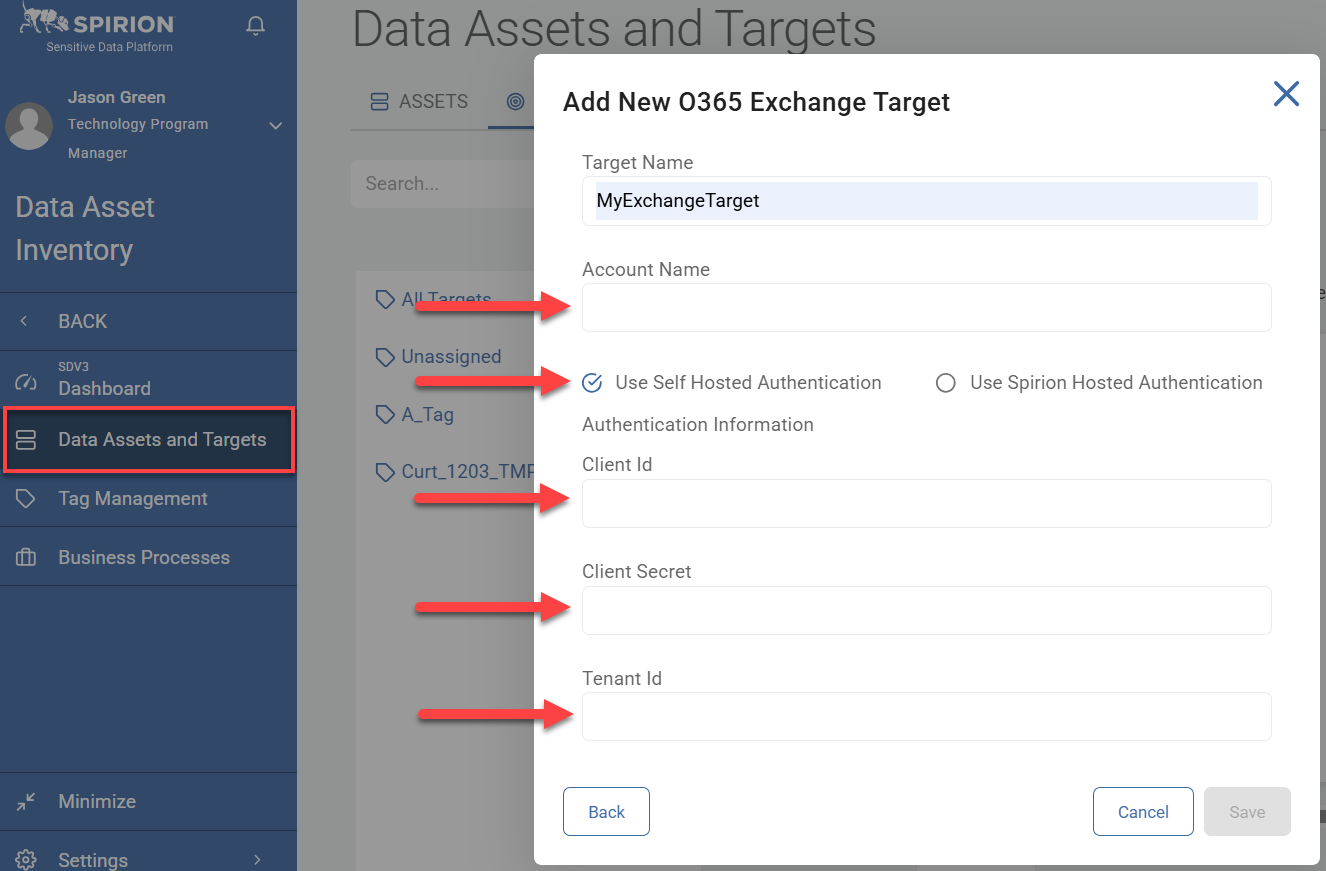
- Enter the Admin user account name from the Microsoft tenant into the Account Name field.
- Select the radio button “Use Self Hosted Authentication.”
- Under Authentication Information enter the following information:
- Enter your Client ID.
- Enter your Client Secret.
- Enter your Tenant ID.
- Click the Save button at the bottom of the page to save your changes, Cancel to discard your changes or Back to go to the previous screen.
- If successful, your Exchange Online Target now appears in the list of Targets on the TARGETS tab.