
What are Some of the Common Reasons Why Scans Fail to Run?
Overview
In Spirion Sensitive Data Platform (SDP) (and distributed scanning architectures), scans operate across a decoupled pipeline involving the Console Control Plane, the Agent Host/Queue Services, and the Target Repositories.
When a scan fails to start, stalls immediately upon launch, or fails mid-run, the root cause typically falls into one of the following key categories:
Agent Host and Background Service Failures
Before an agent can pick up a scan job from the console, several local background services must be healthy:
- Local Queue Service Stoppage (PostgreSQL / pgBouncer):
- In Spirion Sensitive Data Platform v13.6+, the Agent relies on a local PostgreSQL instance and
pgBouncerconnection pooler for its task queue (search_queue) and shipper queue (shipper_queue). - Stale PID Lock: Following an unclean reboot or VM restart,
SpirionPgbouncerServicemay detect a leftoverpgbouncer.pidfile and fail to start, causing the Agent process (IFS/EPS) to continually crash and fail to launch new tasks.
- In Spirion Sensitive Data Platform v13.6+, the Agent relies on a local PostgreSQL instance and
- Stale Named Mutex / Orphaned Process Locks:
- If a prior scan crashed or terminated abnormally, an orphaned Windows named mutex (
MainClient) or locked handle can cause the Endpoint Service (idfEndpoint.exe) to believe a scan is already running, indefinitely blocking new task launches.
- If a prior scan crashed or terminated abnormally, an orphaned Windows named mutex (
- Agent Not Assigned or Offline:
- The scan Target is routed to an Agent pool where all worker nodes are shut down, deallocated, de-registered, or running an incompatible Agent software version.
Authentication and Credential Failures
Scans fail immediately during the Target connection phase if authentication parameters are invalid or expired:
- Expired Cloud App Registrations / Certificates:
- SharePoint Online, OneDrive, or Azure target scans fail when the Azure Entra ID App Registration client secret expires or the uploaded certificate thumbprint changes.
- Service Account Lockout or Password Expiry:
- For Windows SMB shares or Active Directory-authenticated databases (MS SQL, Oracle), expired credentials or locked service accounts cause instantaneous
Access Denied (401 / 403)or RPC errors.
- For Windows SMB shares or Active Directory-authenticated databases (MS SQL, Oracle), expired credentials or locked service accounts cause instantaneous
- Database Catalog / Schema Permissions:
- The database user account configured for an ODBC or native database target lacks
CONNECTrights orSELECTpermissions on system catalog views (sys.tables,information_schema).
- The database user account configured for an ODBC or native database target lacks
User Account Permissions
The user account that performs any remediation action must have the necessary rights (READ/WRITE/MODIFY/DELETE/LIST/etc.).
- Scan Playbook configuration: Verify that the remediation action (such as quarantine) that your scan playbook performs during your scan is configured correctly.
- User Account Permissions: The user account configured to perform the remediation action (such as quarantine) in your playbook(s) must have sufficent rights to acess, read, write, modify, delete, etc. files and folders.
To perform the Quarantine remediation action, Spirion Sensitive Data Platform completes 3 separate actions (invisible to the user):
- The file to be quarantined is copied from its source location to the configured quarantine location (remote file server, local Agent machine, cloud location, etc.). This requires your user account have the READ permission.
- Spirion Sensitive Data Platform validates the file and confirms it has been successfully copied from its source location to the quarantine location. This requires your user account have WRITE permissions to the quarantine location.
- Spirion Sensitive Data Platform then deletes the file from its original source location. This requires your user account have the DELETE permission on the file's original source location.
Where are Global Quarantine Settings?
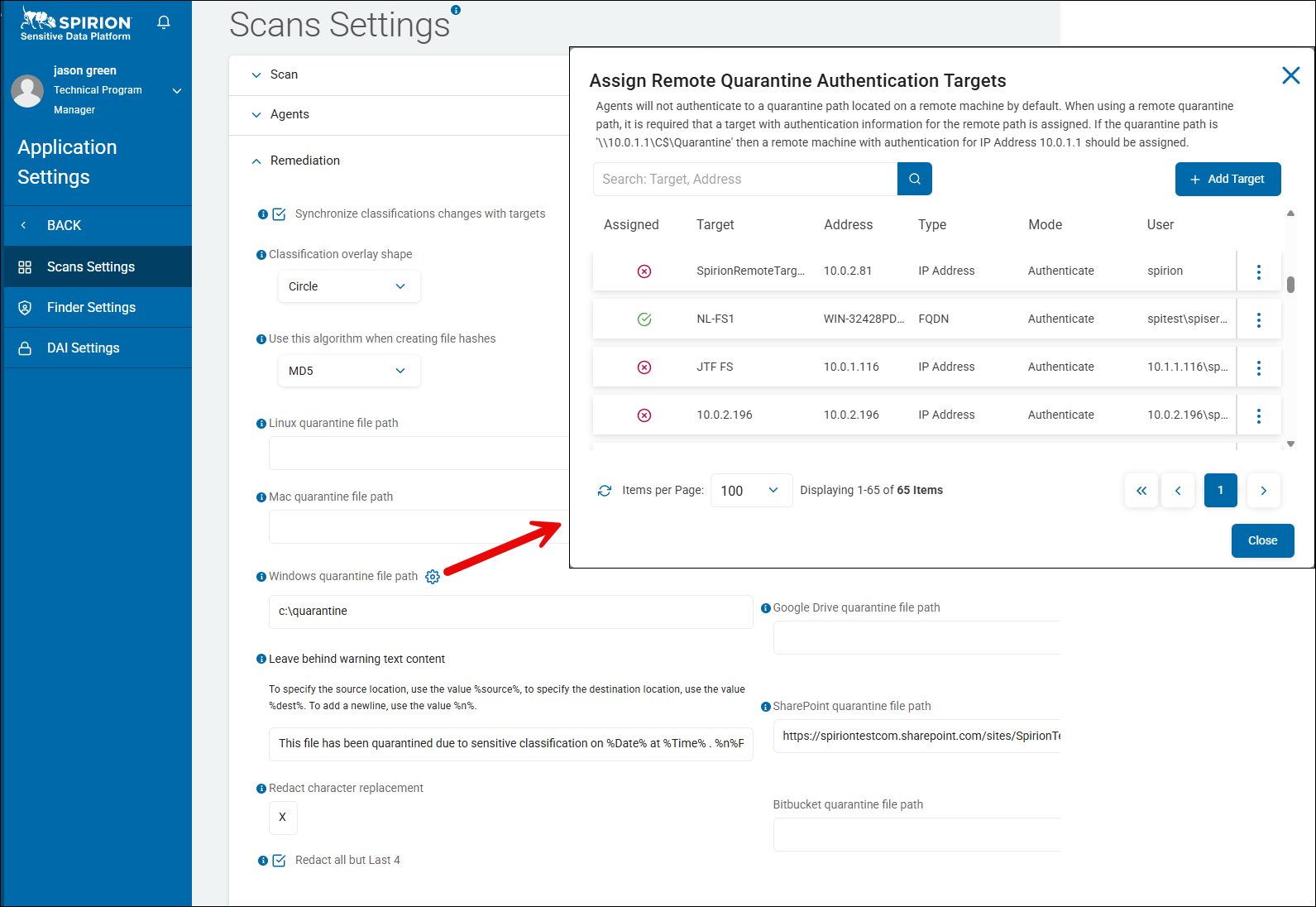
Quarantine settings are set under Settings > Application Settings > Scans Settings > Remediation section.
- These are universal settings which define local and remote Quarantine Targets, including file paths and user authentication.
- In the screenshot below the authentication settings of remote Windows file shares used as quarantine destinations (targets) is shown.
Where are Playbook-specific Quarantine Settings?
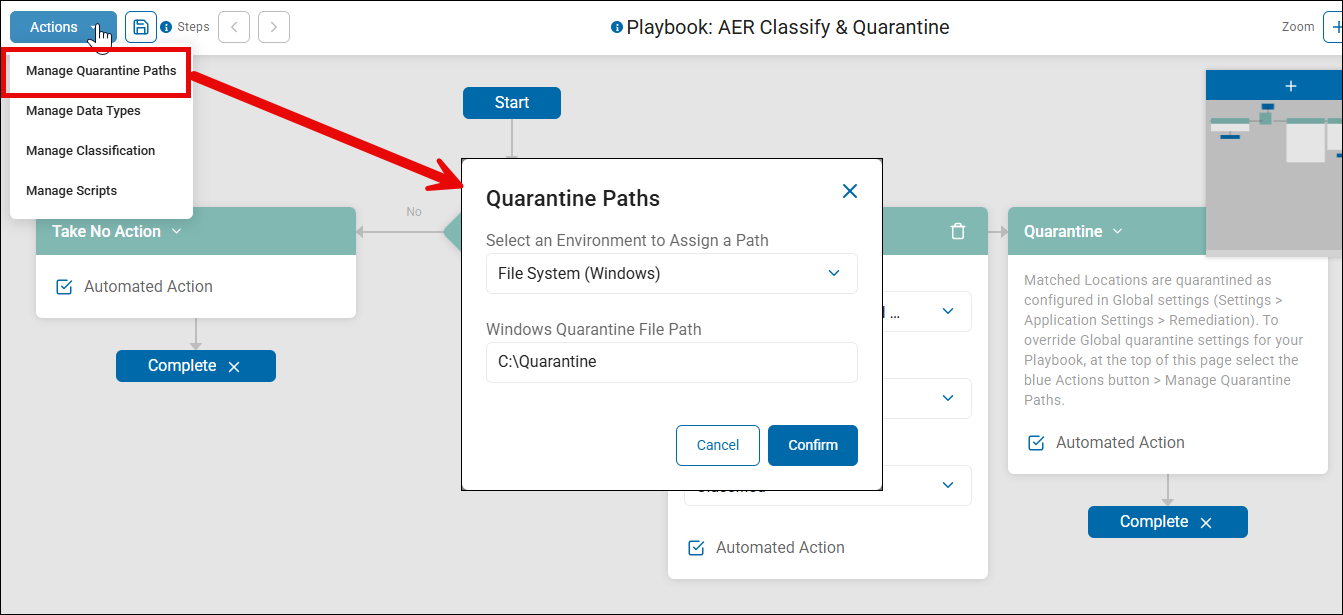
- Global quarantine settings can be overridden by quarantine settings within a specific playbook.
- You can set scan playbook-specific quarantine paths using the blue Actions button in the top left corner on your Playbook screen (Scans > Scan Playbooks > "Manage Playbook" from the more options menu for a given playbook).
- See the screenshot below.
Example: Account Performing Qurantine Has Insufficient Rights
In this example a scan playbook is configured to classify and then quarantine any personally identifiable information (PII) to a remote Windows file server.
- The user account used to run the scan has READ-only permission to the source location. The user account configured for the remote Windows file server (quarantine location) has READ/WRITE permissions to the quarantine location.
- READ-only permissions to the source files allows the classification action.
- READ/WRITE permissions to the quarantine location (remote Windows file server) prevents all 3 steps of the quarantine action.
- The account used to perform the quarantine action must have DELETE permissions to the file's source location to complete the quarantine action. See below.
In the example IDF log file below the error message "The file was copied to the quarantine location but could not be shredded from its original location. The file now exists in both locations" appears.
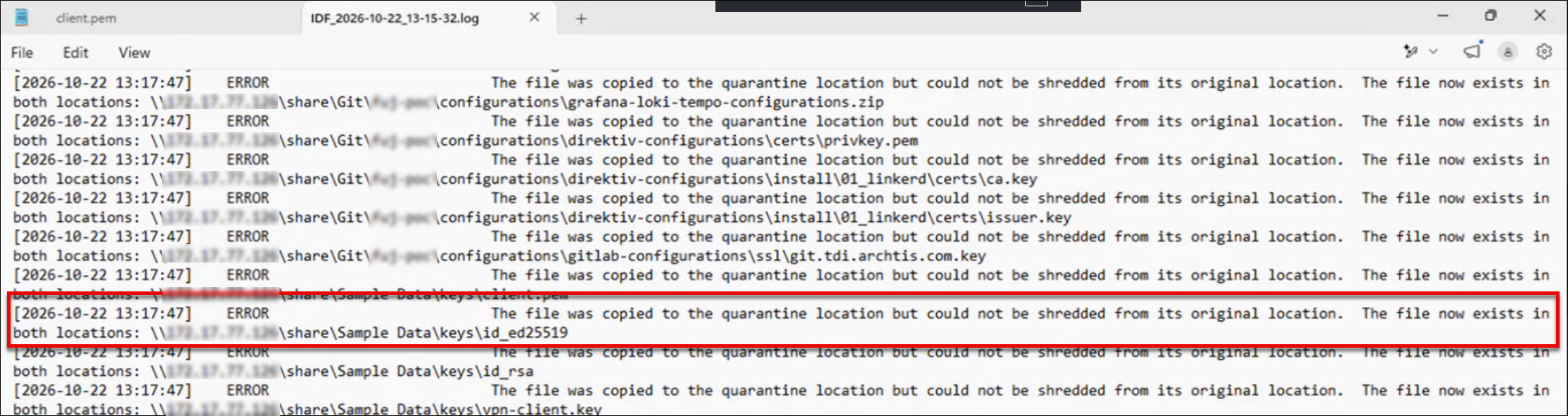
- This error describes the following:
- First, The file is successfully classified.
- Second, the original file is copied from its original location to the quarantine location during the quarantine process. The file is confirmed as successfully copied.
- Lastly, the file is not deleted from its original location.
- The deletion of the file failed because the remote Windows file server in Spirion Sensitive Data Platform, on the Scans Settings page, is configured with a user account that does not have the necessary rights (DELETE permission) to remove the file from its original location.
- Once the DELETE permission is granted to the user account being used, when the scan is next performed both the classification and quarantine operations complete successfully, and rapidly.
Network and Firewall Connectivity Issues
- Port & Firewall Blocks:
- The scan Agent cannot communicate with the target data store due to network segmentation
- For example:
- SMB TCP 445 blocked across subnets
- WinRM TCP 5985 blocked
- DB ports 1433/1521 unreachable
- Proxy / SSL Inspection Interception:
- Corporate proxy or TLS deep-packet inspection gateways terminate or reject the Agent's outbound HTTPS calls to the Spirion SaaS Ingress endpoints.
- DNS Resolution Failure:
- The Agent host cannot resolve the target database FQDN, network share UNC path, or cloud tenant URL.
Path, Scope and Target Definition Errors
- Non-Existent or Moved Paths:
- The designated SharePoint document library, folder share, or database catalog was renamed, deleted, or relocated since the Target was created.
- Malformed Include / Exclude Wildcards:
- Overly restrictive or contradictory wildcard filters in Scan Options
- For example, combining an include path that matches zero files with broad exclude rules) can cause the discovery Agent to return an empty work queue, terminating the scan with 0 items inspected.
- Path Length & Character Limitations:
- Deeply nested directory structures exceeding Windows MAX_PATH (260 characters) on unconfigured endpoints or encountering unsupported special characters.
Host Resource Starvation and Crash Triggers
- Agent Disk Space Exhaustion:
- The Agent's drive (typically
C:\ProgramData\Identity Finder\or the PostgreSQL data directory) runs out of free disk space, preventing temporary file extraction, log generation, or local queue row insertion.
- The Agent's drive (typically
- Corrupted Compressed Archives / "Zip Bombs":
- Processing massive nested archives or multi-gigabyte PST files without size limits can exhaust Agent memory (RAM), triggering an out-of-memory crash in
identityfinderCMD.exe.
- Processing massive nested archives or multi-gigabyte PST files without size limits can exhaust Agent memory (RAM), triggering an out-of-memory crash in
- Security Software / Antivirus Interference:
- Host EDR/AV solutions (for example, CrowdStrike, Defender, SentinelOne) blocking or quarantining Spirion worker binaries (
identityfinderCMD.exe,idfEndpoint.exe,pgbouncer.exe) or intercepting temporary scratch file read/writes.
- Host EDR/AV solutions (for example, CrowdStrike, Defender, SentinelOne) blocking or quarantining Spirion worker binaries (
Quick Troubleshooting Checklist for Failed Scans
- Verify the scanning account: Verify the user account being used to scan the desired Target has the correction permissions. If your scan playbook performs remediation actions such as quarantine, your user account must be able to write to your Target quarantine location as well as delete files from the original source location!
- Verify Services on the Agent Host: On the machine which hosts the Spirion Agent confirm
SpirionPostgresService,SpirionPgbouncerService,idfEndpoint, andIDFMessagingSvcare all in theRUNNINGstate. - Run "Test Connection": Use the Test Connection button for database Targets using the Spirion Client GUI to validate credentials and network routes without launching a full scan. See How to Configure and Test Database Connection Strings.
- Check Agent Logs: Review the logs located under the directory
C:\ProgramData\Identity Finder\Logs\(specificallySystemSearch.log,EPS.log, andIFS.log). For more see How to Use Agent Logs. - Inspect Cloud Tokens / Kafka Backlog: Ensure your console credentials and backend ingestion queues are not reporting lag or token revocation.