
Password Policy
Standard Complexity Requirements
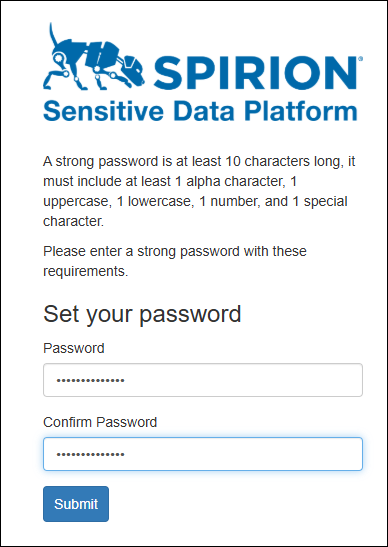
For local console users in the Spirion Sensitive Data Platform, the following password complexity rules are enforced:
To ensure account security, passwords must meet these minimum criteria:
- Minimum length: 8 characters (12+ is recommended for administrative accounts).
- Character variety: Must include at least 1 character from the following 4 categories:
- Uppercase letters (A-Z)
- Lowercase letters (a-z)
- Numbers (0-9)
- Special characters (!, @, #, $, %, ^, &)
Account Lockout Policy
- Failed Attempts: After a set number of consecutive failed login attempts (typically 5), the account is temporarily locked to prevent brute-force attacks.
- Lockout Duration: The account usually remains locked for 15–30 minutes before allowing another attempt, or it must be manually unlocked by a System Administrator.
SSO/SAML (Enterprise Best Practice)
If your organization uses Single Sign-On (SSO) via SAML (for example, Okta, Azure AD/Entra ID, Ping), these local rules are bypassed. Instead, the password rules of your Identity Provider (IdP) are enforced, which often include:
- Longer minimum lengths (for example, 14+ characters).
- Mandatory Multi-Factor Authentication (MFA).
- Password expiration/rotation schedules.
- Password history (preventing reuse).
Recommendations
- For the highest security posture, it is strongly recommended to disable local password authentication for standard users and enforce SSO with MFA.
- Local accounts should be reserved only for "break-glass" emergency access and should use high-entropy, randomly generated passwords stored in a secure vault.
Can I customize password complexity?
No, you cannot customize the password complexity rules for local console users within the Spirion Sensitive Data Platform (SDP).
The complexity requirements (minimum 8 characters, including uppercase, lowercase, numbers, and special characters) are hard-coded into the platform's local authentication module to ensure a baseline level of security.
Password Reset Policy
The Spirion Sensitive Data Platform (SDP) does not natively enforce a password history (preventing the reuse of recent passwords) for its internal console users.
How Password Resets Work in Spirion Sensitive Data Platform
- When a user resets their password (via the "Forgot Password" link on the login page), the system sends a reset email to the registered address.
- The user then enters a new password that must meet the platform's complexity requirements (length, character types, etc.), but the system does not check if that password has been used by that account previously.
Governance and Best Practices
Because Spirion Sensitive Data Platform is often integrated with enterprise identity providers, the enforcement of password history typically happens at the Identity Provider (IdP) level rather than within Spirion Sensitive Data Platform itself:
- SSO/SAML Integration (Recommended): Most organizations connect Spirion Sensitive Data Platform to an IdP such as Okta, Azure AD (Entra ID), or Ping. In this configuration, SDP never sees the password; the IdP handles the entire authentication flow, including password history, MFA, and rotation policies.
- Local Accounts: For local "break-glass" or administrative accounts that do not use SSO, password history is not enforced. It is recommended to use a password manager to generate unique, high-entropy passwords for these accounts to mitigate the risk of reuse.