
How to Work with Activity Watcher Policies
How to Work with Activity Watcher Policies
The Activity Watcher Policies screen is where you create and manage your Activity Watchers Policies.
Access and View Activity Watchers Policies
1. From the left menu, click Sensitive Data Watcher.
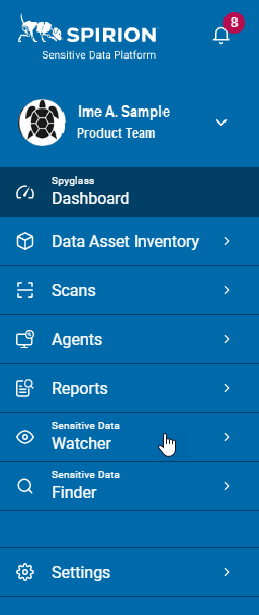
2. Click Activity Watcher Policies.
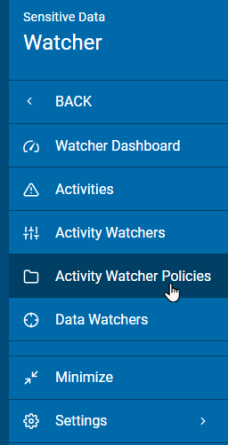
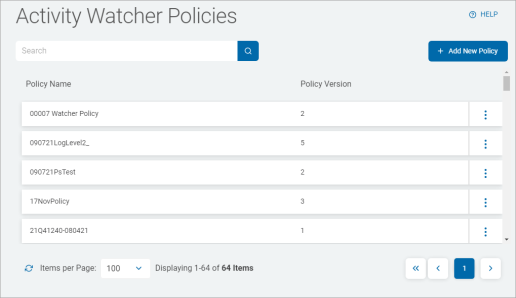
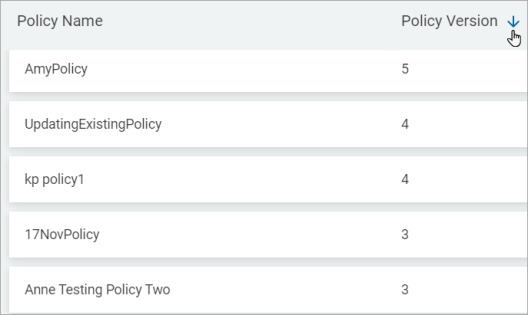
3. The Activity Watcher Policies are displayed in a table with the following information:
- Policy Name: Name assigned to the Activity Watcher
- Policy Version: Version of Watcher Policy.
- More options
4. Click a column to sort ascending.
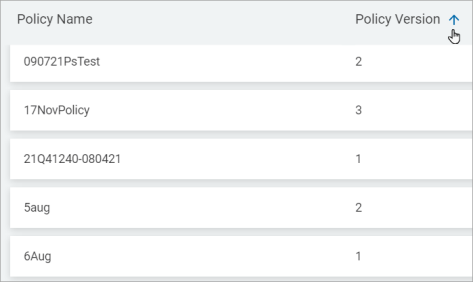
5. Click the column again to sort descending.
Search for an Activity Watcher Policy
1. You can search for an Activity Watcher Policy by Policy Name.
2. Type the search query in the box and the results are sorted and displayed in the table below.
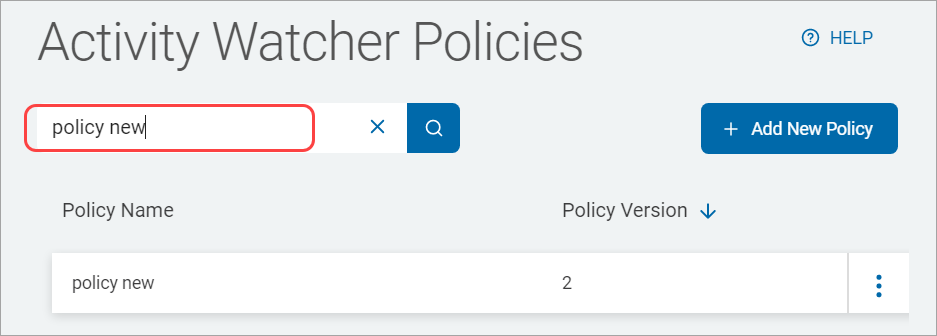
3. Click the x to clear the search term.
Add a New Activity Watcher Policy
To add a new Activity Watcher Policy:
- In the top right of the screen, click Add New Policy.
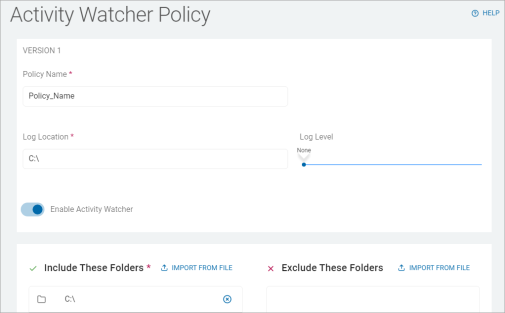
Note: Watcher Policy can also be added from the Agent Management screen. Select the watcher agents on the Agent Management screen and then click Assign Watcher Policy from the Bulk Actions drop-down list. Then on the Assign Watcher Policy pop-up window click Create New Policy to add new watcher policy. - On the Activity Watcher Policy screen, fill in the following:
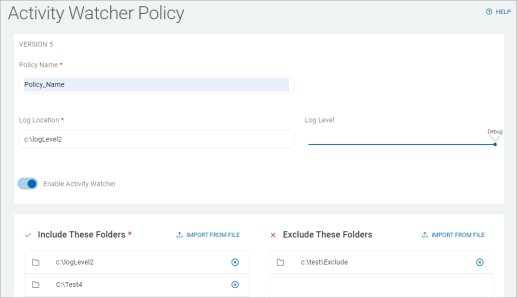
- Policy Name: Type the Activity Watcher name.
- Log Location:
- Log Level:
- Enable Activity Watcher:
- Include These Folders. Type or paste a folder path in the box and click Enter on your keyboard, else click Import From File and add from your local computer.
f. Exclude These Folders. Type or paste a folder path in the box and click Enter on your keyboard, else click Import From File and add from your local computer.
3. Click Save.
Manage Your Activity Watcher Policy
To manage an Activity Watcher Policy:
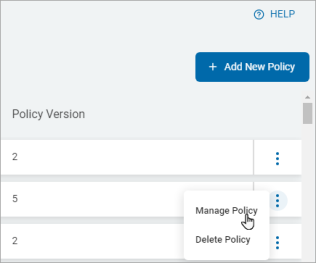
- Locate a policy in the Activity Watcher Policies table.
- Go to the more options menu in the far right column.
- Click Manage Policy.
4. Update the required information on the Activity Watcher Policy screen.
5. Click Save.
To delete an Activity Watcher Policy:
- Locate the policy in the Activity Watcher Policy table.
- In the far right column, click the more actions menu.
- Click Delete Policy.
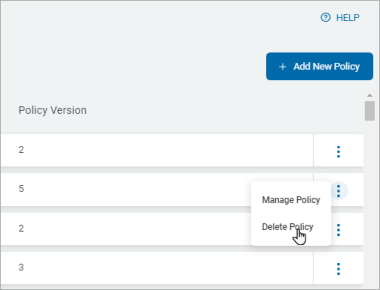
4. Click the Confirm button to delete the policy or Cancel button to discard.