
How to Manage Ignored Sensitive Data Matches and Locations
This topic describes how to how to ignore sensitive data locations (files including file path, and emails) and specific sensitive data matches within locations, as well as view and change the status of both ignored locations and sensitive data matches.
How to Ignore Sensitive Data Matches
To ignore specific sensitive data matches captured by your sensitive data scans, use the following steps:
- From the left side navigation menu select Scans > Scan Results.
- The "Scan Results" page opens.
- Adjust the available options and click the blue "Find Scan Results" button.
- A table of scan results appears sorted by most recent date/time, by default.
- Locate the scan result you want to ignore.
- Click the kebab menu on the right and select View Matches.
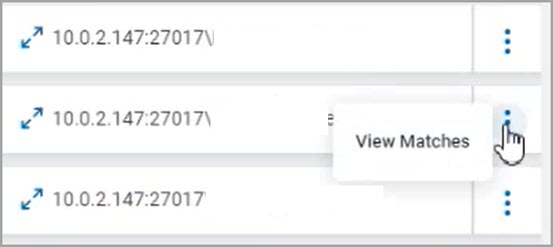
- In the Location Details pop-up window, locate the specific record(s) you want to ignore - such as a specific credit card number match - and in the User Action column, check the Ignore checkbox for each match you want to ignore.
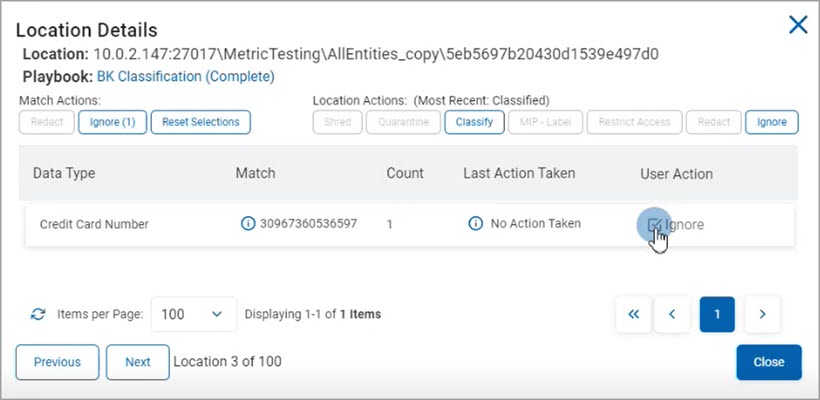
- In the Match Actions section, in the top left part of the window, click the Ignore button. Note that the Ignore button displays the number of matches selected in parenthesis ().
- The Ignore Matches pop-up window opens and specifies how many matches you have set to ignore in future scans by the selected Agents.
- Under "Ignore For:" select one of the following options:
- Discovering Agent
- All Agents
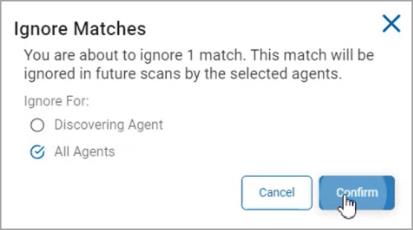
- Click the blue Confirm button to save or the Cancel button to discard your changes.
- Click the blue Close button.
How to Manage Ignored Sensitive Data Matches or Locations
You can view ignored results from your scan by category:
- Location - The file - including file path - that contains one or more sensitive data matches. For example: C:\windows\users\passwords\password.txt
- Matches - Specific sensitive data matches, such as a specific: social security number, date of birth, SIN, IMEI, credit card number, etc..
How to View or Change the Status of Ignored Locations
Use the following steps to view or change the status of ignored sensitive data locations captured by your scan:
- From the left side navigation menu select Scans > Scan Results.
- The "Scan Results" page opens.
- Adjust the available options and click the blue "Find Scan Results" button.
- A table of scan results appears sorted by most recent date/time, by default.
- Select one or more scans that you want to review for ignored results.
- In the top right corner click the blue Actions button.
- Select View Ignored Locations from the sub-menu that appears.
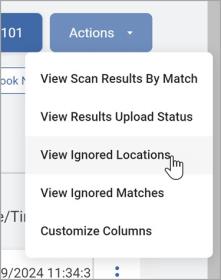
- In the Ignored Locations pop-up window, you can view all ignored Locations.
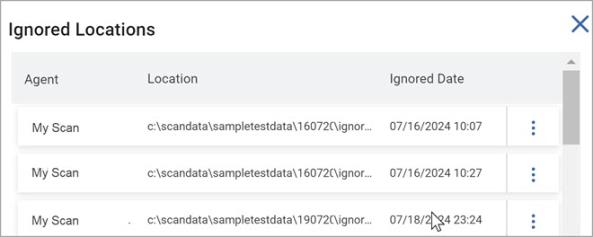
- To unignore a Location:
- In the Ignored Locations pop-up window, find the specific file Location (file or email including path) you want to unignore.
- From the kebab menu on the right, select Unignore.
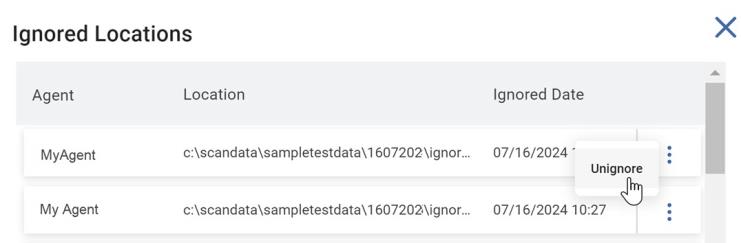
- The Location status is updated when you next run the scan.
How to View or Change the Status of Ignored Matches
Use the following steps to view or change the status of ignored sensitive data matches:
- From the left side navigation menu select Scans > Scan Results.
- The "Scan Results" page opens.
- Adjust the available options and click the blue "Find Scan Results" button.
- A table of scan results appears sorted by most recent date/time, by default.
- Select one or more scans that you want to review for ignored results.
- Click the blue Actions button in the top right corner and select View Ignored Matches from the sub-menu that appears:
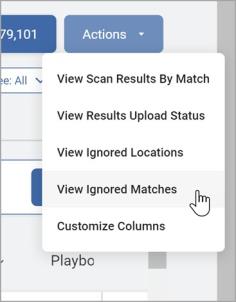
- In the Ignored Matches pop-up window, you can view all ignored matches.
- To unignore a Match:
- In the Ignored Matches pop-up window, find the Match to stop ignoring (unignore).
- From the kebab menu on the right, select Unignore.
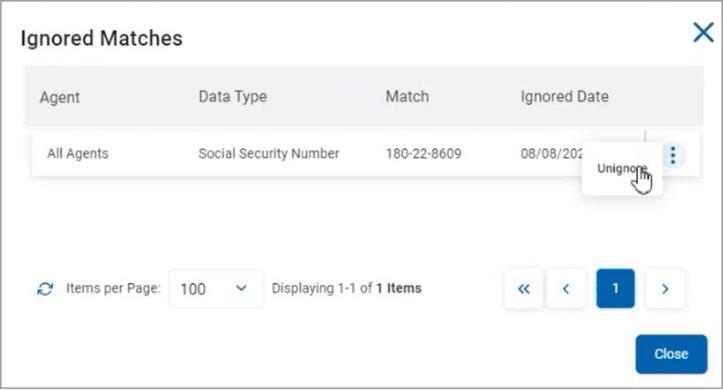
- Click the blue Close button at the bottom of the pop-up window.
- The Match status is updated when you next run the scan.