
Example: FERPA Scan Playbook
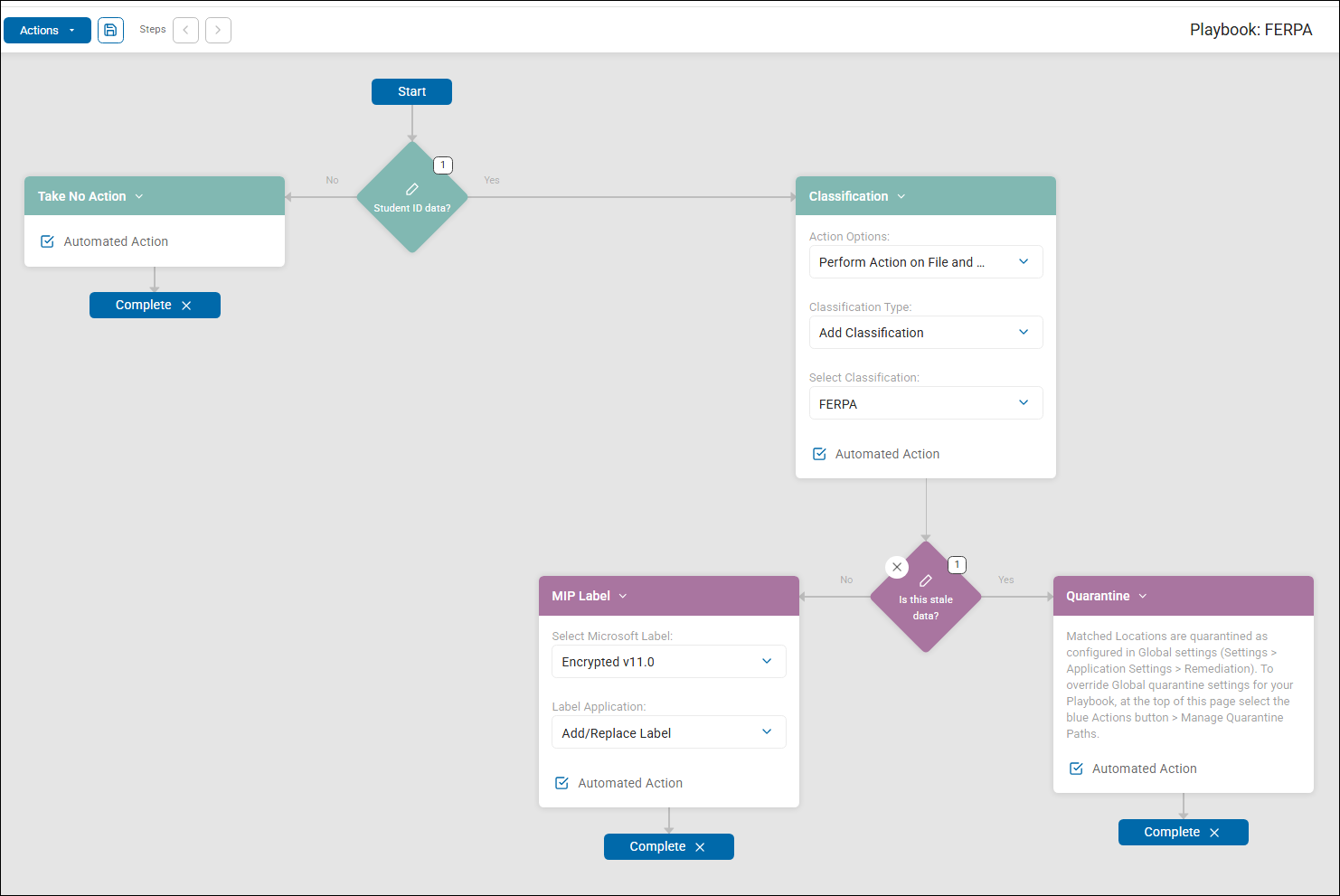
This sample FERPA scan playbook is an automated remediation workflow designed to identify, classify, and secure student-related sensitive data.
The following sample FERPA scan playbook is used by Spirion Sensitive Data Platform scans to provide an automated remediation workflow, detailed in the topics below.
1. Data Types (Detection Logic)
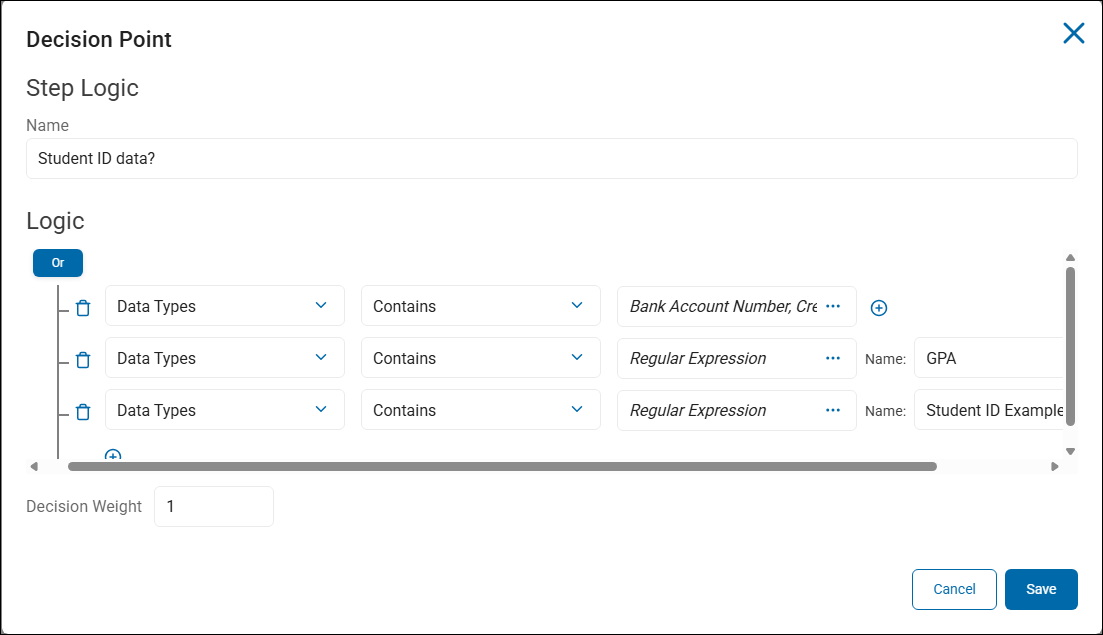
The playbook begins with a decision diamond named "Student ID data?". The logic for this step identifies files containing instances of specific data types.
- Operator: The logic uses an "Or" operator, so the file identified can contain ANY of the data types listed in the 1st, 2nd, or 3rd row.
First row (in screenshot):
- Bank Account Number
- Credit Card Number
- Date of Birth
- Driver's License
- Social Security Number
Second row (in screenshot):
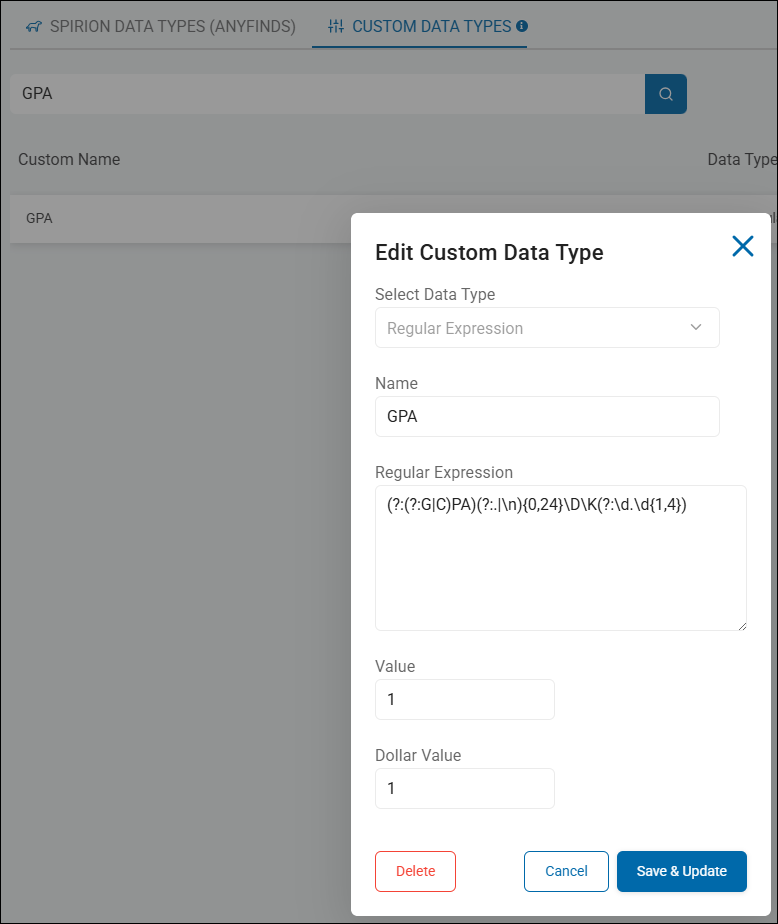
- GPA (identified via a Regular Expression)
- The custom data type "GPA" is a Regular Expression data type defined in "Settings > Global Data Types."
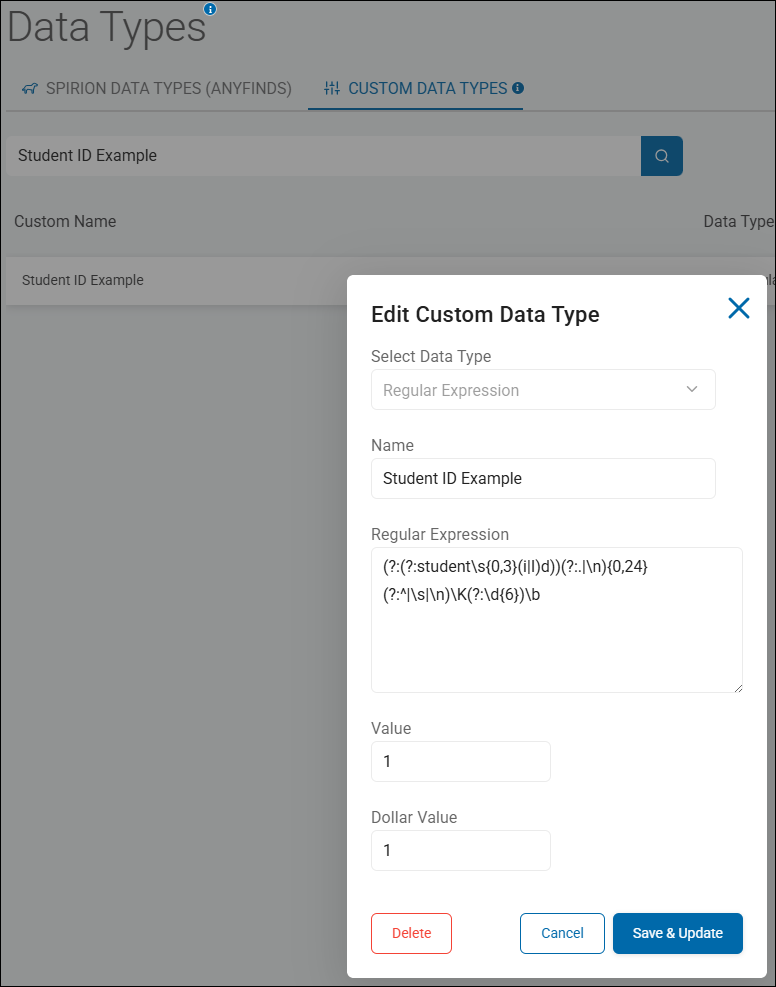
Third row (in screenshot):
- Student ID Example (identified via a Regular Expression)
- The custom data type "Student ID Example" is a Regular Expression data type defined in "Settings > Global Data Types."
2. Target Scope & Initial Action
If the scan finds a match for the data types above (Yes path):
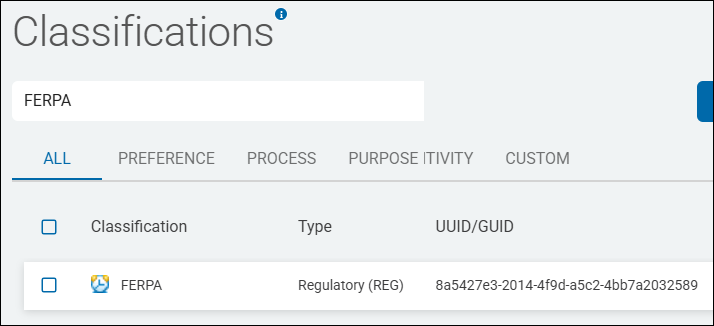
- Classification: The playbook automatically applies a Spirion classification label named FERPA to the file. This is configured as an "Automated Action" to perform on the file and its metadata.
- The FERPA classification is defined in Spirion Sensitive Data Platform under "Setings > Global Classifications."
- The FERPA classification is defined in Spirion Sensitive Data Platform under "Setings > Global Classifications."
- Take No Action: If no student ID data is found (No path), the playbook completes without further intervention.
3. Remediation Actions (Secondary Logic)
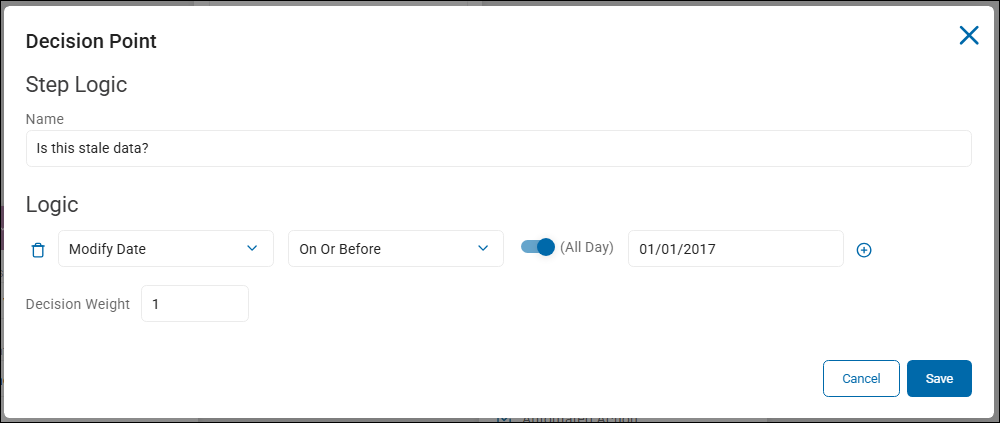
After the initial FERPA classification, the playbook evaluates the recency or "freshness" of the data using a second decision point: "Is this stale data?"
- Stale Data Definition: As shown in the third image, data is considered "stale" if its Modify Date is On Or Before 01/01/2017.
- Action for Stale Data (Yes path):
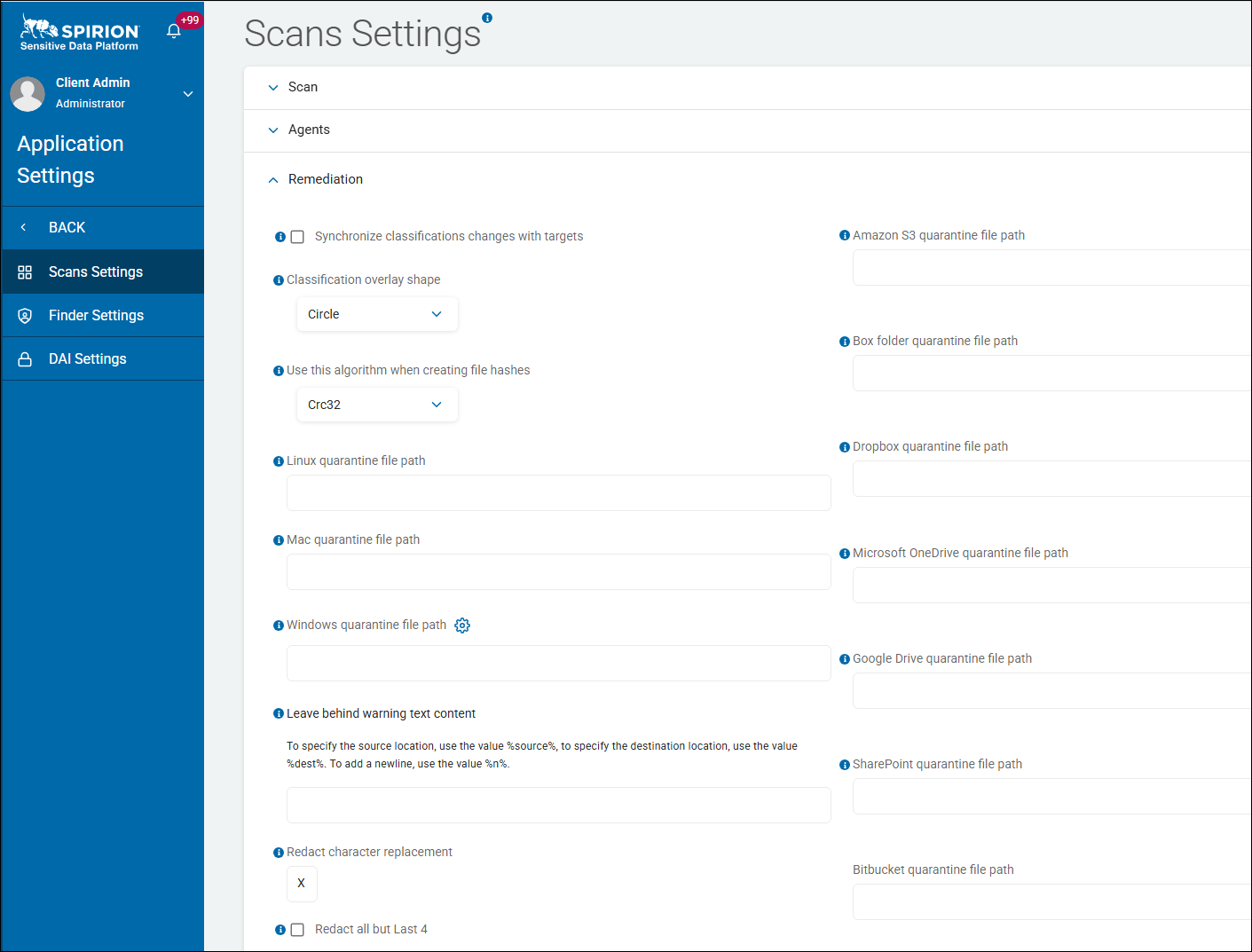
- Quarantine: Files modified on or before January 1, 2017 are moved to a secure quarantine location as defined in the global application Scans Settings (see screenshot below). This removes the sensitive data from its original, potentially insecure location.
- Quarantine: Files modified on or before January 1, 2017 are moved to a secure quarantine location as defined in the global application Scans Settings (see screenshot below). This removes the sensitive data from its original, potentially insecure location.
- Action for Current Data (No path):
- MIP Label: If the data is not stale (modified after 01/01/2017), the playbook applies a Microsoft Information Protection (MIP) label named "Encrypted v11.0". This ensures that active student data is encrypted and protected while remaining in its original location.
Summary of Workflow
- Identify: Look for any of the following:
- Bank Accounts, Credit Card numbers, Date of Birth, Driver's license, GPA, or Student IDs
- Classify: Tag all matches with the label "FERPA".
- Evaluate Age: Check if the file was modified on or before January 1, 2017.
- Secure:
- If Old: Quarantine the file.
- If New: Apply Microsoft Encryption (MIP) label.