
How to Manage Report Downloads
You can use the Bulk Actions feature to manage your Report downloads with bulk delete:
- On the Reports Download tab, select one or more report downloads to delete.
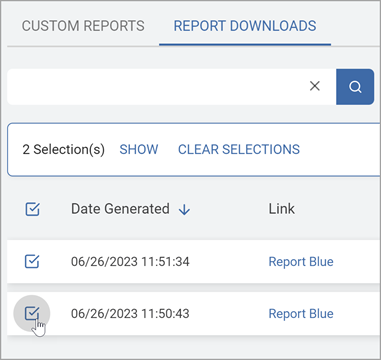
- The Bulk Actions section is displayed. Do any of the following:
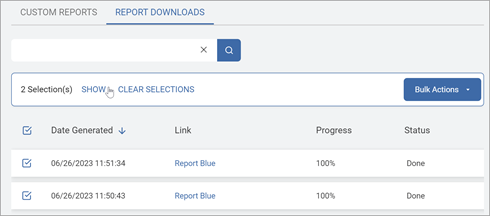
- Click SHOW to display the list of selected reports.
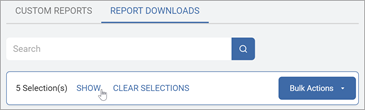
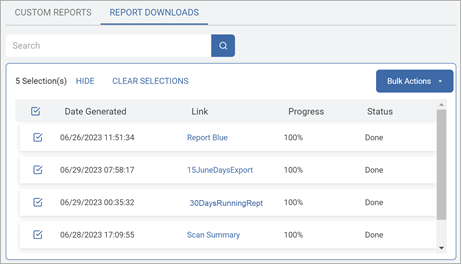
- Click HIDE to collapse the list of selected reports.
- Click CLEAR SELECTIONS to remove all selections.
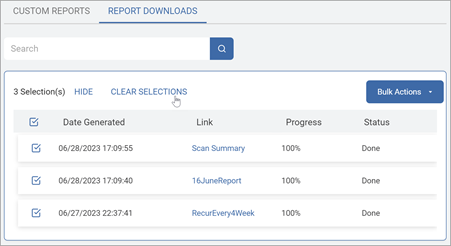
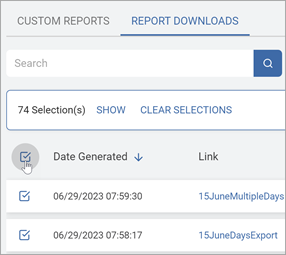
Note: The CLEAR SELECTIONS action is immediate and cannot be undone. - To select all Report downloads, click the Select All box to the left of the Date Generated columns.
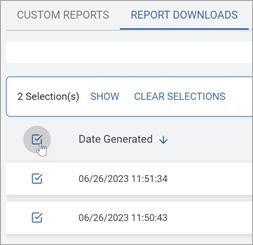
- To deselect all Report downloads, click the Select All box again.
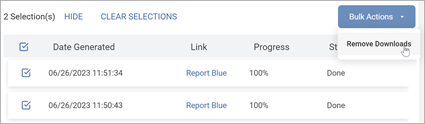
- Click Bulk Actions then Remove Downloads.
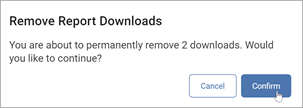
- In the Remove Report Downloads pop-up window, click Confirm to delete or Cancel to discard.
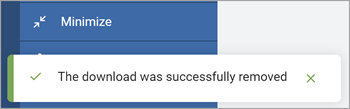
- You will receive notification of the deletion in the lower left of your screen.
Note: Deleting a report download does not delete the report. To delete a report, see Delete a Report.