How to Import Users into Spirion Sensitive Data Platform
Use the following steps to import a user:
- From the left side navigation menu select Settings > User Management.
- The "User Management" page opens.
- Ensure the USERS tab at the top of the page is selected (default).
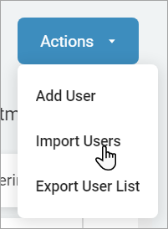
- In the top right of the screen, click the blue Actions button.
- Click Import Users from the sub-menu that appears.
- On the Import Users pop-up window:
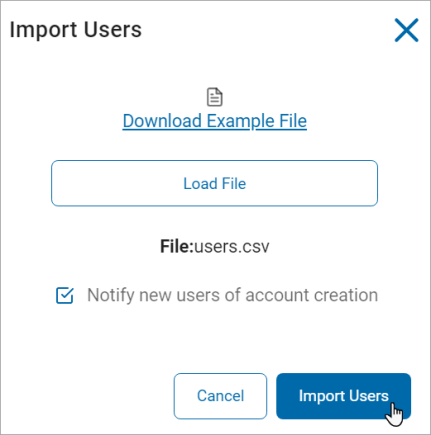
- Click the Download Example File link to download a user template
- Click the Load File button to browse and upload a user file from a location on your system.
- Select (check) the Notify new users of account creation check box to notify new users about their accounts.
- Click the blue Import Users button or else click the Cancel button to discard the changes.