
How to Search Mongo Databases (mongoDB)
This article describes how to craft a Mongo database connection string. This is required to add a Mongo database as a searchable Target in Spirion Sensitive Data Platform.
Overview
To search a MongoDB database in Spirion Sensitive Data Platform requires a connection string. The connection string is used when configuring your MongoDB Target.
Troubleshooting a connection to the Mongo Database is also described in this article.
Before You Start
- Mongo Database connection strings can vary widely.
- Consult your DBA when generating a connection string.
- If you are using a self-signed certificate, you must use a different connection string. Example below.
- Example of a working connection string requiring SSL and using self-signed certificates:
mongodb://<username>:<password>@<hostname>:<port>/?ssl=true&sslAllowInvalidCertificates=true
How to Create a Mongo Database Connection String
Creating a Mongo Database connection string is a manual process.
A typical connection string resembles the following code block:
<DatabaseItems Connection="mongodb://user:password@host_ip:host_port" Type="MongoDb" /><user>is the username portion of the credentials<password>is the password portion of the credentials<host_ip>is the host name or IP address of the host server<host_port>is the host port to connect through- Default Port: 27017 for MongoDB, if not specified
- If
<host_port>is not provided, the colon character (':') must be omitted as well. - Following the above example, "
mongodb://<user>:<password>@<hostip>" would be used to connect to port 27017 on the provided host IP address
How to Add mongoDB as a Target in Spirion Sensitive Data Platform
Procedure:
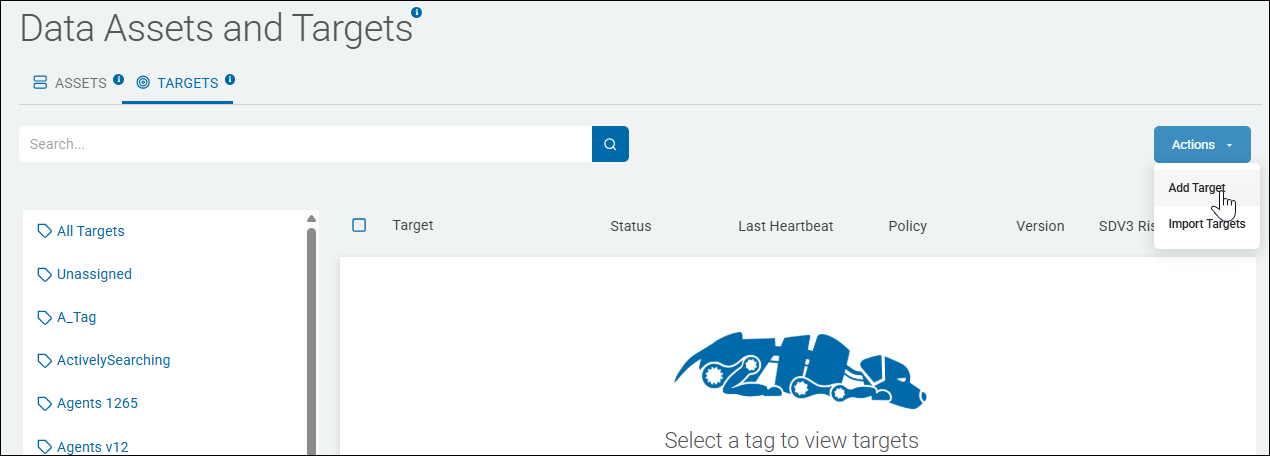
- From the left side navigation menu select Data Asset Inventory > Data Assets and Targets.
- The "Data Assets and Targets" page opens.
- Select the TARGETS tab at the top of the page.
- Select the blue Actions button in the top right corner of the page.
- Select "Add Target" from the drop-down menu.
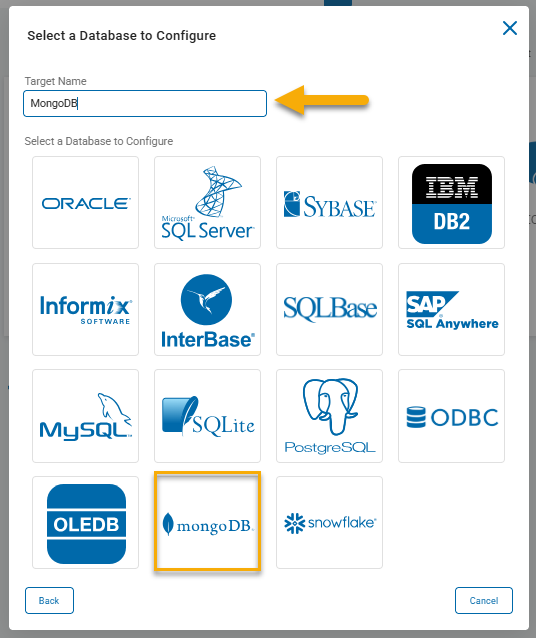
- Enter a descriptive name for the new database Target.
- Select the "Database" tile.
- The "Select a Database to Configure" pop-up window opens.
- Select the mongoDB tile under "Select a Database to Configure" from the bottom part of the pop-up window.
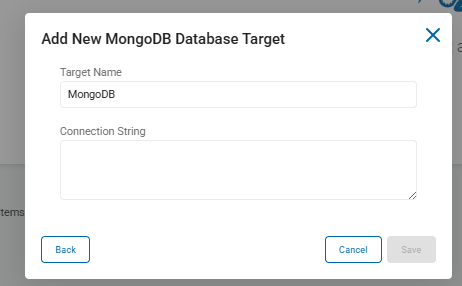
- The "Add New MongoDB Database Target" pop-up window opens.
- Enter the connection string for the desired Mongo database that you wish to scan.
- Click the Save button.
- MongoDB is now conifgured in Spirion Sensitive Data Platform as a Target.
- Now you create a scan and configure it to scans this Target.
- Continue setting up your sensitive data scan using the instructions in this article.
How to Troubleshoot a Mongo Database Connection
Several tools exist that can help troubleshoot a MongoDB connection.
MongoDB Compass
MongoDB Compass helps users explore their data and test connection strings.
- That can be found here: https://www.mongodb.com/products/tools/compass.
Mongo Shell
Mongo Shell is a command-line tool that will help diagnose connection issues.
- That can be found here: https://www.mongodb.com/try/download/shell.