
How to View and Search for Tags
This topic describes how to view and search for Tags from the Tag Management page in the Data Asset Inventory section of Spirion Sensitive Data Platform.
How to View Your Tags
The All Tags section on the left side of the page displays the existing Tags.
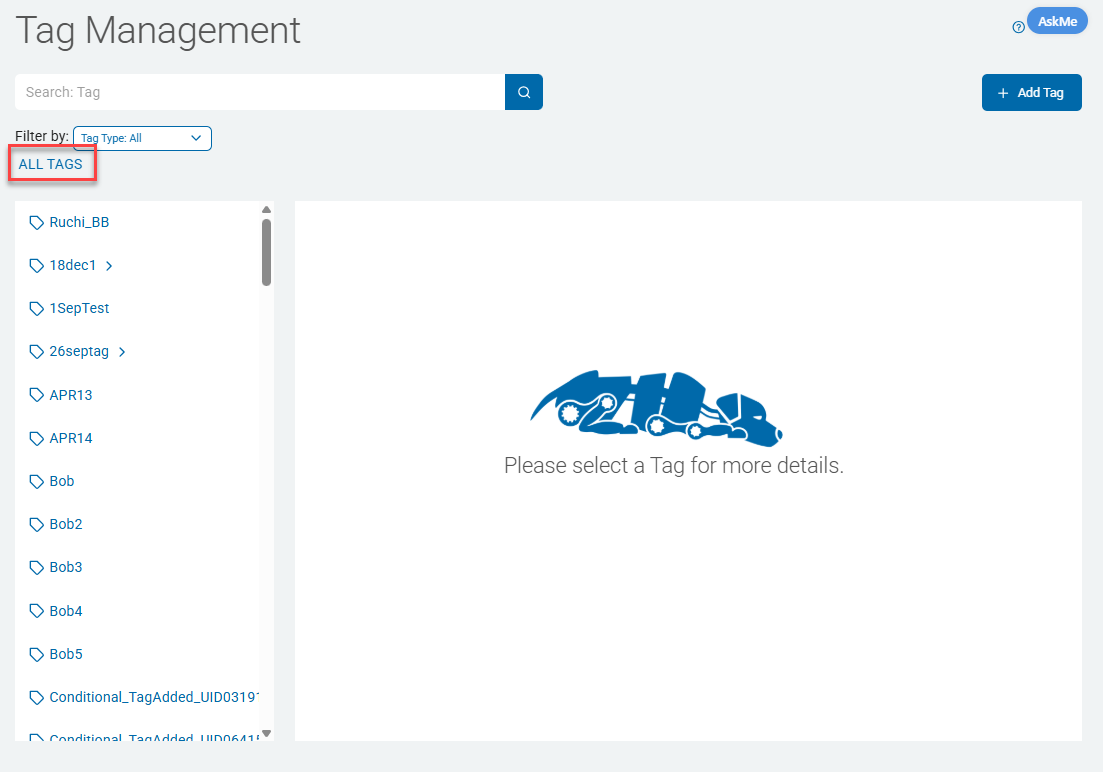
To view your Tags, use the following steps:
- Click the Tag you want to see details about.
- To view a nested tag, click the chevron (>) icon of the parent Tag and then click the nested Tag.
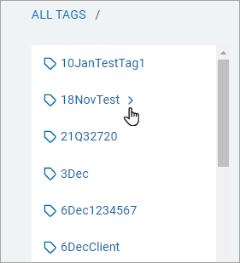
- To view a nested tag, click the chevron (>) icon of the parent Tag and then click the nested Tag.
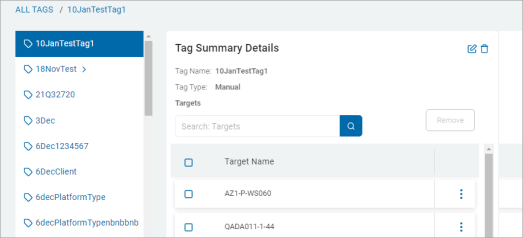
- Clicking a Tag displays its information in the Tag Summary Details section on the right side.
The section displays the following fields: - Tag Name: The name of the Tag.
- Tag Type: The method of adding a target to a tag.
- IP range
- Manual
- Conditional
- Targets: A list of Targets which the selected Tag has applied to are shown. The search entry field enables you to search for specific Targets from the list.
How to Search for a Tag
Use the following steps to search for a specific Tag:
- Navigate to the Tag Management page.
- In the search box, enter a Tag name.

- Click the lens icon or click Enter.
- The search results are displayed in the All Tags section.
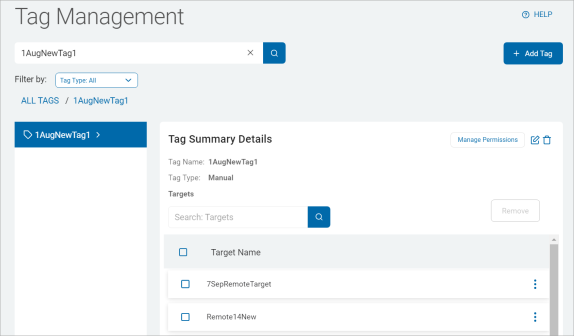
- Click the chevron (>) icon next to a tag in the list to expand the tag and view any child tags.
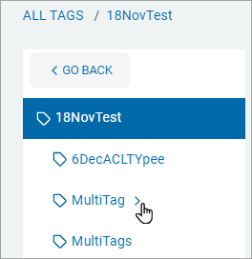
- The Tag Summary Details display for the selected tag, and, if applicable, the child tag(s) display in the list.
- Click Go Back to return to the main view.