How to Use the File SearchDLL.cpp
This article provides details about the file SearchDLL.cpp. This file can be edited and used to create a SearchDLL.dll file which can then be added to Spirion Sensitive Data Platform to make a "Search API" custom data type.
Introduction
The Search API enables you to use more complex algorithms to validate accuracy of sensitive data matches.
Examples include:
- Luhn Algorthm
- Checksum
- Mod10
- and others
By using a RegEx or pattern match, you can bring in your match and run it against a checksum to validate that this number is a valid match, eliminating false positives and ensuring that all matches are 100% accurate.
Where to Download the File SearchDLL.cpp
- The file "SearchDLL.cpp" can be downloaded as a ZIP file from the bottom of the article Search API on archTIS's Customer Support Portal.
- This site requires login credentials.
Prerequisites
Satisfy the following prerequisites before continuing.
- Microsoft Community Edition .Net 2019: https://visualstudio.microsoft.com/vs/community/
- When installing .Net community edition install the following options (altered from the default):


- Note: Select the English checkbox.
Once you have completed this installation, download and install Windows 8.1 SDK: https://developer.microsoft.com/en-us/windows/downloads/sdk-archive/
- As shown in the screenshot below:

How to Edit the SearchDLL File to Fit Your Needs
Procedure:
- Once you have opened the project, go to the SearchDLL.cpp file.

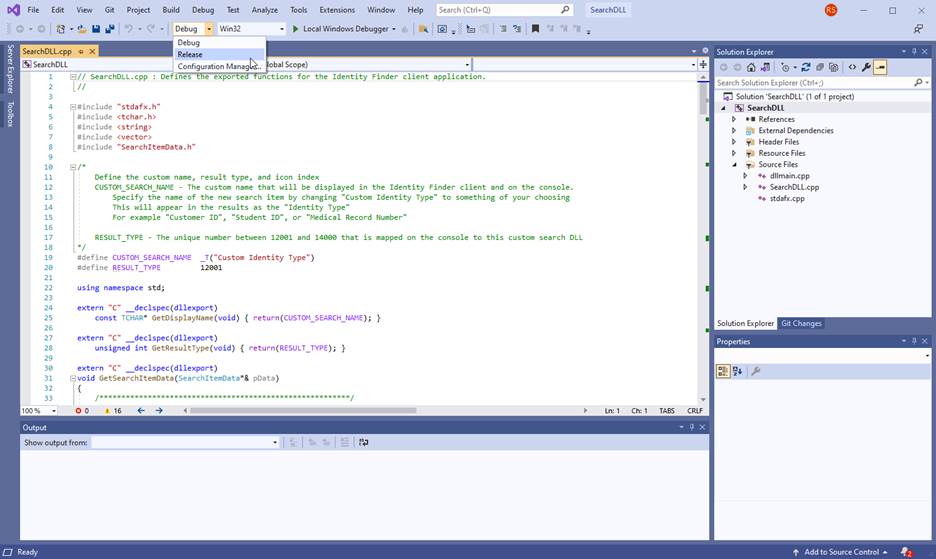
- This shows you the code you need to adjust:

- The C++ file contains an abundant amount of comments to guide a C++ programmer to tailor the file to fit their desired goals.
- Edit the file and save it when you are done.
NOTE: The highlighted line above is an internal result type identifier for Spirion. This number must be unique for each Search.DLL you use. We recommend incrementing the number by 1 on each separate project.
Additional Details
For additional details about the requirements, building, editing, testing of your SearchDLL file, see How to Build a SearchAPI.
How to Build the Project
Procedure:
- In Solution Explorer, ensure your desired solution is selected.
- Select "Release" and "Win32" from the toolbar at the top of the window.
- On the top menu bar, select the Build menu.
- From the drop-down menu select Build Solution.
How to Load the File into Spirion Sensitive Data Platform
Now that you have created a SearchDLL.dll file, you can add it to Spirion Sensitive Data Platform to make a "Search API" data type.
Note: Your user account must enjoy Administrator privileges to create a new custom data type.
Use the following steps to create a new custom "Search API" data type:
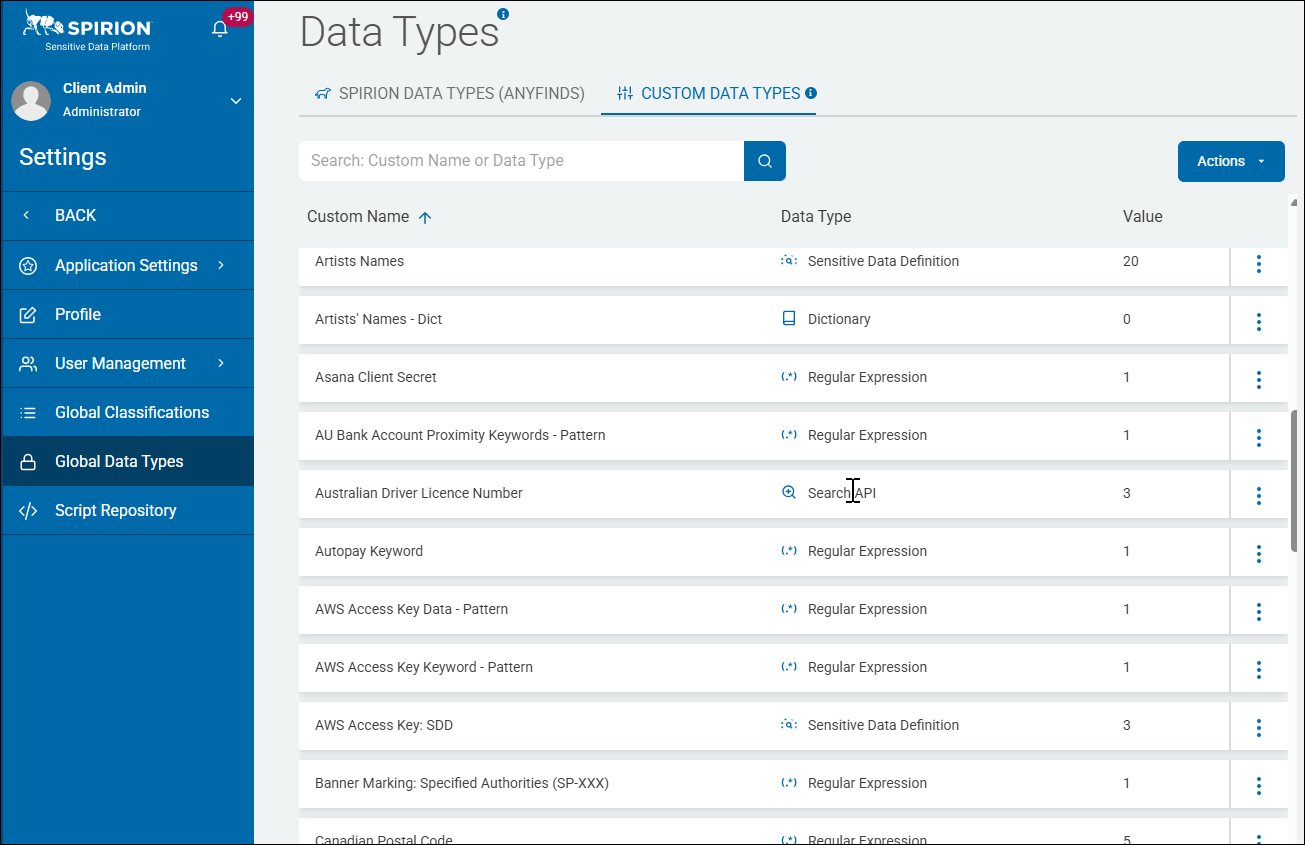
- From the left side navigation menu select Settings > Global Data Types.
- The "Data Types" page opens.
- Select the CUSTOM DATA TYPES tab from the top of the page.
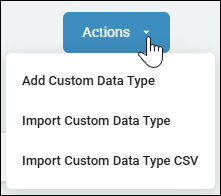
- In the top right corner select the Actions menu and then click "Add Custom Data Type."
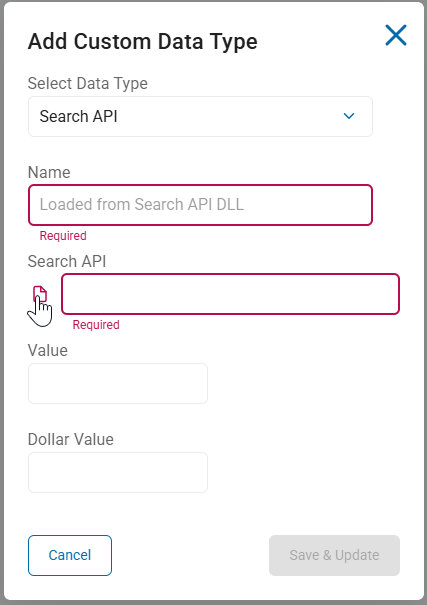
- The "Add Custom Data Type" pop-up window appears.
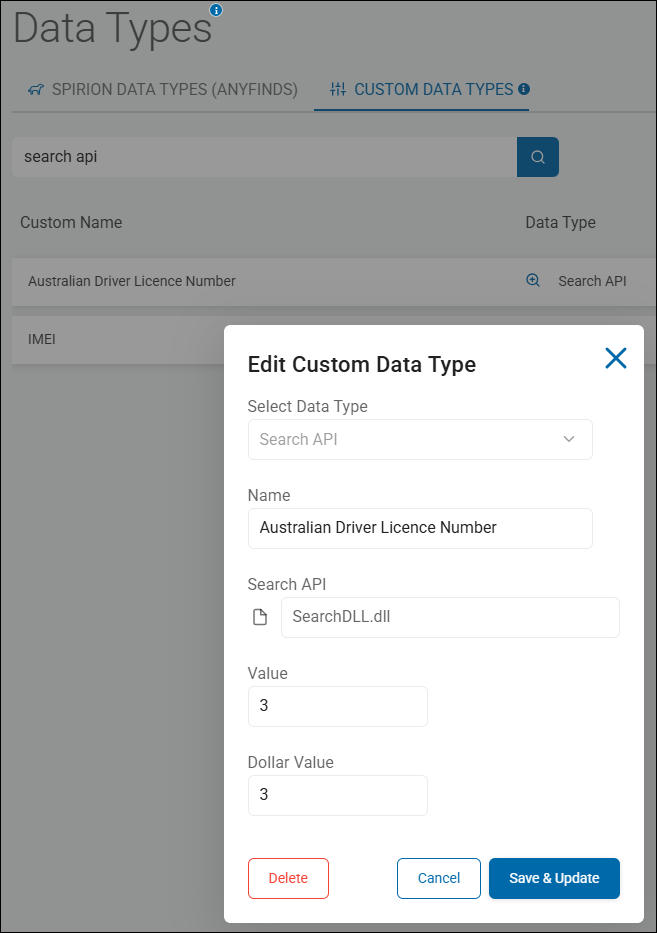
- Select "SearchAPI" from the drop-down menu under Select Data Type.
- Do not name the file. The file name is loaded from the SearchDLL file when that is added next.
- Click the folded page icon under Search API.
- In the pop-up window that appears, navigate to your SearchDLL.dll file and select it.
- Click the Open button.
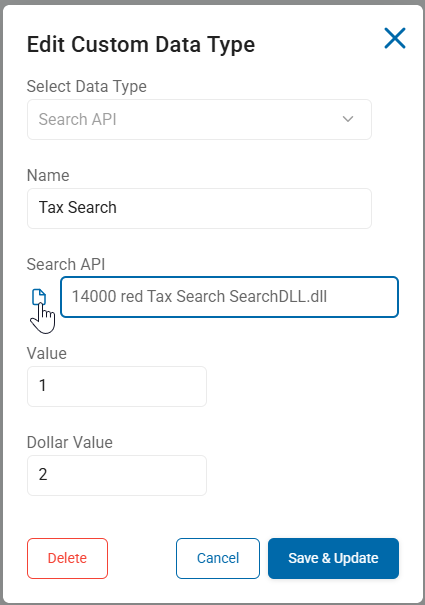
- The fields "Name" and "Search API" both populate.
- Click the Save & Update button at the bottom of the page.
- Your SearchAPI data type is now available for use in Spirion Sensitive Data Platform.
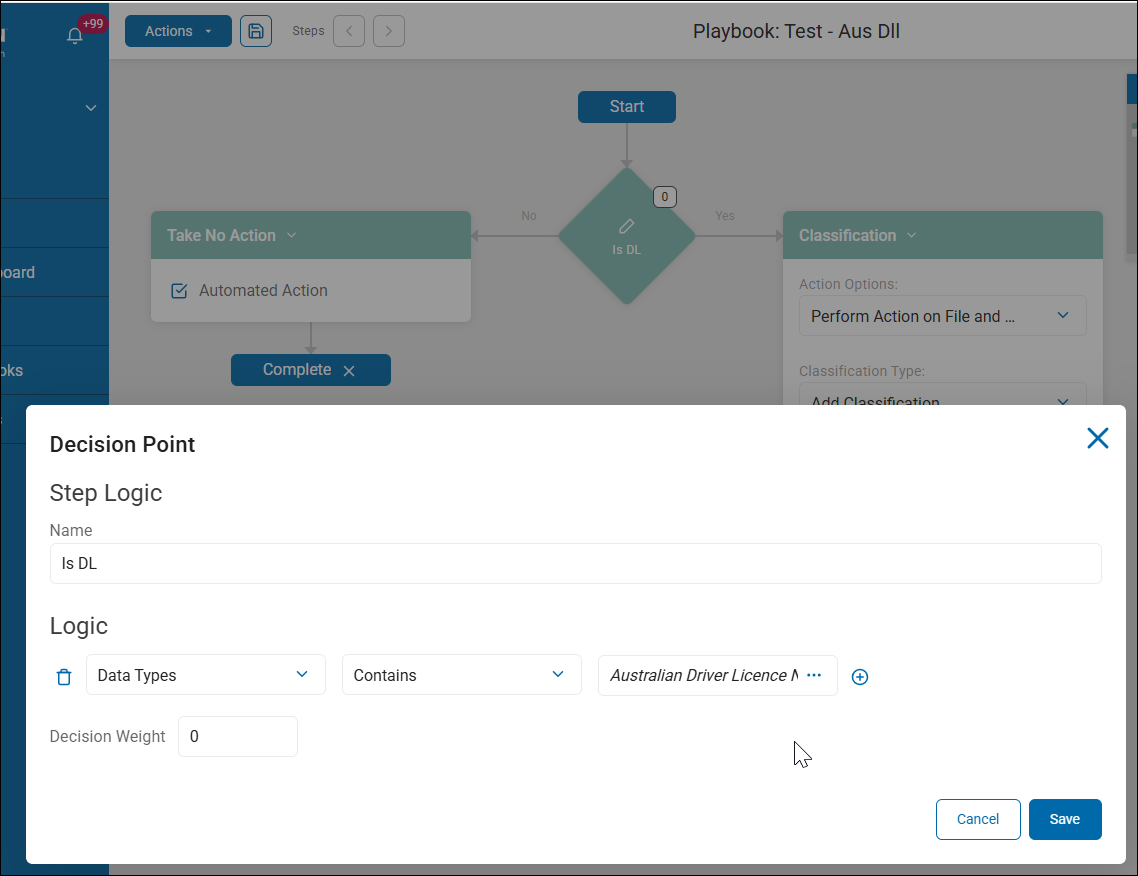
- For example, when you create a Scan Playbook you can create rules (step logic) which takes action on the SearchAPI data type you created. In the example below, the SearchAPI data type "Australian Driver License Number" is set to be classified (at the file and databse level) when discovered by scans that use this playbook.