Working with Scan Playbooks - Overview
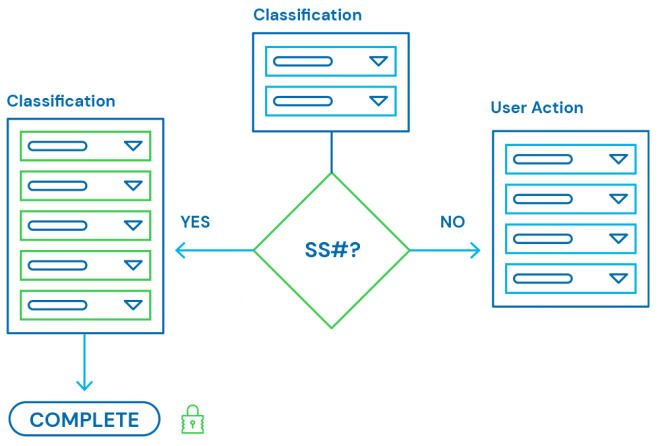
Playbooks, at a high-level, provide logical workflows using interactive flowchart symbols for the discovery, classification, notification, and remediation of sensitive data.
Overview
The Scan Playbooks page is where you view and manage your Scan Playbooks.
- Playbooks, or Scan Playbooks, at a high-level, provide logical workflows using interactive flowchart symbols for the discovery, classification, notification, and remediation of sensitive data.
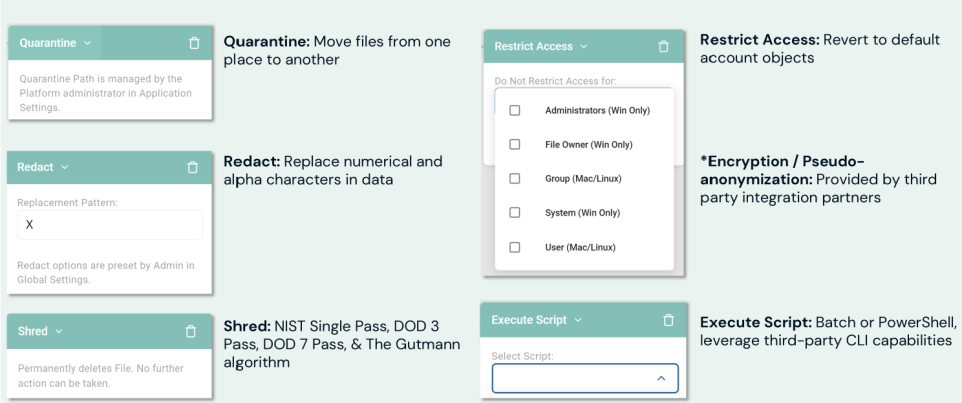
- In this way, when sensitive or personal data (Social Security number, Credit Card number, address, IMEI, etc.) is encountered during a scan of your environment, Spirion Sensitive Data Platform can take appropriate action on that data - quarantine, redact, shred, restrict access, etc.
- For example, when Spirion Sensitive Data Platform scans a data target, such as a local laptop, and discovers an instance of sensitive data, such as a social security number, the Scan Playbook used by the scan, classifies social security numbers with the label "Critical," and notifies the Department System Admin (via email) of the discovery.
- Sensitive data scans are configured with one or more playbooks so that Spirion Sensitive Data Platform knows what to do when it encounters SPI or PII during the scan.
- Sensitive data scans can not be performed without a playbook selected and applied to the scan.
What do Playbook do?
It's important to remember Playbooks define:
- The logic for sensitive data scans
- The actions to take when sensitive data matches are found. See the graphic below.
- For more about playbook actions, see Add a New Scan Playbook/Select Action
Playbook Actions
How to Access and View Scan Playbooks
To access Scan Playbooks (or "Playbooks") use the following steps:
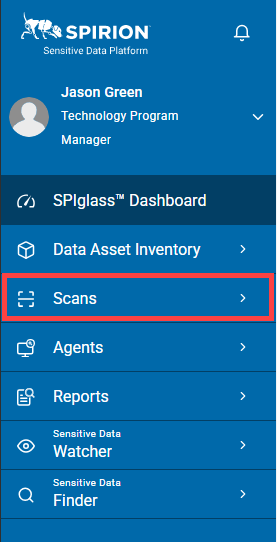
- From the left side navigation menu, click Scans.
- Next, click Scan Playbooks.
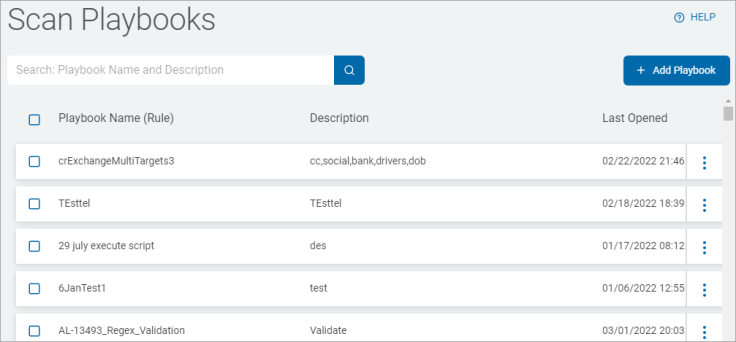
- The "Scan Playbooks" page appears.
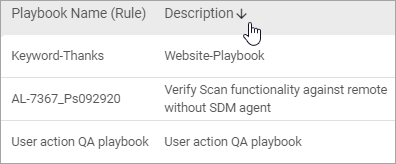
- Scan Playbooks are displayed in a table which can be sorted by the following columns:
- Playbook Name (Rule)
- Description
- Last Opened
- Last Edited
- More options
- Click a column to sort ascending.
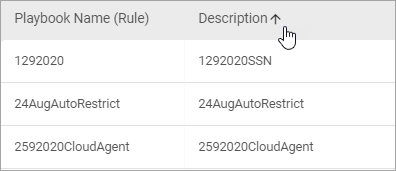
- Click the column again to sort descending.