
How to Use the Registration Page
Overview
The Registration page in Spirion Sensitive Data Platform is where you retrieve the settings/configuration file that you need to build your custom MSI file for installing Spirion Sensitive Data Platform.
- These files tell your agents with what environment to communicate.
- This file is part of several preparation steps when building your custom MSI file.
- For more information see How to Install Spirion Console and Agents version 13.6+.
Settings/Configuration Files
The following settings/configuration files, organized by operating system, are available on the Registration page:
Microsoft Windows:
- 32-bit file: ClientSettings.reg
- 64-bit file: ClientSettings_x64.reg
Linux:
Mac:
Instructions for using these files are contained in the installation topic How to Install Spirion Console and Agents version 13.6+.
Side-by-side comparison of all settings/configuration files
File | Storage | Platform | Enforcement | Primary Purpose |
|---|---|---|---|---|
| Filesystem ( | Windows | File ACL only | Scan profiles & search settings |
| Registry (WOW6432Node) | Windows 32-bit | GPO-enforceable | Deployment & connection settings |
| Registry (native) | Windows 64-bit | GPO-enforceable | Deployment & connection settings |
| Filesystem ( | macOS | MDM-enforceable (Jamf, Kandji, etc.) | Deployment, connection & scan settings for the Mac client |
| /etc/identityfinder/ | Linux |
| Scan profiles, connection & deployment settings (unified) |
Registration Page Location in Spirion Sensitive Data Platform
The Registration page in Spirion Sensitive Data Platform is found in the Agents section (Agents > Registration) in the left side navigation menu.
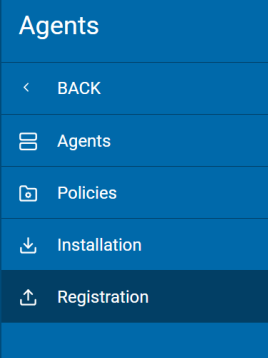
The Registration page is shown below:
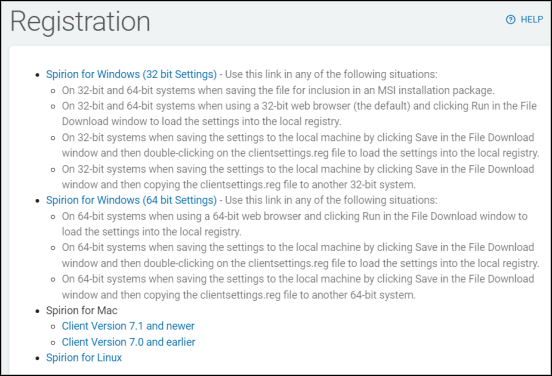
The page displays different versions of Spirion registration files sorted by operating system and version as follows:
Spirion for Windows
Which version to use:
- If you're deploying the 32-bit Spirion client → import
ClientSettings.reg - If you're deploying the 64-bit Spirion client → import
ClientSettings_x64.reg - If you need to configure scan behavior/policy on either → update
identityfindersettings.xml
In most modern enterprise environments (Windows 10/11 64-bit), ClientSettings_x64.reg is the primary file used, with ClientSettings.reg retained for legacy compatibility.
Spirion for Windows (32-bit Settings)
Use this link in any of the following situations:
- On 32-bit and 64-bit systems:
- Download this settings/configuration file (ClientSettings.reg) for inclusion in an MSI installation package, which is later used to install Spirion Sensitive Data Platform.
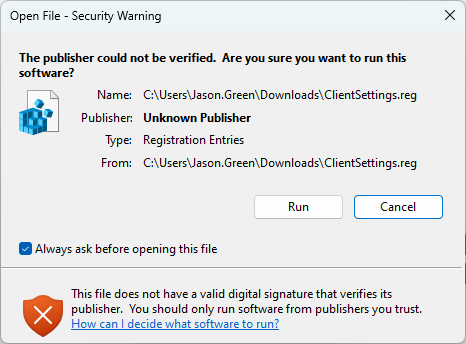
- Use a 32-bit web browser (the default) and click Run in the settings/configuration file download window to load the settings into the local registry:
- On 32-bit systems:
- Using a 32-bit web browser (the default) do the following:
- Click Save in the file download window
- Then do either of the following:
- Double-click the settings/configuration file ClientSettings.reg to load the settings into the local registry.
- Copy the settings/configuration file ClientSettings.reg to another 32-bit machine.
Spirion for Windows (64-bit Settings)
Use this link in the following situation:
- On 64-bit systems:
- Using a 64-bit web browser do one of the following:
- Click Run in the file download window to load the settings into the local registry.
- Click Save in the file download window to save the settings/configuration file to the local machine and then either:
- Double-click the file ClientSettings_x64.reg to load the settings into the local registry
- Copy the file ClientSettings_x64.reg to another 64-bit machine.
Spirion for Mac
- Spirion for Mac
- Client Version 7.1 and newer/Client Version 7.0 and earlier
- Click either of the Client Version links to download the following settings/configuration file to your local computer: com.identityfinder.macedition
About the XML Settings File com.identityfinder.macedition.xml
- Uses Apple's standard reverse-DNS naming convention (
com.identityfinder.macedition), consistent with how macOS applications store preferences - Serves as the Mac equivalent of both the
.regfiles andidentityfindersettings.xml— on macOS, there's no registry/XML split, so this single file typically handles connection settings, scan configuration, and Agent behavior - Can be deployed and enforced via MDM profiles (Jamf Pro, Kandji, Mosyle, etc.) as a managed preference, making it the macOS analog to GPO-enforced registry settings on Windows
- Located in either:
- User-level:
~/Library/Preferences/com.identityfinder.macedition.xml - System-level:
/Library/Preferences/com.identityfinder.macedition.xml(for managed/enforced settings)
- User-level:
- Can also be managed via the
defaultscommand:
defaults read com.identityfinder.maceditionSpirion for Linux

- Spirion for Linux:
- Click the "Spirion for Linux" link from the Registration page to download the following settings/configuration XML file to your local computer: identityfindersettings.xml
About the XML Settings File identityfindersettings.xml
On Linux, identityfindersettings.xml plays the same core role as it does on Windows — it's the primary scan configuration file for the Spirion Agent — but with platform-specific differences in location, enforcement, and management.
File Location:
Typically found at one of the following paths depending on the Spirion version and deployment method:
/etc/identityfinder/identityfindersettings.xml
or for user-level settings:
~/.identityfinder/identityfindersettings.xml
The system-level path under /etc/ is preferred for enterprise/managed deployments as it applies to all users and is writable only by root.
What it controls (Linux-specific behavior):
- Scan locations — filesystem paths to scan (for example,
/home,/var,/tmp, NFS mounts, Samba shares) - Sensitive data patterns — which data types to detect (SSNs, credit card numbers, PHI, custom regex patterns)
- Agent-to-server connectivity — SDM/SDP server address and communication settings (similar to Windows, but without a registry layer — all settings live in this single file)
- Scan scheduling — cron-like scheduling parameters for automated scans
- Remediation actions — what to do when sensitive data is found (quarantine, shred, report-only)
- Logging verbosity and log paths — where the agent writes its logs on the Linux filesystem
- Proxy settings — HTTP/HTTPS proxy configuration for environments where the agent must communicate through a proxy to reach the SDM server
Key differences from the Windows version:
Aspect | Windows | Linux |
|---|---|---|
Companion files |
| No registry — |
Enforcement mechanism | File ACLs + GPO (via | File permissions ( |
Deployment method | GPO, SCCM, Intune | Ansible playbooks, shell scripts, RPM/DEB package post-install hooks |
Default permissions |
| Typically |
Service management | Windows Service | systemd unit (for example, |
Deploying and enforcing it on Linux:
Since there's no Group Policy on Linux, the typical enterprise approach is:
# Copy managed config to system path (root only)
sudo cp identityfindersettings.xml /etc/identityfinder/identityfindersettings.xml
sudo chown root:root /etc/identityfinder/identityfindersettings.xml
sudo chmod 644 /etc/identityfinder/identityfindersettings.xml
# Restart the Spirion agent to apply
sudo systemctl restart identityfinder.service
Or via Ansible, which is the most common enterprise method:
- name: Deploy Spirion config
  copy:
    src: identityfindersettings.xml
    dest: /etc/identityfinder/identityfindersettings.xml
    owner: root
    group: root
    mode: '0644'
  notify: Restart identityfinder