How to Reset a User's Password
You can reset passwords and authenticators on the User Management page within Spirion Sensitive Data Platform.
Overview
You can reset passwords and authenticators on the User Management page within Spirion Sensitive Data Platform.
Important! Before proceeding review the Password Policy topic.
Reset a User Password
Use the following steps to reset a user's password:
- From the left side navigation menu navigate to the User Management page (Settings > User Management).
- Locate the user for which you want to reset the password.
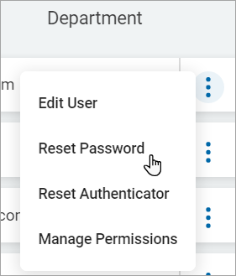
- Click the ellipse menu at the end of the row.
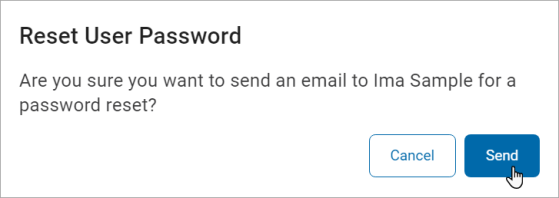
- Click Reset Password. A pop-up window displays to confirm whether to send an email to the user for password reset or not.
- Click the blue Send button to send the email or else click the Cancel button.