How To Get Report IDs for Spirion Custom Reports
When using the Spirion Reporting API to fetch report data for exising reports the custom report ID is needed. This article provides several methods for getting the list of report IDs' using the reporting API or getting a single report ID from the console UI.
How to Get a Full List of Report IDs
Start in the Reporting API (Swagger)
Procedure:
- Go to your reporting API:
https://api.{yourconsole}-spirion.com/reporting/swagger/index.html
- Click the Authorize button at the top right of the screen.
- Paste your Access Token in the following format:
“Bearer YourToken=”
- Click the expand button beside "Report" to view all APIs
- Scroll down to "GET /reporting/Report/Reports"
- Click the expand button to reveal all content.
- Click the Try it out button on the Parameters line.
- Then click the Execute button.
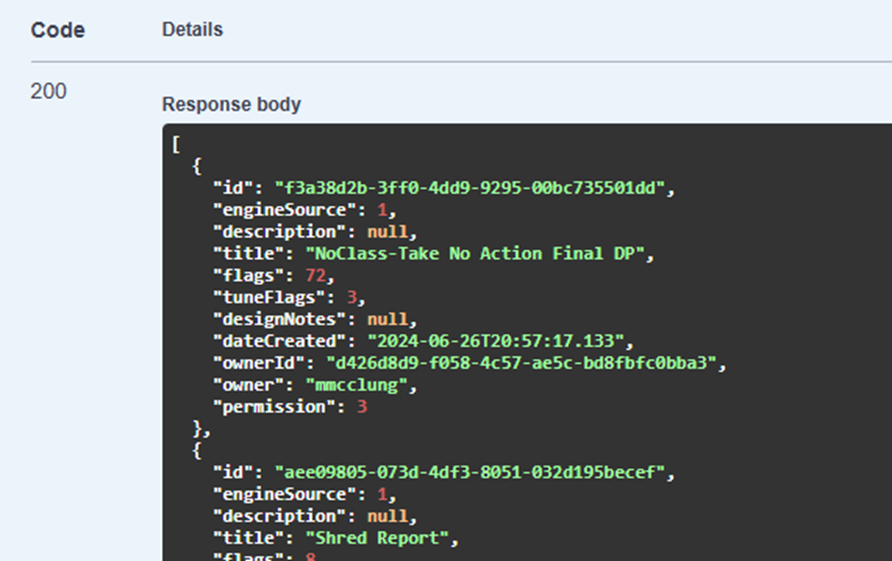
- Scroll down to the Response body to view the JSON response.
- The key “id” is the report ID for the corresponding “Title”
- Use the Download button (lower right of response body) to view in a text editor for the complete list.
Use PowerShell to Find and Output/Write Values
Using PowerShell you can connect to the API and fetch values for the following:
titleiddateCreated
You can then output the values to a CSV file or else write them to the host console:
https://api.{yourconsole}-spirion.com/reporting/Report/Reports
# Define API URL

$apiUrl = "https://api.{yourconsole}-spirion.com/reporting/Report/Reports"

# Define access token (Replace with actual token)

$accessToken = "your token here"

# Set headers
$headers = @{
    "Authorization" = "Bearer $accessToken"
    "Content-Type"  = "application/json"
}

# Define output directory and file
$outputDir = "C:\SpirionAPI"
$outputFile = "$outputDir\Reports and IDs.csv"

# Create directory if it doesn't exist

if (!(Test-Path -Path $outputDir)) {
    New-Item -ItemType Directory -Path $outputDir -Force
}

# Make API request
$response = Invoke-RestMethod -Uri $apiUrl -Method Get -Headers $headers

# Check if response contains data
if ($response) {
    # Prepare CSV content
    $csvData = @()
    foreach ($report in $response) {
        $csvData += [PSCustomObject]@{
            Title       = $report.title
            ID          = $report.id
            DateCreated = $report.dateCreated
        }
    }

    # Export to CSV
    $csvData | Export-Csv -Path $outputFile -NoTypeInformation -Force
    Write-Host "CSV file saved to: $outputFile"
    # Display data
    $csvData | Format-Table -AutoSize
} else {
    Write-Host "No reports found."
}
How to Get a ReportID for a Single Report
This method uses browser Developer Tools to fetch a specific report ID.
- Login to your Spirion console
- Go to Reports > Custom Reports
- Right-click anywhere on the page and select Inspect from the bottom of the sub-menu that appears.
- The Developer tools pane opens in your browser.
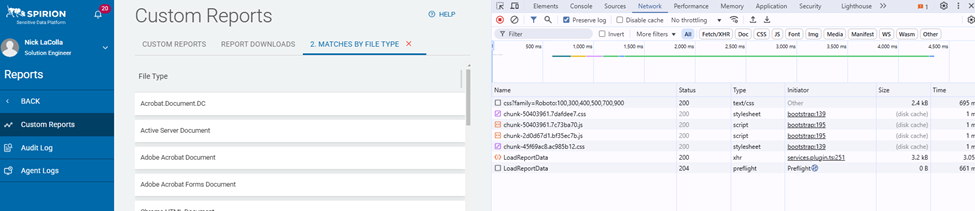
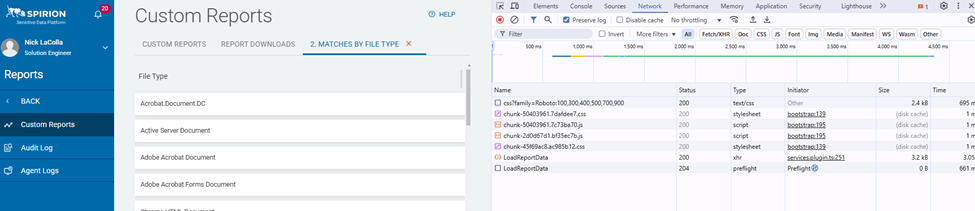
- Select the Network tab in the Developer tools pane. See the graphic below
- In the Spirion panel click View Report for the report that the ID is needed.
- In the Developer Tools panel click LoadReportData from the list on the left
- Select the Payload (tab)
- The report ID is listed. See the screenshot below