
How to Manually Unlock a Spirion Console Account
This article guides you through re-enabling users who are locked out of their assigned account in the Spirion Console.
How to Manually Unlock a Console Account
Occasionally users may unintentionally lock themselves out of their assigned account on the Console.
To unlock an account a user must do one of the following:
- Enlist the help of someone with an administrator account on the Console
- Manually reset the lockout by editing the backend SQL database
How to Unlock Console Accounts Using the Spirion Console UI
To unlock accounts using the Spirion Sensitive Data Platform Console UI use the following steps:
- Locate another user with an administrator-level account in the Spirion Console.
- If there is only one account in the Console, skip to the section below: "How to Unlock Console Accounts By Editing the Console Database Manually."
- Have the user with the admin account log-in to the Spirion Sensitive Data Platform Console.
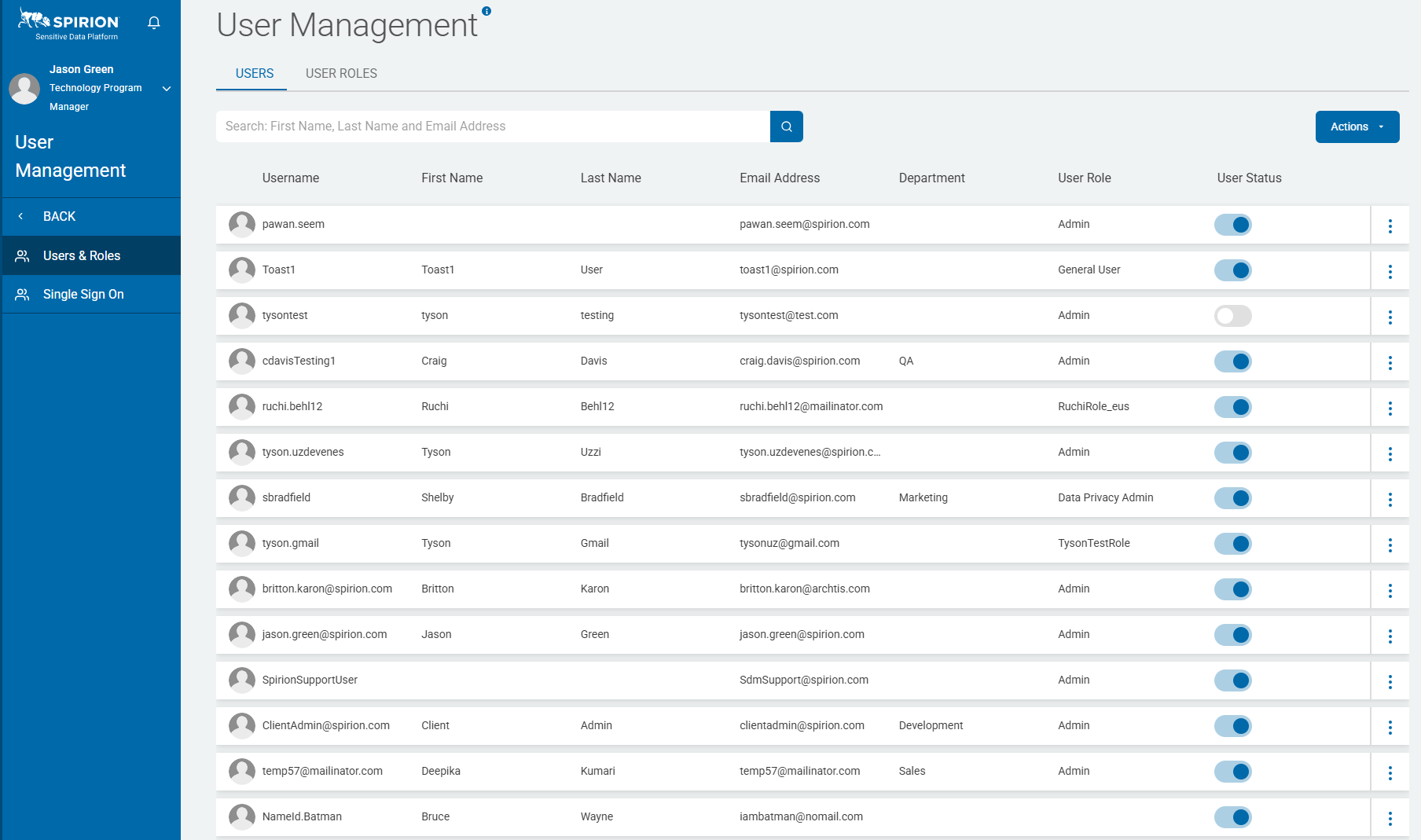
- In the left-side navigation pane, select Settings at the bottom of the page.
- Select User Management > Users & Roles.
- The USERS tab should be open, by default.
- Find the locked out user by user name, first name, last name, email address, etc.
- Note: There is a column named User Status with a toggle switch toggled to the left for locked out accounts.
- Toggle the slider right in the User Status column to re-enable the user account.
- When the Unlock action completes a dialog appears in the bottom left stating the user account has been updated successfully.
- Log out of the Spirion Console and log back in using the unlocked user account.
How to Unlock Console Accounts By Editing the Spirion Console Database Manually
To unlock accounts by editing the Spirion Console database manually, you must have the necessary database administration skills.
If you are not proficient with database administration, ensure that you enlist the help of a Database Administrator before you attempt to access the Console database.
The steps below provide a general method for accessing the database, and must be interpreted by a Database Administrator for proper use:
- Open your favorite database management interface or tool.
- Locate the Console database.
- By default, the database name is IdfMC.
- All of the following examples assume the database name is IdfMC.
- Select all columns in the [IdfMC].[dbo].[SystemUsers] table.
- Use the [Name] column to identify the row for the locked out user.
- For the user in question (as identified in the [Name] column), change the column [IsLocked] from a value of "1" to "0".
- Close your database management interface or tool.
- Access the Spirion Console log in page in your web browser.
- Log in to Spirion Console using the credentials of the unlocked account.