
How to Search Box
This guide walks you through setting up Box as an Spirion Sensitive Data Platform Target
Overview
Searching Box is easy with Spirion Sensitive Data Platform.
This guide walks you through setting up Box as an Spirion Sensitive Data Platform Target (searchable endpoint).
Before You Start
- Spirion searches files in box accounts via the Box API.
- Each file that is searched requires two API calls
- All Box Business Plans come with a licensed number of permitted API calls per enterprise per month.
- The number of API calls per month are listed within the plans here – Box Plans.
- Additional add-on plans or support requests to Box are possible to increase the monthly call limit
- For up-to-date information regarding Box’s API limits please refer to the following article – Rate Limits - Box Developer Documentation
- For details about how Spirion searches Box including the API call limit, see the following article: Details about the Box API used by Spirion to search box accounts
How to Create a Box Target - Authentication
Use the following steps to create a Box Target in Spirion Sensitive Data Platform:
- Log in to Spirion Sensitive Data Platform
- From the left side navigation menu select “Data Asset Inventory”
- Select “Data Assets and Targets”
- Select the “TARGETS” tab at the top of the screen
- Click the blue “Add Target” button in the top right corner
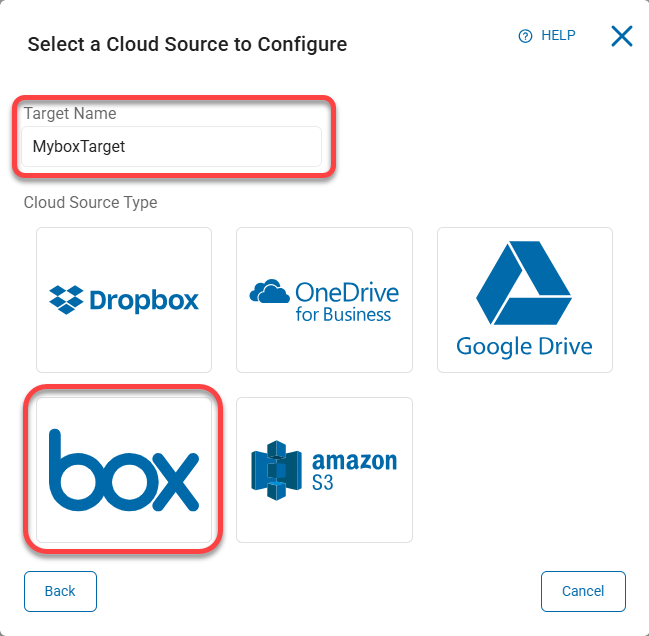
- Give your new Target a “Target Name” and select “Cloud Sources”
- Select “box” as the Cloud Source Type
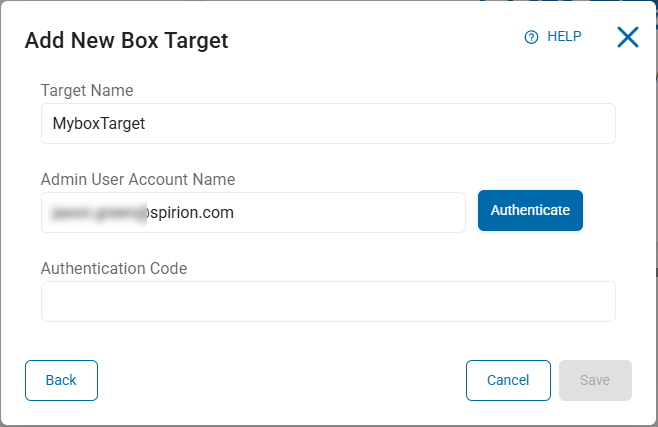
- In the appropriate fields enter your Box Admin User Account Name (email address of a Box Admin) and Authentication Code.
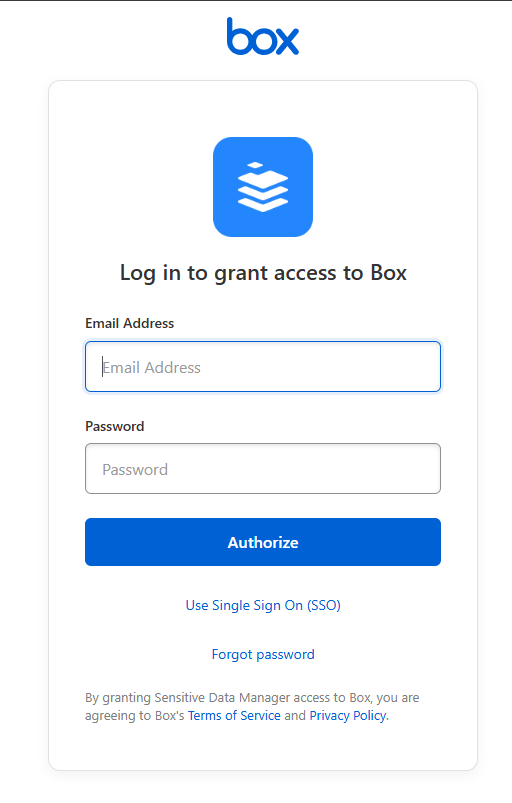
- Click the blue Authenticate button. You are transferred to Box and asked to sign in.
- Sign in to Box.
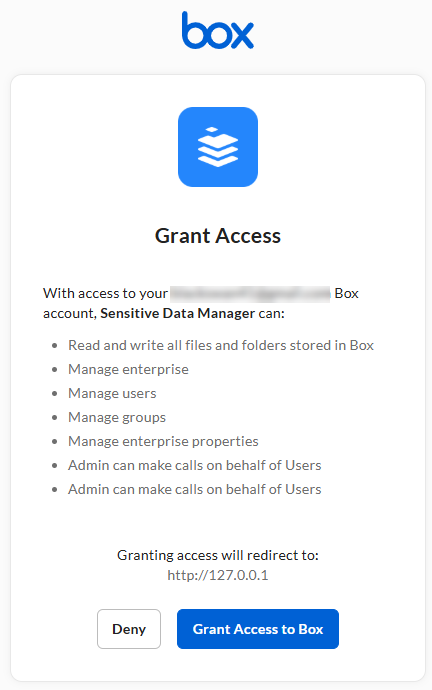
- Click the blue Grant Access to Box button at the bottom of the dialog.
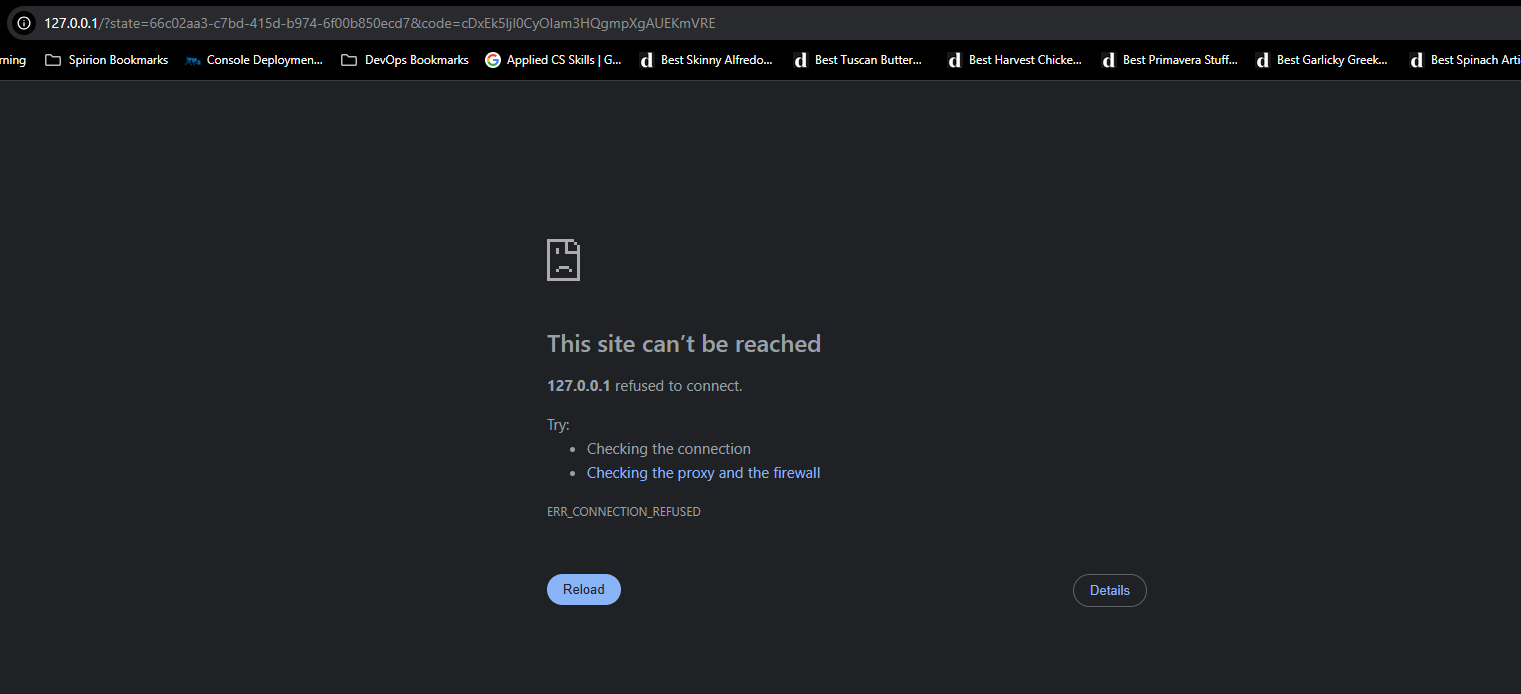
- The web page changes and displays the message "this site can’t be reached."
- At the top of the page select and copy the entire URL starting with 127.0.0.1.
- Paste the URL into the “Authentication Code” box in the “Add New Box Target” screen inside the Spirion application.
- Click “Save” at the bottom of the screen. This completes the authentication process.
How to Create a Scan to Search Box
Use the following steps to configure a sensitive data scan to seach box:
- Log-in to Spirion Sensitive Data Platform.
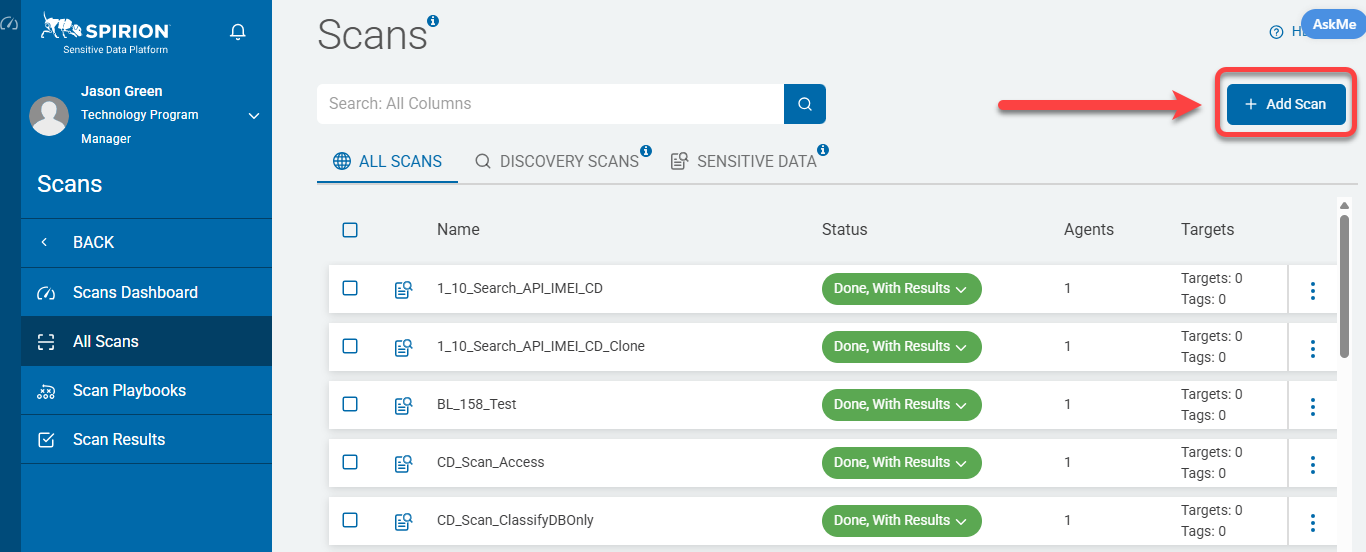
- On the left side navigation menu select Scans > All Scans.
- Click the blue + Add Scan button in the top right corner:
- Name the scan with a descriptive name (for example, Box_Scan) and click the Next button.
- Select Sensitive Data Scan
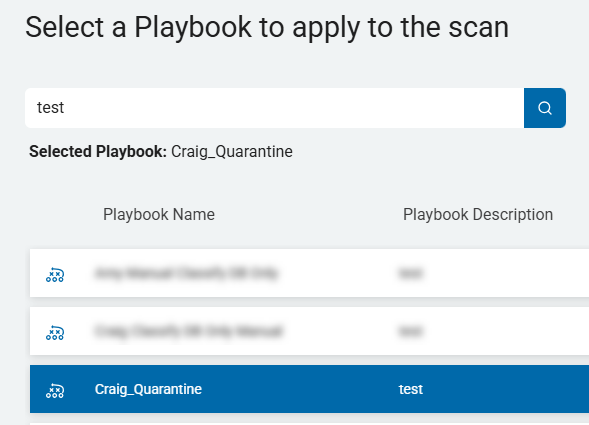
- Select a Scan Playbook to apply to the scan:
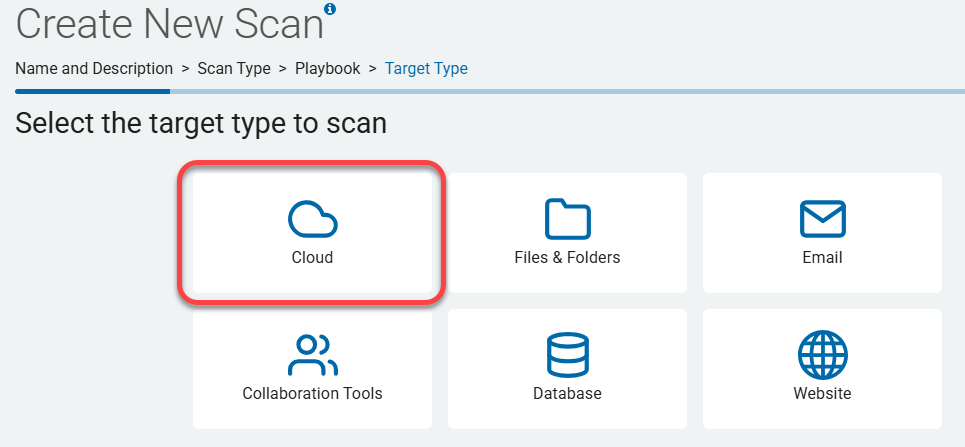
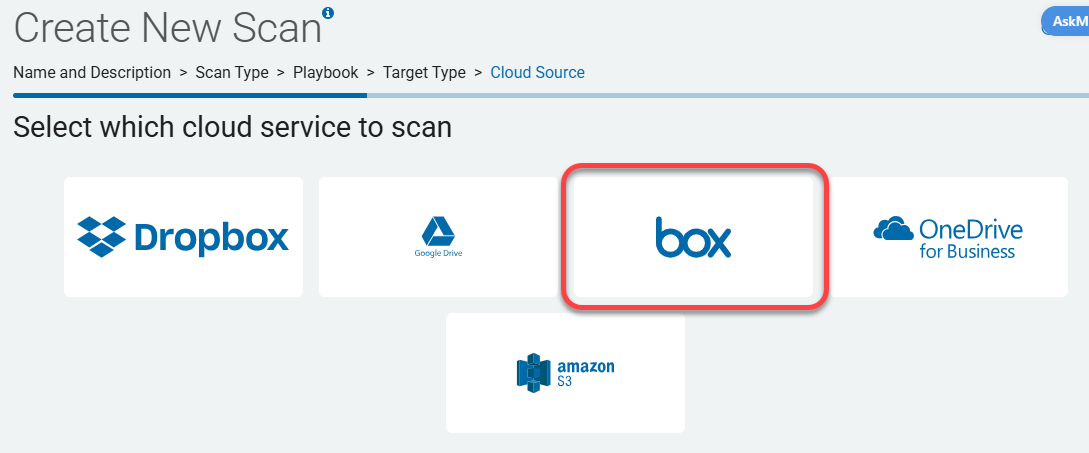
- Select the Cloud target type to scan.
- Select box as the cloud service to scan:
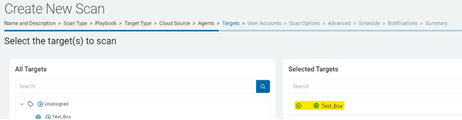
- Select the Box Target that you previously created:
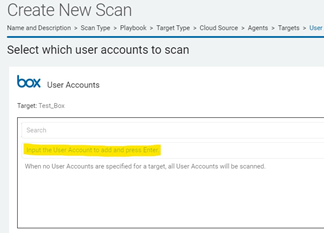
- Enter specific Box user accounts to search (leave blank to search all accounts).
- Select Finish and Save to save and initiate the Box scan.
How to Troubleshoot
API Call Limit Error
- When an application hits a rate limit the API returns an API response with an HTTP status code:
- HTTP Status Code: 429 – Too Many Requests