
How to Authenticate to SharePoint On-Premise
This article describes how to authenticate to your SharePoint On-Premise with Spirion Sensitive Data Platform.
Overview
This article describes how to authenticate to your SharePoint On-Premise with Spirion Sensitive Data Platform.
Note that authenticating with SharePoint is a very different process compared to:
- Authenticating through Modern Authentication (SharePoint in the Cloud)
- The same authentication process performed in Spirion Data Manager (SDM)
Specific Differences:
- Setting up the Target requires different information
- Use this guide to authenticate to SharePoint On-Premise
Before you begin:
- Ensure the service account you are using is a site collection admin for each site being searched.
In This Article
- Adding a SharePoint On-Premises Target
- ADFS Configuration
- Non-ADFS Configuration
How to Add a SharePoint On-Premises Target in Spirion Sensitive Data Platform
Procedure:
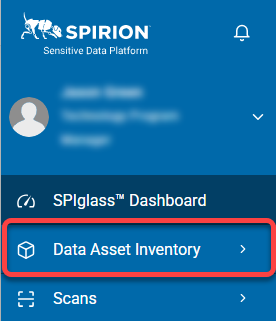
- From the left side navigation menu, click Data Asset Inventory.
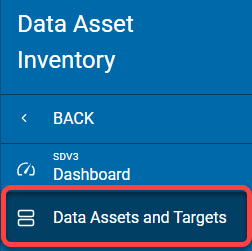
- Next, click Data Assets and Targets.
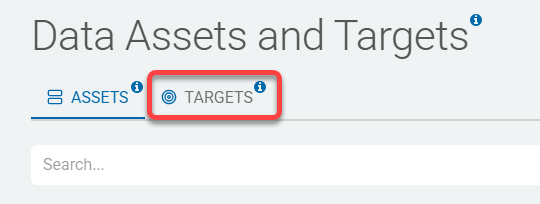
- Click the Targets tab at the top of the page.
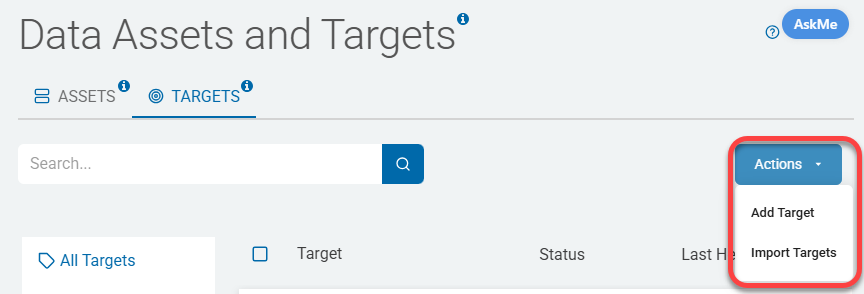
- Click the blue Actions button and select Add Target from the drop-down menu.
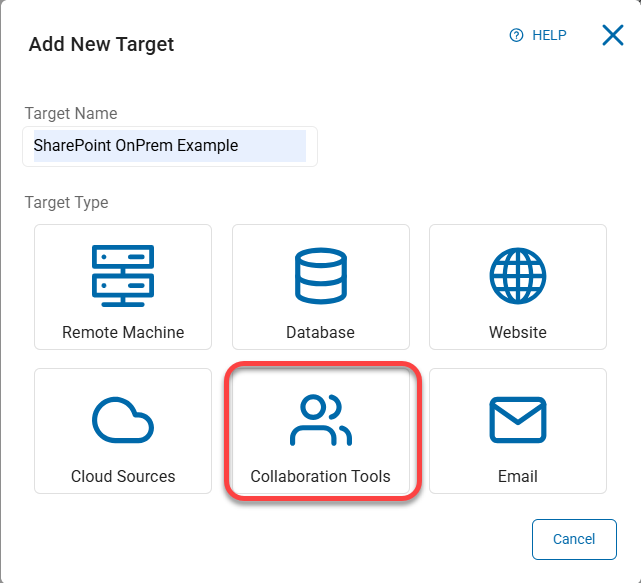
- Enter a descriptive name for your SharePoint On-Premise Target in the field Target Name.
- Next, click the tile Collaboration Tools.
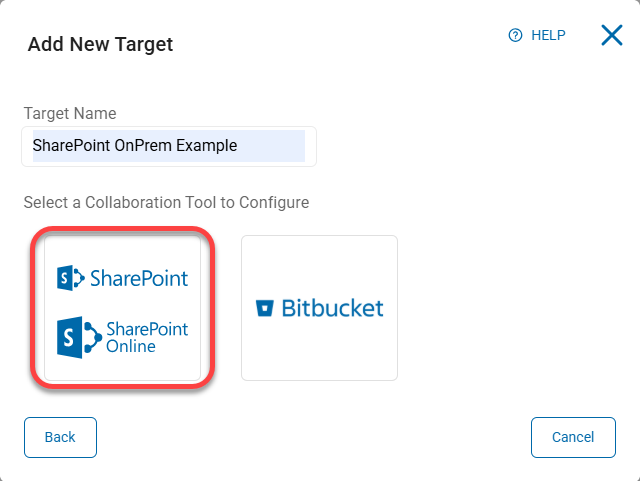
- Next, click the SharePoint/SharePoint Online tile.
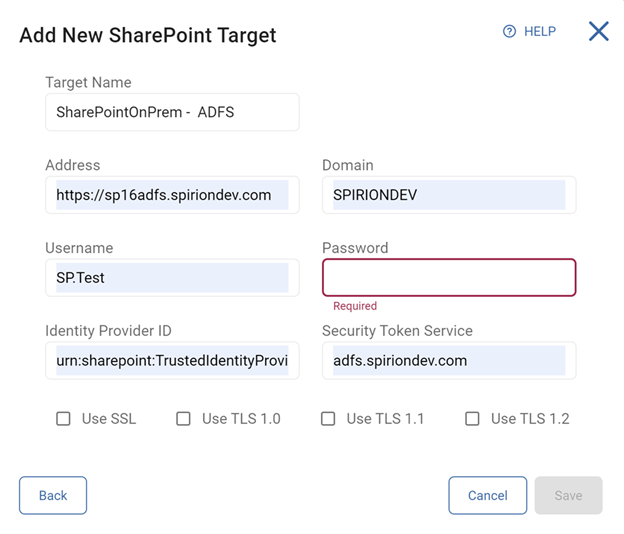
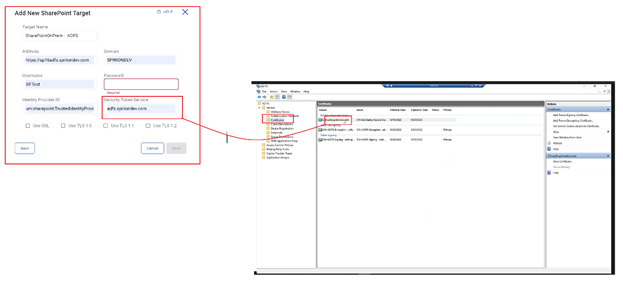
- Complete the following fields in the “Add New SharePoint Target” pop-up (shown below, after step "d." with sample values).
- Address
- Domain
- Username
- Password
- Identity Provider ID
- This information can be identified on the ADFS server
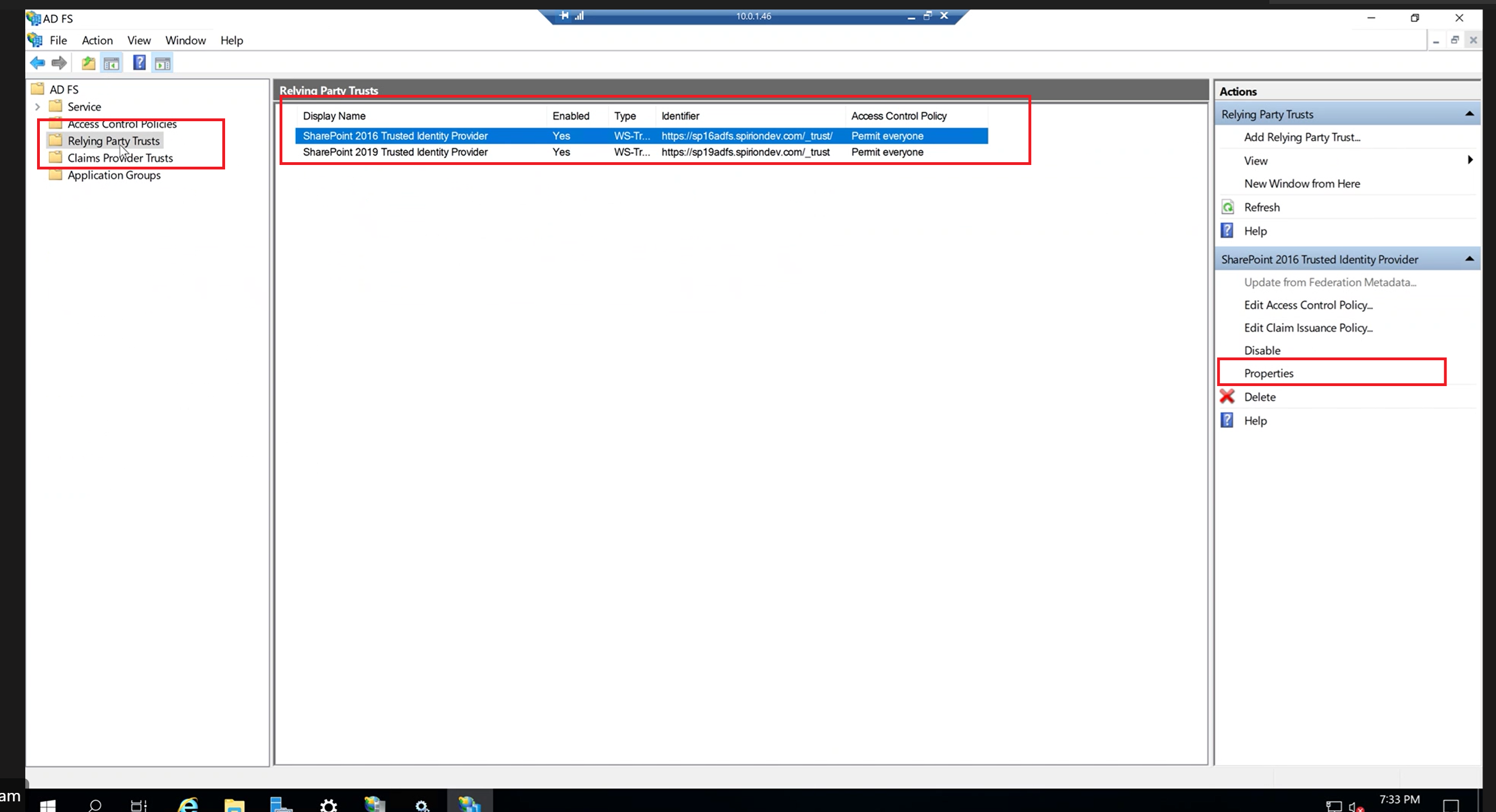
- Navigate and connect to the ADFS server
- Find the ADFS management tool on the server
- In the Windows search bar enter the search term “AD FS”
- Open the ADFS management tool
- Click the ‘Relying Party Trusts’ folder
- Click the policy listed
- Click the Properties link
- Click the Identifiers tab of the Properties window
- The Relying Party Identifiers box of the Identifiers tab maintains the Identity Provider ID
- Security Token Service
How to Configure ADFS
Procedure:
- This information can be identified on the ADFS server
- Navigate and connect to the ADFS server
- Find the ADFS management tool on the server
- In the Windows search bar search “AD FS"
- Open the ADFS management tool and expand the Services window
- Click the Certificates folder.
- Identify the value nested in the CN= statement.
- Note – Only the information AFTER the characters "CN=" is required for this value.
- Note – Only the information AFTER the characters "CN=" is required for this value.
How to Configure Non-ADFS
Procedure:
- The following field configurations are required:
- Address
- Domain
- Username
- Password
- Identity Provider ID
- Security Token Service
- Note – IDPID and STS are NOT required for non-ADFS on prem SharePoint