How to Search (Filter) for a Specific Report
This topic describes how to search for a specific report. Note that the search field acts as a filter for indexed content.
Use the following steps to locate a specific report:
- From the left side navigation menu select Reports > Custom Reports.
- The Custom Reports page opens. The CUSTOM REPORTS tab is selected by default.
- In the Search box, enter your search criteria. Search results are indexed. The text entered into the search field is searched for in all of the table fields, including:
- Report name
- Description
- Date Created
- Report Author
- The results are immediately displayed in the table.
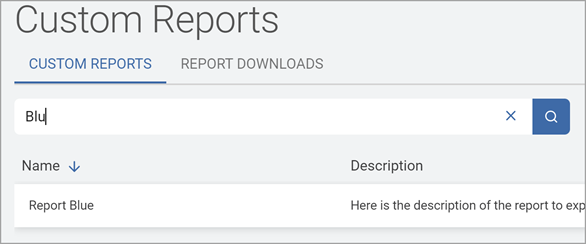
- Note that if the search term is found in multiple fields, all results are returned.
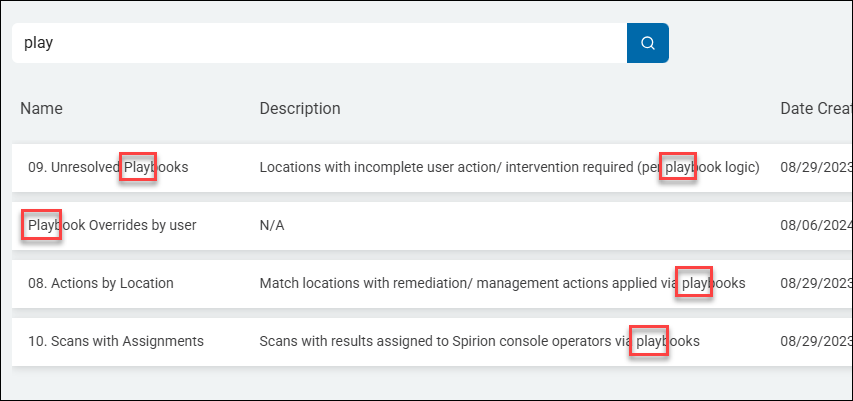
- For example, in the screenshot below, the term "play" is entered into the search field.
- Results returned include results in both the "Name" and "Description" fields.
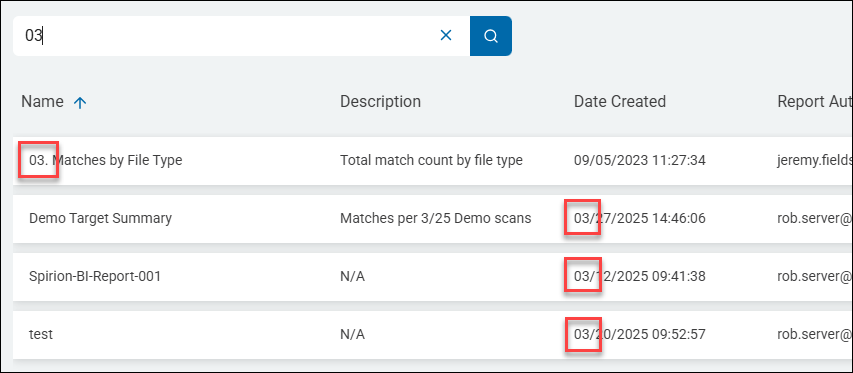
- In the next example the search term "03" is entered.
- The term is discovered in both the "Name" and "Date Created" fields.
- The term is discovered in both the "Name" and "Date Created" fields.
- Click the X to clear the search criteria.