Data Assets and Targets - Data Assets
This article describes how to manage a data asset including viewing details about the asset, deleting the asset and modifying the Asset's technical information..
How to Manage an Existing Data Asset
To manage an existing Data Asset perform the following steps on the Data Asset Inventory > Data Assets and Targets page, ASSETS tab:
- Locate the Data Asset to manage in the table of Assets. Note that you can sort the table by column heading.
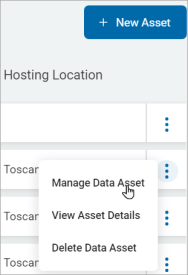
- On the right end of the row that contains the Asset you are investigating, click the more options menu.

- Click Manage Data Asset from the sub-menu.
- Locate the section and details you want to manage.
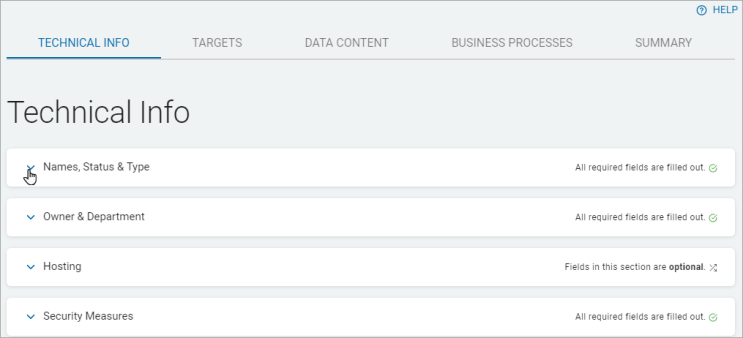
They are displayed in a list sorted by tabs and then into rows: - Technical Info
- Names, Status & Type
- Owner & Department
- Hosting
- Security Measures
- Targets
- Business Processes
- Summary
- Technical Info
- Data Content
- Business Process
- Click the ˅ icon to expand a section.
- Click ˄ icon to collapse a section.
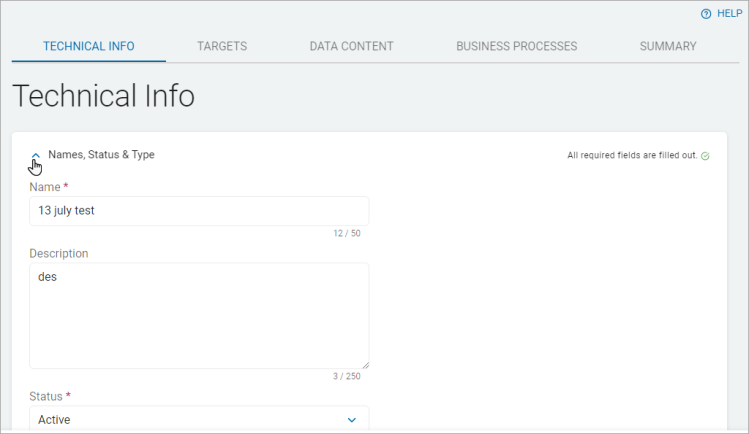
- Make required updates to the details.
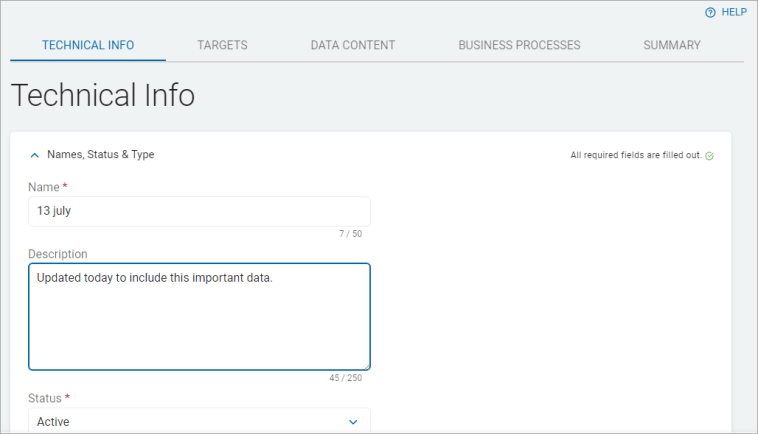
- Click the Next button to proceed or the Exit Without Saving button to discard.
- Make any additional changes to the remaining tabs, click the Next button to proceed or the Exit Without Saving button to discard.
- On the Summary tab, expand the sections to review your changes.
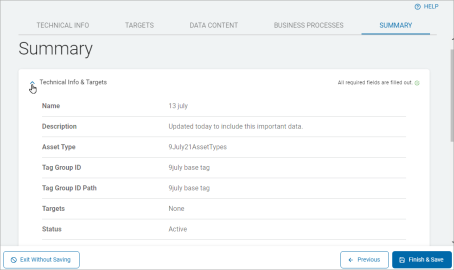
- Click the Finish & Save button to save the updates, the Previous button to return to previous tabs, or the Exit Without Saving button to discard.
How to Delete a Data Asset
Use the following steps to delete a Data Asset from the table on the Data Assets and Targets page:
- Locate the Data Asset you want to delete in the table.
- On the right end of the row, click the More options menu.
- Click Delete Data Asset from the sub-menu that appears.
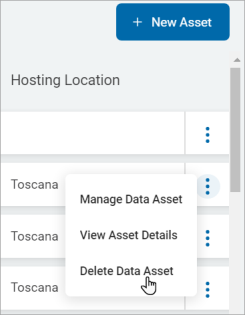
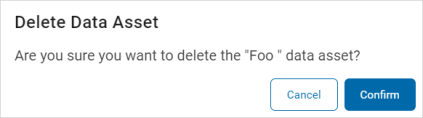
- Click the Confirm button to delete the asset or the Cancel button to discard.