Scan Playbook Examples
Overview
The topics on this page provide examples of scan playbooks. While these examples may not apply to your environment directly, they are useful in generating ideas and demonstrating the potential and capabilities of scan playbooks in Spirion Sensitive Data Platform.
Beginner Best Practices
Remember, if you are just starting out creating playbooks, embrace simplicity:
- Avoid over-labeling your sensitive data files
- Use the Global Data Types provided by archTIS: Sensitive Data Definitions (SDDs) and Spirion AnyFinds
- Start with results from your scans (from the Spirion Database)
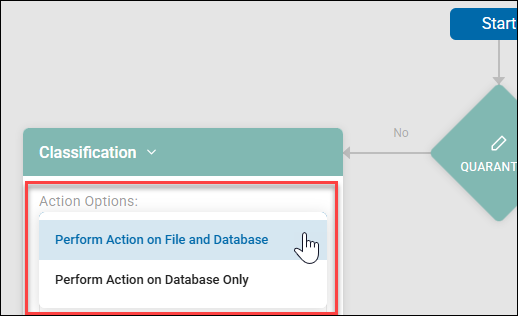
- Start by applying classifcations to your files at the Spirion database level (database only) and then later at the file-level (file and database). This is set within Scan Playbooks under the "Action Options" menu, as shown in the screenshot below:
- Use a test group or department
- Understand the service tasks related to classifciations and workflows
- Start with easy operators
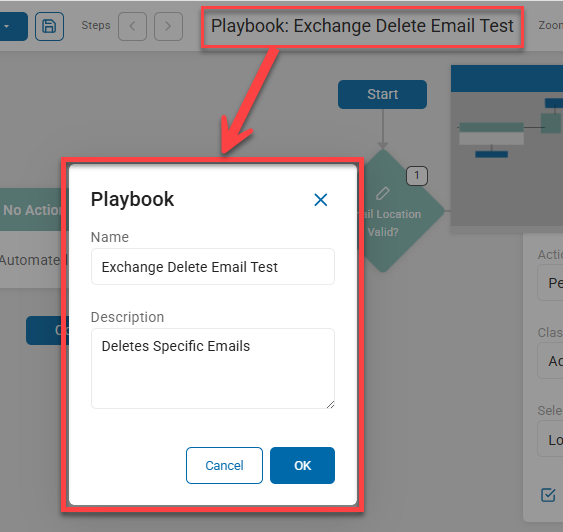
Tip: On the "Manage Playbook" page for a given playbook, click the Playbook title to open the Playbook pop-up window with the Playbook name and description.
Note: Adding multiple filter criteria can affect the scan performance.
Note: Not all repositories allow all logic scenarios to be performed on the files they contain, so some logic statements will not function.
• For example, many cloud repositories do not track Access Dates.
Playbook to Classify Data as Restricted
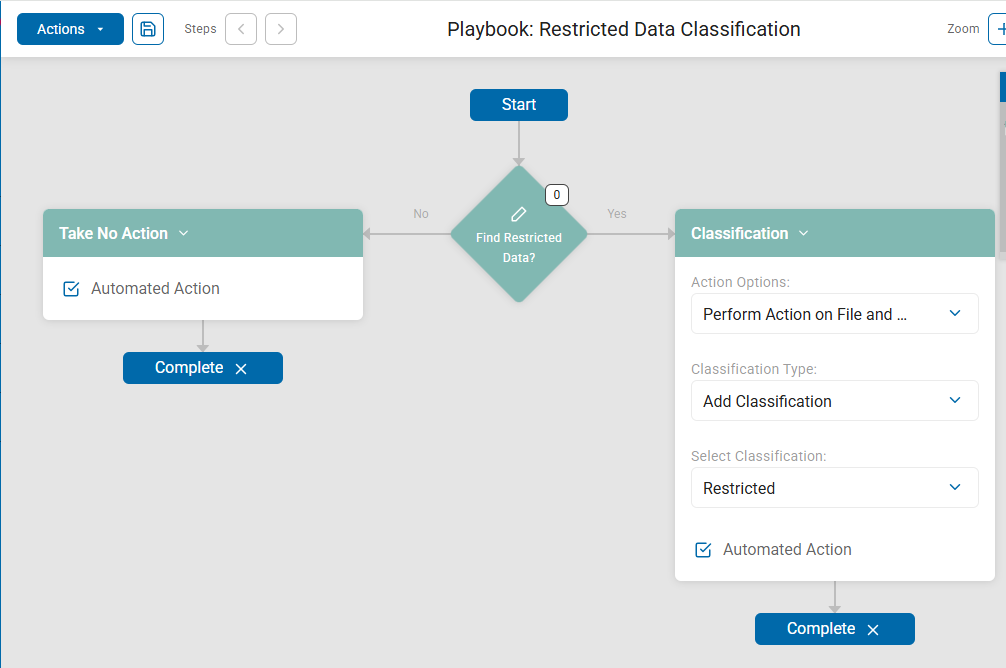
This Scan Playbook example is set up to classify files with passport numbers as "Restricted."
In the following example the following decisions and actions are taken:
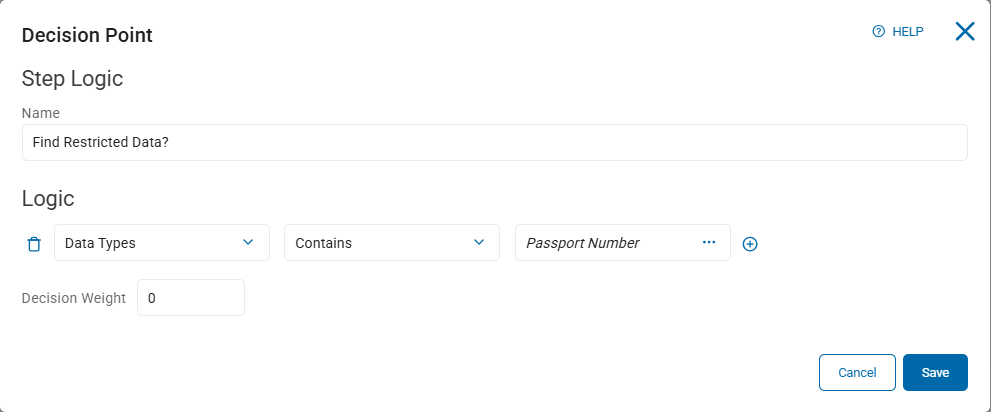
- The first decision point - Find Restricted Data? - asks does the location (file) scanned contain a simple Passport number?
- If the answer is "no," then no action is taken and the playbook is complete.
- If the answer is "yes," the following actions happen:
- The classification "Restricted" is applied to the file both in the Spirion database, and the location (file) that contains the Passport number.
- The playbook is complete.
Playbook to Classify Files as Restricted
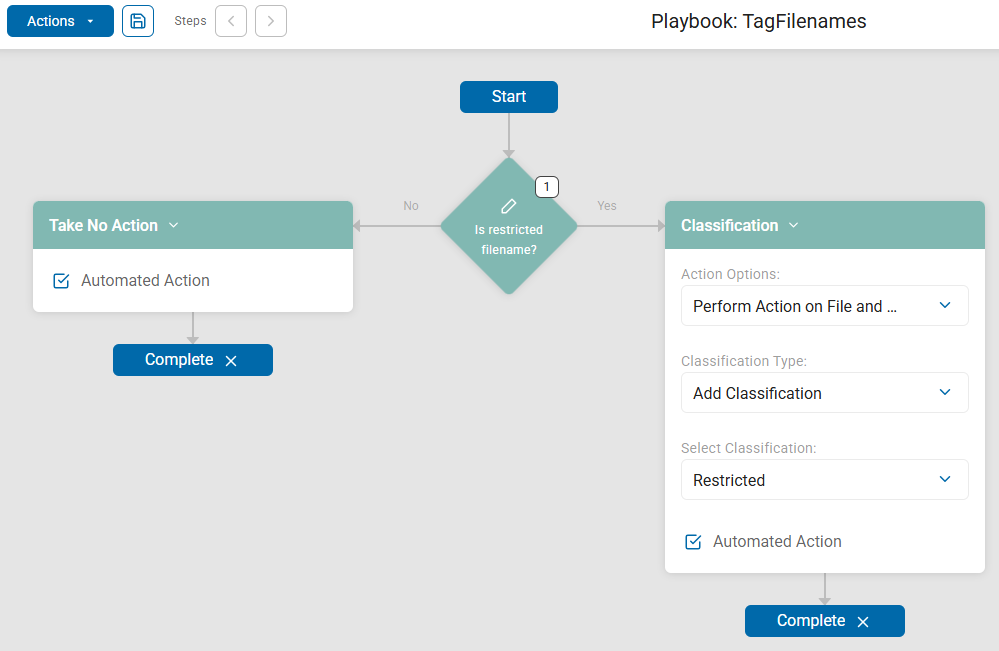
This is a simple file classification example.
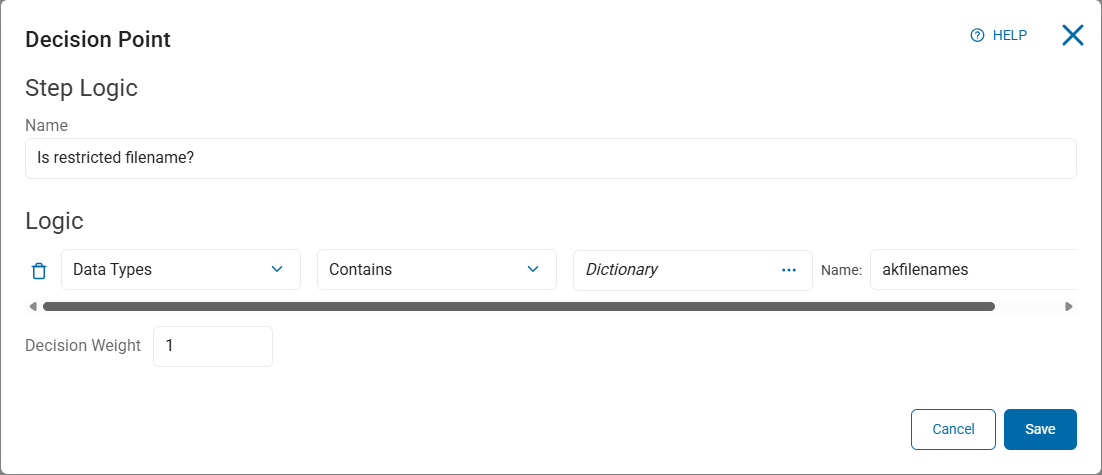
If the files scanned by the Spirion Agent(s) contains data which is a Dictonary data type named "akfilenames" a classification of "Restricted" is automatically applied to files which meet this criteria. Note that this playbook applies a classification action, and not a Restrict Access action which restricts access for all user roles but those selected.
Playbook to Classify Teams Chat History
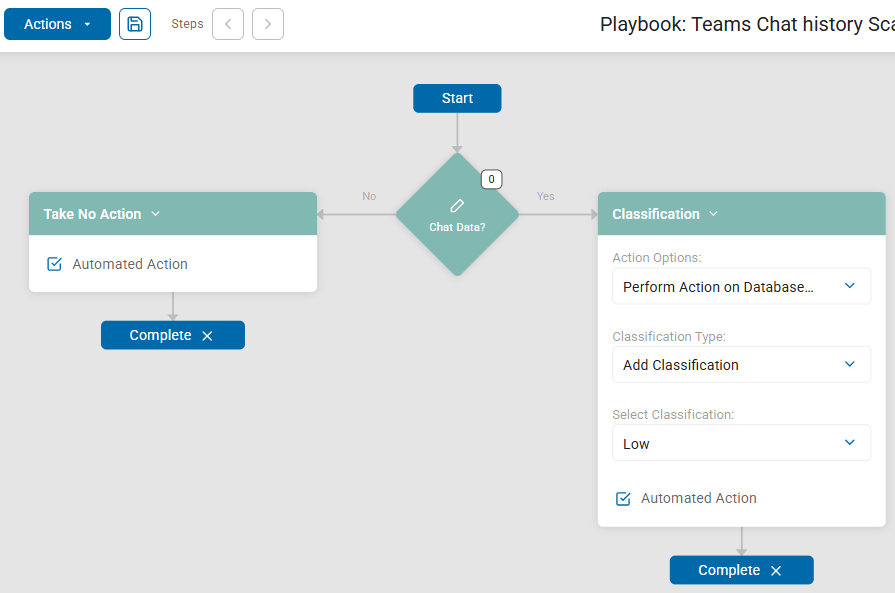
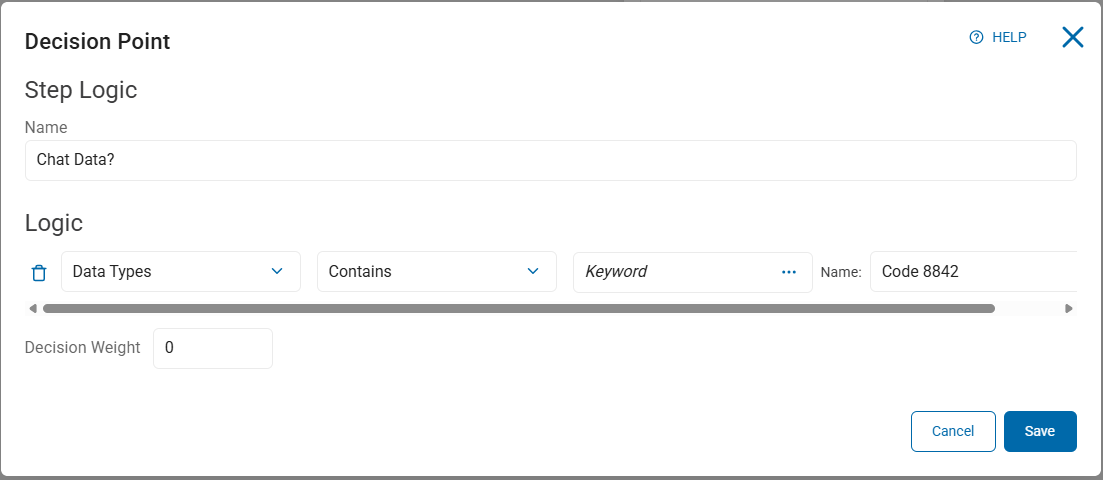
The following playbooks scans for Teams chat data, which uses data type keyword Code 8842.
If the files scanned by the Spirion Agent(s) contain data types that include the keyword "Code 8842" a classification of "Low" is automatically applied to files which meet this criteria.
Playbook to IPG Data Scan 3
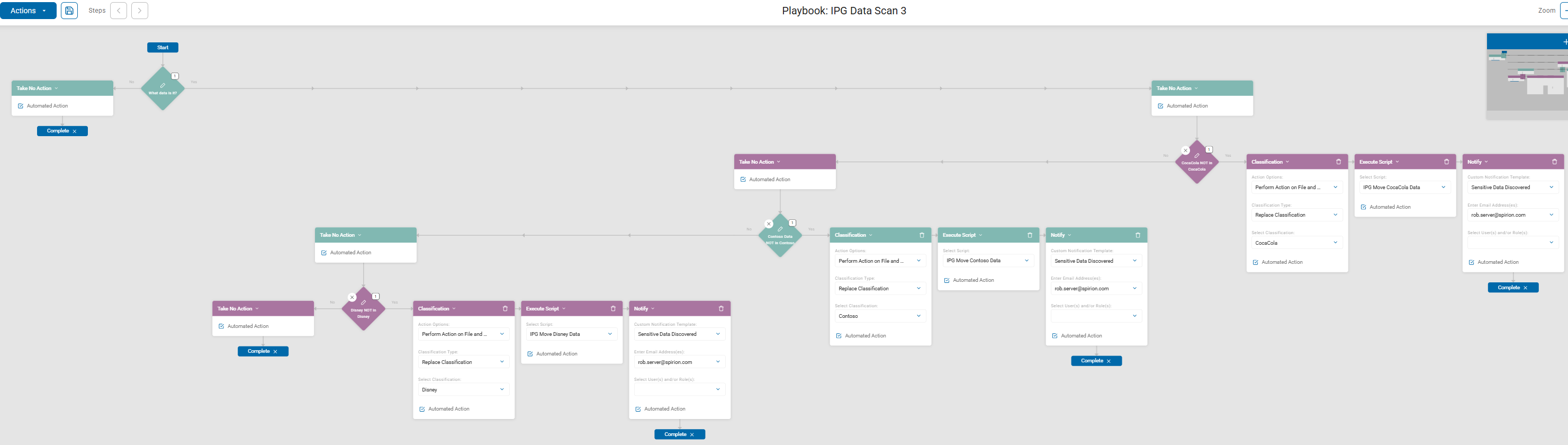
This decision point example scans for data and moves the data to a proper (safe) location.
PCI DSS Compliance
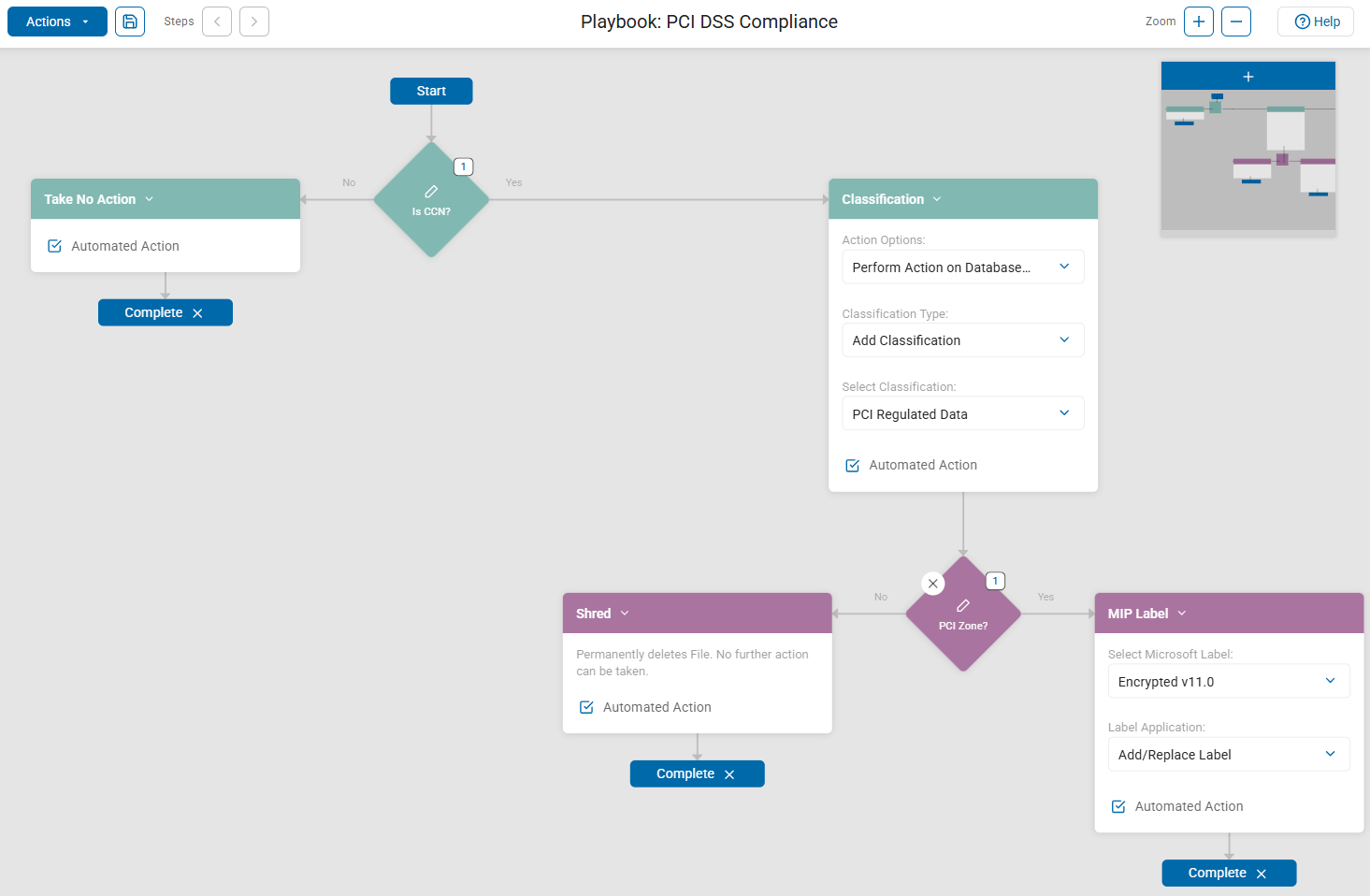
This example is set to achieve PCI DSS compliance on the data.
In the following example the following decisions and actions are taken:
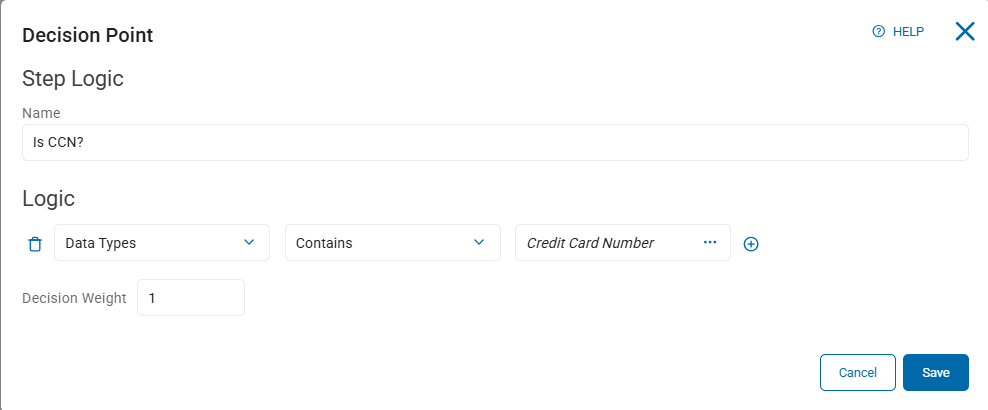
- The first decision point - Is CCN? - asks does the location (file) scanned contain a simple credit card number?
- If the answer is "no," no action is taken and the playbook is complete
- If the answer is "yes," the following actions happen:
- The classification "PCI Regulated Data" is applied to the file in the Spirion database, but the location (file) that contains the credit card number is not modified.
- Another decision point is reached
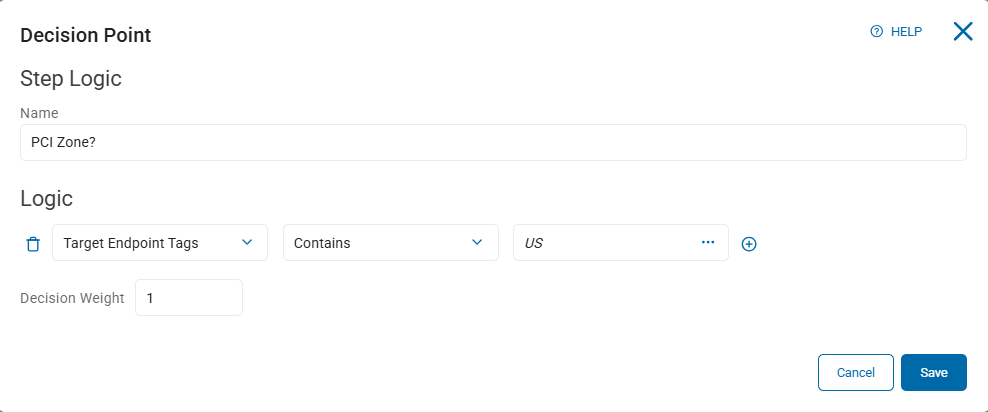
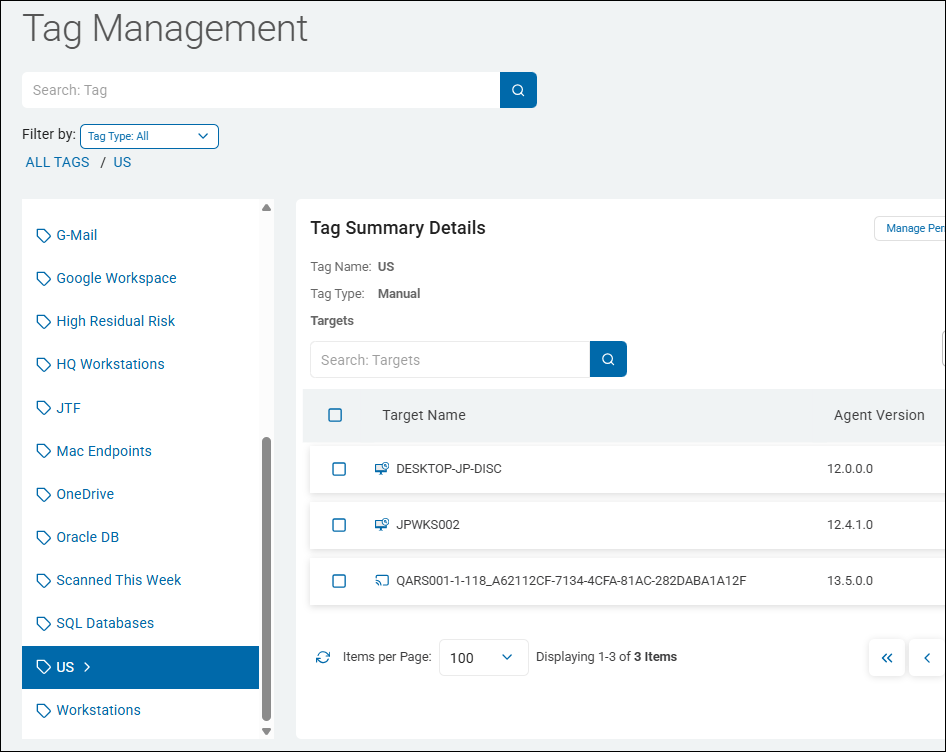
- The second decision point - PCI Zone? - is about Target endpoint Tags. The decision point asks if the location being scanned is on a Target endpoint that has the Tag "US" shown in the Tag Management screenshot below.
- If the answer is "no," the location (file) is shredded (permanently deleted) and the playbook is complete
- If the answer is "yes" the MIP label "Encrytped v11.0" is applied to the location (file)
Decision Points
The first decision point is a simple credit card number data type - does the location scanned contain a credit card number?
Playbook to Classify HP ID and AnyFinds
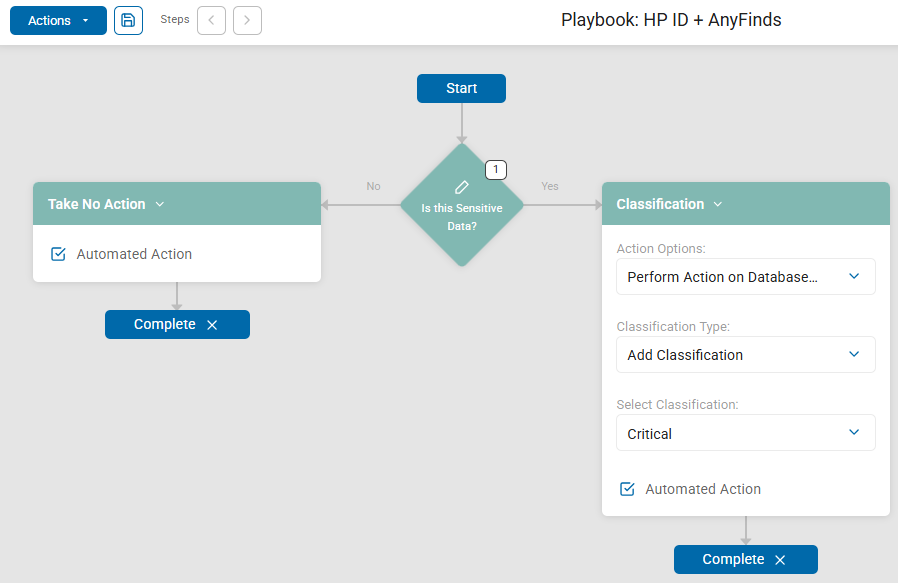
This examle searches for Health Plan Identifiers (HP IDs) and electronic Protected Health Information (ePHI).
- ePHI (Electronic Protected Health Information) refers to health data that can identify an individual and is stored or transmitted electronically, governed by HIPAA.
- An HPID (Health Plan Identifier) is a unique number for health plans, mandated by the Affordable Care Act for simplifying transactions
Decision Point
The decision point below is about a custom data type.
Does the location scanned contain a data type called "AnyFind + MemberID SDD" (sensitive data definition)? The custom data type is described below.
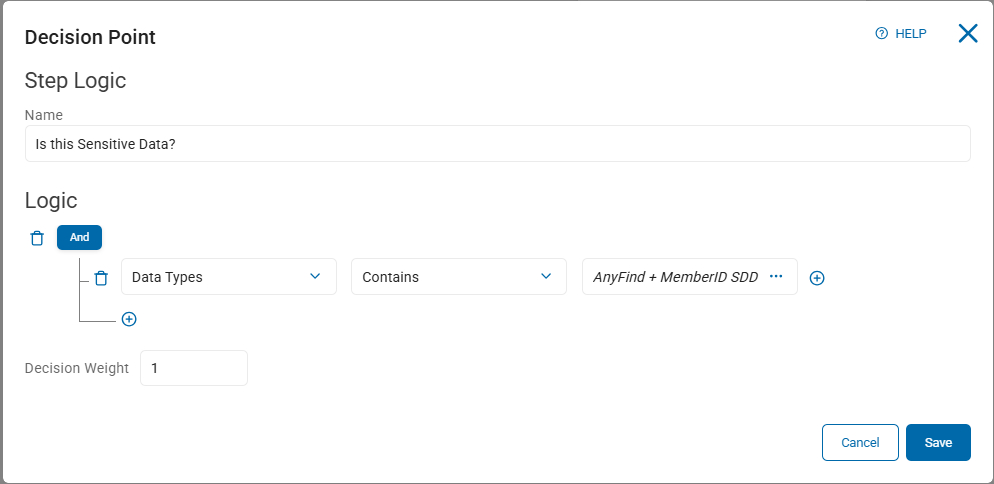
Custom Data Type
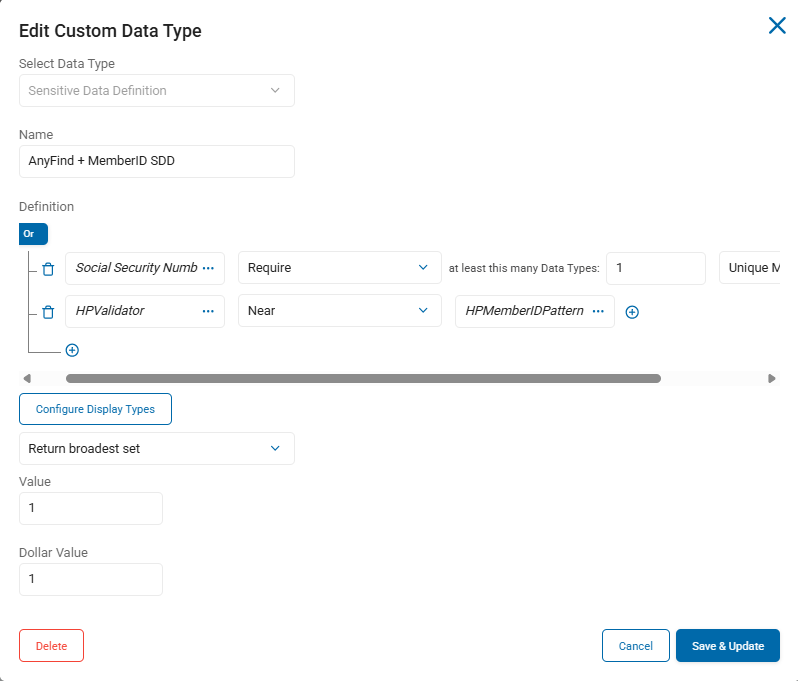
Custom data types are found under Settings > Global Data Types > CUSTOM DATA TYPES tab.
In this example, it is a Sensitive Data Definition data type named "AnyFind +MemberID SDD."
This custom data type contains an "Or" definition.
Only one of the following criteria must be satisfied to qualify as this data type:
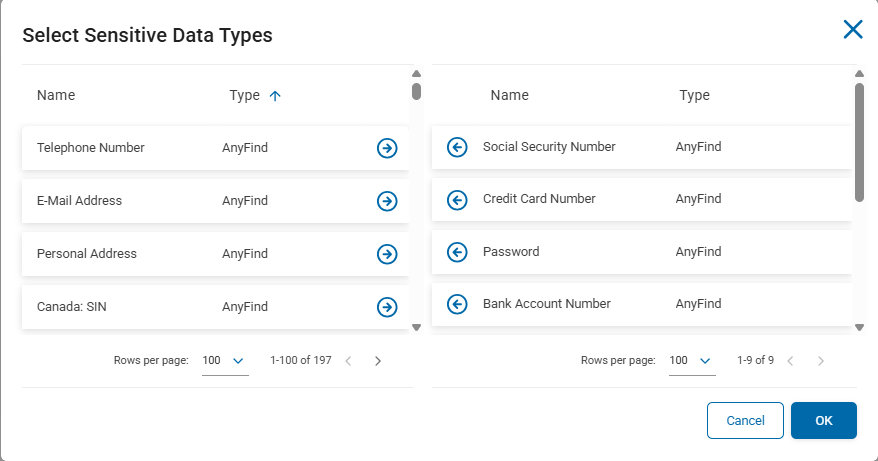
- At least 1 unique match of the following AnyFinds: Social Security Number, Credit Card Number, Password, Bank Account Number, Drivers License, Date of Birth, Passport Number, IPv4, Machine Readable Passport Number
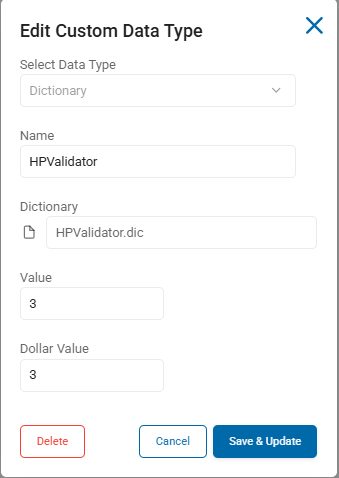
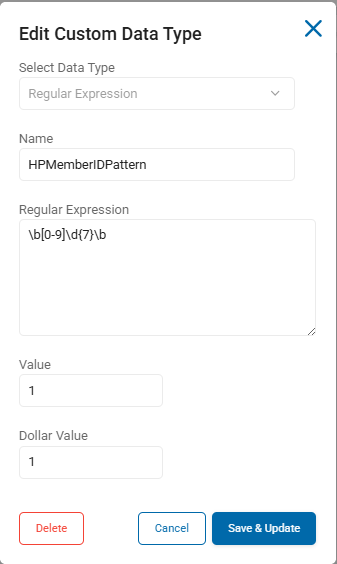
- The keywords in a dictionary file named "HPValidator" must be found near the RegEx data type "HPMemberIDPattern," the pattern of health plan member IDs.
Dictionary Data Type Example: HPvalidator
RegEx Data Type Example: HPMemberIDPattern
Multiple AnyFinds Example
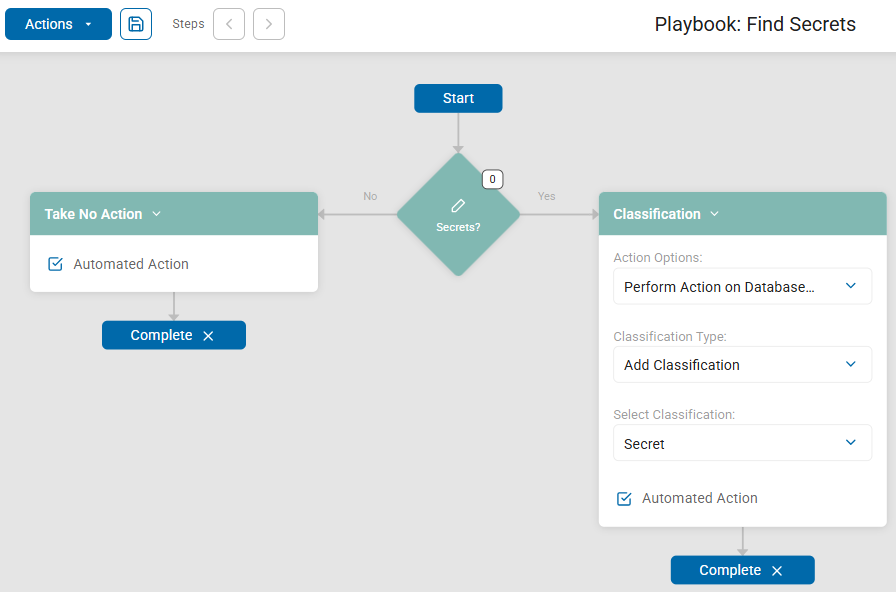
Playbook to Classify Asana and Zendesk Secrets
This example is set to classify files with Passport numbers as "Restricted."
In the following example the following decisions and actions are taken:
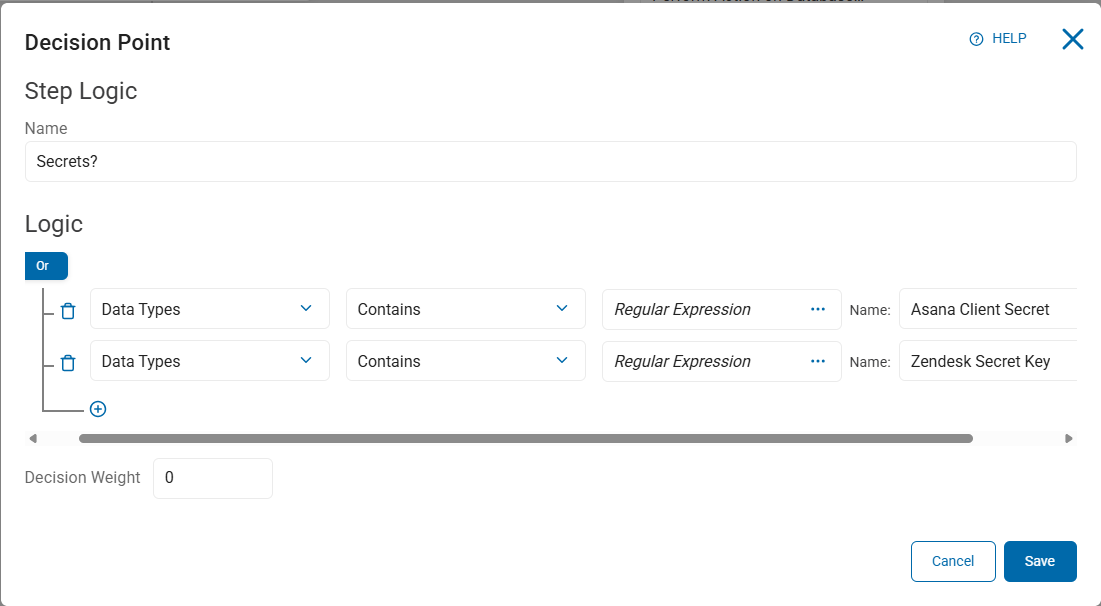
- The first decision point - Secrets? - asks two questions: does the location (file) scanned contain either Asana Client Secrets OR Zendesk Secret Keys?
- If the answer is "no," no action is taken and the playbook is complete
- If the answer is "yes," the following actions happen:
- The classification "Secret" is applied to the scanned file in the Spirion database, but the location (file) that contains the secret is not modified.
- The playbook is complete.
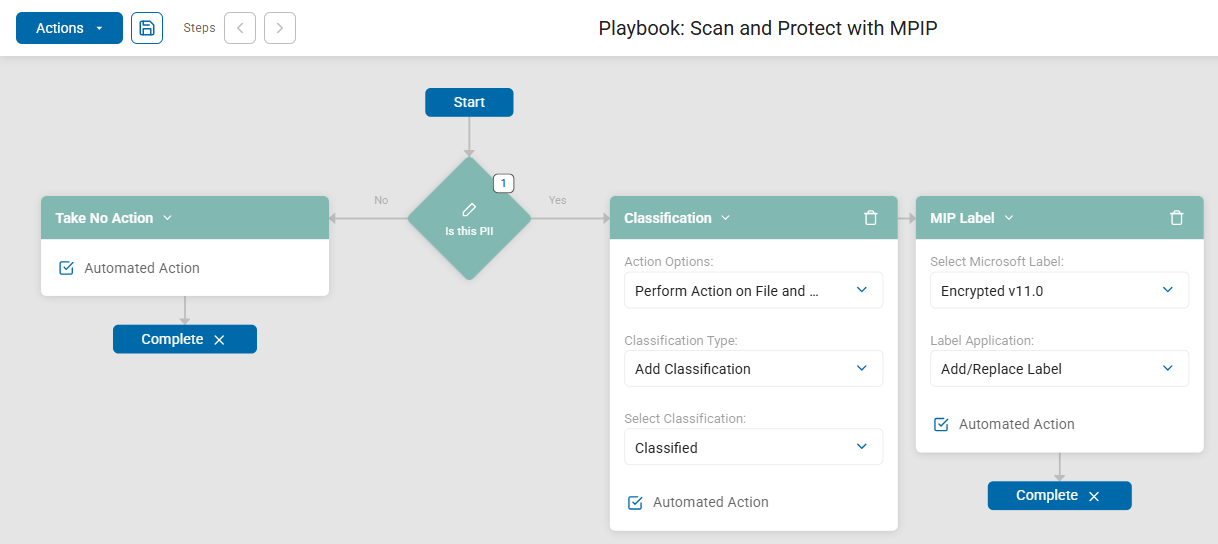
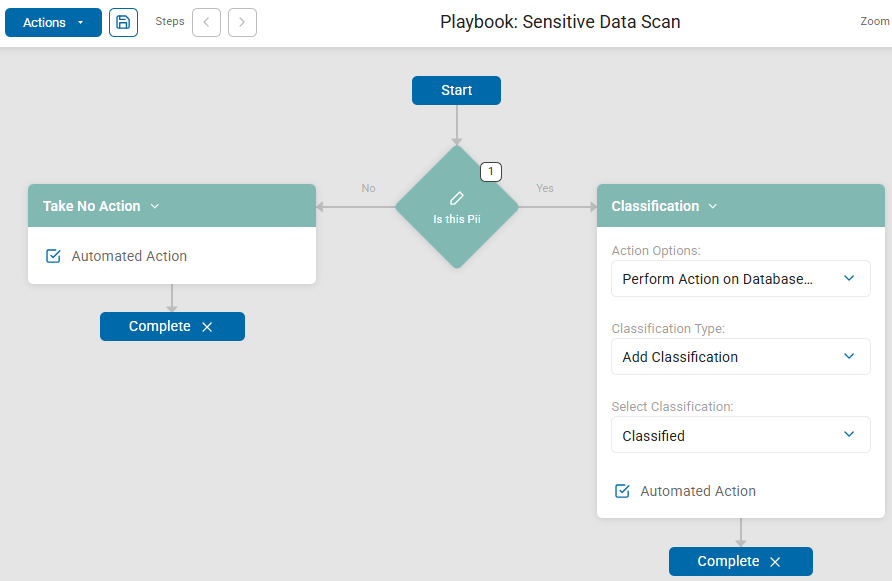
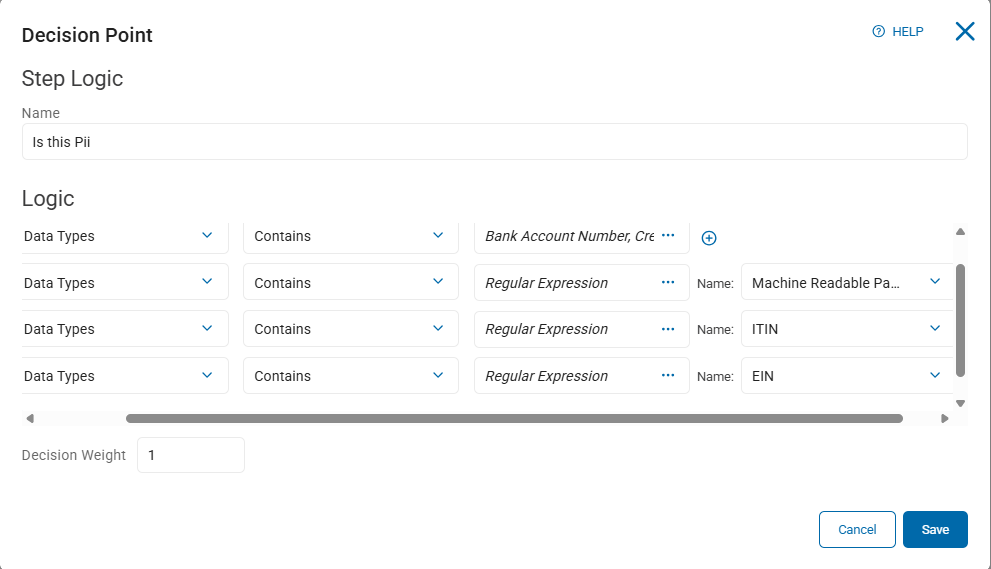
Playbook to Classify PII and Label with MPIP
This example provides a basic Playbook to utilize MPIP.
Playbook to Classify Public Data (CUI)
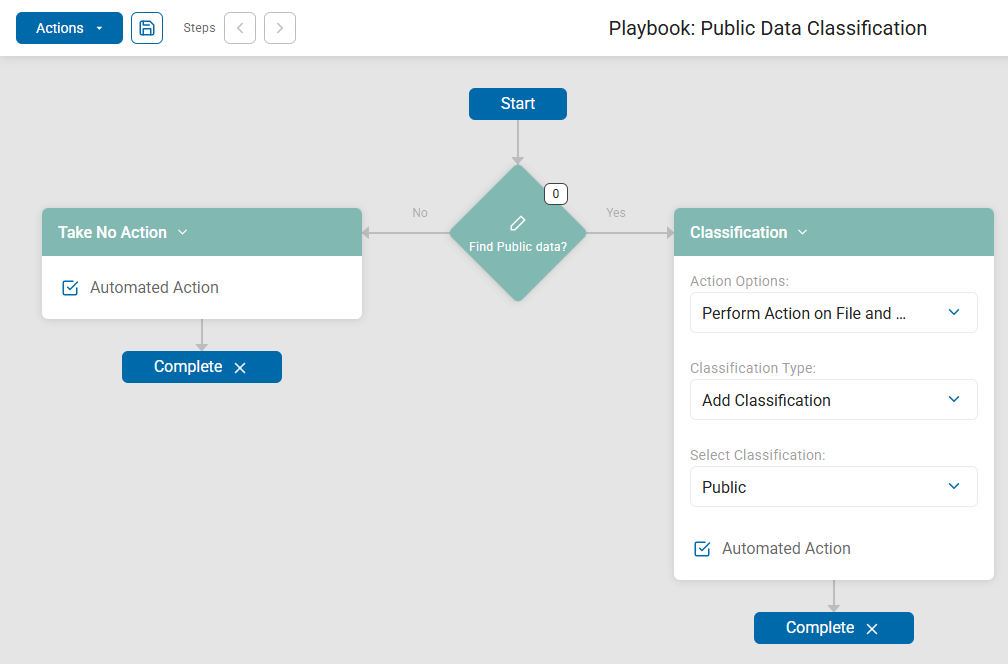
This playbook example classifies data "CUI" - a data classification that meets public data criteria.
Playbook to Classify GPDR Article 9
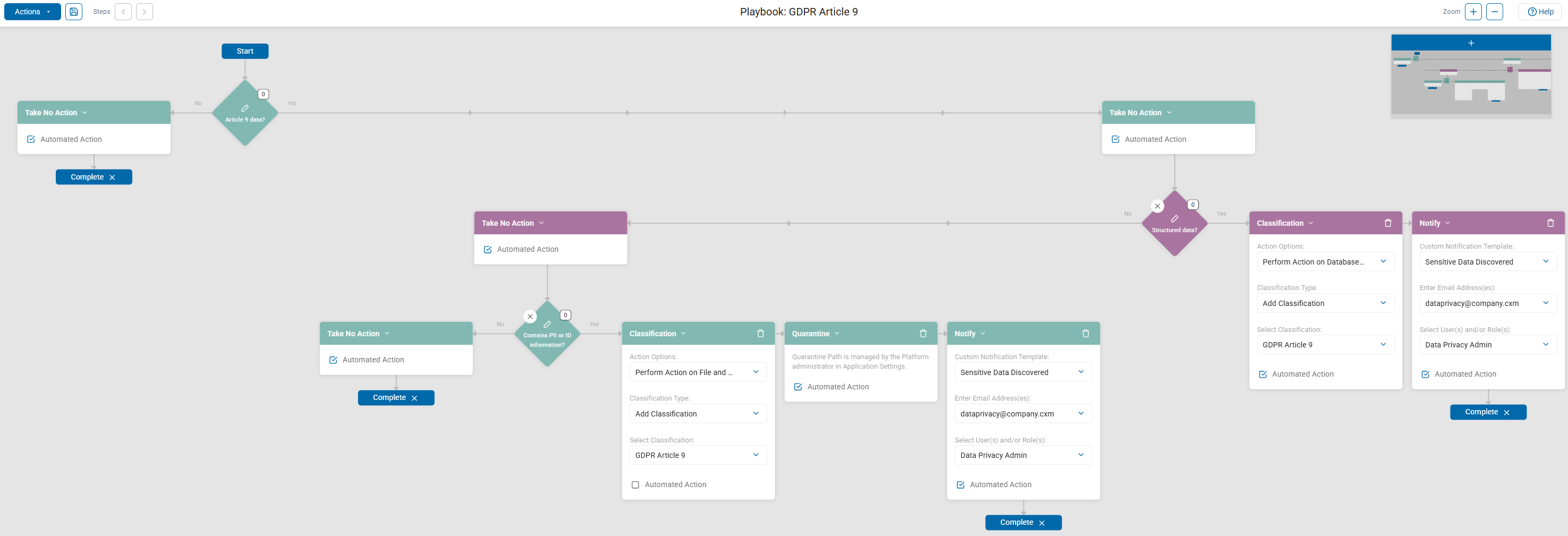
Processing of data considered protected under Article 9 of GDPR.
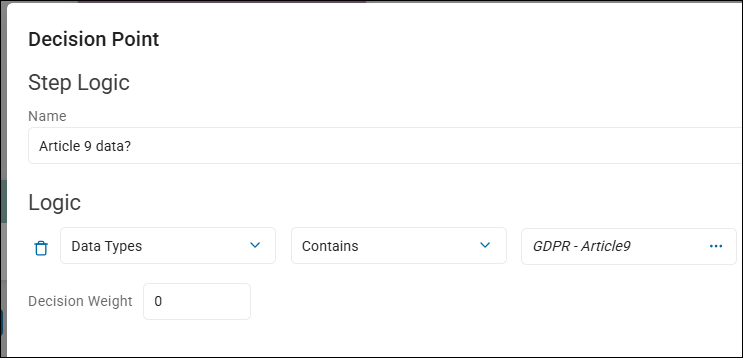
This asks the question is the sensitive data discovered qualify as GDPR - Article 9 data?
Playbook to Restrict Access to all SPI, Classify some SPI as Critical
This scan playbook example applies access restrictions to files based on content.
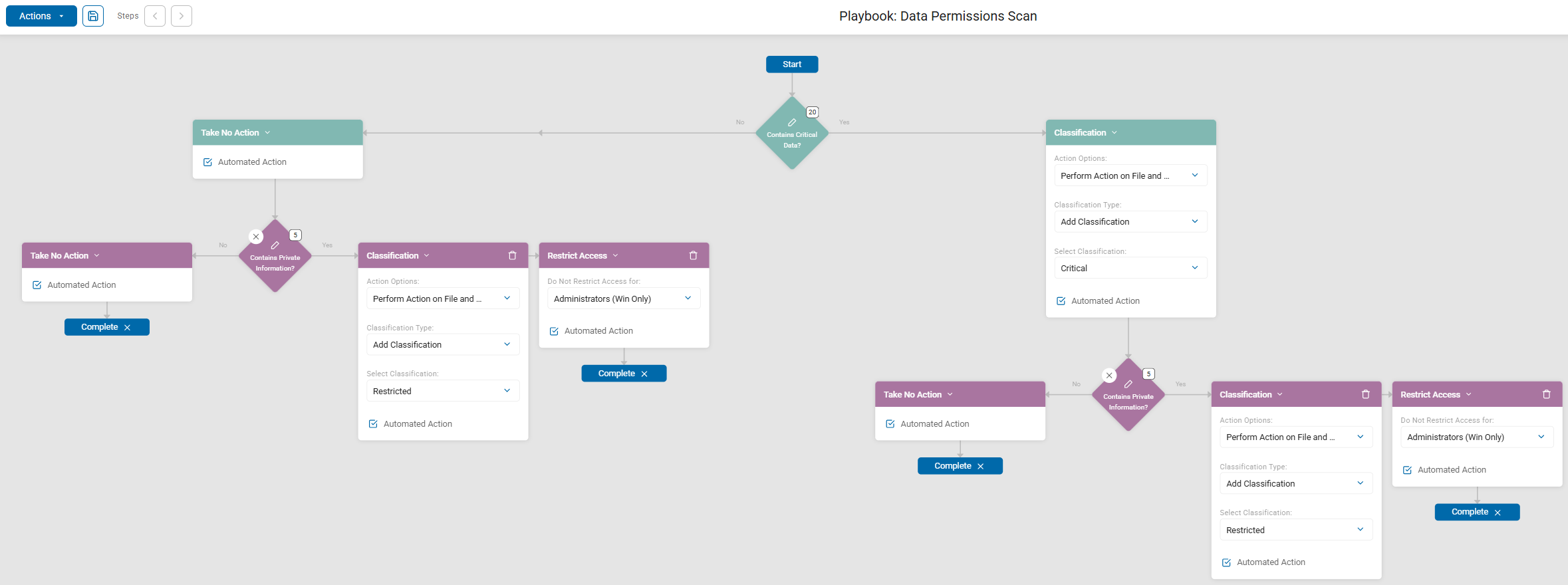
Files that contain specified sensitive data types (Social Security number, credit card number, etc.) files are classified as "Critical" and access to the files is restricted ("Restricted" label applied).
In the following example the following decisions and actions are taken:
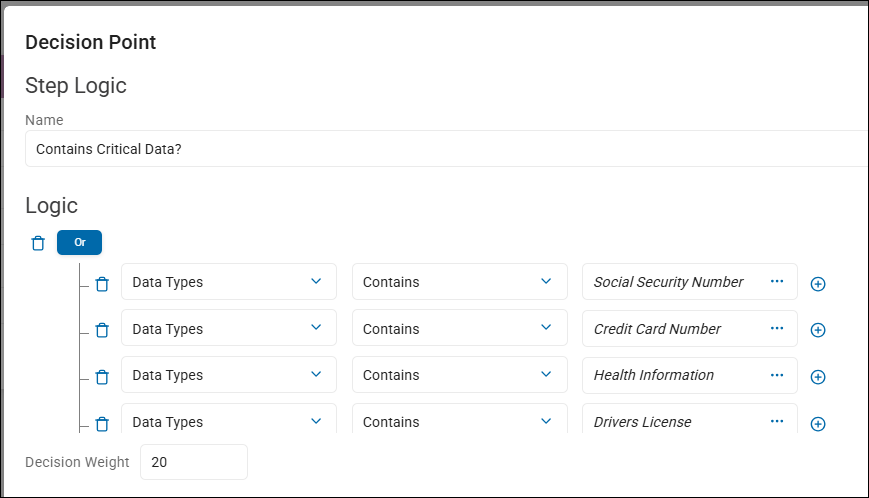
- The first decision point - Contains Critical Data? - asks the question "does the location (file) scanned contain any of the following?"
- Social Security Numbers
- Credit Card Numbers
- Health Information
- Driveers License Numbers
- Bank Account Number
- If the answer is "No," no action (classification, shred, redact, quarantine, etc.) is taken on the file, but next, another decision point is reached:
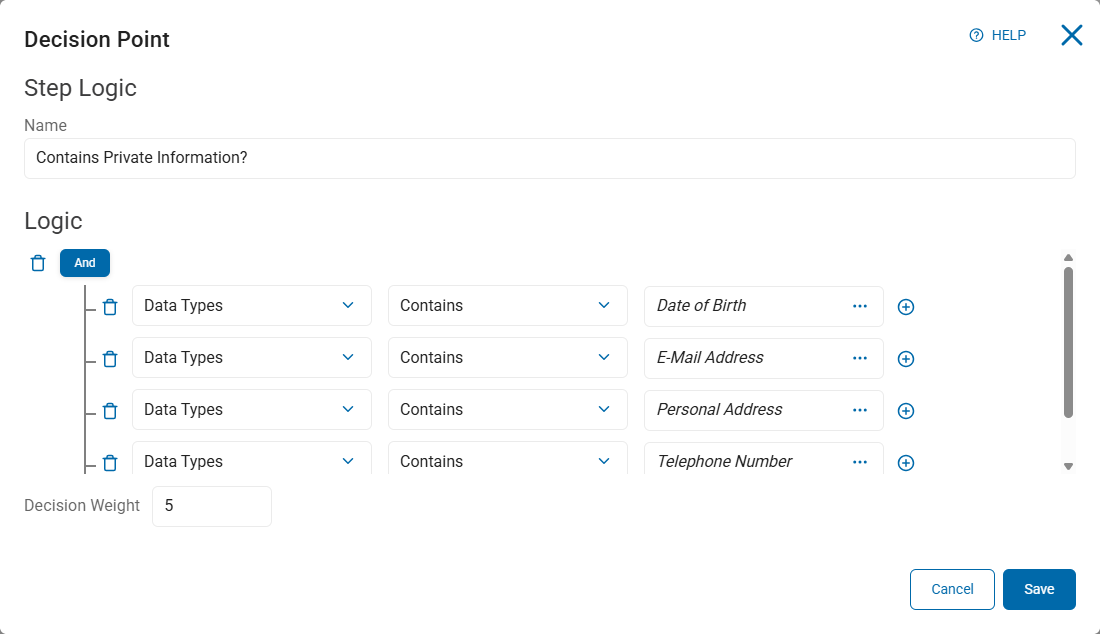
- The second decision point - Does it (the file) contain private information? - asks the question "does the location scanned contain any of the following?"
- Date of Birth
- E-mail Address
- Personal Address
- Telephone Number
- If the answer is "No," the following actions happen:
- No Action is taken
- The Playbook is complete
- If the answer is "Yes," the following actions happen:
- The classification "Restricted" is applied both to the file record in the Spirion database, and to the metadata of the file itself.
- Next is another action, as you must define the access restriction. In this case, access to the file is NOT restricted for users who are members of the Adminstrators role. This is a Windows only setting.
- The playbook is complete.
- If the answer is "Yes,"
- The classification "Critical" is applied both to the file record in the Spirion database, and to the metadata of the file itself.
- Next, another decision point is reached - Does it (the file) contain private information? - asks the question "does the location scanned contain any of the following?"
- Date of Birth
- E-mail Address
- Personal Address
- Telephone Number
- If the answer is "No," the following actions happen:
- No Action is taken
- The Playbook is complete
- If the answer is "Yes," the following actions happen:
- The classification "Restricted" is applied both to the file record in the Spirion database, and to the metadata of the file itself.
- Next is another action, as you must define the access restriction. In this case, access to the file is NOT restricted for users who are members of the Adminstrators role. This is a Windows only setting.
- The Playbook is complete.
Playbook to Classify Personally Identifiable Information (PII)
Decision Point
Playbook to Classify Claims Management Data
This playbook example classifies locations (scanned files) with claims management data as "Claims Mgmt."
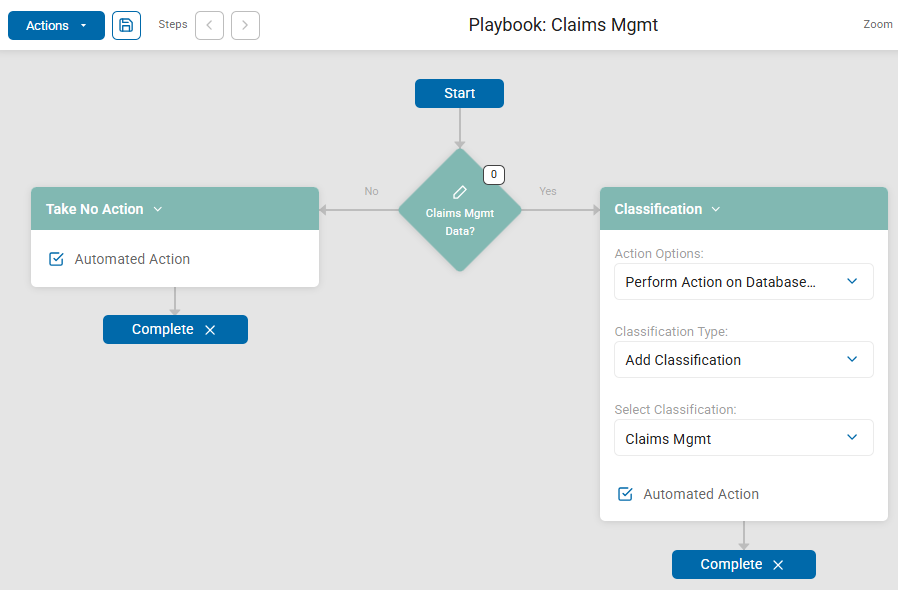
In the following example the following decisions and actions are taken:
- The first decision point - Claims Mgmt Data? - asks the question: does the location (file) scanned contain any of the following data types:
- Claim Form
- Medical Record
- Payment Form
- If the answer is "No":
- No action is taken
- The playbook is complete
- If the answer is "Yes," the following actions happen:
- The classification "Claims Mgmt" is applied to the scanned file in the Spirion database, but the location (file) that contains the data type is not modified.
- The playbook is complete.
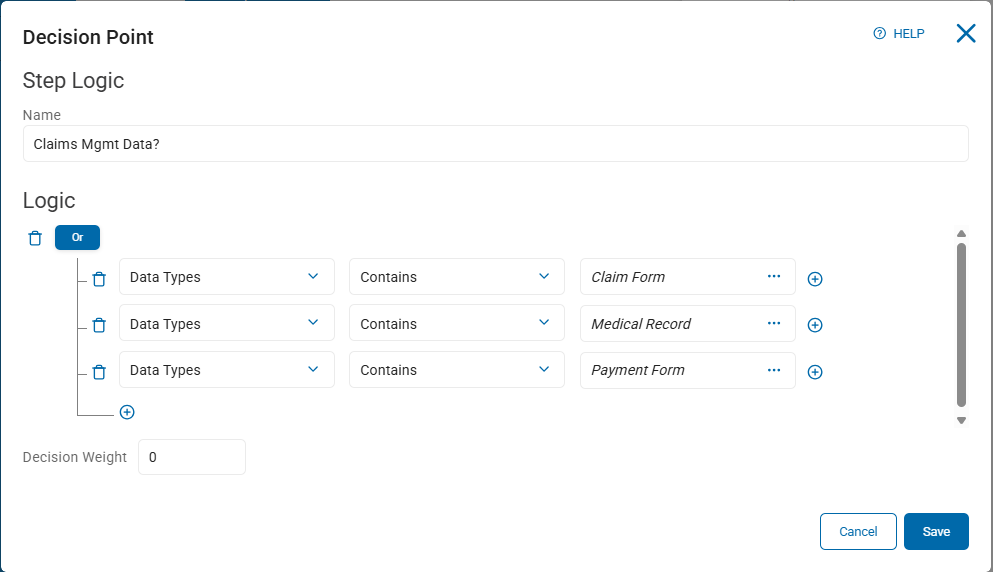
The number shown in the box in the top right of the decision point is the Decision Weight for the logic statement. The greater the number, the more important the decision.
FERPA
This playbook example classifies locations (scanned files) with SPI and Student ID data as "FERPA," and so long as the data is not considered "stale," the MIP label "Encrypted v11.0" is applied.
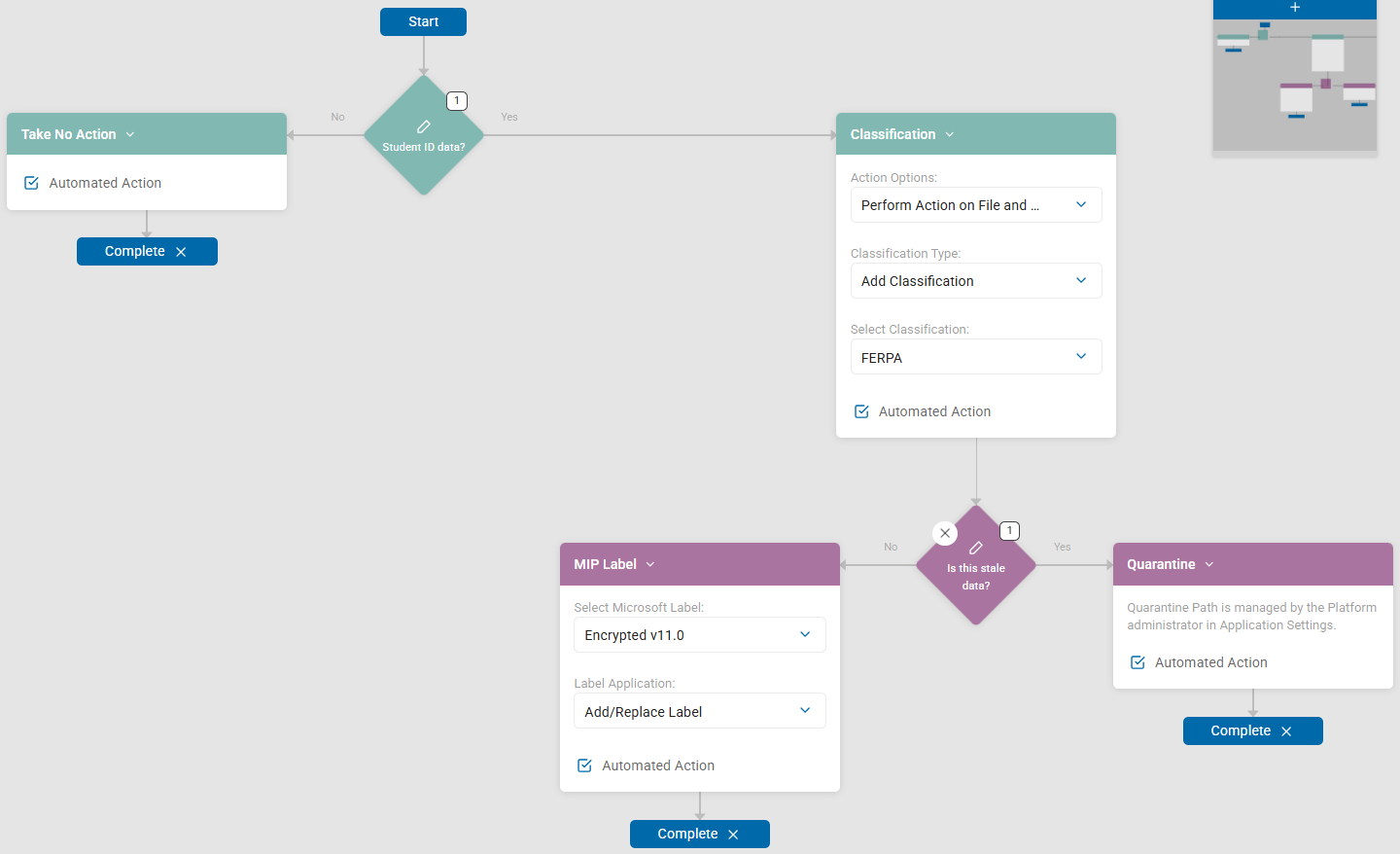
In the following example the following decisions and actions are taken:
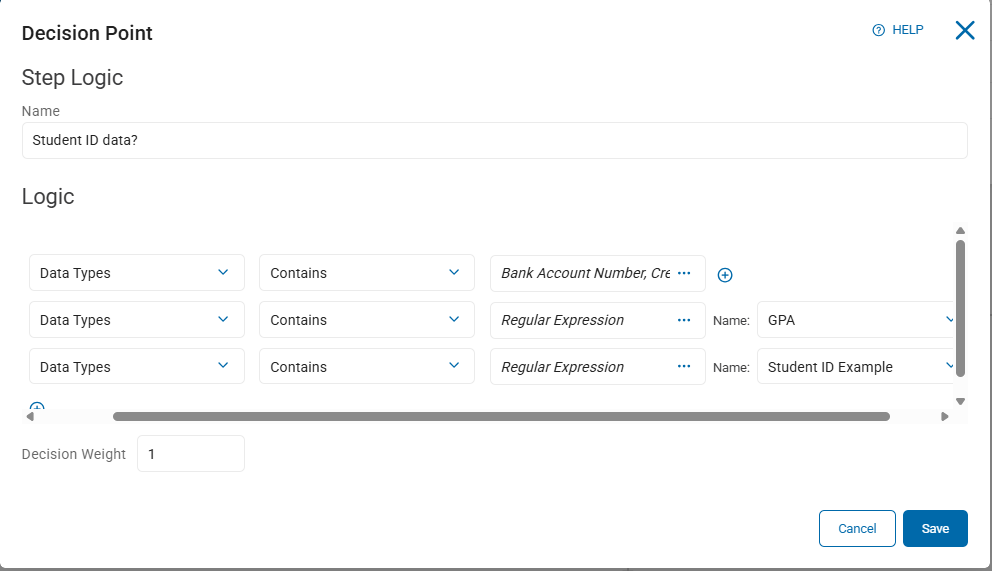
- The first decision point - Contains Critical Data? - asks the question "does the location (file) scanned contain any of the following data types?"
- Social Security Numbers
- Credit Card Numbers
- Date of Birth
- Drivers License Numbers
- Bank Account Number
- GPA
- Student ID Example
- If the answer is "No":
- No action is taken
- The playbook is complete
- If the answer is "Yes," the following actions happen:
- The classification "FERPA" is applied to both the scanned file in the Spirion database, and the location (file) that contains the data type is not modified.
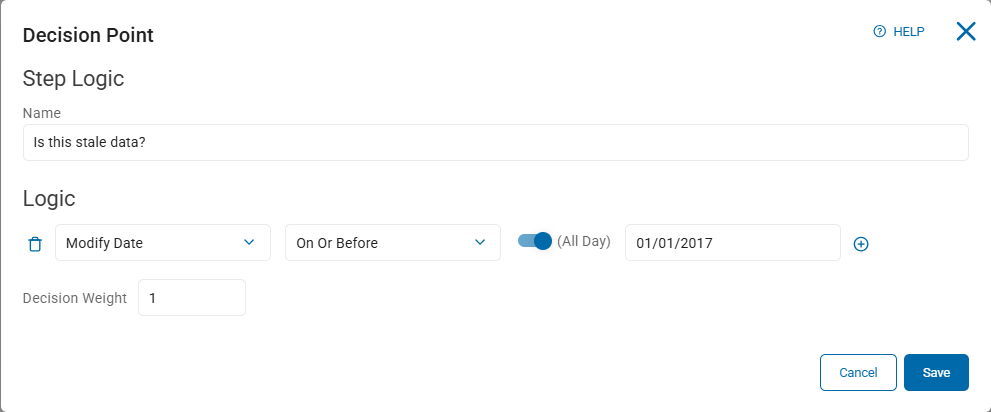
- Next, another decision point is reached. This decision point asks the question "Is this stale data?"
- The data is measured by the last date it was modified - "Modify Date" under Logic - on or before January 1, 2017 ("01/01/2017") - American date format.
- The data is measured by the last date it was modified - "Modify Date" under Logic - on or before January 1, 2017 ("01/01/2017") - American date format.
- If the answer is "No," the following actions happen:
- The Microsoft (MIP) label ""Encrypted v11.0" is applied.
- This is done automatically, every time this scenario occurs.
- The playbook is complete.
- If the answer is "Yes," the following actions happen:
- The data is quarantined to the quarantine path as set in Settings > Application Settings > Scans Settings, Remediation section.
- This is done automatically, every time this scenario occurs.
- The playbook is complete.