How to Export a Report
Use the following steps to download a Report for export:
- From the left side navigation menu select Reports > Custom Reports.
- The "Custom Reports" page opens.
- In the list, locate the Report you want to download.
- On the far right of the report line, hover over the more options menu (3 vertical dots).
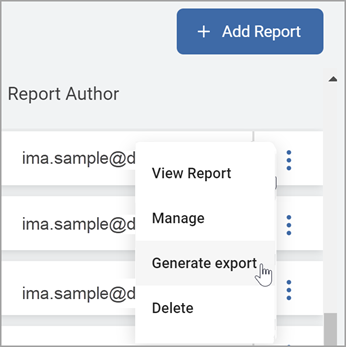
- Click Generate export from the sub-menu.
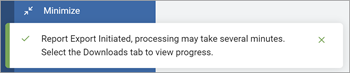
- The Report Export is initiated.
Note: Processing may take several minutes. You are notified via email when the report is ready.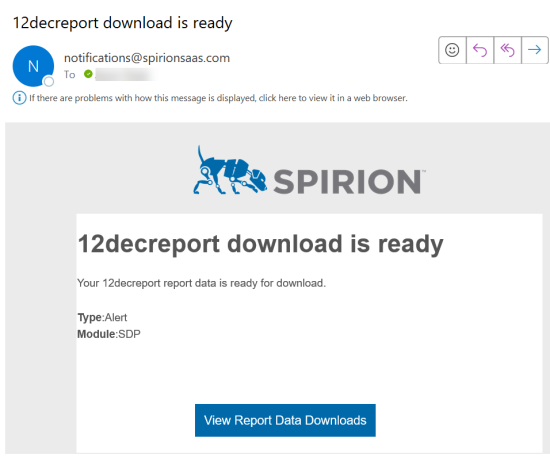
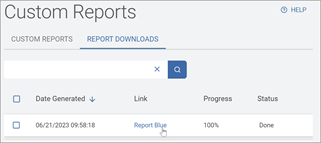
- Select the REPORT DOWNLOADS tab to view export progress.
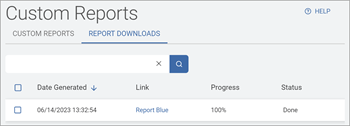
- When the report export process is complete you can download the report ZIP file to your computer to use the data in your report software by clicking the Report name in the Link column.