
How to Scan Microsoft Teams with Spirion Sensitive Data Platform
How to Scan Microsoft Teams with Sensitive Data Platform
Why Scan Microsoft Teams?
Microsoft Teams is a collaboration app that enables users to chat, share files, and hold meetings.
Teams shared files can contain sensitive information, and so must be in scope for sensitive data discovery and classification.
Where does Microsoft Teams store files?
Per Microsoft documentation here.
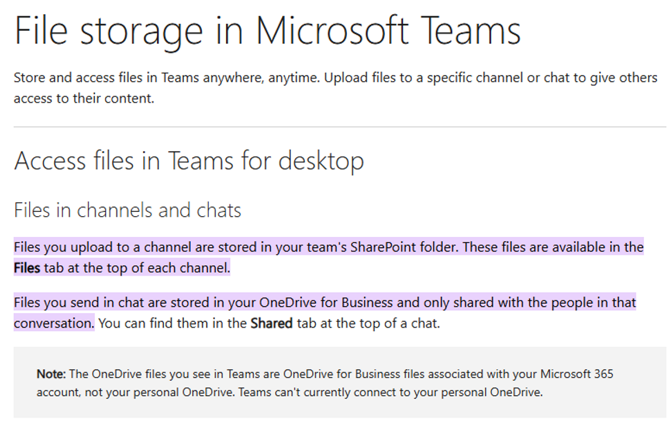
Microsoft stores files depending on how they are uploaded.
This is either:
- SharePoint for Teams Channel chats
- OneDrive for Teams Chats
- See the screenshot below for more detail
Spirion Scanning of SharePoint Online and Exchange Online
Spirion can support scanning Microsoft Teams files in both Channels and Chats as it can connect to SharePoint Online and OneDrive for Business.
These locations are automatically covered when the SharePoint Team Channel site and the OneDrive account are scanned.
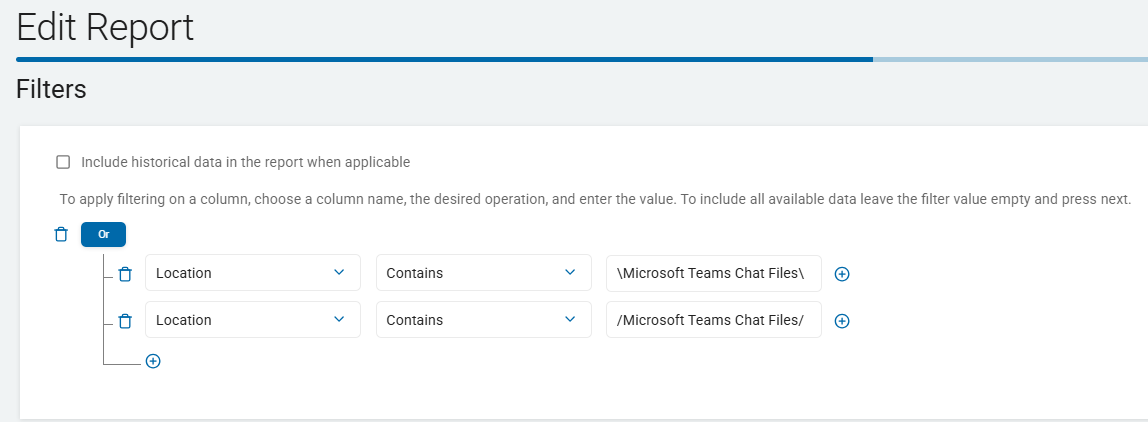
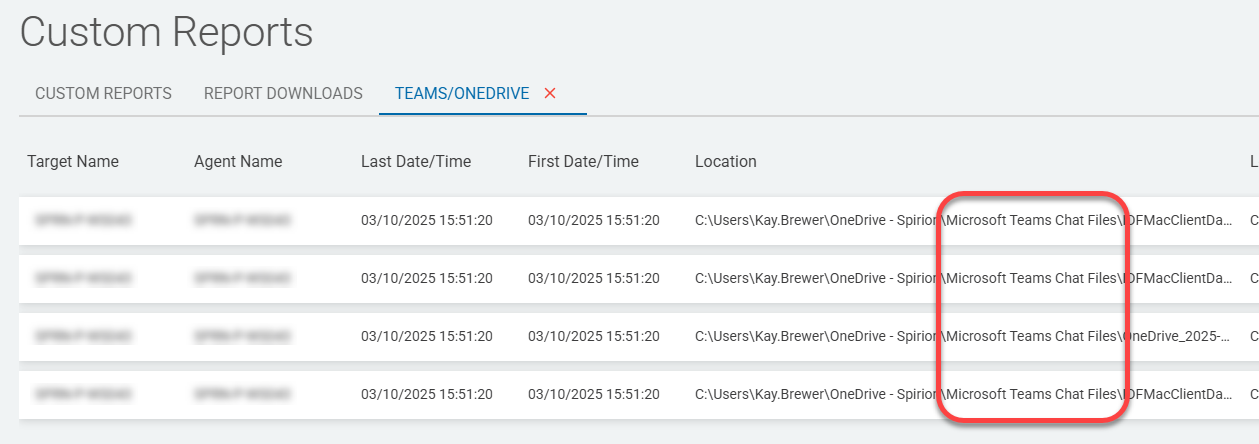
To filter the Microsoft Teams Chats results from OneDrive for Business scans, simply filter reporting results to contain the folder:
- \Microsoft Teams Chat Files\
- /Microsoft Teams Chat Files/
- (The direction of the '/' character may change based on the scan context)
Below is a screen capture of the 3rd screen in the Custom Report creation wizard, Filters. (Note the "Or" operator to the top left of the filter logic. To change this operator to "And" simply click the button itself.)
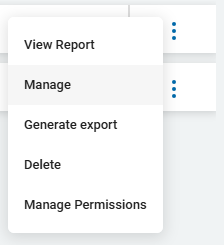
You can access this page by creating a new custom report or by modifying an existing report by selecting Manage from the three dot menu right of the report, in the reports list.
Sample Teams Chat Report
Supplementary Documentation
- How to Search Microsoft OneDrive for Business
- Spirion SDP User Guide: SharePoint Online scan
- How to Use Certificates to Authenticate with SharePoint Online