
How to Work with Scans
Overview
- Scans are the searches that agents perform on Targets to find either the file locations or find specific data types within the Files and Folders.
- The "Scans" screen (All Scans from the left side menu) is where you view, create, and manage your scans.
- Note that All Scans and Scans Dashboard are two different pages.
- Scans Dashboard loads by default when you select "Scans," from the left side menu on the default Spirion Sensitive Data Platform screen. See the screenshot above.
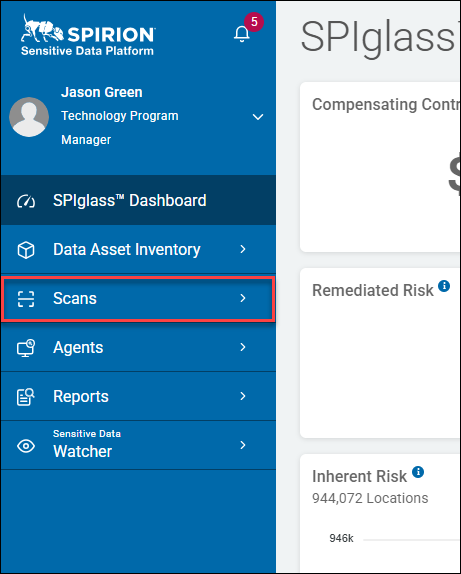
Note: During the process of creating a new scan you must select a Scan playbook. If you have not created a playbook, you must create one. You cannot perform a scan of your Targets without a playbook.
How to Access and View Scans
To access Scans use the following steps:
- From the left side navigation menu, select Scans > All Scans.
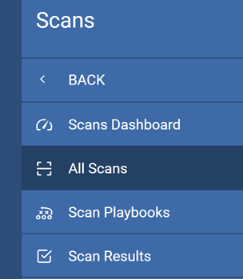
- The Scans page opens showing all of your scans in a table.
Scans Page
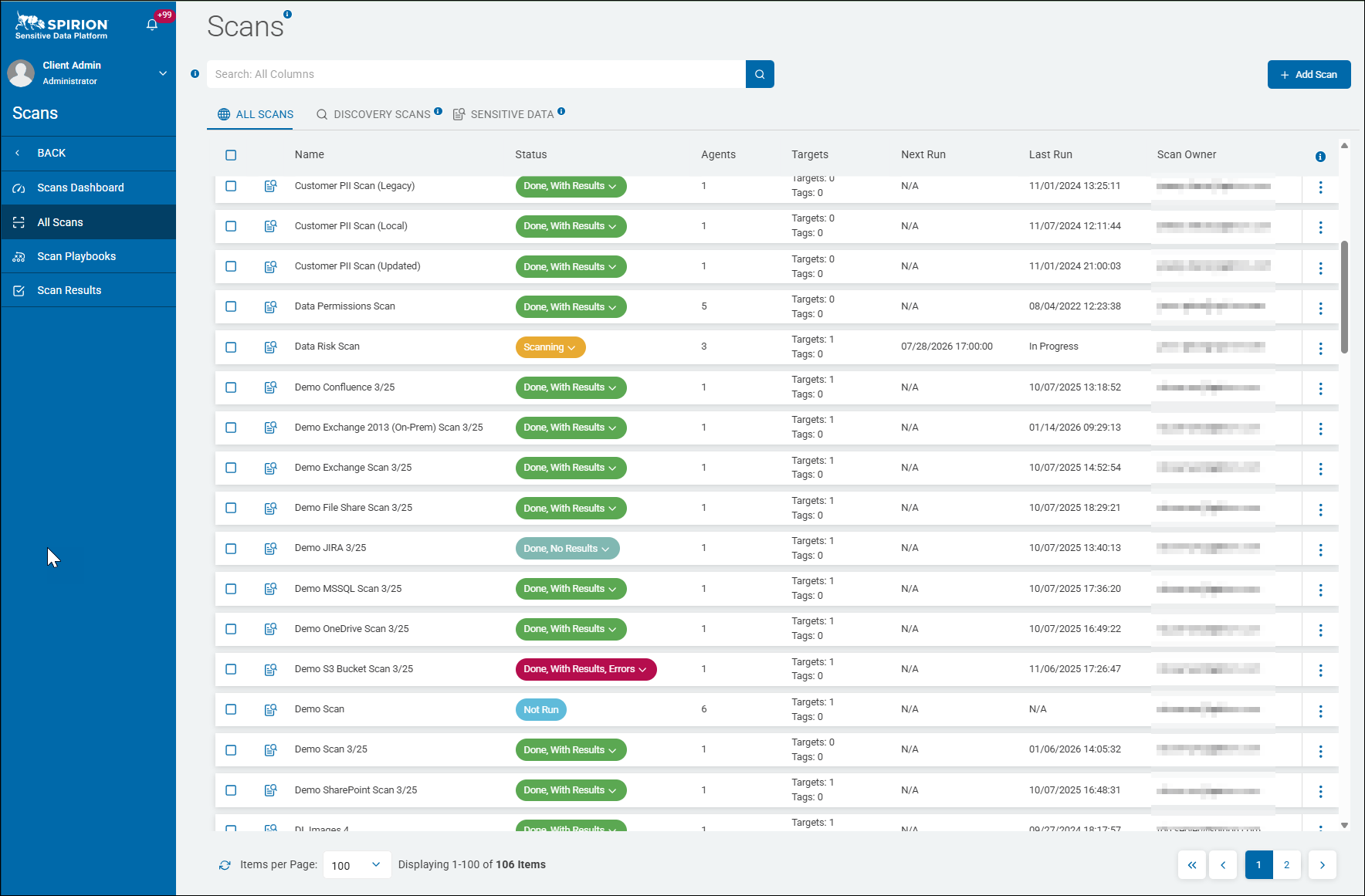
Spirion Sensitive Data Platform scans endpoints or "Targets" in your organization - which you have configured - for sensitive data.
The "Scans" page is the central management hub for all your scan jobs. It provides a high-level overview of your scan configurations, their current status, their execution history, and more.
This page is used for two primary operational tasks:
Monitoring & Triage
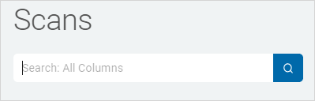
- Search Bar: Use the search field at the top to quickly find a specific scan by name.
- Status Check: Quickly scan the "Last Run" and "Status" columns to ensure your scheduled audits are completing successfully.
Execution & Management (The "Actions" Menu)
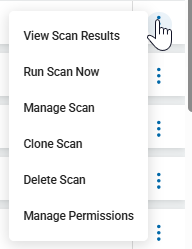
By clicking the ellipsis (...) next to a specific scan, you can:
- Run Scan Now: Manually trigger a scan to start immediately, bypassing the schedule.
- Manage Scan: Open the wizard to edit the scan's configuration (for example, adding new Targets or changing the playbook).
- Duplicate Scan: Create a copy of an existing scan to use as a template for a new one.
- Delete Scan: Remove the scan configuration from the system.
Bulk Operations
Select multiple scans to activate the Bulk Actions menu at the top of the page.
- Bulk Export: Select multiple scans at once and select "Export" from the Bulk Actions button to export the configuration details to Excel for reporting.
Scans Page Layout
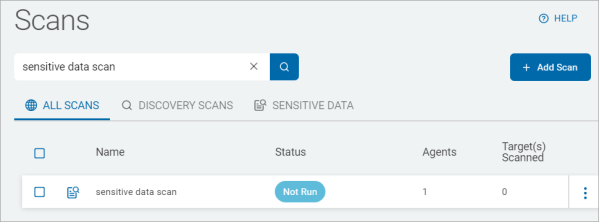
Scans are sorted by Scan Type in tabs at the top of the page: ALL SCANS, DISCOVERY SCANS, or SENSITIVE DATA scans. Click a tab to change the view.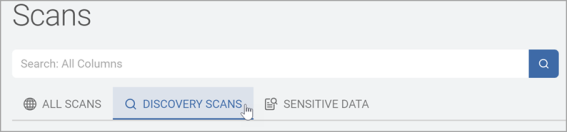
On each tab of the Scans page scan information is displayed in a table with the following columns:
- Name - The unique name you gave the scan (for example, "Weekly Finance Audit").
- Status - For details see "How to View and Use Scan Status".
- Scanning
- Scanning, With Results
- Done, With Results
- Done, With Results, Errors
- Done, No Results
- Not Run
- Agents - The Agents column shows the number of Spirion Agent instances assigned to execute a given scan. Knowing this count provides several practical benefits:
- Operational awareness:
The number of Agents directly determines the scan's execution capacity and parallelism. A scan with 6 Agents distributes work across 6 endpoints simultaneously, while a scan with 1 Agent runs sequentially on a single machine. This directly impacts how long the scan takes to complete. - Troubleshooting and diagnostics:
If a scan stalls, returns partial results, or shows a status of Scanning for an unexpectedly long time, the Agent count helps narrow down whether the issue is isolated to one Agent or distributed across several — informing where to look first. - Infrastructure planning and load assessment:
A high Agent count on a scan signals that significant endpoint resources are being consumed. Administrators can use this to balance load — for example, avoiding scheduling multiple high-Agent scans concurrently, or identifying scans that may be over-provisioned relative to their Target scope (for example a scan has 5 Agents but Targets: 0 / Tags: 0, which could warrant review). - Audit and configuration validation:
From a compliance and governance standpoint, the Agent count helps verify that scans are configured as intended — for instance, confirming that a sensitive data scan is running across the expected number of endpoints rather than a subset, which could create coverage gaps in your sensitive data discovery posture. - Summary: In short, the Agents column is a quick proxy for scan scope, speed, resource consumption, and configuration correctness — all important considerations when managing a large fleet of scans like the 106 items shown here.
- Operational awareness:
- Targets(s) Scanned - The Targets column displays two sub-values per scan — Targets (the number of explicitly defined target locations/systems) and Tags (the number of tag-based groupings applied to scope the scan). Knowing these values provides the following benefits:
- Understanding scan scope at a glance:
Targets represent the specific data repositories, file shares, databases, cloud stores, or endpoints the scan is configured to search. Tags enable scans to be scoped dynamically by grouping endpoints or locations under logical labels. Together, they tell you what a scan is actually covering without having to open the scan configuration. A scan with Targets: 0 / Tags: 0 — is immediately flagged as potentially misconfigured or incomplete. - Identifying misconfigured or incomplete scans:
Scans showing Targets: 0 and Tags: 0 have no scope defined and will not discover any sensitive data, regardless of Agent count or status. This is a critical signal for administrators. For example, a scan with 5 Agents but zero Targets and zero Tags — a clear configuration issue worth investigating. - Differentiating explicit vs. dynamic scoping strategies:
- A scan with Targets > 0 / Tags: 0 uses static, explicitly enumerated locations.
- A scan with Targets: 0 / Tags > 0 relies entirely on dynamic tag-based groupings, meaning its scope can change automatically as endpoints are tagged or untagged.
- A scan with both Targets and Tags set to non-zero values uses a hybrid approach.
- Understanding which strategy is in use matters for governance — static Targets are more predictable and auditable, while Tag-based scoping is more flexible but requires confidence in your Tagging taxonomy.
- Supporting audit and compliance coverage verification
From a compliance standpoint, the Targets count provides assurance that sensitive data discovery is being directed at the right systems. An unexpectedly low Target count on a scan that is supposed to cover a broad data estate is a red flag that coverage gaps may exist — which is directly relevant to your work on audit and compliance logging. - Capacity and performance planning
A scan with many Targets generally takes longer and places more load on Agents and the platform. Cross-referencing the Targets count with the Agents count and the Last Run time helps administrators assess whether a scan is appropriately resourced or whether it is under- or over-provisioned. - Summary: In summary, Targets and Tags together define what a scan covers — making them essential for validating configuration correctness, ensuring compliance coverage, and diagnosing scans that are unlikely to produce meaningful results.
- Understanding scan scope at a glance:
- Next Run - Next date/time the scan is set to automatically run. If no scans are scheduled, value is "N/A." Here is the value it provides:
- Proactive schedule management:
Administrators can see at a glance when each scan will next run, enabling them to anticipate platform load, avoid scheduling conflicts, and ensure high-priority scans are not delayed or stacked against one another. - Identifying stalled or unscheduled scans:
An "N/A" Next Run value indicates a scan has no active schedule — it is either on-demand only or its recurrence has been disabled or expired. This is an important signal that sensitive data discovery may have gaps if the scan was expected to be recurring. - Compliance and audit assurance:
For scans tied to compliance mandates (for example, PII discovery, data permissions audits), the Next Run date confirms that coverage continues within required intervals. If a compliance scan shows a Next Run far in the future — or none at all — it may represent a control failure worth escalating. - Operational planning:
Knowing upcoming run times helps administrators plan maintenance windows, Agent updates, or infrastructure changes around scan activity, reducing the risk of interruption or incomplete scans. - Cross-referencing with Last Run:
Pairing Next Run with the Last Run column reveals the scan's recurrence interval (for example, daily, weekly, monthly) and whether it is adhering to its expected cadence — useful for detecting drift or misconfiguration.
- Proactive schedule management:
- Last Run - Time and date of the most recent scan. If the scan is running, value is "In Progress." Here is the value it provides:
- Confirming actual execution history:
The "Last Run" timestamp is ground truth for whether a scan has actually run — not just whether it is configured. Suppose two scans both show Never as the Last Run timestamp: this confirms that despite having Agents and some configuration, they have never produced any sensitive data discovery results. - Detecting stale scans:
Cross-referencing "Last Run" with the current date enables you to immediately identify scans that have not run in weeks, months, or longer — a critical signal for compliance coverage. If a PII scan last ran several months ago and "Next Run" displays "N/A," there is a meaningful gap in your data discovery posture. - Validating scan health:
A scan showing In Progress alongside its "Last Run" confirms active execution. If a scan showed In Progress in "Last Run" but the timestamp is days old, that would indicate a hung or stalled scan, which requires investigation. - Audit and compliance evidence:
"Last Run" timestamps serve as evidence that sensitive data discovery controls are operating within required intervals. Auditors may ask "when did you last scan for PII across your environment?" — this column provides the direct answer, or exposes the gap if scans are overdue. - Prioritizing remediation:
Combining "Last Run = Never" or a stale date with "Next Run = N/A" and Targets: 0 / Tags: 0 creates a clear prioritization matrix — those scans are entirely inert and should either be properly configured or decommissioned to avoid clutter and confusion in the scan inventory.
- Confirming actual execution history:
- Scan Owner - User account which created the scan.
Here is the value it provides: - What the data shows:
From the visible rows, each scan is attributed to a named individual — for example, scans are owned by specific users within the organization. This establishes a clear human accountable for each scan configuration. - Accountability and ownership:
The most fundamental value is knowing who is responsible for each scan. If a scan is misconfigured, stale, or producing unexpected results, the Scan Owner is the first point of contact — eliminating ambiguity about who should investigate or remediate. - Identifying orphaned scans:
If a Scan Owner has left the organization or changed roles, their scans may become effectively unowned — nobody is actively monitoring results, responding to alerts, or maintaining the configuration. This is particularly risky for PII and compliance-related scans where ongoing oversight is critical. - Governance and audit accountability:
From a compliance standpoint, every sensitive data scan should have a designated responsible party. Auditors may require evidence that scans are not just configured but actively owned and overseen. The Scan Owner column provides that traceability directly. - Workload distribution visibility:
If a single individual owns a disproportionate number of scans — including large-scope or high-Agent scans — administrators can identify overconcentration of responsibility and redistribute ownership to reduce single points of failure. - Cross-referencing with scan health:
Pairing "Scan Owner" with "Last Run" and "Next Run = N/A" creates an actionable task list. For every stale or unscheduled scan, the owner is already identified — no investigation needed to determine who should be contacted to review or reactivate the scan. - Change management and access control:
Knowing scan ownership is essential when managing platform access changes. If an owner's permissions are modified or revoked, their scans can be proactively reassigned rather than discovered as abandoned after the fact. - Summary: In summary, the "Scan Owner" column transforms the scan inventory from a purely technical list into an accountable, governable asset registry — directly supporting the kind of audit and compliance oversight that is central to responsible sensitive data management.
- What the data shows:
- More options (Note: options can vary depending on the scan status). See "Execution & Management (The "Actions" Menu)" above.
How to Search for a Scan
Use the following steps to search for a specific scan:
- From the left side navigation menu select Scans > All Scans.
- The Scans page opens.
- Enter a search term in the search box.
- Spirion Sensitive Data Platform searches across ALL COLUMNS in your scan table. This enables you to search the information in each table column, such as Scan Owner, date (Last Run or Next Run), Status, and scan name (Name).
- Examples:
- Name - Enter search terms such as: "MAC," "Win," "Local," "HR," "Azure," "Confluence," "Quarantine," "SQL," "File Share"
- Status - Enter search terms such as: "Done," "Errors," "Scanning," "With Results," etc.
- Next Run/Last Run - Enter the current or past dates: "12/04/2025" and/or times in 24-hr format, such as "14:41". Enter "In Progress" for currently running scans. The application will reveal dates even with search terms only partially entered.
- Scan Owner - Enter a part or entire scan owner account name such as: "jsmith@acme.com," "JohnS," "Admin," or "AcmeAdmin@acme.com"
- The search results are displayed in the scans table below.
How to Create a New Scan
Select the type of scan and complete the "Create New Scan" configuration wizard using these guides:
Note: When you create a scan and select options for excluding files or settings for maximum file sizes, all Target types except Dropbox use your selected configurations to improve scan times.