
How to Configure and Use the Microsoft Purview and Spirion Integration
Overview: What does this integration provide?
Spirion Sensitive Data Platform's integration with Microsoft Purview is mutually beneficial to both products by enhancing both the reach and capabilities of each.
Spirion Enhances Microsoft Purview
Spirion provides the following enhancements:
- Significantly more accurate data discovery
- Automated conditional Context Rich label application via Spirion Playbooks
- More coverage across filetypes, non-MS apps, and data repositories
- True endpoint support
- Actionable reporting
Spirion Enhances Microsoft Purview
Microsoft Purview provides the following enhancements:
- Label protection with rights managed encryption, watermarking, etc. provides direct action to Spirion Playbook driven decision paths.
- Native Application labeling support in the M365 ecosystem
Prerequisites
Purview Protection Client
- Download and install Purview Protection client anywhere that the Spirion Agent is installed.
License
- Microsoft license applied to user: Microsoft 365 E5 (E3 can be used as well; see differences below)
Roles
- Roles assigned to user in this document:
- Azure Information Protection Administrator
- Compliance Administrator
- Compliance Data Administrator
Other
- The following Microsoft applications deployed on the machine that will be scanned:
- Microsoft Excel
- OneDrive
- Outlook
- PowerPoint
- Word
Test Purview First!
- Purview configuration should be setup and tested independently of Spirion before using this process.
- This confirms the labels are working as expected.
Microsoft 365 – E3 vs. E5 licensing for Purview
Area | Microsoft 365 – E3 License | Microsoft 365 – E5 License |
|---|---|---|
Azure Information Protection - Control and secure email, docs, and sensitive data. Including content in Exchange Online, SharePoint Online, and OneDrive. | Plan 1; Basic governance with manual labeling. | Plan 2; Advanced governance with machine learning-based classification, automatic retention policies, advanced labeling scenarios, default labels for SharePoint sites. |
Data Loss Prevention (DLP)
| Core DLP, which detects sensitive information, applies DLP policies in Exchange, SharePoint, and OneDrive. No Endpoint DLP. | Advanced DLP features, including Endpoint DLP (monitors and protects sensitive data on devices like Windows/macOS). |
Manual Document classification - Manual, default, and mandatory document classification and consumption of classified docs | Yes | Yes |
Automated Document classification - Automated and recommended data classification and administrative support for automated rule sets | No | Yes |
On-premises Windows Server file shares content protection - Azure Information Protection connector with on-premises Windows Server file shares by using the File Classification Infrastructure (FCI) connector | Yes | Yes |
On-premises automated classification - Azure Information Protection scanner for automated classification, labeling, and protection of supported on-premises files | No | Yes |
File Type Support with Purview Labeling
File Types Fully Supported (Labels + Encryption)
These file types support both labeling and protection, including native encryption like Rights Management:
Format Type | File Extensions |
Microsoft Office | .docx, .xlsx, .pptx, .doc, .xls, .ppt |
PDF (Adobe Acrobat) | .pdf (Adobe Acrobat 7.0 or later) |
Emails (Outlook) | .msg, .eml, .pst, .ost |
Outlook Templates | .oft |
Project & Visio | .mpp, .vsdx, .vsd |
Text formats (with Purview labeling client) | .txt, .xml, .csv, .json (labels only, no encryption) |
File Types Partially Supported (Label Only)
These formats can have labels only (no encryption):
Format | Notes |
.zip, .rar, .7z | Labels can be applied manually, files inside archive aren’t automatically protected |
.html, .htm, .md | Label can be applied as metadata (no encryption) |
jpg, .png, .gif, .bmp | Labels may be applied as metadata or visual markings only, not protected |
.rtf, .log, .ini | Limited support — labels may apply, no encryption |
.xml, .json | Label as metadata; often used in structured data scans |
.exe, .dll, .msi | Typically, not labeled or protected — security risks apply |
.mp4, .mp3, .mov, .avi | Visual watermarking possible but no encryption support currently |
File Types Not Supported for Labeling or Protection
These file types cannot have labels or encryption via Microsoft Purview:
- System files: .sys, .bat, .cmd, .vbs, .sh
- Database files (.mdb, .accdb, .sqlite, .db) unless scanned through Purview Data Map
- Executables or scripts with dynamic content
- Files with no persistent storage or metadata capability
How to Configure and Integrate Microsoft Purview
How to Create and Manage Labels in Purview
Procedure:
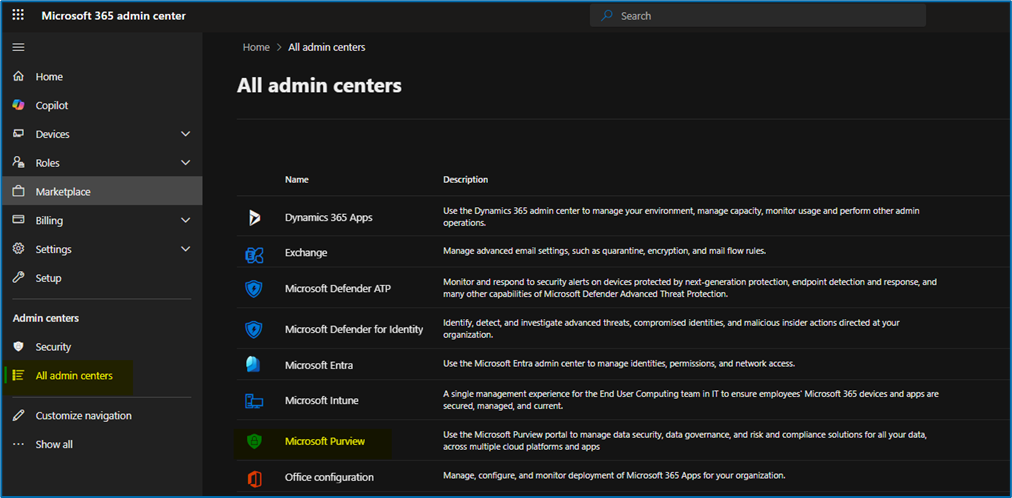
- Navigate to the Microsoft Purview admin center.
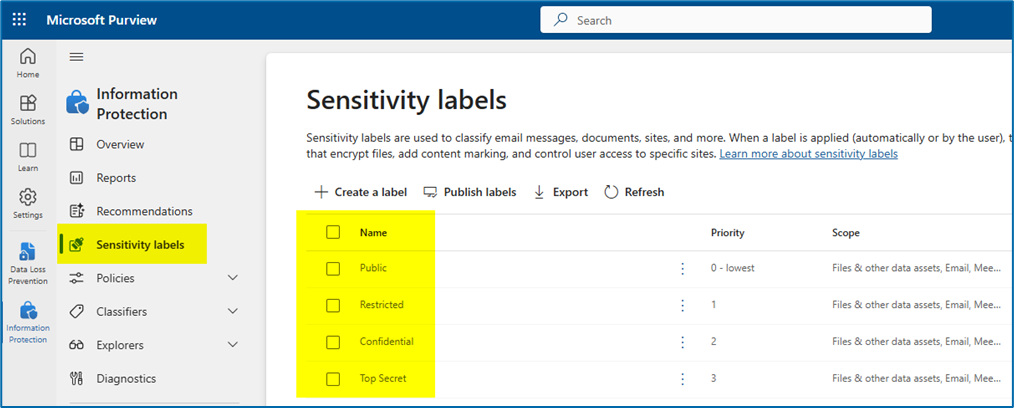
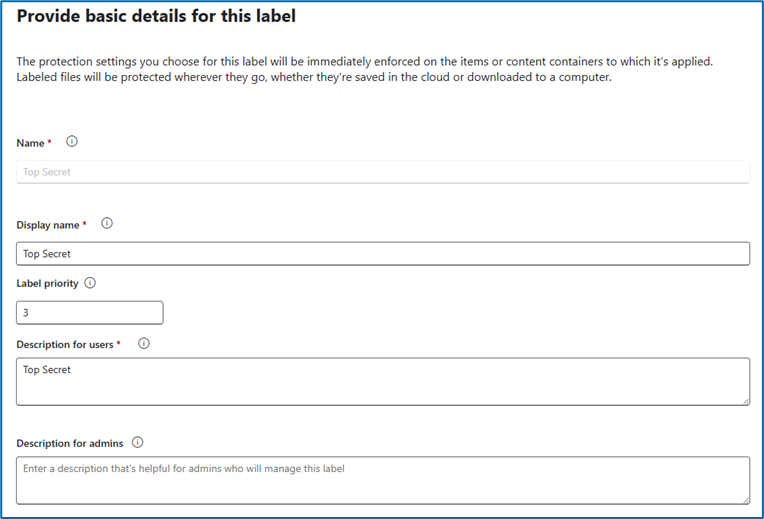
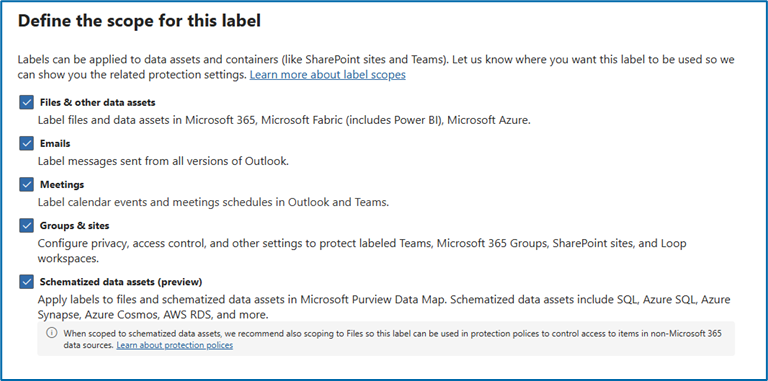
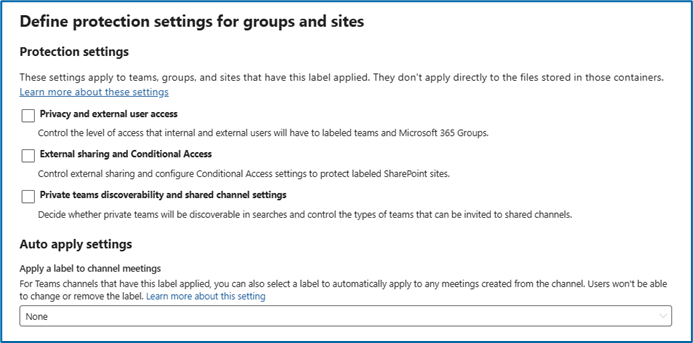
- Create and define labels:
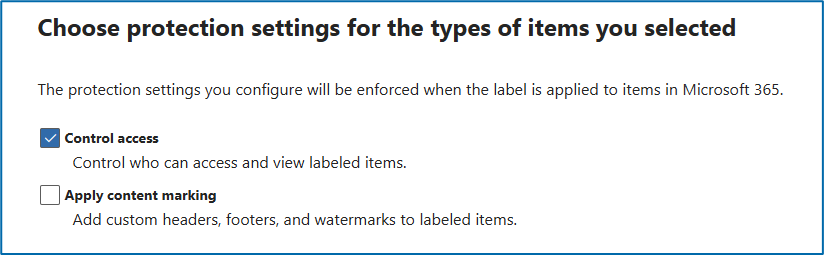
- Example of creating one label (Top Secret) – example used on all four labels:
- NOTE: Certain files require control access (see “File Type Support with Purview Labeling”)
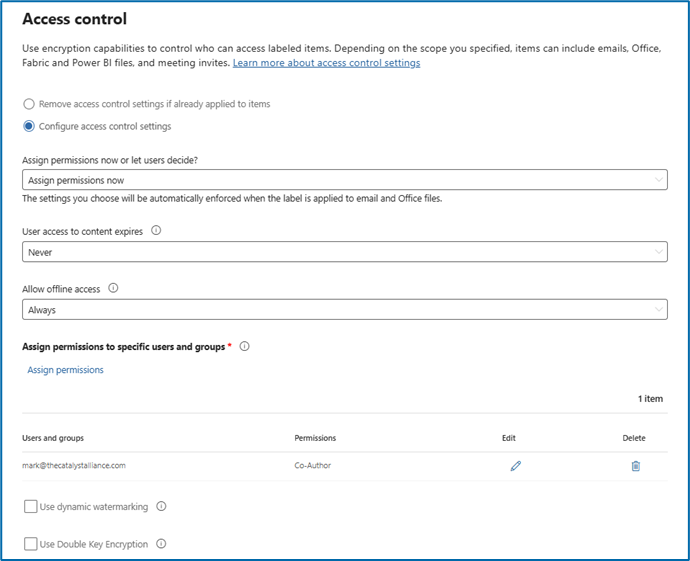
- NOTE: To use Purview labels with Spirion, you must “assign permissions now” on the screen below. If “Let Users Decide” is chosen, Purview does not label the file with this process because there would be no way Spirion/Purview would know which permissions to apply. We’ve assigned permissions to one user below. You can choose users/groups in this option.
- NOTE: Certain files require control access (see “File Type Support with Purview Labeling”)
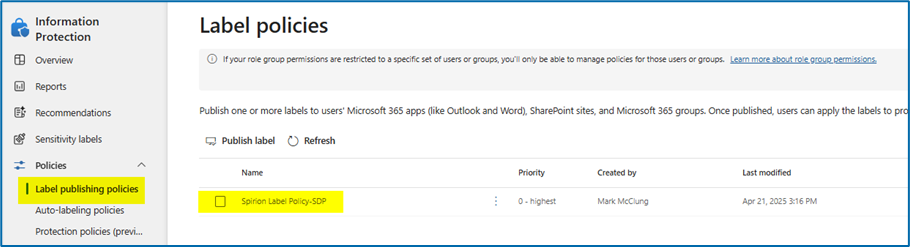
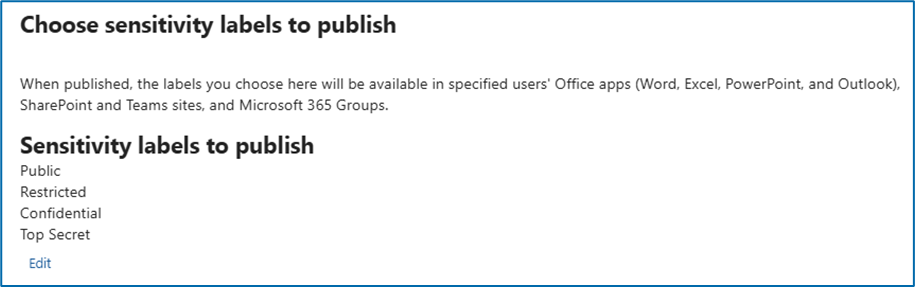
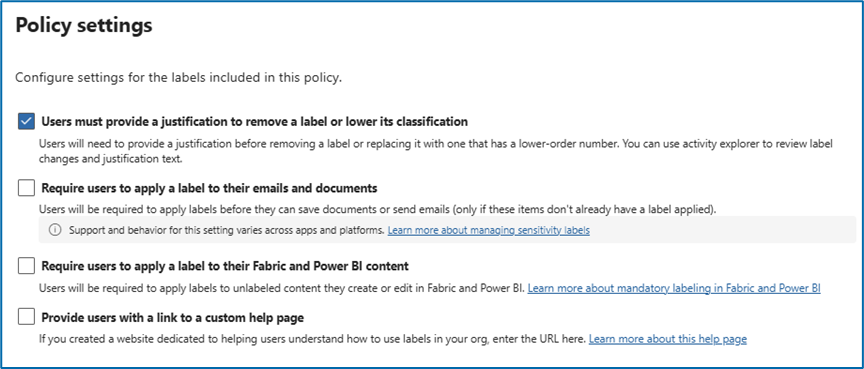
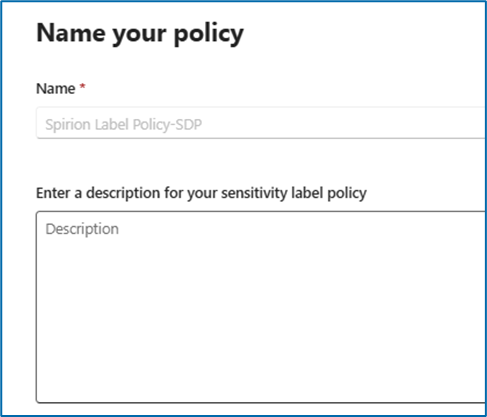
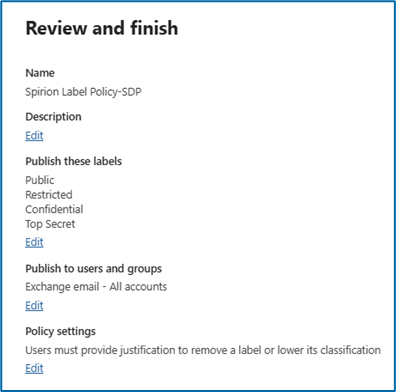
- Use a label policy to publish the four labels created (Public, Restricted, Confidential, Top Secret). See below.
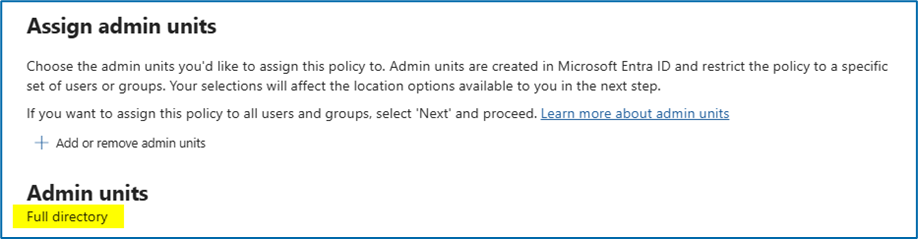
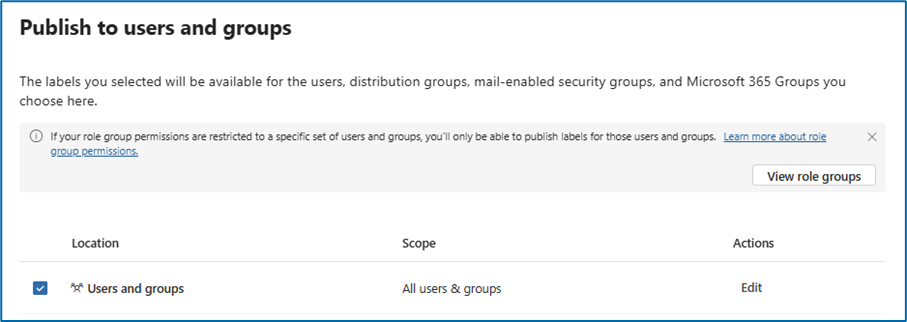
- NOTE: The Microsoft account that is used to create the connection from Spirion to Microsoft tenant and sync the labels (steps 6 and 7 below) needs to be included in this admin unit AND in the Users and Groups published so that they have access to labels to synchronize.
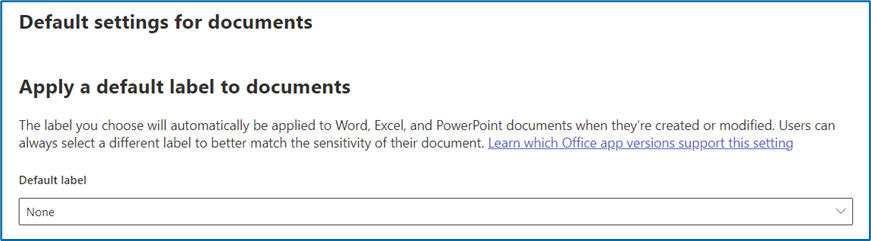
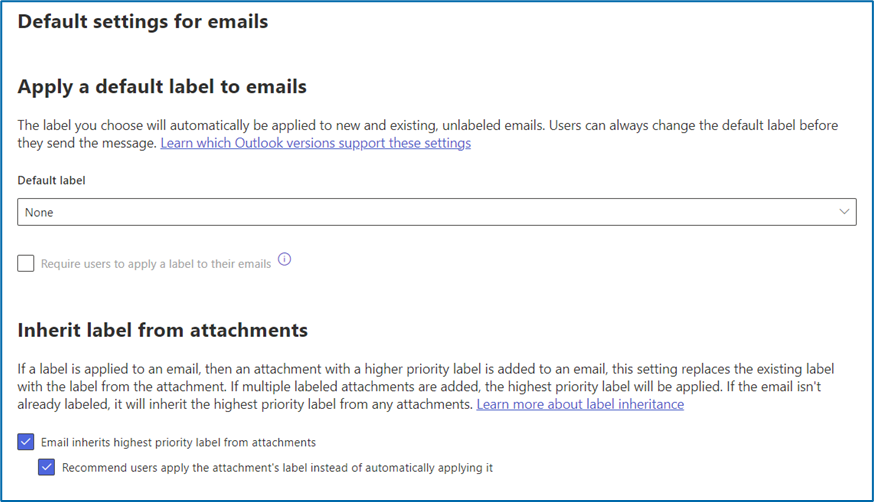
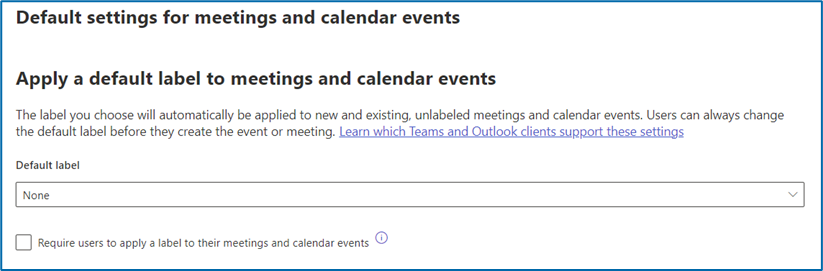
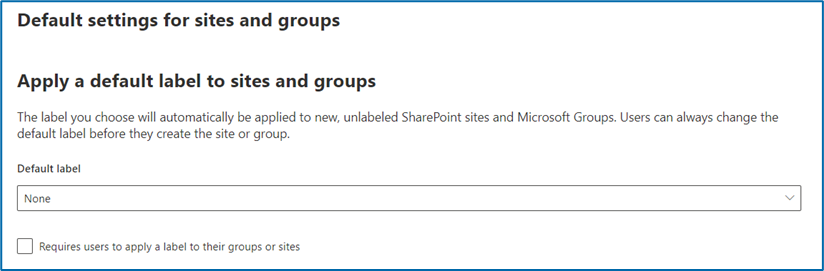
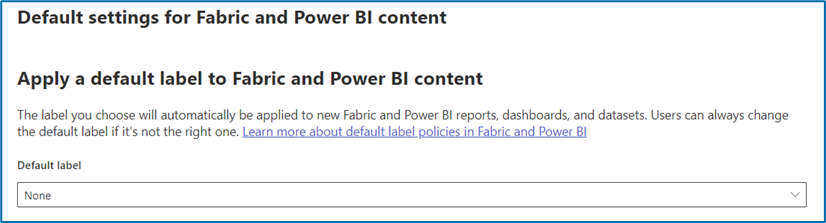
- NOTE: These options are optional. You can choose what you would like on this screenshot. No default labels are selected. Spirion removes the default label if we apply a label.
- NOTE: The Microsoft account that is used to create the connection from Spirion to Microsoft tenant and sync the labels (steps 6 and 7 below) needs to be included in this admin unit AND in the Users and Groups published so that they have access to labels to synchronize.
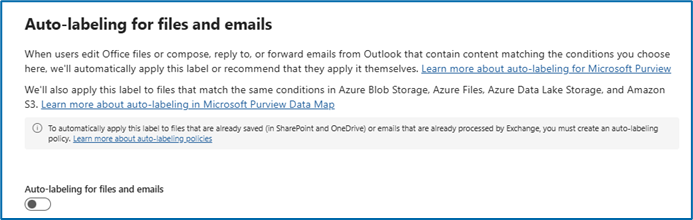
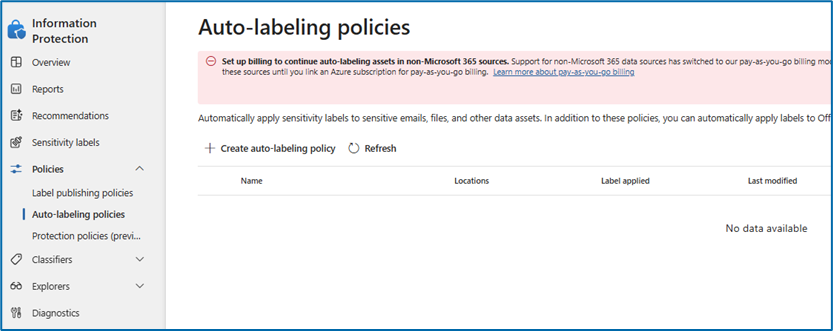
- No Auto-Labeling functionality created:
- NOTE: Auto-labeling can interact with Spirion.
- Scenario:
- Purview applies a label automatically based on Purview’s out-of-the-box data types.
- Spirion will scan the file with Spirion data types.
- If Spirion finds a match in the second step it will apply the Purview label that is setup in the playbook.
- Purview will eventually review the file and automatically replace the label put on the file in step three and apply the auto-label based on Purview’s out-of-the-box data types.
- If you scan with Spirion again:
- Spirion will scan the file with Spirion data types.
- If Spirion finds a match in the second step it will apply the Purview label that is setup in the playbook.
- The issue that could happen is that Purview and Spirion could think the data is found is not the same data type therefore the file would be caught in a loop (Purview reviews, Purview labels, Spirion scans, Purview labels with Spirion playbook, etc., etc., etc.)
How to Connect the MS Purview Labels to the Spirion Sensitive Data Platform Console
To connect the above created lables to the Spirion Sensitive Data Platform Console use the following steps:
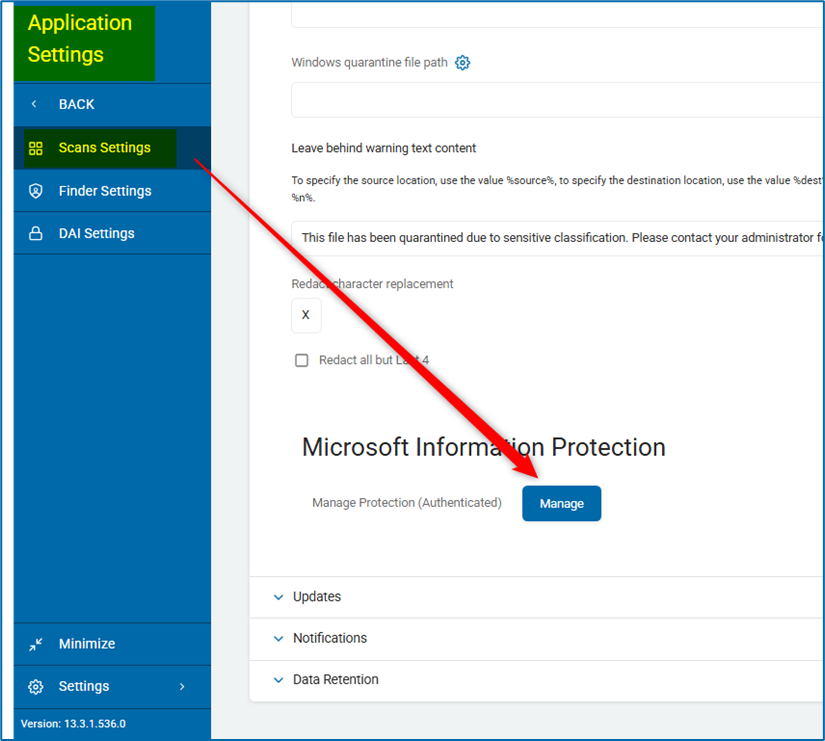
- Navigate to Application Settings > Scan Settings.
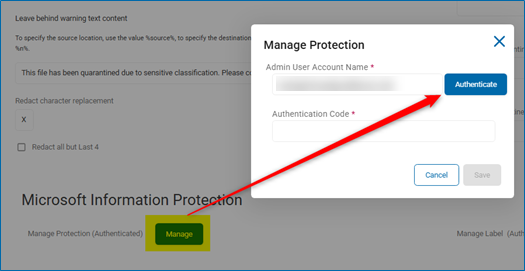
- Click the blue Manage button under Microsoft Information Protection.
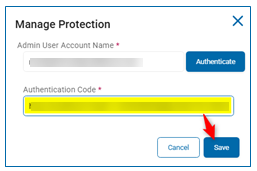
- Enter the email of the user that will be used to authenticate Purview labels on the Manage Protection pop-up.
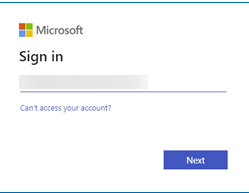
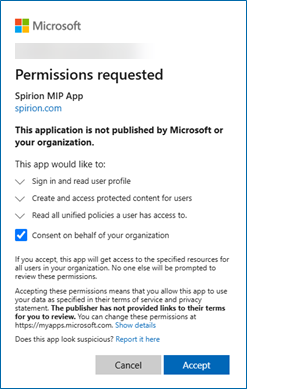
- Sign in to Microsoft and consent to the permissions requested.
- Copy the entire URL from the webpage that opens up and paste the URL in the box labeled "Authentication Code" on the Manage Protection pop-up box.
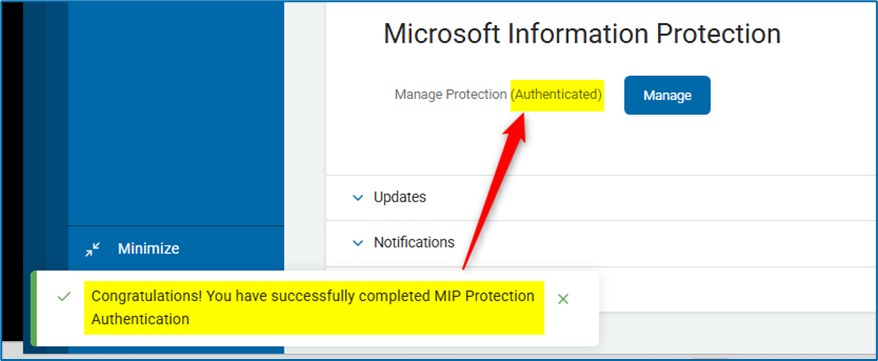
- Click Save. If successful, a green box on the bottom left appears, confirming the Authentication.
Next Article: How to Set Up Purview Labels in a Playbook and Scan
More Information
Video Demonstrations of Spirion Sensitive Data Platform and Microsoft Purview
- Spirion Sensitive Data Platform Integration with Microsoft Purview: Video Demonstration with Jeremy Fields, archTIS Director of DevOps
- Expanding Microsoft Purview Data Discovery and Classification with Spirion: Video Demonstration with Rob Server and Jonathan Turner