
How to Configure and Test Database Connection Strings
This article describes how to configure and test the database connection strings required to configure a database target in Spirion Sensitive Data Platform.
Requirements
Required Database User Account Permissions
- READ is the only permission required to search a database
- To test you can run a query to get data under the same user, if it can query data then the Spirion Client should be able to do it also using the same user credentials.
Microsoft SQL
- We recommend installing MS SQL to each of the endpoints that will search a SQL database so that the correct drivers are installed.
- To search an MS SQL database ensure you have the following:
- A SQL service account
- Windows-authenticated accounts cannot search MS SQL databases.
- You must use a SQL user account for authentication.
- The SQL service account must have READ permissions to search the database.
- In some cases, DBO permissions are required.
- To test if READ permissions are satisfactory in your instance, run a SELECT query under the SQL service account.
- If the SQL service account successfully returns data, WRITE permissions are enough and you may proceed.
Oracle
- Oracle databases require the 32-bit Oracle Data Access Components (ODAC),
- Oracle SQL Developer or Oracle Instant Client be installed on the endpoint(s) searching the databases.
MySQL
MySQL databases require the 32bit MySQL C API version 3.23.x or higher to be installed on the endpoint(s) searching the databases.
- Windows does not add the path for libmysql.dll to the PATH environment variable by default.
- Search for the 32-bit libmysql.dll and copy its path to the 'Path' system variable. After pasting in the path to the DLL, the Endpoint for Windows must be closed and reopened (if already open).
- There is an UNDOCUMENTED requirement for the 32-bit Connector/C 6.1.11 libmysql.dll driver to have vcruntime140.dll available. This is part of the Microsoft Visual C++ 2015 Redistributable Update 3 RC x86 package (available here).
How to Configure and Test the Database Connection Strings
To configure and test the database connection strings we recommend using the GUI built into the Spirion Agent.
Use the endpoint (or a Discovery Team member) that will run the actual search to confirm connectivity from that endpoint.
- Open the Windows Spirion Agent (called "Spirion") from the Start menu:

- The Spirion Agent GUI opens.
- Select the Locations tab from the top of the window.

- Select "Databases > Customize Database Settings."

- Select the Database Type from the drop-down list, such as MS SQL.

- Click the Configure button at the top right of the window.
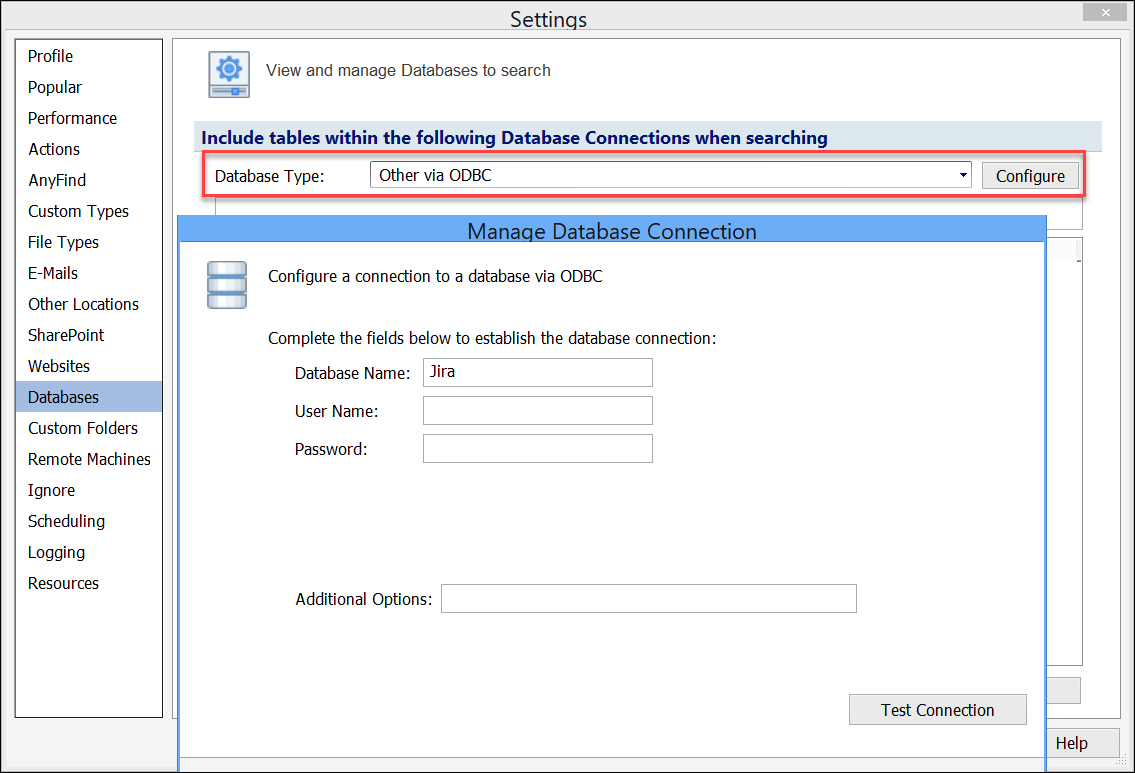
- The "Manage Database Connection" window appears. These fields vary depending on the database connection you are configuring.
Oracle database connection
ODBC database connection - Enter information into the appropriate text fields (NOTE: The User Name must be a local database user account). Specific fields vary by database type. The screenshot below uses MS SQL as an example.

- Click the Test Connection button at the bottom right corner of the dialog box.
- The Spirion "Data Link" dialog opens.
- If you see Test connection failed, review and adjust the information entered until the test succeeds.

- If you see Test connection failed, review and adjust the information entered until the test succeeds.
- Select (single left click) the line under "Connection String" in the Settings window to populate the text box above it. This is the highlighted line in the image below.
- Copy this connection string.

- Paste the copied connection string into Notepad a text editor or directly into the Scheduled Task policy you are using to search the database.
NOTE: When searching a database via a Discovery Team search initiated from the Spirion Sensitive Data Platform Console do not put the database connection string in a System Policy applied to the Discovery Team. Only put the database connection string in the Scheduled Task Policy used for the search.
How to Troubleshoot Your Database Connection
MS SQL or Others via OLE DB
To determine if the user you are using to connect to the database is valid then you can perform the following on the machine that is running the endpoint/Client that is performing the search.
- Create an empty text file
- Rename the text file to use a “.UDL” file extension instead of “.txt”
- For example, "mytextfile.udl"
- Double-click the file and the SQL connectivity tester opens (this is a native Microsoft Windows application).
You may also need to make some changes in SQL Server Configuration Manager (not to be confused with SQL Server Management Studio):
- Under "SQL Server Network Configuration," ensure the following are Enabled
- Named Pipes
- TCP/IP
- NOTE: These settings may also need to be enabled in "SQL Native Client <version> Configuration > Client Protocols, if you have those options.
- Lastly, set the service "SQL Server Browser" as follows:
- Enabled
- Note: The service is disabled by default
- Startup type: Automatic