
How to Bulk Assign Tags to Targets
This topic describes how to assign Tags to Targets in bulk in Spirion Sensitive Data Platform.
On the Data Assets and Targets page Spirion Sensitive Data Platform provides the ability to bulk assign Tags to Targets.
- Recall, Windows Agents v13+, and Legacy/Linux/Mac Agents can also act as Targets
- In the steps below you can see screenshots of various Targets
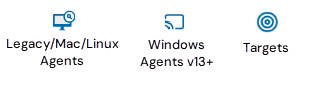
- The type of Target (Target/Windows Agent v13+/Legacy-Linux-Mac Agent) is indicated by its icon.
- In the image below, on the left: Legacy-Linux-Mac Agents, middle: Windows Agents v13+, right: Targets.
- In the image below, on the left: Legacy-Linux-Mac Agents, middle: Windows Agents v13+, right: Targets.
How to Bulk Assign Tags
Use the following steps to bulk assign Tags to Targets. In this process you first locate and select one or more Targets to apply Tags to, and then perform the operation.
- From the left side navigation menu, select Data Asset Inventory > Data Assets and Targets.
- The "Data Assets and Targets" page opens.
- From the "All Targets" list on the left side of the page, select the desired Tag.
- Each Tag contains a collection of Targets.
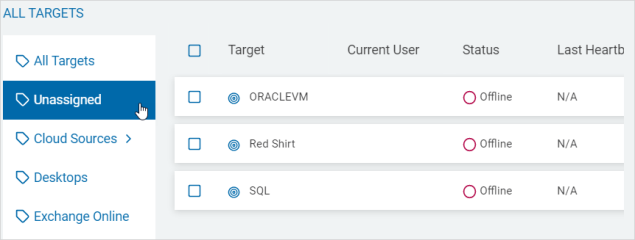
- The "Unassigned" Tag contains Targets which are not assigned to any Tag. See the image below.
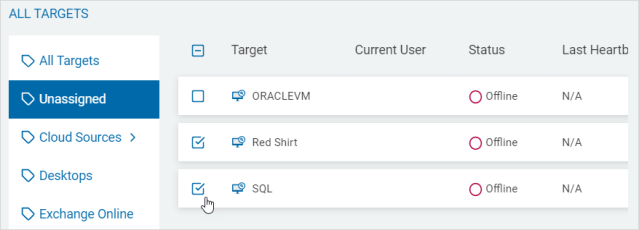
- Check the box next to each Targets to select it. Next, you will apply appropriate Tags, such as "Cloud Sources" or "Linux" to these Targets. In the image below, 2 Legacy/Mac/Linux Agent Targets are selected.
- The Bulk Actions bar (with Bulk Actions button) appears.
- Click the SHOW link to highlight the Target selections in a box.

- Click the HIDE link to clear the Target selections in a box.
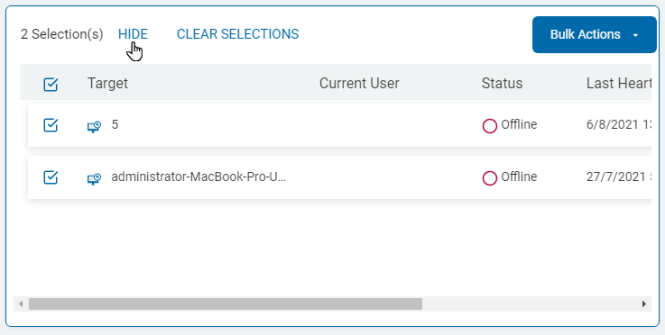
- Click the CLEAR SELECTIONS link to clear the selected Targets to bulk assign tags.
- Click the SHOW link to highlight the Target selections in a box.
- Click the blue Bulk Actions button, and from the drop-down menu click "Assign Tag."

- The Bulk Assign Tag pop-up window appears.
- Select the Tags to apply to the Targets, listed at the top of the pop-up window.
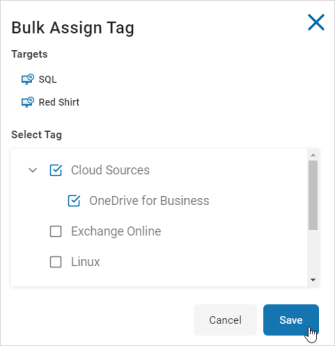
- Click the blue Save button at the bottom of the window to apply the Tags or the Cancel button to discard your changes.
- A message is displayed showing the tag(s) have been successfully applied to the Targets.

- If you select one of the Tags just applied to the Targets from the All Tags list, the newly added Targets will be shown in the table to the right.