How to Add a List of User Accounts to Scan
In Spirion Sensitive Data Platform you can upload a list of accounts to scan when creating scans of most cloud and all email source types.
The following source types enable you to scan by user account to improve scan performance and accuracy.
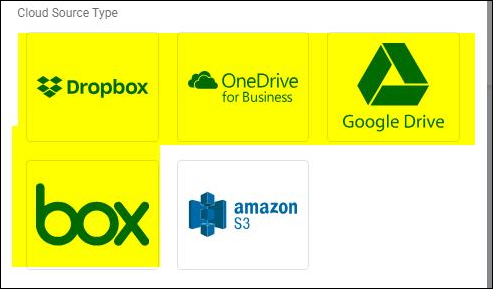
Cloud Source Type:
- Dropbox
- OneDrive for Business
- Google Drive
- box
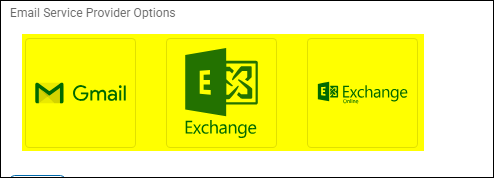
Email Service Providers:
- Gmail
- Microsoft Exchange
- Microsoft Exchange Online
*Note: When no User Accounts are specified for a target, all User Accounts will be scanned.
How to Use a List of User Accounts
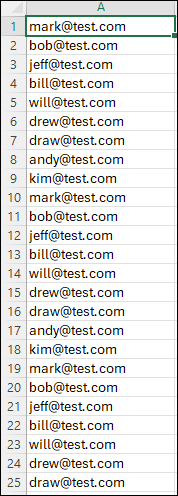
- Create your list of user accounts, one per line, in a single column using a program such as Microsoft Excel.
- Do not format the text in any way.
- Do not apply row or column titles.
- An example of this single column, in Microsoft Excel, is shown below:
- Save this as a .csv file. Name the file appropriately.
- For each Target in your scan, do the following:
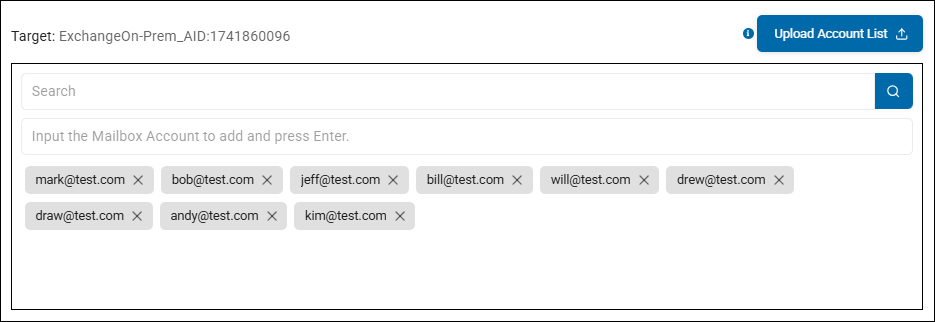
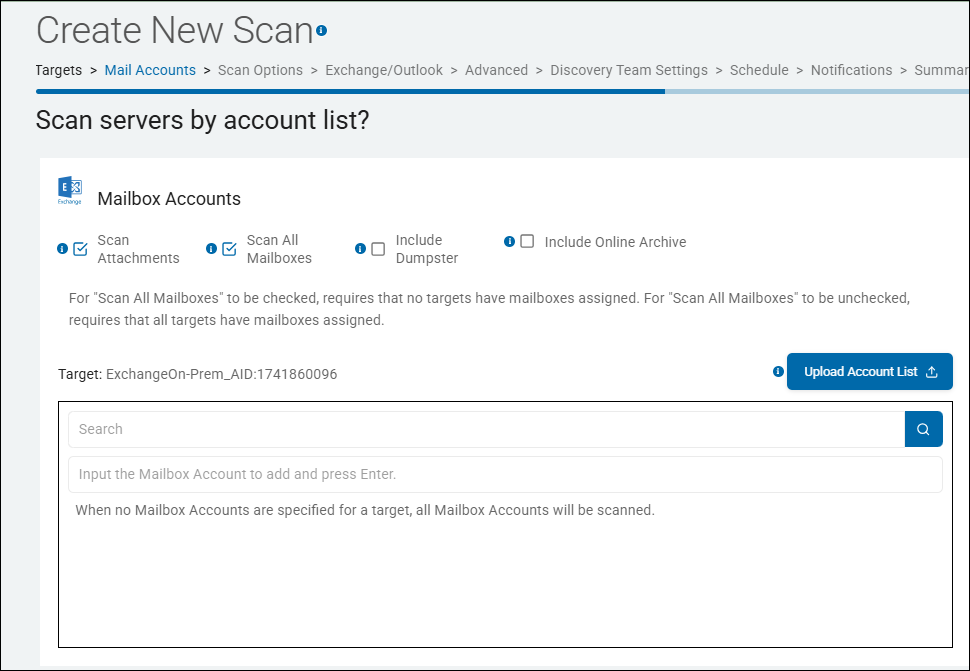
- On the proper page, such as "Scan servers by account list," (for email service providers) click the blue "Upload Account List" button
- In the dialog box that opens navigate to your CSV file and select it.
- Click the Open button at the bottom of the dialog box.
- The list of accounts is imported into Spirion Sensitive Data Platform and the first 9 accounts are shown for each Target listed on the page. See the screenshot below.
- Continue to set your scan settings and complete the scan wizard.