
Example: File Server Scan - Finance Department
In this scan example "Custom Folders" settings are used to optimize the scan of a File Server located in the environment's Finance Department.
To help clarify how Custom Folder settings work in a real-world scenario, below is a practical example of a Finance Department File Server scan.
The Scenario
You are a Security Engineer tasked with scanning a Windows File Server named FIN-SRV-01.
- The server has a 2TB D: drive.
- There is a specific folder
D:\Finance\Payrollthat is shared out to the team as\\FIN-SRV-01\Payroll. - The server uses Volume Shadow Copies for daily backups.
- The Finance team has a mapped drive (
M:) pointing to a legacy archive on a different server.
How the Settings Change the Scan
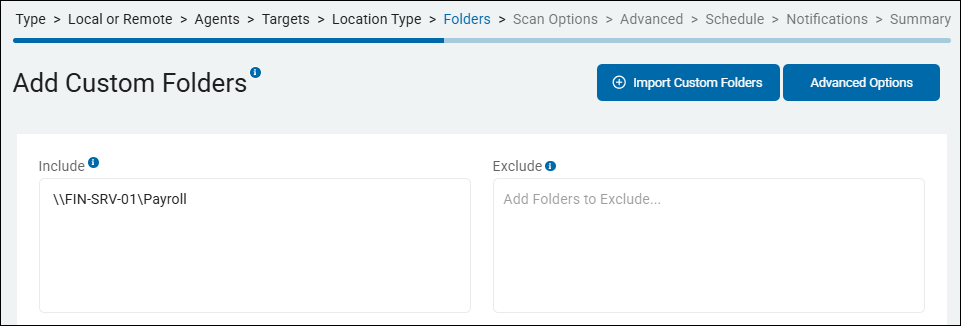
If you configure the Scan Wizard with the following settings, here is what happens:
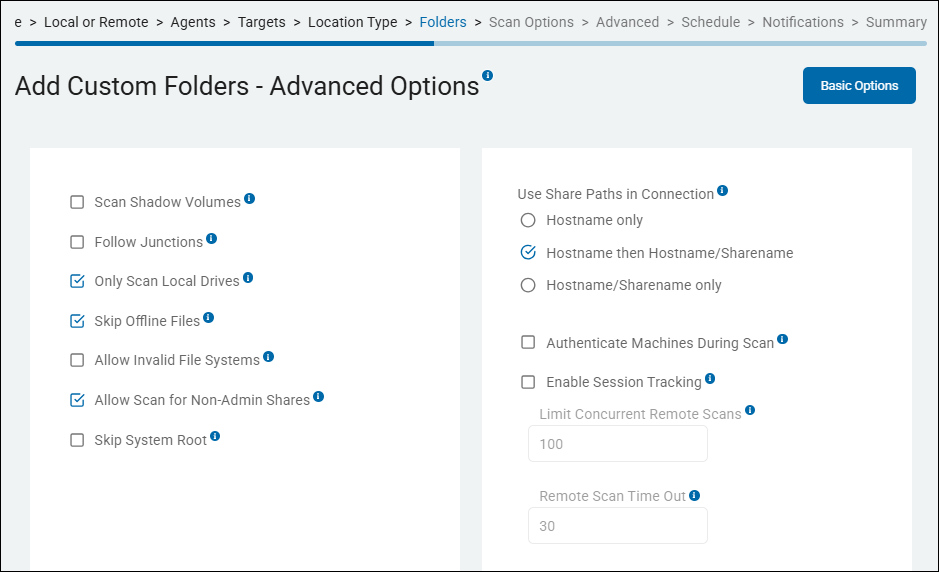
1. Include: \\FIN-SRV-01\Payroll (Basic Options page) and "Allow Scan for Non-Admin Shares" (Advanced Options page)
- The Result: Spirion connects directly to the Payroll share. It ignores the rest of the D: drive (like the
D:\System Volume InformationorD:\Usersfolders). - Why: Because you used a non-admin share name and enabled the setting, Spirion stays focused only on the data the Finance team actually uses.
2. "Only Scan Local Drives" = Enabled
- The Result: Spirion scans everything inside the
Payrollfolder on the local D: drive. However, it completely ignores theM:drive (the legacy archive). - Why: Even though the
M:drive is visible on the server, it is a "Network Map." By enabling this, you prevent the Agent from "jumping" to another server and scanning data that isn't actually onFIN-SRV-01.
3. "Scan Shadow Volumes" = Disabled
- The Result: Spirion scans the current, live versions of the payroll spreadsheets. It does not look at the snapshots from yesterday or last week.
- Why: This keeps the scan fast. If you had enabled it, and there were 10 days of snapshots, Spirion would scan the same payroll files 11 times (1 live + 10 snapshots), likely timing out the scan.
4. "Skip Offline Files" = Enabled
- The Result: If the Finance team uses OneDrive Shortcut folders inside that Payroll share, Spirion will see the file names but will not download them from the cloud to scan them.
- Why: This prevents the server's hard drive from suddenly filling up with "hydrated" cloud data during the scan.
5. "Follow Junctions" = Disabled
- The Result: If there is a shortcut folder in Payroll called
Old_Recordsthat actually points to a folder on theC:drive, Spirion will skip it. - Why: This ensures the scan stays within the boundaries of the
D:\Financepath you intended to search and doesn't accidentally start wandering into the System/OS drive.
6. Defaults
- Use the default values for the rest of the Custom Folder settings.
Summary of the "Ideal" Setup for this Example
Setting | Value | Reason |
|---|---|---|
Include Path |
| Targeted discovery. |
Non-Admin Shares | Enabled | Required to see the |
Local Drives Only | Enabled | Prevents "jumping" to other servers via mapped drives. |
Shadow Volumes | Disabled | Prevents duplicate results and massive scan times. |
Offline Files | Enabled | Prevents accidental cloud data downloads. |
Follow Junctions | Disabled | Prevents the scan from "leaking" into other drives. |