How to Edit a User
This topic describes how to edit user information, including first name, last name, email, position, location, phone, department, role, and system access (active/inactive).
Users and roles are controlled by the options available on the User Management page.
You can change any of the following user attributes:
- Required Fields - The following fields are required:
- First name
- Last name
- Username
- Role - Data Privacy Admin, Admin, General User, Activity Monitor Admin, etc.
- For more about Roles, see How to Manage User Roles
- Position in the company
- System access (active/inactive)
- Optional Fields - The following fields are optional:
- Physical Location
- Phone number
- Department - Development, Marketing, QA, etc.
To edit a user use the following steps:
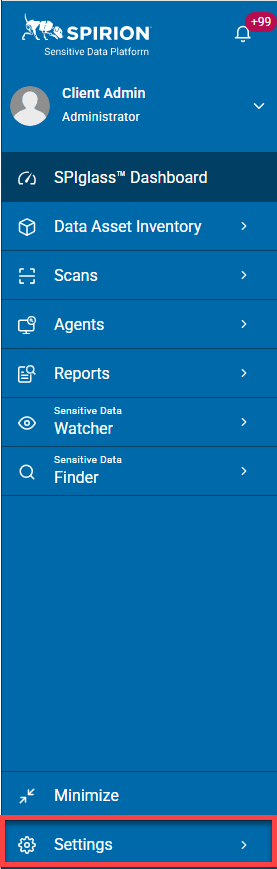
- On the left side blue navigation menu, click Settings at the bottom of the menu.
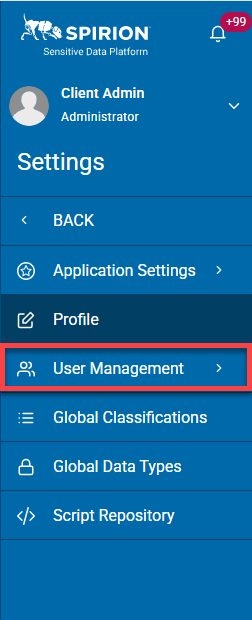
- Click User Management from the navigation menu.
- The "User Management" page opens.
- In the table shown locate the user you want to edit in the list.
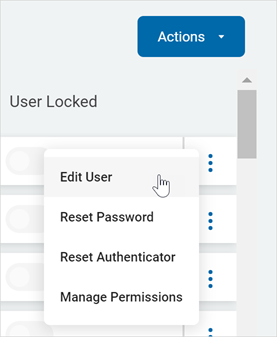
- Click the more options menu (3 vertical dots) at the end of the row.
- Click Edit User from the sub-menu that appears.
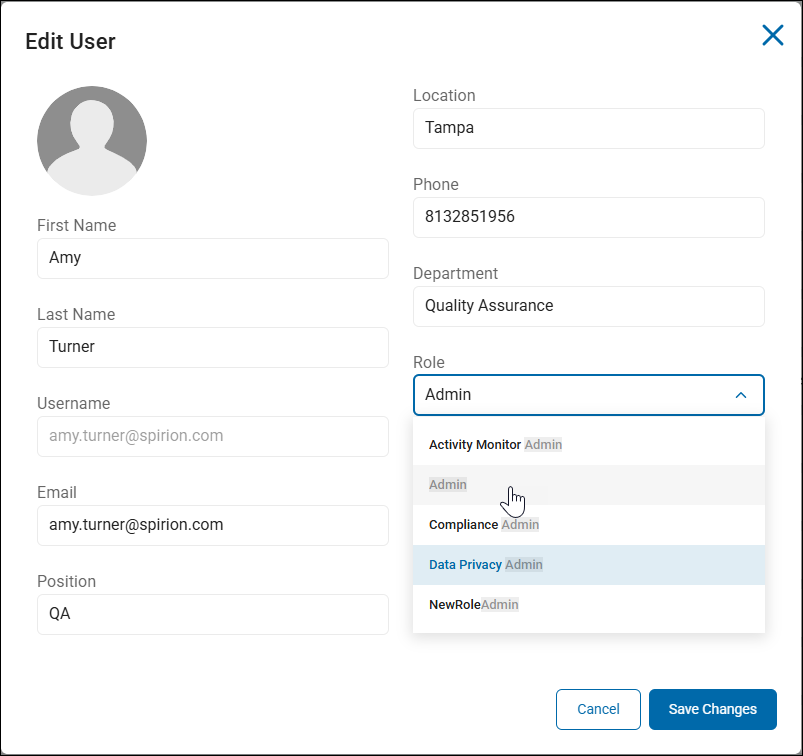
- The Edit User pop-up window appears. Make the desired changes.
- Note the "Role" field shown in this window.
- Set the role this user is a member of using the Role field drop-down menu.
- If you want to make the user a member of an Admin role enter the word "Admin" and select the appropriate role from the list that appears. See the screenshot below.
- Note: Various functions and capabilties in Spirion Sensitive Data Platform are available only to users who are members of the Admin role. For example, Global Ignore Lists are only visible and editable to users who are members of the Admin role.
Edit User window - Admin Role Members
- Click the blue Save Changes button at the bottom of the window to save your changes or the Cancel button to discard your changes.