
Spirion Sensitive Data Platform REST API for Reporting
Key Assumptions
It is assumed that the reader of this document has a basic understanding of the cURL
application, access to a BASH terminal, and familiarity with executing cURL commands.
- To take full advantage of the API functionality it helps to be comfortable writing scripts and/or coding simple apps.
- Note that the examples below use Linux bash shell commands and parameters.
- Bash can be installed into a Windows 10/11 environment using the Windows Subsystem for Linux (WSL).
See the Appendix section for links to additional resources on these concepts if you are unfamiliar with them.
Step 1: Generate Access Credentials
Generate access credentials using the following steps:
- Log into the Spirion Sensitive Data Platform Console with a user account that contains the permission “Manage, REST API.”
- If the login fails, verify the permissions of the user's role, found on the Settings > User Management page.
- The Admin role has this permission by default.
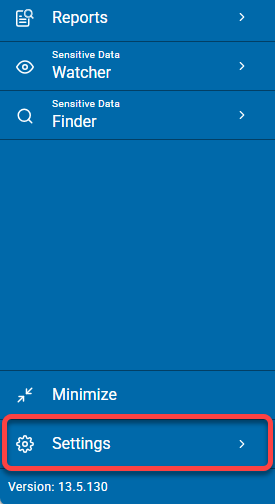
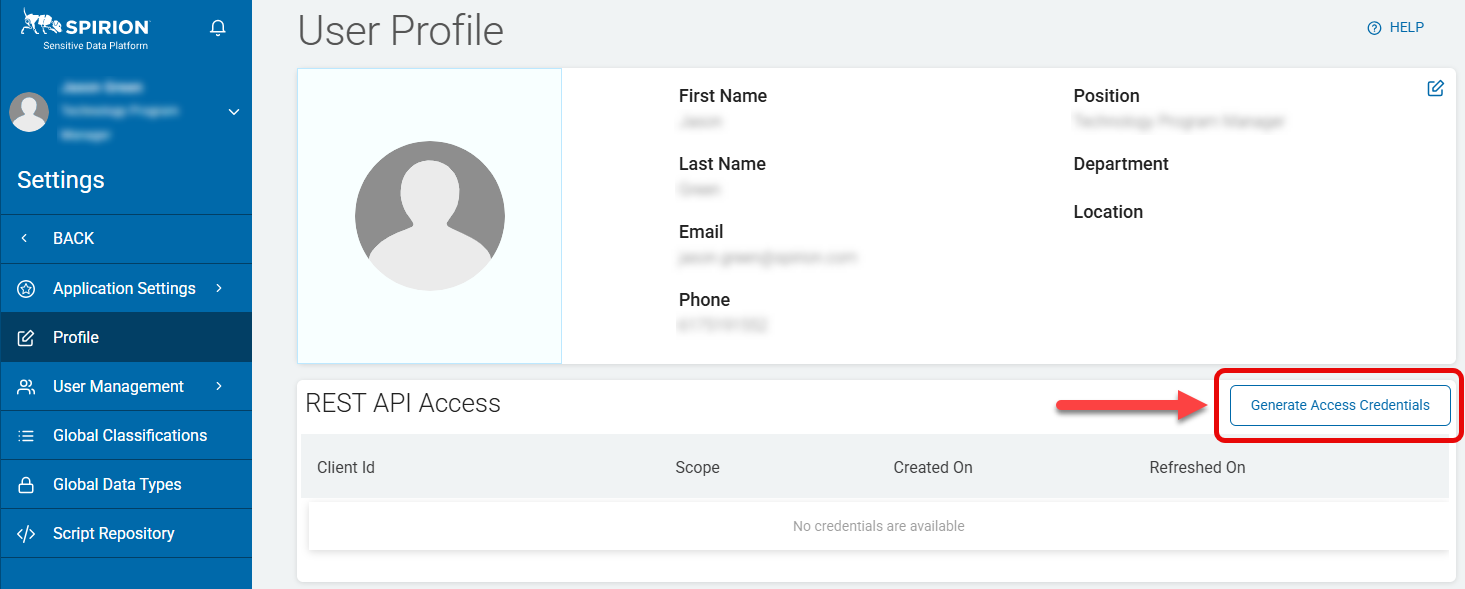
- Navigate to the User Profile page by clicking “Settings” in the left menu bar:
- Confirm that the “REST API Access” pane is displayed and click the white button Generate Access Credentials next to the section heading "REST API Access."
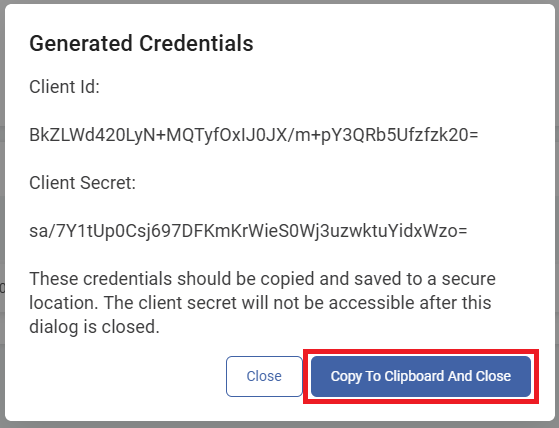
- The Generated Credentials dialog appears with both a Client Id and Client Secret.
- Click the “Copy To Clipboard And Close” button to copy the “Client ID” and “Client Secret” then paste/store somewhere for later reference, using appropriate security measures to protect this information (the credentials above are not valid).
NOTE: The Client Secret is not available for later retrieval. If you lose it and/or need to generate a fresh set of credentials, you can do so with the “Refresh” option available in the hamburger menu on the right (see screenshot above). - When the pop-up window closes the generated Client Id is displayed with some additional details.

Step 2: Generate Authentication Token
Use the following steps to generate the authentication token:
- Use the programming/scripting language of your choice to make the following call:
curl -X POST 'https://api.{env}-spirion.com/oauth2/connect/token' \ -d 'grant_type=client_credentials&client_id=<ID VALUE>&scope=reporting-rest-api&client_secret=<SECRET VALUE>'- Replace
{env}with the Sensitive Data Platform console environment name that you’re sending the call to. - Replace
<ID VALUE>with the unmodified Client Id from Step 4, in the procedure above. - Replace
<SECRET VALUE>with the unmodified Client Secret from Step 4, in the procedure above.
- Replace
NOTE: The credentials need to conform to URL encoding standards for special characters, so it will be necessary to convert the Client ID and Client Secret values before plugging them into the command above.
- The following bash command is one way to do this (replacing VALUE with the Client ID and Client Secret, one at a time, to generate a new encoded string for each):
printf %s 'VALUE' | jq -sRr @uri- Example: Below is an example of the Client ID and Client Secret before and after conversion

- Client Id: BkZLWd420LyN+MQTyfOxlJ0JX/m+pY3QRb5Ufzfzk20=printf %s 'BkZLWd420LyN+MQTyfOxlJ0JX/m+pY3QRb5Ufzfzk20=' | jq -sRr @uri
- Output: BkZLWd420LyN%2BMQTyfOxlJ0JX%2Fm%2BpY3QRb5Ufzfzk20%3D
- Client Secret: sa/7Y1tUp0Csj697DFKmKrWieS0Wj3uzwkyuYidxWzo=printf %s 'sa/7Y1tUp0Csj697DFKmKrWieS0Wj3uzwkyuYidxWzo=' | jq -sRr @uri
- Output: sa%2F7Y1tUp0Csj697DFKmKrWieS0Wj3uzwkyuYidxWzo%3D
- You may alternatively use cURL’s
data-urlencodeflag as part of the call or some other method via your preferred language/application feature to accomplish this. - Below is the same call as above, this time using cURL’s
data-urlencodeflag (note this should be entered all at once if using a CLI):
curl -X POST 'https://api.{env}-spirion.com/oauth2/connect/token' \ --data-urlencode 'grant_type=client_credentials' \ --data-urlencode 'client_id=<ID VALUE>' \ --data-urlencode 'scope=reporting-rest-api' \ --data-urlencode 'client_secret=<SECRET VALUE>'2. Confirm response:
A. Credentials entered improperly yields the response "error":"invalid_client":
B. Entered correctly, an access token is generated for API interactions.

How to Make/Test API Calls
For any given Sensitive Data Platform environment, a summary of calls is available by navigating to the Spirion Reporting REST API Swagger page:
https://api.{env}-spirion.com/reporting/swagger/index.html
Swagger offers a convenient way to test API calls.
Procedure:
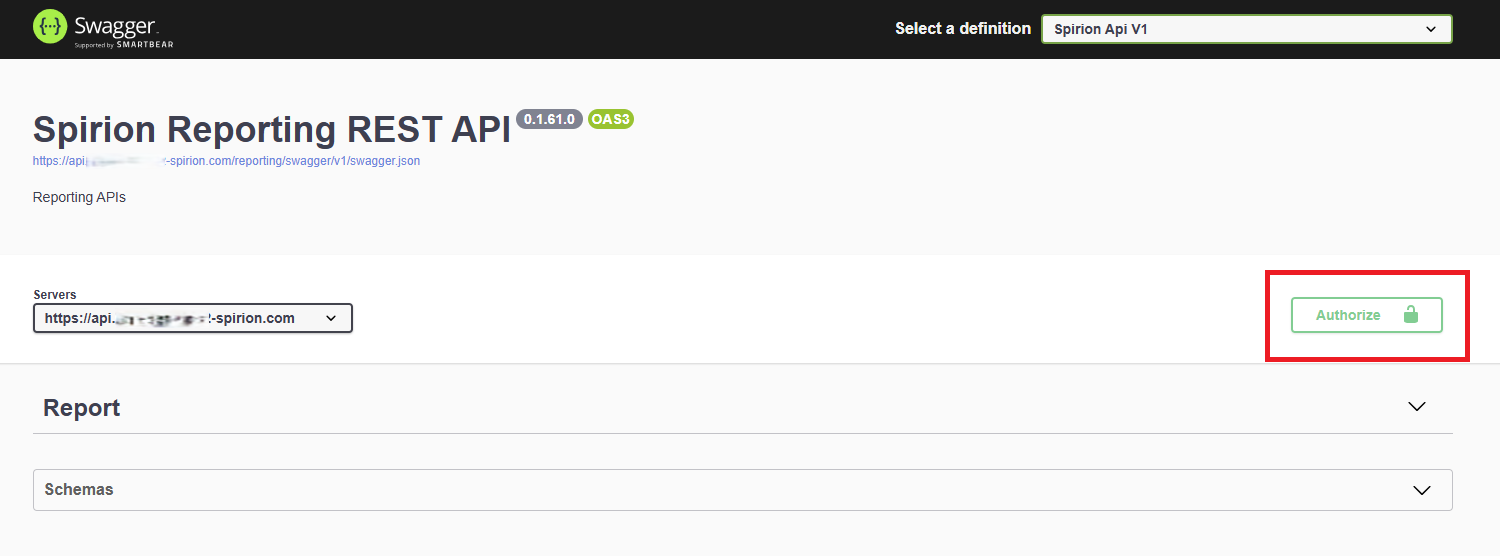
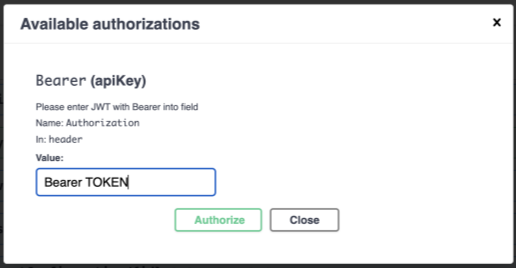
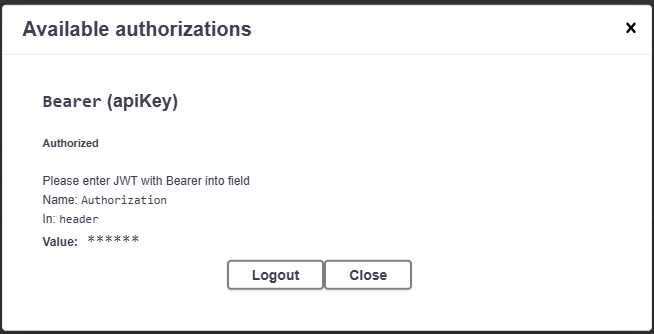
- From its UI, click the “Authorize” button and type in the word “Bearer” followed by the token generated in the previous step.
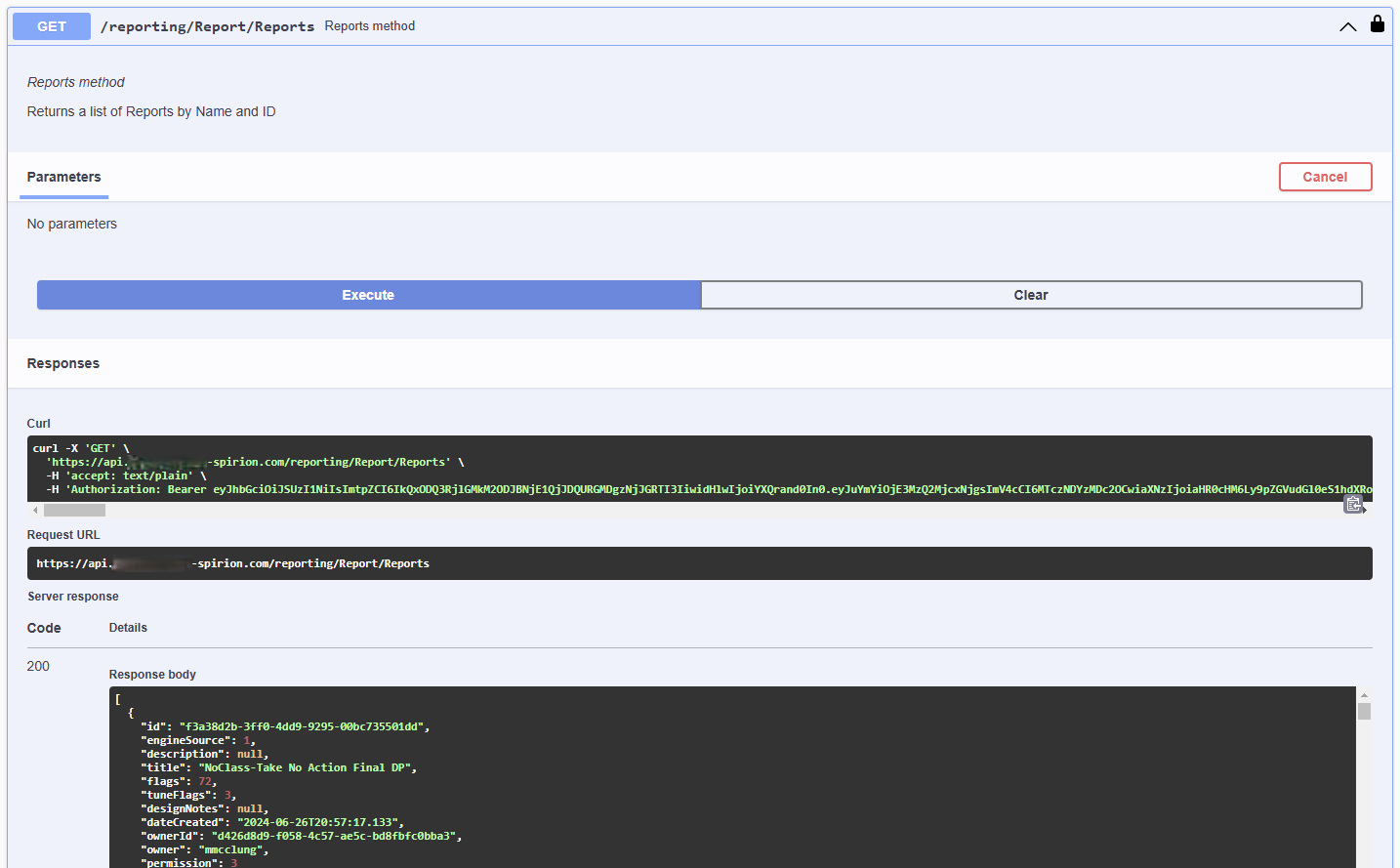
- For any given API call, click the “Try it out" button to enable input and execution.
- Below is a full example of an API call test using Swagger:
Appendix: Additional Resources
- cURL in Relation to APIs: An introduction to using cURL for API requests.
- cURL Converter: Convert the cURL commands from Swagger into other languages.
- JWT.io: Inspect the details of your API token.
- Install WSL: How to install the Linux subsystem in Windows.