How to Reset a User's Authentication
In Spirion Sensitive Data Platform (SDP), the Reset Authenticator option on the "User Management" page is used to manage Multi-Factor Authentication (MFA) for specific users.
Primary Function of the Reset Authenticator
The "Reset Authenticator" option clears the existing MFA enrollment for a user. This is typically used in the following scenarios:
- Lost Device: A user gets a new phone or loses the device that had their authenticator app (for example, Google Authenticator, Microsoft Authenticator) and can no longer generate codes.
- Locked Out: A user is unable to log in because their MFA tokens are out of sync or the app was deleted.
- Scenarios: The Reset Authenticator action is frequently used to reset the MFA for the
SpirionSupportUser. Admins use this option to enable Spirion support users to re-enroll in MFA to provide hands-on support when the account is enabled.
What Happens After Authentication is Reset?
- MFA De-enrollment: The link between the user's account and their previous authenticator app is broken.
- Re-enrollment Prompt: The next time that user attempts to log in, Spirion Sensitive Data Platform treats them as a new MFA user and presents a QR Code.
- Setup: The user scans the new QR code with their authenticator app to establish a new secure link.
Important Troubleshooting Note
- Required Fields: There is a known behavior where the "Reset Authenticator" action might fail if the user's profile is missing required fields such as First Name or Last Name.
- Specifically noted for
SpirionSupportUser, which may have empty fields by default. - If you receive an error when you click Reset Authenticator, first ensure the user's profile is filled out completely.
How to Reset a User's Authentication
Use the following steps to reset a user's authentication:
- From the left side navigation menu navigate to the User Management page (Settings > User Management).
- Locate the user for which you want to reset the MFA Authenticator.
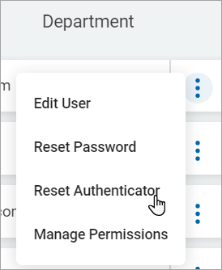
- Click the ellipse menu at the end of the row.
- Click Reset Authenticator.
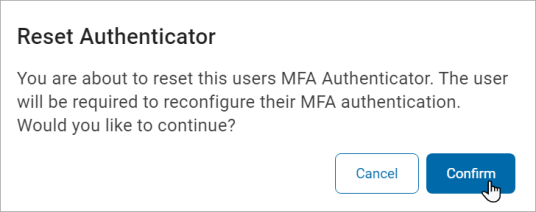
- A pop-up window displays to confirm whether to reset authenticator for the user or not.
- The user then reconfigures their multi-factor authentication (MFA).
- Click the blue Confirm button to reset the authenticator or else click the Cancel button.