How to Remove a User's Target Permissions
Use this topic learn how to remove a specific user's permissions in Spirion Sensitive Data Platform.
Use the following steps to remove a user's permissions to Targets:
- From the left side navigation menu navigate to the User Management page (Settings > User Management).
- Ensure you are on the USER ROLES tab.
- In the table shown, locate the user whose permissions you wish to remove in the list.
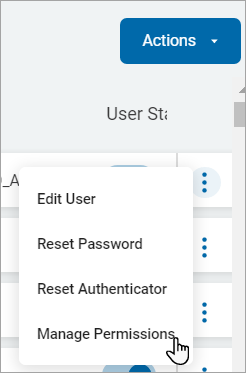
- Click the more options menu (3 vertical dots) at the end of the row.
- Click Manage Permissions from the sub-menu that appears.
- On the Manage User Permissions page, locate the target name to remove permissions for a user.
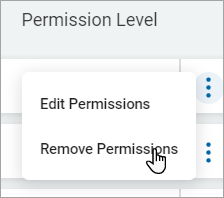
- On the far right of the row, click the more options menu.
- Click Remove Permissions from the sub-menu that appears.
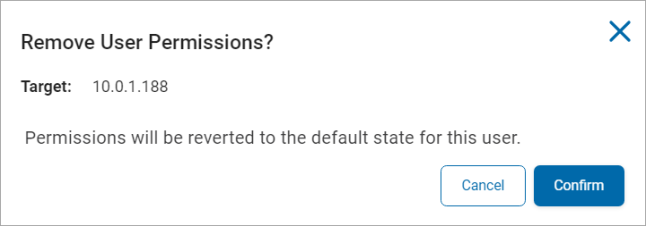
- On the Remove User Permissions pop-up window, click the blue Confirm button to revert the user permissions to its default state else click the Cancel button.