How to Edit Spirion AnyFinds™ Data Types
Use this topic to edit the way in which Spirion AnyFinds data types are used when scanning for sensitive data.
AnyFinds™ are Spirion data types which are provided by default, out-of-the box.
These include Social Security numbers, Credit Card Numbers, Passwords, Personal Addresses, etc.
To edit the way in which Spirion AnyFinds™ data types are used when scanning for sensitive data use the following steps:
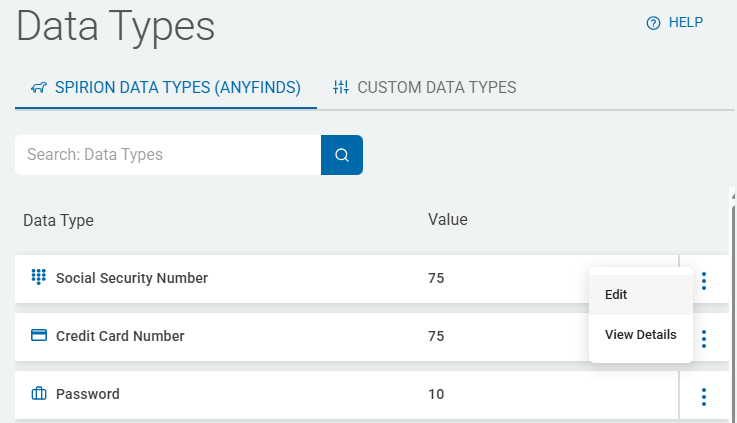
- From the left side navigation menu select Settings > Global Data Types.
- The Data Types page opens.
- Ensure you are on the SPIRION DATA TYPES (ANYFINDS) tab.
- Locate the data type you want to edit in the list.
- On the far right of the row, click the more options menu.
- Click Edit.
- In the Edit Data Type pop-up window, make the desired changes. For more information about each setting, use the tooltips provided.
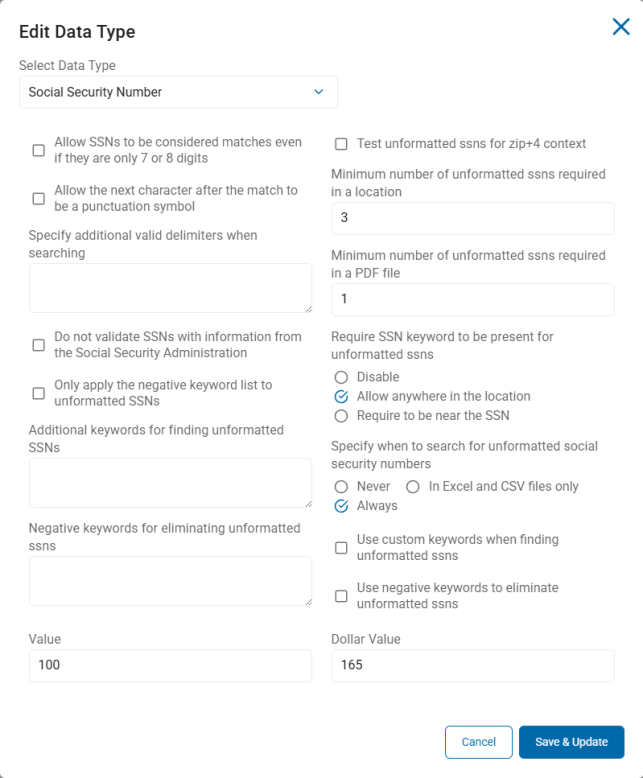
- At the bottom of the page click the blue Save & Update button to save changes or Cancel to discard.
Note: You can change to a different Spirion Data Type in the Edit Data Type pop-up window by selecting a different option from the drop-down list.